
TMEZON MZ-C8
TMEZON 4G LTE Cellular Security Camera User Manual
Model: MZ-C8
1. Introduction
This manual provides comprehensive instructions for the installation, operation, and maintenance of your TMEZON 4G LTE Cellular Security Camera. Please read this manual thoroughly before using the product to ensure proper functionality and safety.

Image: The TMEZON 4G LTE Cellular Security Camera, featuring the main camera unit with two antennas and a connected solar panel, designed for outdoor surveillance.
2. Product Components
Verify that all components are present in the package:
- TMEZON 4G LTE Cellular Security Camera (Model: MZ-C8)
- Solar Panel
- Mounting Bracket and Screws
- SIM Card (pre-installed or included separately)
- USB Charging Cable
- User Manual (this document)

Image: A close-up view of the camera's underside, showing the slots for the Nano SIM card (included) and the Micro SD card (not included, supports up to 128GB).
3. Setup and Installation
3.1 SIM Card and SD Card Insertion
- Ensure the camera is powered off.
- Locate the SIM card and Micro SD card slots on the camera body.
- Insert the provided Nano SIM card into the SIM card slot. Ensure it is correctly oriented.
- (Optional) Insert a Micro SD card (up to 128GB, not included) into the Micro SD card slot for local video storage.
- Close the protective cover securely to ensure weather resistance.
3.2 Charging the Camera
Before initial use, fully charge the camera's internal battery using the provided USB cable. Connect the USB cable to the camera's charging port and a standard 5V USB power adapter (not included). The solar panel will provide continuous charging once installed outdoors.

Image: The TMEZON camera connected to its solar panel, illustrating the non-stop solar power charging mechanism.
3.3 Mounting the Camera and Solar Panel
Choose a location with good 4G LTE signal reception and ample sunlight exposure for the solar panel. The camera is IP65 weatherproof, suitable for outdoor use.

Image: The TMEZON camera mounted on an exterior wall, demonstrating its IP65 weatherproof rating in snowy conditions.
- Attach the mounting bracket to the desired surface using the provided screws.
- Secure the camera to the mounting bracket.
- Position the solar panel to maximize sunlight exposure throughout the day.
- Connect the solar panel cable to the camera's charging port.
4. App Installation and Connection
The TMEZON camera operates via the UBox app, available for both Android and iOS devices.
- Download the UBox app from the App Store (iOS) or Google Play Store (Android).
- Register an account and log in.
- Power on the camera.
- In the UBox app, tap "Add Device" and follow the on-screen instructions to connect your camera. Ensure your smartphone has an active internet connection.

Image: The UBox app icon, used for controlling the TMEZON security camera.

Image: A smartphone screen showing the UBox app interface, with live camera feed and control options.
5. Operating the Camera
5.1 Live View and Pan/Tilt Control
Access the live feed from your camera through the UBox app. Use the on-screen controls to pan (355° horizontal) and tilt (90° vertical) the camera remotely, allowing for a comprehensive view of the monitored area.

Image: An illustration demonstrating the camera's 355-degree horizontal and 90-degree vertical rotation capabilities, controlled via the mobile app.
5.2 Two-Way Audio
The camera features a built-in microphone and speaker, enabling two-way communication. Tap the microphone icon in the app to speak, and listen through the app's speaker.

Image: A user interacting with a delivery person via the camera's two-way audio feature, visible on a smartphone screen.
5.3 Motion Detection and Alerts
The camera utilizes PIR (Passive Infrared) motion detection to identify movement. When motion is detected, you will receive instant alerts on your smartphone via the UBox app.

Image: A smartphone displaying a UBox app notification for motion detection, with a visual representation of a person being detected by the camera.
5.4 Night Vision and Spotlight
The camera provides 2K HD color night vision. In low-light conditions, the integrated spotlight can be activated to illuminate the area and deter intruders.
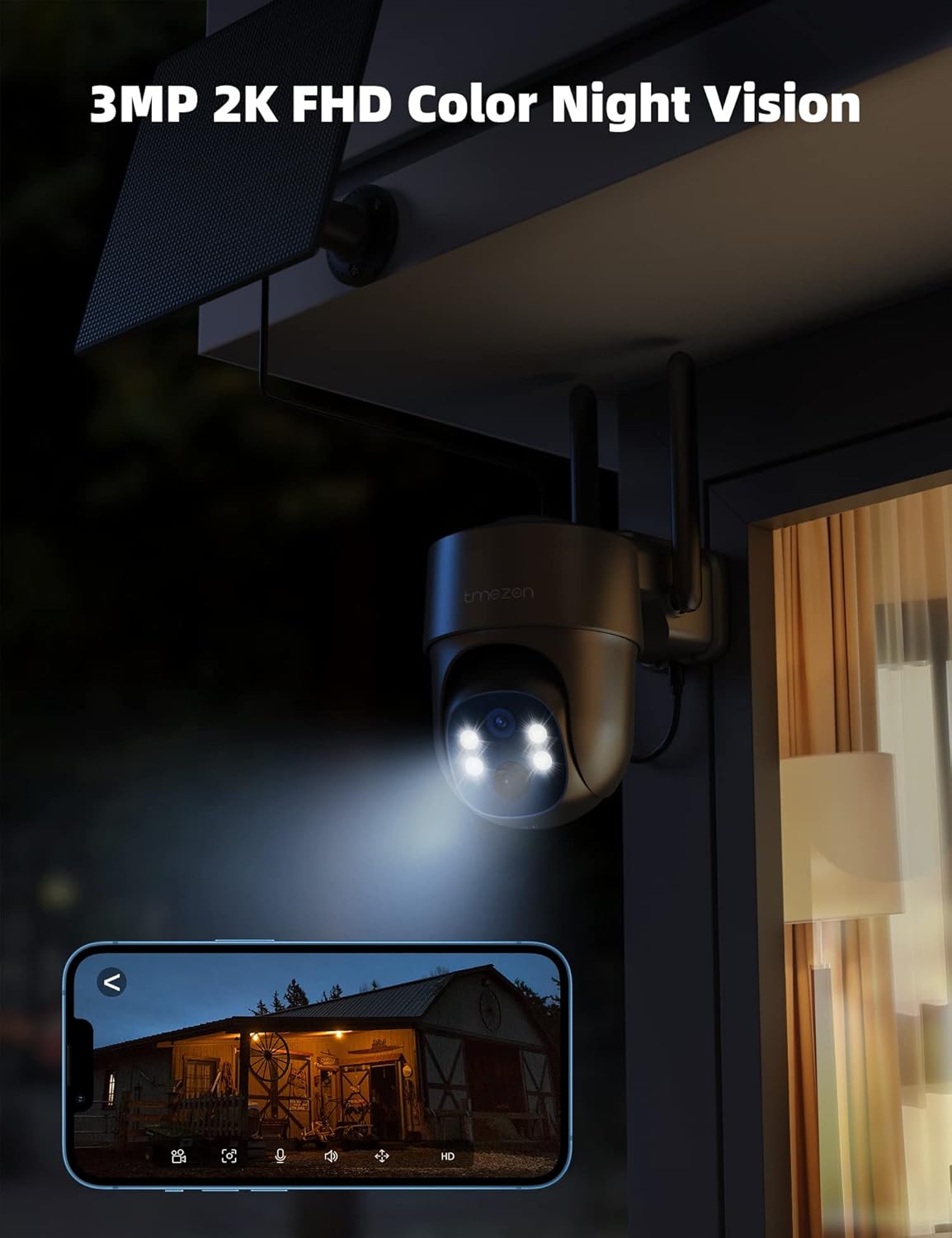
Image: The TMEZON camera operating at night, with its spotlight illuminated, providing clear 2K FHD color night vision.

Image: A split image demonstrating the difference between night vision with spotlights off and spotlights on, highlighting enhanced visibility.
5.5 Siren Alert
In addition to the spotlight, the camera can activate a siren to warn off unwanted visitors. This feature can be triggered manually via the app or automatically upon motion detection.

Image: The camera's spotlight and siren alert system in action, deterring an individual from a property at night.
5.6 Recording and Storage
The camera supports 24/7 recording and playback. Recordings can be stored locally on a Micro SD card (up to 128GB, not included) or via optional cloud storage services.

Image: The UBox app interface displaying video playback options, with icons for Micro SD card storage and cloud storage.
5.7 Scheduling Working Time
You can configure specific working times for the camera's features, such as motion detection and alerts, through the UBox app settings.

Image: The UBox app displaying settings for scheduling working times and siren alerts, allowing users to customize operational periods.
6. Media Demonstrations
6.1 4G Cellular Security Camera Overview
Video: This video provides a brief overview of the TMEZON 4G Cellular Security Camera, highlighting its key features and wire-free operation.
6.2 TMEZON 4G LTE Cellular Security Camera Features
Video: A detailed demonstration of the TMEZON 4G LTE Cellular Security Camera's functionalities, including solar power, pan/tilt, two-way talk, and motion alerts.
7. Maintenance
- Solar Panel Cleaning: Regularly clean the surface of the solar panel to ensure maximum sunlight absorption. Dust, dirt, or debris can reduce charging efficiency.
- Lens Cleaning: Gently wipe the camera lens with a soft, clean cloth to maintain clear image quality. Avoid abrasive materials.
- Firmware Updates: Check the UBox app periodically for firmware updates. Keeping the camera's firmware updated ensures optimal performance and security.
- Battery Health: While solar-powered, extreme weather conditions or prolonged periods without sunlight may affect battery levels. Monitor battery status via the app.
- SIM Card Data: Ensure your SIM card has sufficient data balance for continuous operation. Running out of data will prevent the camera from connecting to the network.
8. Troubleshooting
| Problem | Possible Cause / Solution |
|---|---|
| Camera cannot connect to the network. |
|
| No video or poor image quality. |
|
| Battery not charging. |
|
| Motion detection alerts are not received. |
|
| Cannot replace SD card while camera is running. |
|
9. Specifications
| Feature | Detail |
|---|---|
| Model Number | MZ-C8 |
| Brand | TMEZON |
| Connectivity | 4G LTE Cellular (No Wi-Fi needed) |
| Power Source | Solar Powered, 10400 mAh Battery |
| Video Resolution | 2K HD (3 MP) |
| Night Vision | Color Night Vision, Spotlight |
| Pan/Tilt Range | 355° Horizontal, 90° Vertical |
| Audio | Two-Way Talk |
| Motion Detection | PIR Motion Sensor |
| Storage Options | Micro SD Card (up to 128GB, not included), Cloud Storage (optional) |
| Weather Resistance | IP65 Weatherproof |
| Dimensions (L x W x H) | 8 x 7 x 5 inches |
| Item Weight | 2.4 pounds |
10. Warranty and Support
For warranty information and technical support, please refer to the contact details provided with your product packaging or visit the official TMEZON website. Ensure you have your product model number (MZ-C8) and purchase details ready when contacting support.
TMEZON is committed to providing high-quality products and customer satisfaction. Any item not as described or faulty will be replaced or refunded.
Related documentsMZ-C8

Ask a question about this manual
Ask about setup, troubleshooting, compatibility, parts, safety, or missing instructions. Manuals+ will review the question and use this page’s manual context to help answer it.