
1. Introduction
Thank you for choosing the White Shark GK-2022 SHINOBI Mechanical Keyboard. This compact 61-key keyboard is designed for optimal performance and durability, featuring OUTEMU Red mechanical switches and vibrant RGB backlighting. This manual provides detailed instructions for setup, operation, maintenance, and troubleshooting to ensure you get the most out of your new keyboard.
2. Package Contents
Please check the package for the following items:
- White Shark GK-2022 SHINOBI Mechanical Keyboard
- USB-A to USB-C Cable (1.8m)
- User Manual (this document)
3. Product Overview
The White Shark GK-2022 SHINOBI is a 61-key compact mechanical keyboard, ideal for users seeking a minimalist design without compromising on functionality. It features durable mechanical switches and customizable backlighting.

Figure 3.1: Top view of the White Shark GK-2022 SHINOBI keyboard, showcasing its compact 61-key layout and vibrant RGB backlighting.

Figure 3.2: Angled view of the keyboard, highlighting its ergonomic profile and keycap design.
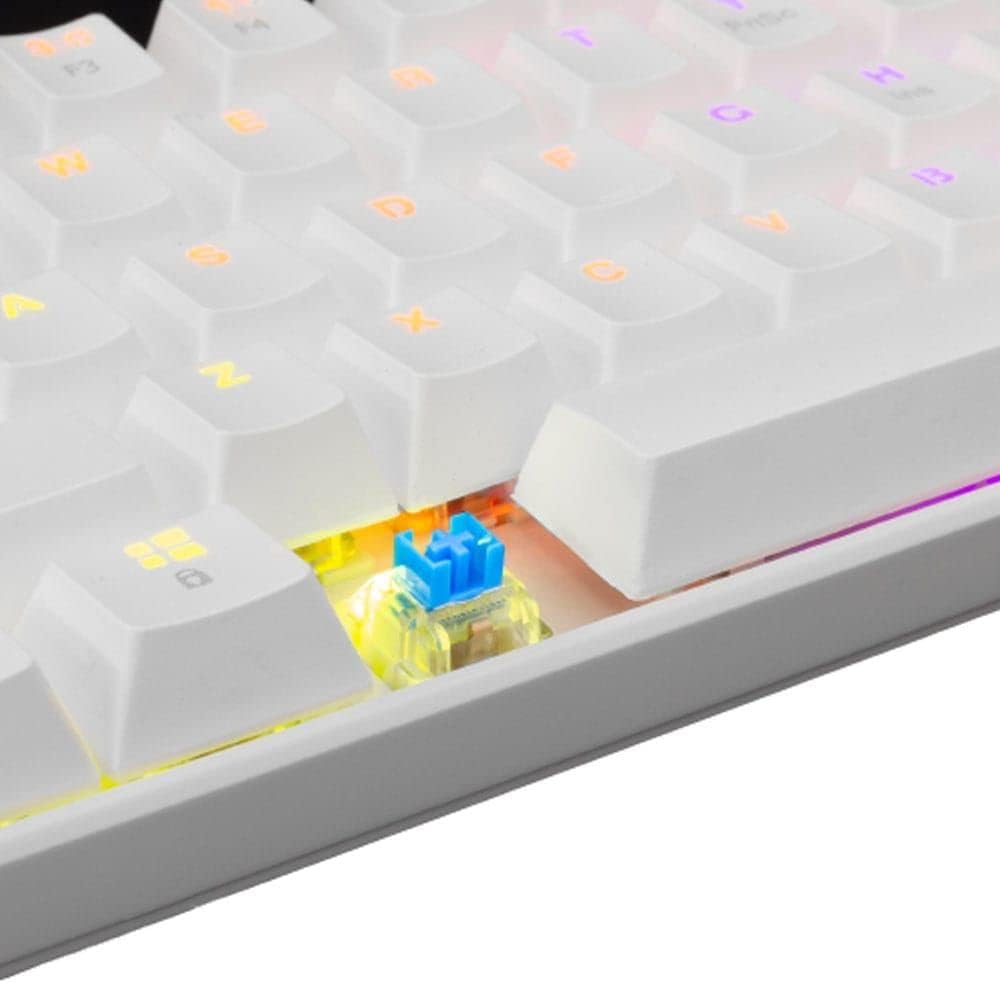
Figure 3.3: A close-up view of an OUTEMU Red mechanical switch, known for its linear and quiet operation.
4. Setup
Follow these steps to set up your White Shark GK-2022 SHINOBI keyboard:
- Unpack the keyboard and the USB cable from the box.
- Locate the USB-C port on the keyboard.
- Insert the USB-C end of the cable into the keyboard's port.
- Connect the USB-A end of the cable to an available USB 2.0 port on your computer (PC, Laptop, etc.).
- The keyboard is plug-and-play and should be automatically recognized by your operating system. No additional drivers are typically required.

Figure 4.1: Connecting the USB-C cable to the keyboard's port for power and data transmission.
5. Operating Instructions
5.1 Basic Operation
Once connected, the keyboard is ready for immediate use. Type as you would on any standard keyboard.
5.2 Function Keys and Shortcuts
Due to its compact 61-key layout, many standard functions are accessed via a combination of the Function (Fn) key and other keys. Refer to the keycaps for specific Fn layer markings.
- Fn + [Key]: Access secondary functions printed on the keycaps (e.g., F1-F12, multimedia controls, navigation keys).
- Backlighting Control: The keyboard features single-color backlighting. Use Fn key combinations to cycle through lighting modes or adjust brightness. Specific combinations are usually marked on the keys (e.g., Fn + \ for lighting modes, Fn + arrow keys for brightness/speed).
5.3 Anti-Ghosting
The GK-2022 SHINOBI supports full 61-key anti-ghosting, ensuring that every key press is registered accurately, even during rapid, simultaneous keystrokes, which is beneficial for gaming and fast typing.
6. Maintenance
Proper maintenance will extend the lifespan of your keyboard:
- Cleaning: Use a soft, dry cloth to wipe the surface of the keyboard. For deeper cleaning, you may use compressed air to remove dust and debris from between the keycaps.
- Spills: In case of liquid spills, immediately unplug the keyboard from your computer. Turn it upside down to drain any liquid and allow it to dry completely before reconnecting. Do not use a hairdryer as excessive heat can damage components.
- Storage: Store the keyboard in a cool, dry place away from direct sunlight and extreme temperatures.
7. Troubleshooting
If you encounter issues with your keyboard, try the following solutions:
- Keyboard not responding:
- Ensure the USB cable is securely connected to both the keyboard and the computer.
- Try connecting the keyboard to a different USB port on your computer.
- Restart your computer.
- Test the keyboard on another computer to determine if the issue is with the keyboard or your system.
- Keys not registering or double-typing:
- Check for any debris or foreign objects under the affected keycap.
- Ensure the keycap is properly seated on the switch.
- Backlighting not working:
- Ensure the keyboard is properly powered.
- Try cycling through the lighting modes using the Fn key combinations.
- Adjust brightness settings.
If the problem persists after trying these steps, please contact White Shark customer support.
8. Specifications
| Feature | Description |
|---|---|
| Model | GK-2022 SHINOBI |
| Brand | White Shark |
| Number of Keys | 61 |
| Switch Type | Mechanical - OUTEMU (Red) |
| Key Pressure | 60 g +/- 15 g |
| Anti-Ghosting | 61 keys (Full Anti-Ghosting) |
| Color | White |
| Interface | USB 2.0 |
| Cable Length | 1.8 meters |
| Compatible Devices | PC, Laptop, Tablet, Smartphone (via USB) |
| Recommended Uses | Gaming, Office Work, Multimedia Editing |
| Keyboard Backlighting | Single Color (RGB effects) |
| Material | Plastic |
| Item Weight | 556 g |
| Package Dimensions | 31 x 13 x 5 cm |
9. Warranty and Support
White Shark products are manufactured to the highest quality standards. For information regarding warranty coverage, technical support, or service inquiries, please refer to the warranty card included with your product or visit the official White Shark website. Please retain your proof of purchase for warranty claims.
For further assistance, you may contact White Shark customer support through their official channels.


