
Headwolf F2
Headwolf FPad2 Android Tablet User Manual
Your guide to setting up, operating, and maintaining your device.
Introduction to Your Headwolf FPad2 Tablet
The Headwolf FPad2 is an 8-inch Android 12 tablet designed for versatile use, from entertainment to productivity. It features a powerful UNISOC T310 quad-core processor, 4GB RAM, and 64GB ROM, expandable up to 512GB with a TF card. Enjoy a vibrant HD display, dual 5MP cameras, and a long-lasting 5500mAh battery. This manual will guide you through its features and functionalities.

Image: Front and back view of the Headwolf FPad2 Android Tablet.
What's in the Box
Upon unboxing your Headwolf FPad2 tablet, you should find the following items:
- Headwolf FPad2 Android Tablet
- Power Adapter
- USB-C to USB-A Charging Cable
- User Guide
- SIM Ejection Tool

Image: Headwolf FPad2 Tablet alongside its power adapter, USB-C cable, and user guide.
Official Product Overview Video
Video: An official overview of the Headwolf FPad2 Tablet, highlighting its features and design.
Physical Overview
Familiarize yourself with the physical components of your Headwolf FPad2 tablet:
- Display: 8-inch HD IPS screen (1280x800 pixels).
- Front Camera: 5MP, located at the top bezel.
- Rear Camera: 5MP, with LED flash, located on the back.
- Buttons: Power button, Volume Up/Down buttons (typically on the right side).
- Ports: USB-C port for charging and data transfer, 3.5mm headphone jack.
- Card Slot: Combined SIM/TF card slot for mobile data and storage expansion.
- Speakers: Located at the bottom edge.

Image: A hand holding the Headwolf FPad2 Tablet, highlighting its display and camera placement.

Image: The Headwolf FPad2 Tablet displaying its 2.4G+5G WiFi, Bluetooth 5.0, Type-C, and 3.5mm audio interface capabilities.
Setup
Initial Power On
Press and hold the Power button on the right side of the tablet until the Headwolf logo appears. Follow the on-screen prompts to select your language, region, and agree to the terms and conditions.
Connecting to Wi-Fi
During the initial setup, you will be prompted to connect to a Wi-Fi network. Select your desired network from the list, enter the password if required, and tap 'Connect'. The tablet supports both 2.4G and 5G dual-band Wi-Fi.
SIM Card Insertion (Optional)
The tablet supports a SIM card for mobile data. Use the provided SIM ejection tool to open the SIM/TF card tray. Insert your SIM card into the designated slot. Note that mobile data performance, especially in the US, may be limited to slower speeds (e.g., Edge) depending on your carrier's band compatibility with the tablet. Call quality over SIM may also be suboptimal.
Face Unlock Setup
To set up Face Unlock, navigate to Settings > Security > Face Unlock. Follow the on-screen instructions to register your face. Ensure good lighting and proper positioning for accurate recognition. Some users may experience challenges with face recognition due to camera placement or software limitations.
Operating Your Tablet
Android 12 Operating System
The Headwolf FPad2 runs on Android 12, offering a refreshed user interface, improved privacy controls, and optimized performance. Navigate using gestures or the traditional navigation bar. Swipe down from the top for quick settings and notifications.
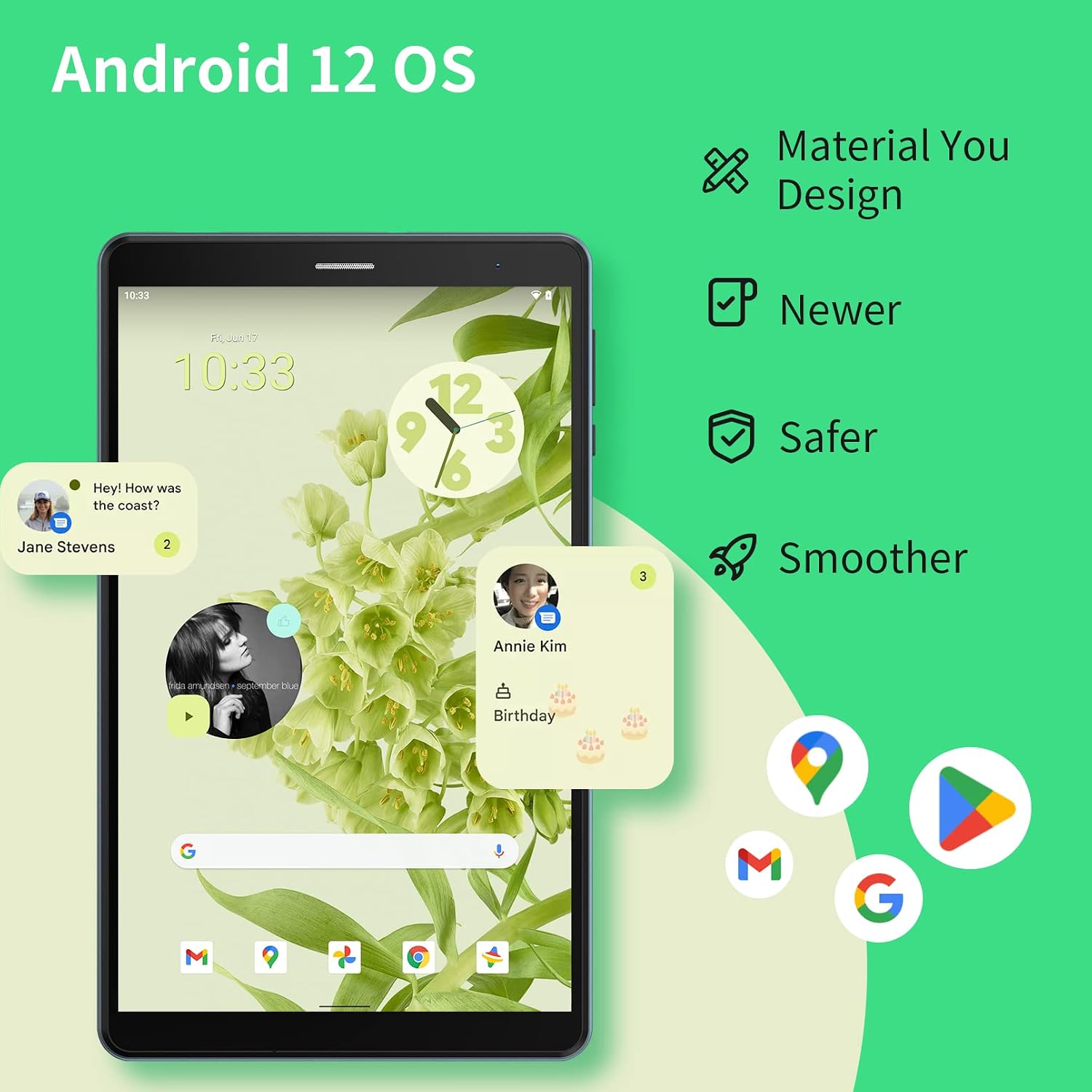
Image: The Headwolf FPad2 Tablet displaying the Android 12 operating system interface with its Material You design elements.
Media Consumption
The 8-inch HD IPS display is suitable for media consumption. However, due to Widevine L3 certification, streaming services like Netflix may cap video quality at 480p. YouTube videos can typically be viewed at higher resolutions. The bottom-firing speakers provide decent volume, though stereo separation is limited.
Gaming Performance
The UNISOC T310 processor handles light 3D games like Roblox with acceptable frame rates. However, more demanding 3D games or those not optimized for lower-end hardware may experience lag, freezing, or crashes. For optimal gaming, consider games with less intensive graphics requirements.
Kids Space
The tablet includes a dedicated Kids Space feature with a vast library of educational and entertainment resources. A smart parental console allows you to manage content, screen time, and application access, ensuring a safe environment for children.

Image: A child interacting with the Headwolf FPad2 Tablet, showcasing the Kids Space feature.
Maintenance
Battery Life and Charging
The tablet is equipped with a 5500mAh battery, providing approximately 8 hours of continuous use or 8.5 hours of local video playback. Charge the tablet using the provided USB-C cable and power adapter. Note that the tablet does not support fast charging.

Image: Visual representation of the Headwolf FPad2 Tablet's 5500mAh battery capacity and Type-C charging port.
Storage Expansion
The tablet comes with 64GB of internal storage, which can be expanded up to 512GB using a TF (microSD) card (not included). Insert the TF card into the dedicated slot in the SIM/TF card tray. Ensure the card is properly formatted if issues arise.
Software Updates
To ensure optimal performance and security, regularly check for system updates. Go to Settings > System > System update to check for and install any available updates.
Troubleshooting
Slow Internet/Mobile Data
If you experience slow internet speeds on mobile data, it may be due to carrier compatibility or network limitations in your region. The tablet's 4G LTE support might be limited to specific bands, resulting in slower speeds like Edge in some areas. For Wi-Fi, ensure you are connected to a strong signal and try restarting your router.
Poor Call Quality
Some users have reported poor call quality when using a SIM card with the tablet, particularly difficulty hearing the other party. This could be due to network conditions or the tablet's speaker/microphone configuration for voice calls. Consider using a headset for better call clarity.
App Freezing/Crashing
If applications frequently freeze or crash, try the following:
- Clear the app's cache and data (Settings > Apps > [App Name] > Storage > Clear Cache/Clear Data).
- Uninstall and reinstall the app.
- Ensure the tablet's software is up to date.
- If using an SD card, ensure it is not corrupted, as this can cause system instability.
Tablet Not Booting / Brick Issues
If the tablet fails to boot or becomes unresponsive, try a factory reset. Note that a factory reset will erase all data on the device. If the issue persists, it may indicate a hardware problem.
Specifications
| Feature | Detail |
|---|---|
| Brand | Headwolf |
| Model Name | F2 |
| Screen Size | 8 Inches |
| Screen Resolution | 1280 x 800 Pixels |
| Operating System | Android 12 |
| Processor | UNISOC T310 |
| RAM | 4GB |
| Internal Storage | 64GB |
| Expandable Storage | Up to 512GB (TF Card) |
| Rear Webcam Resolution | 5 MP |
| Front Webcam Resolution | 5 MP |
| Battery Capacity | 5500mAh |
| Average Battery Life | 8 Hours |
| Wireless Type | 802.11ax (2.4G & 5G WiFi) |
| Bluetooth | 5.0 |
| Item Weight | 13.1 ounces |
| Dimensions (LxWxH) | 8.31 x 0.38 x 4.97 inches |
Warranty and Support
For warranty information and customer support, please refer to the official Headwolf website or the documentation included with your product. It is recommended to register your product to receive updates and support.
For further assistance, you may visit the Headwolf Store on Amazon.
Ask a question about this manual
Ask about setup, troubleshooting, compatibility, parts, safety, or missing instructions. Manuals+ will review the question and use this page’s manual context to help answer it.