
1. Introduction
This manual provides comprehensive instructions for the MEDION P85289 Internet Radio with DAB+. It features a 2.8-inch color TFT display, access to over 25,000 internet radio stations and podcasts, DAB+/FM tuner with 40 presets, and supports Amazon Music and Spotify Connect. Connectivity options include WLAN, Bluetooth, USB, AUX-in, headphone jack, and stereo line-out. The radio also includes an equalizer, alarm clock with dual alarms, snooze, and sleep timer functions. Control is available via the device or a free smartphone application.
2. Setup
2.1 Unpacking and Initial Inspection
Carefully remove all components from the packaging. Ensure all items listed in the package contents are present and undamaged. Keep the packaging for future transport or storage.
2.2 Connecting Power
Connect the provided power adapter to the DC IN port on the rear of the radio. Plug the adapter into a suitable wall outlet. The radio will power on or enter standby mode.
2.3 Antenna Connection
Extend the telescopic antenna on the rear of the unit for optimal DAB+ and FM radio reception.
2.4 Network Connection (WLAN)
Upon first power-on, the radio will guide you through the initial setup, including language selection and network configuration. Select your Wi-Fi network from the list and enter the password. The radio supports 2.4 GHz and 5 GHz Wi-Fi bands (IEEE 802.11 a/b/g/n).
For a wired connection, connect an Ethernet cable to the LAN port on the rear of the radio (if available on your model).
2.5 Connecting External Devices
- AUX-In: Connect external audio sources (e.g., MP3 player) using a 3.5mm audio cable to the AUX IN jack.
- Headphone Jack: Connect headphones to the 3.5mm headphone jack for private listening.
- Line Out: Connect the stereo LINE-OUT (RCA L+R) to an external amplifier or active speakers for enhanced audio output.
- USB Port: Insert a USB drive for playing back audio files.
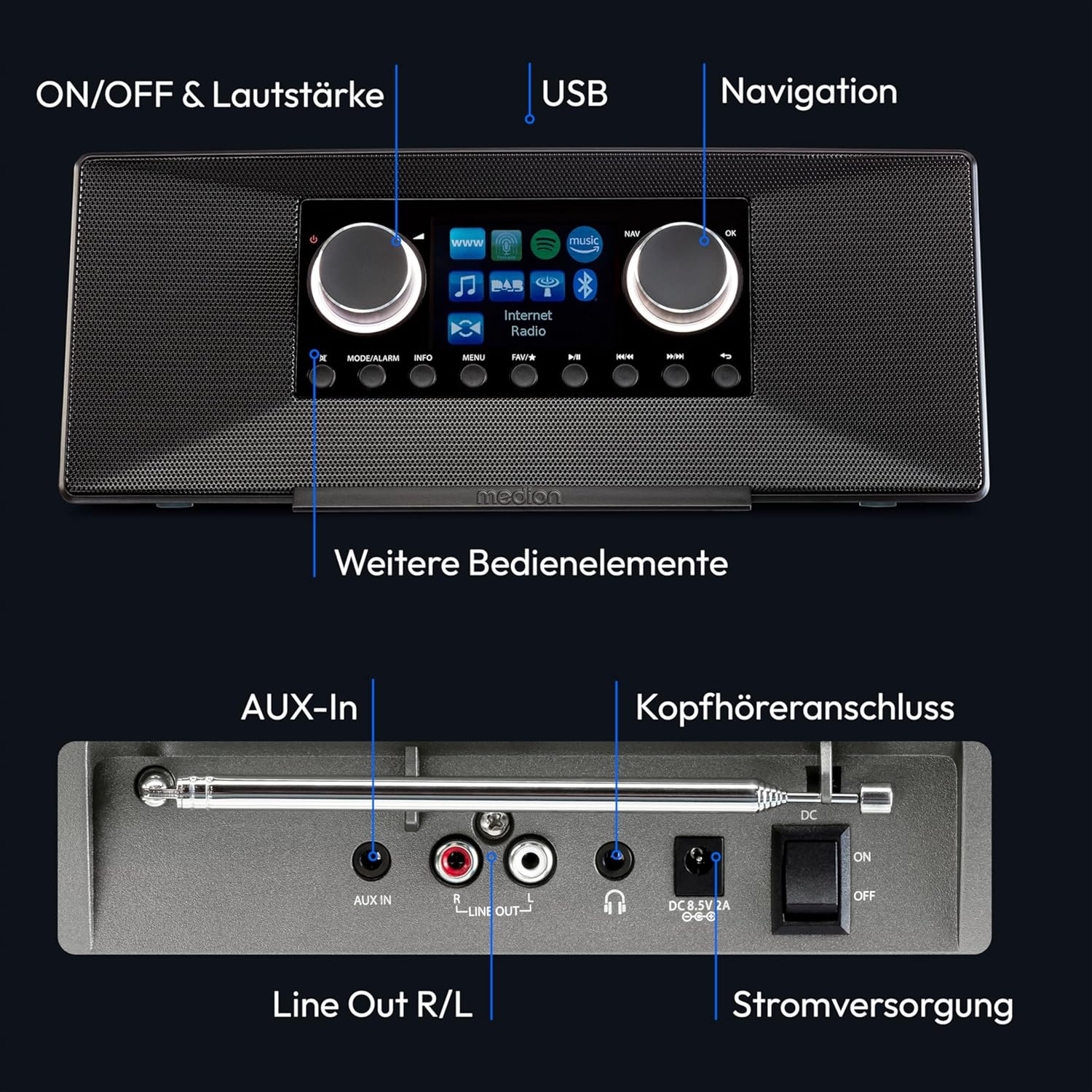
Figure 2.5: Overview of controls and connections on the MEDION P85289 Internet Radio. The front panel includes power/volume, USB port, and navigation controls. The rear panel features AUX-In, Line Out (R/L), headphone jack, and power supply input.
3. Operating Instructions
3.1 Basic Controls
- Power/Volume Knob: Press to turn the radio on/off. Rotate to adjust volume.
- Navigation Knob: Rotate to scroll through menus and lists. Press to confirm selections.
- Menu Button: Access the main menu.
- Mode Button: Switch between different operating modes (Internet Radio, DAB+, FM, Bluetooth, USB, AUX).
- Preset Buttons: Save and recall your favorite stations.
3.2 Internet Radio
Select 'Internet Radio' mode. You can browse stations by genre, location, or search for specific stations. Save frequently listened-to stations to presets for quick access.

Figure 3.2: The MEDION P85289 displaying internet radio options, including podcasts, search, countries, and discovery, against a global backdrop.
3.3 DAB+ and FM Radio
Switch to 'DAB+' or 'FM' mode. Perform an automatic station scan to find available stations. You can also manually tune. Save your preferred stations to the preset memory.

Figure 3.3: The MEDION P85289 in a living room setting, emphasizing its DAB+ digital radio reception capability.
3.4 Bluetooth Playback
Select 'Bluetooth' mode. Enable Bluetooth on your smartphone or tablet and search for 'MEDION P85289'. Pair the devices to stream audio wirelessly.
3.5 USB Playback
Insert a USB flash drive into the USB port. Select 'USB' mode. The radio will display the folder structure, allowing you to navigate and play audio files.
3.6 Streaming Services (Amazon Music, Spotify Connect)
The radio supports Amazon Music and Spotify Connect. Ensure your radio is connected to the internet. Follow the on-screen instructions or refer to the respective service's app for connection details. A premium subscription may be required for some features.

Figure 3.6: The MEDION P85289 display showing integration with Amazon Music and Spotify Connect, ready for music streaming.
3.7 Equalizer Settings
Access the equalizer settings through the menu to adjust audio profiles (e.g., Normal, Flat, Jazz, Rock, Soundtrack, Classical, Pop, News, My EQ) to your preference.
3.8 Alarm and Sleep Timer
The radio features two individually adjustable alarms. Set the alarm time, source (e.g., buzzer, radio station), and volume. The sleep timer allows you to set a duration after which the radio will automatically turn off.

Figure 3.8: The MEDION P85289 positioned on a bedside table, illustrating its utility as an alarm clock and sleep timer.
3.9 App Control
Download the free 'Medion LifeStream 2 App' or 'OKTIV SmartRadio' app from the App Store (iOS) or Google Play Store (Android) to control the radio from your smartphone or tablet. Ensure your device is connected to the same Wi-Fi network as the radio.

Figure 3.9: A smartphone displaying the OKTIV SmartRadio app, demonstrating remote control capabilities for the MEDION P85289.
4. Maintenance
4.1 Cleaning
Disconnect the radio from the power supply before cleaning. Use a soft, dry cloth to wipe the exterior surfaces. Do not use abrasive cleaners, solvents, or chemical sprays, as these can damage the finish.
4.2 Software Updates
Periodically check for software updates through the radio's system settings menu. Updates can provide new features, performance improvements, and bug fixes. Ensure a stable internet connection during updates.
5. Troubleshooting
| Problem | Possible Cause | Solution |
|---|---|---|
| No power | Power adapter not connected; power outlet faulty. | Ensure power adapter is securely connected and plugged into a working outlet. |
| No sound | Volume too low; headphones connected; incorrect audio source selected. | Increase volume. Disconnect headphones. Select the correct input mode. |
| Poor DAB+/FM reception | Antenna not extended; weak signal in area. | Fully extend the telescopic antenna. Reposition the radio for better signal. Perform a new station scan. |
| Cannot connect to Wi-Fi | Incorrect password; router issues; radio too far from router. | Verify Wi-Fi password. Restart your router. Move the radio closer to the router. |
| App control not working | Radio and smartphone on different networks; app not updated. | Ensure both devices are on the same Wi-Fi network. Update the control app. |
6. Specifications
| Feature | Detail |
|---|---|
| Model Number | P85333 (also referred to as P85289 / MD89289) |
| Display | 2.8-inch (7.1 cm) TFT color display (320 x 240 pixels), dimmable |
| Radio Reception | Internet Radio (25,000+ stations), DAB+, FM (40 presets each) |
| Connectivity | WLAN (IEEE 802.11 a/b/g/n, 2.4 GHz / 5 GHz), Bluetooth, USB, AUX-In (3.5mm), Headphone Jack (3.5mm), Stereo Line-Out (RCA L+R) |
| Audio Output | 2 x 6W RMS |
| Special Features | Spotify Connect, Amazon Music, DLNA, Equalizer, Dual Alarm, Snooze, Sleep Timer, App Control |
| Dimensions (W x H x D) | 29 cm x 11.3 cm x 14.1 cm |
| Weight | 1.2 kg |
| Power Source | Mains adapter (2 AAA batteries included for remote control) |
7. Warranty
This product comes with a 24-month warranty from the date of purchase. Please retain your proof of purchase for warranty claims. The warranty covers manufacturing defects under normal use. It does not cover damage caused by misuse, accidents, unauthorized modifications, or normal wear and tear.
8. Support
For further assistance, please refer to the official MEDION website or contact their customer support. Ensure you have your product model number (P85289 / P85333) and purchase details ready when seeking support.
You can also find helpful resources and FAQs on the MEDION support portal.


