
Introduction
This user manual provides comprehensive instructions for the setup, operation, and maintenance of your MEDION P85333 Internet Radio. Please read this manual carefully before using the device to ensure proper functionality and to maximize your listening experience. The MEDION P85333 offers a wide range of audio options, including Internet Radio, DAB+, FM, Spotify Connect, Amazon Music, USB playback, and AUX input.
Package Contents
Before proceeding with the setup, please verify that all components are present in the package:
- MEDION LIFE MD89289 P85333 Internet Radio
- Remote control with battery (2 x AAA batteries included)
- Power adapter
- User manual
- Warranty card

Image: The MEDION P85333 Internet Radio in white, accompanied by its white remote control. This image displays the main unit and its primary control accessory.
Product Overview
Familiarize yourself with the various components and connections of your Internet Radio.
Front Panel Controls and Display

Image: Front view of the MEDION P85333 Internet Radio, highlighting the display, two large rotary knobs for ON/OFF/Volume and Navigation, and various control buttons such as MODE/ALARM, INFO, MENU, FAV, and playback controls.
- Display: Shows station information, menu options, and time.
- ON/OFF & Volume Knob: Power on/off and adjust volume.
- Navigation Knob: Scroll through menus and select options.
- Control Buttons: MODE/ALARM, INFO, MENU, FAV (Favorites), and playback controls (Play/Pause, Skip).
Rear Panel Connections
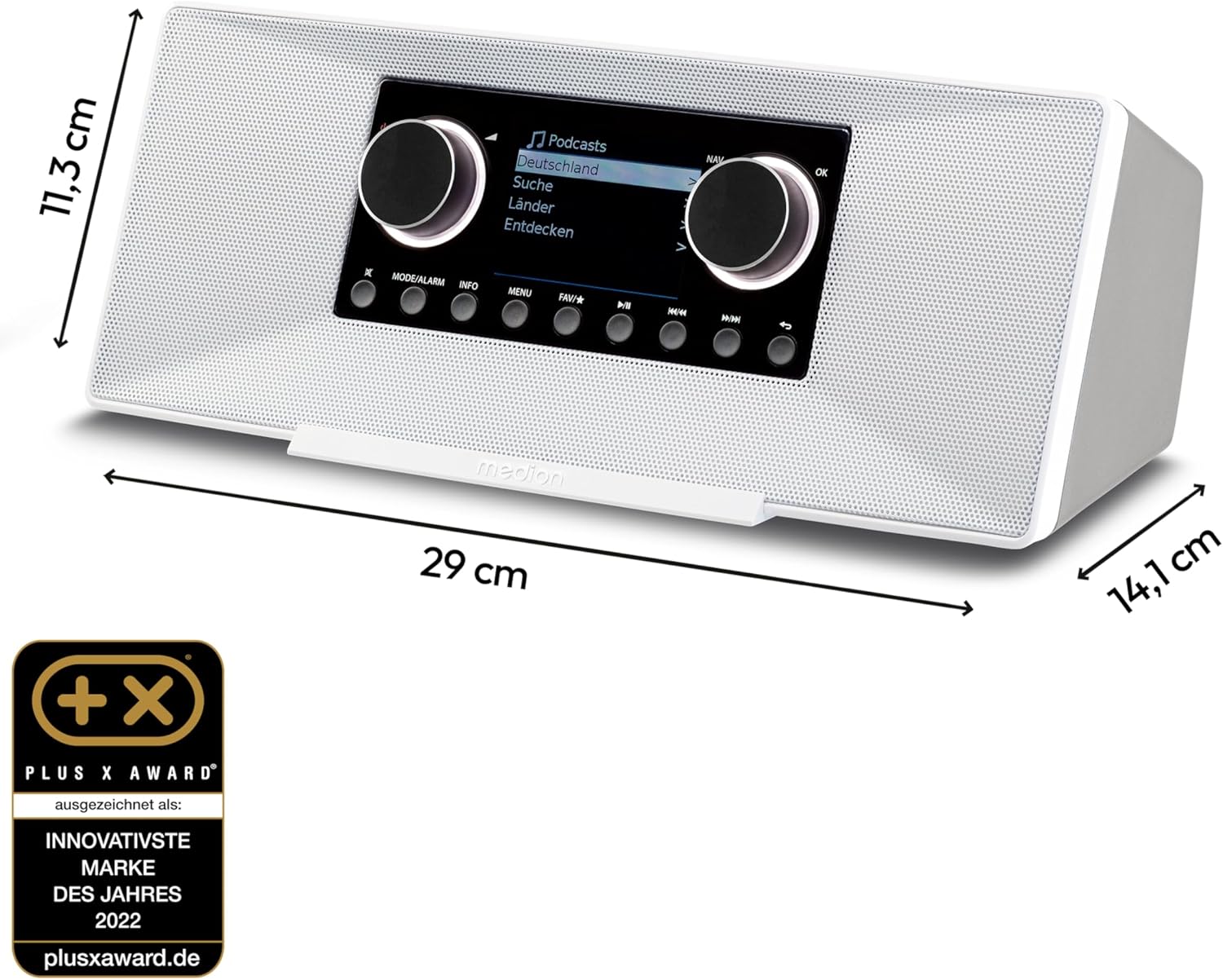
Image: Rear view of the MEDION P85333 Internet Radio, showing the various input and output ports. These include AUX-In, Line Out R/L (Cinch), Headphone jack, DC power input, and the main ON/OFF switch.
- AUX-In: For connecting external audio devices.
- Line Out R/L (Cinch): For connecting to an external amplifier or stereo system.
- Headphone Jack: For private listening.
- USB Port: For media playback from USB storage devices.
- DC Power Input: For connecting the power adapter.
- ON/OFF Switch: Main power switch.
Setup
1. Power Connection
Connect the supplied power adapter to the DC Power Input port on the rear of the radio. Plug the other end of the adapter into a wall outlet. Ensure the main ON/OFF switch on the rear is in the 'ON' position.
2. Antenna Connection
Extend the telescopic antenna fully for optimal FM and DAB+ reception. Adjust its position to improve signal strength if needed.
3. Initial Power On and Setup Wizard
Press the ON/OFF knob on the front panel to turn on the radio. The first time you power on the device, a setup wizard will guide you through initial configurations, including language selection and network setup.
4. Network Configuration (Wi-Fi)
To access Internet Radio, Spotify Connect, and Amazon Music, the device requires a Wi-Fi connection. Follow the on-screen prompts during the setup wizard or navigate to the 'Network' settings in the menu:
- Select 'Network Wizard' or 'Wi-Fi Setup'.
- The radio will scan for available Wi-Fi networks.
- Select your desired network from the list.
- Enter your Wi-Fi password using the navigation knob and 'OK' button.
- Confirm the connection. The radio will display a confirmation message once connected.

Image: The MEDION P85333 display showing options for Internet Radio stations and podcasts, indicating successful network connectivity for global content access.
Operating Instructions
1. Switching Modes
Press the MODE/ALARM button to cycle through available modes: Internet Radio, DAB+, FM, Spotify Connect, Amazon Music, USB, and AUX.
2. Internet Radio
Access over 25,000 Internet radio stations and numerous podcasts from around the world.
- In Internet Radio mode, use the Navigation knob to browse by location, genre, or search for specific stations.
- Press the Navigation knob to select a station.
- To save a station as a favorite, press the FAV button.
3. DAB+ / FM Radio
Enjoy digital radio with DAB+ for superior sound quality or traditional FM radio.
- Switch to DAB+ or FM mode using the MODE/ALARM button.
- For DAB+, the radio will automatically scan for available stations.
- For FM, you can perform an auto-scan or manually tune to frequencies.
- Use the Navigation knob to select stations from the list.

Image: The MEDION P85333 radio positioned in a modern living room, emphasizing its capability for digital radio reception via DAB+ for high-quality audio.
4. Spotify Connect & Amazon Music
Stream music directly from your Spotify or Amazon Music accounts.
- Ensure your radio is connected to Wi-Fi.
- Select Spotify Connect or Amazon Music mode.
- Follow the on-screen instructions to link your account or stream directly from the respective app on your smartphone/tablet.

Image: The MEDION P85333 radio displayed in a home environment, showcasing its compatibility with popular music streaming services like Amazon Music and Spotify Connect.
5. USB Playback
Play audio files from a USB storage device.
- Insert your USB drive into the USB port on the rear of the radio.
- Switch to USB mode.
- Browse and select your desired audio files using the Navigation knob.

Image: A diagram illustrating how to connect a USB drive to the MEDION P85333 Internet Radio for media playback.
6. AUX Input
Connect external audio sources like MP3 players or smartphones.
- Connect an audio cable (not included) from your external device's headphone jack to the AUX-In port on the radio's rear.
- Switch to AUX mode.
- Control playback from your external device.
7. Sleep Timer & Alarm Function
Set the radio to turn off automatically or wake you up with your favorite station.
- Sleep Timer: Navigate to the 'Sleep Timer' option in the menu to set a countdown for the radio to turn off.
- Alarm: Navigate to the 'Alarm' settings to configure up to two alarms, including alarm time, source (buzzer, Internet Radio, DAB+, FM), and volume.

Image: A person sleeping, with the MEDION P85333 radio on a bedside table, illustrating the convenience of its integrated sleep timer and alarm functions for a personalized audio experience.
8. App Control (OKTIV)
Control your MEDION P85333 remotely using the OKTIV app on your smartphone or tablet.
- Download the "OKTIV" app from the App Store (iOS) or Google Play Store (Android).
- Ensure your smartphone/tablet and the radio are connected to the same Wi-Fi network.
- Open the app and follow the instructions to connect to your radio.

Image: A hand holding a smartphone with the OKTIV app displayed on its screen, demonstrating the ability to control the MEDION P85333 radio conveniently via a mobile application.
Maintenance
Cleaning
To maintain the appearance and functionality of your radio:
- Always unplug the radio from the power outlet before cleaning.
- Use a soft, dry cloth to wipe the exterior surfaces.
- Do not use abrasive cleaners, waxes, or solvents as they may damage the finish.
- Avoid getting moisture into any openings.
Software Updates
Periodically check for software updates to ensure optimal performance and access to new features.
- Navigate to 'System Settings' > 'Software Update' in the radio's menu.
- If an update is available, follow the on-screen instructions to download and install it. Do not power off the device during an update.
Troubleshooting
If you encounter issues with your MEDION P85333, refer to the following common problems and their solutions:
| Problem | Possible Cause | Solution |
|---|---|---|
| No power | Power adapter not connected; Main switch off; Power outlet issue. | Ensure power adapter is securely connected. Check main ON/OFF switch on rear. Test power outlet with another device. |
| No internet connection | Incorrect Wi-Fi password; Router issue; Radio too far from router. | Re-enter Wi-Fi password. Restart your Wi-Fi router. Move the radio closer to the router. |
| Poor DAB+/FM reception | Antenna not extended; Weak signal area; Interference. | Fully extend and adjust the telescopic antenna. Try relocating the radio to an area with better signal. Avoid placing near other electronic devices. |
| No sound | Volume too low; Mute activated; Incorrect audio source selected. | Increase volume. Check if mute is active. Ensure the correct mode (Internet Radio, DAB+, etc.) is selected. |
| Remote control not working | Batteries depleted; Obstruction between remote and radio; Remote sensor blocked. | Replace batteries in the remote control. Remove any obstructions. Ensure the remote sensor on the radio is clear. |
Specifications
Key technical specifications for the MEDION P85333 Internet Radio:
- Model Number: P85333
- Brand: MEDION
- Color: White
- Connectivity Technology: USB, Wi-Fi
- Special Features: DAB+, AUX Input, USB, Spotify Connect, Amazon Music, Sleep Timer, Alarm Function
- Audio Output: 2 x 6 W RMS
- Supported Radio Bands: Internet Radio, DAB+, FM
- Power Source: Corded Electric
- Dimensions (L x W x H): 29 cm x 14.1 cm x 11.3 cm
- Compatible Devices: Tablet (for app control)
- Included Components: Internet Radio MD89289, Remote control with battery, Power adapter, User manual, Warranty card
Image: The MEDION P85333 Internet Radio with its length (29 cm), width (14.1 cm), and height (11.3 cm) clearly indicated, providing a visual reference for its physical dimensions.
Warranty and Support
Your MEDION P85333 Internet Radio comes with a manufacturer's warranty. Please refer to the included warranty card for specific terms and conditions regarding coverage and duration.
For technical support, troubleshooting assistance beyond this manual, or warranty claims, please contact MEDION customer service. Contact information can typically be found on the warranty card or the official MEDION website. MEDION is committed to providing excellent customer service and support for its products.


