1. Introduction
This manual provides detailed instructions for the installation, operation, and maintenance of your Zowill DK07G WiFi Smart Lock. This advanced smart lock offers multiple access methods and integrates with smart home systems for enhanced security and convenience.
The Zowill DK07G Smart Lock provides 7 methods of access:
- Fingerprint Recognition
- Mobile App Control (DDLock APP)
- Web Portal Access
- Custom Passcodes
- IC Fobs
- Mechanical Keys
- Voice Control (via Alexa, G2 Gateway included)
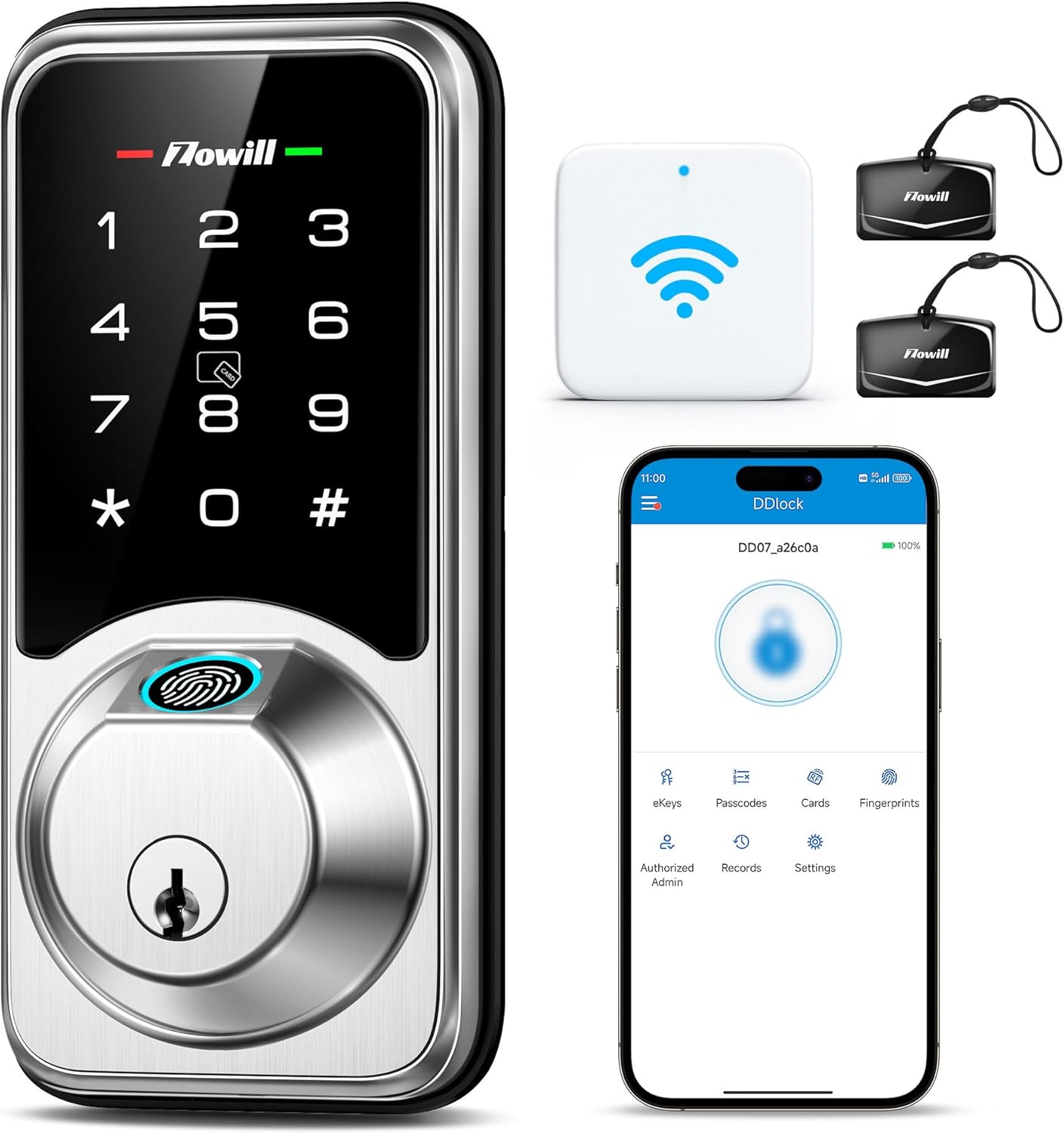
Image 1.1: Zowill DK07G Smart Lock, showing the lock unit, WiFi gateway, IC fobs, and the DDLock app interface.
2. Packing List
Verify that all components listed below are included in your package. If any items are missing or damaged, please contact customer support.
- Smart Fingerprint Deadbolt (Exterior Assembly, Interior Assembly Battery Cover)
- G2 WiFi Gateway
- 2 Mechanical Keys
- 2 IC Fobs
- Installation Instruction Manual
- Screws (Strike Screws, Latch Screws, Exterior Assembly Screw, Mounting Plate Screws, Interior Assembly Screws)
- Latch
- Strike Plate
- Mounting Plate
- Reset Tool
- Drive-In Collar
- Zowill Programming Quick Set Up Guide
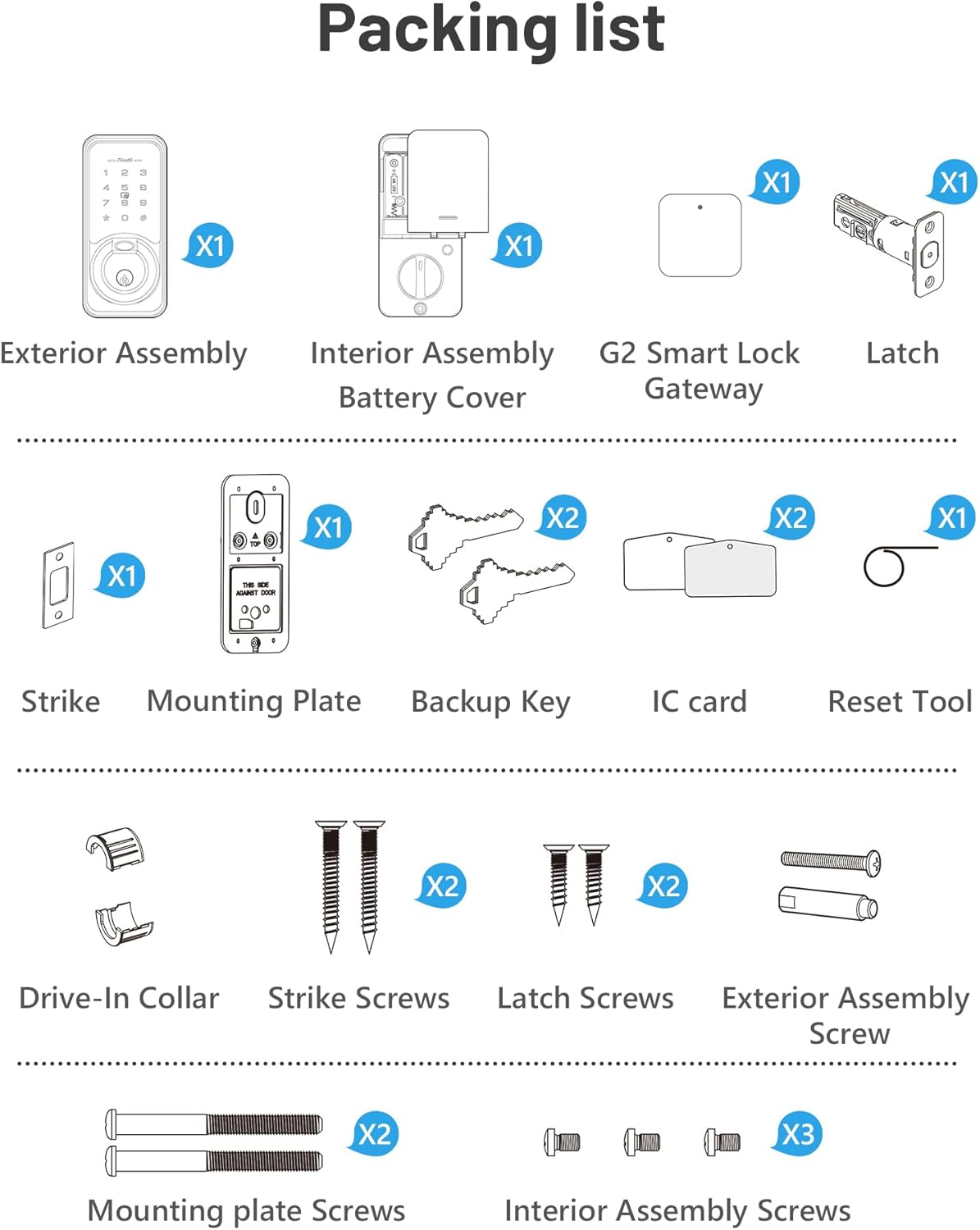
Image 2.1: Visual representation of all included components in the Zowill DK07G Smart Lock package.
3. Specifications
| Feature | Detail |
|---|---|
| Brand | Zowill |
| Model Number | DK07G (Item model number: 44750964588843) |
| Lock Type | Biometric Deadbolt |
| Material | Aluminum |
| Finish Type | Polished (Nickel-3 color) |
| Connectivity | Bluetooth, Wi-Fi (via G2 Gateway) |
| Control Methods | App, Fingerprint, Passcode, IC Fob, Mechanical Key, Voice (Alexa, Google Assistant) |
| Power Source | 4 AA Batteries (not included) |
| Item Dimensions (L x W x H) | 5 x 5 x 5 inches |
| Item Weight | 2.83 pounds |
| Compatible Door Thickness | 1.38 to 2 inches (35mm to 50mm) |
| Backset | 2-3/8 or 2-3/4 inches (60mm or 70mm) |

Image 3.1: Detailed dimensions and door compatibility for the Zowill DK07G Smart Lock.
4. Setup and Installation
The Zowill DK07G Smart Lock is designed for easy installation on standard US left and right-handed doors, typically requiring only a screwdriver. Follow the included installation guide for detailed step-by-step instructions.
4.1 Pre-Installation Checks
- Ensure your door thickness and backset measurements match the specifications in Section 3.
- Confirm all components from the packing list are present.
- Prepare 4 AA batteries (not included).
4.2 Lock Installation
Refer to the dedicated 'Installation Instruction' booklet provided in your package for detailed graphical steps. The process generally involves:
- Removing your existing deadbolt.
- Installing the new latch and strike plate.
- Mounting the exterior assembly.
- Attaching the interior mounting plate.
- Connecting the cable and installing the interior assembly.
- Inserting the 4 AA batteries and securing the battery cover.
4.3 Initial Pairing and Setup
After physical installation, proceed with the digital setup:
- Download the DDLock APP from your smartphone's app store.
- Ensure your phone's Bluetooth is enabled.
- Wake up the touchscreen keypad on the lock.
- Open the DDLock APP and follow the on-screen instructions to pair the lock. Keep your phone close to the door lock during this process.
- Important: Do not change the master code until the pairing process is complete.
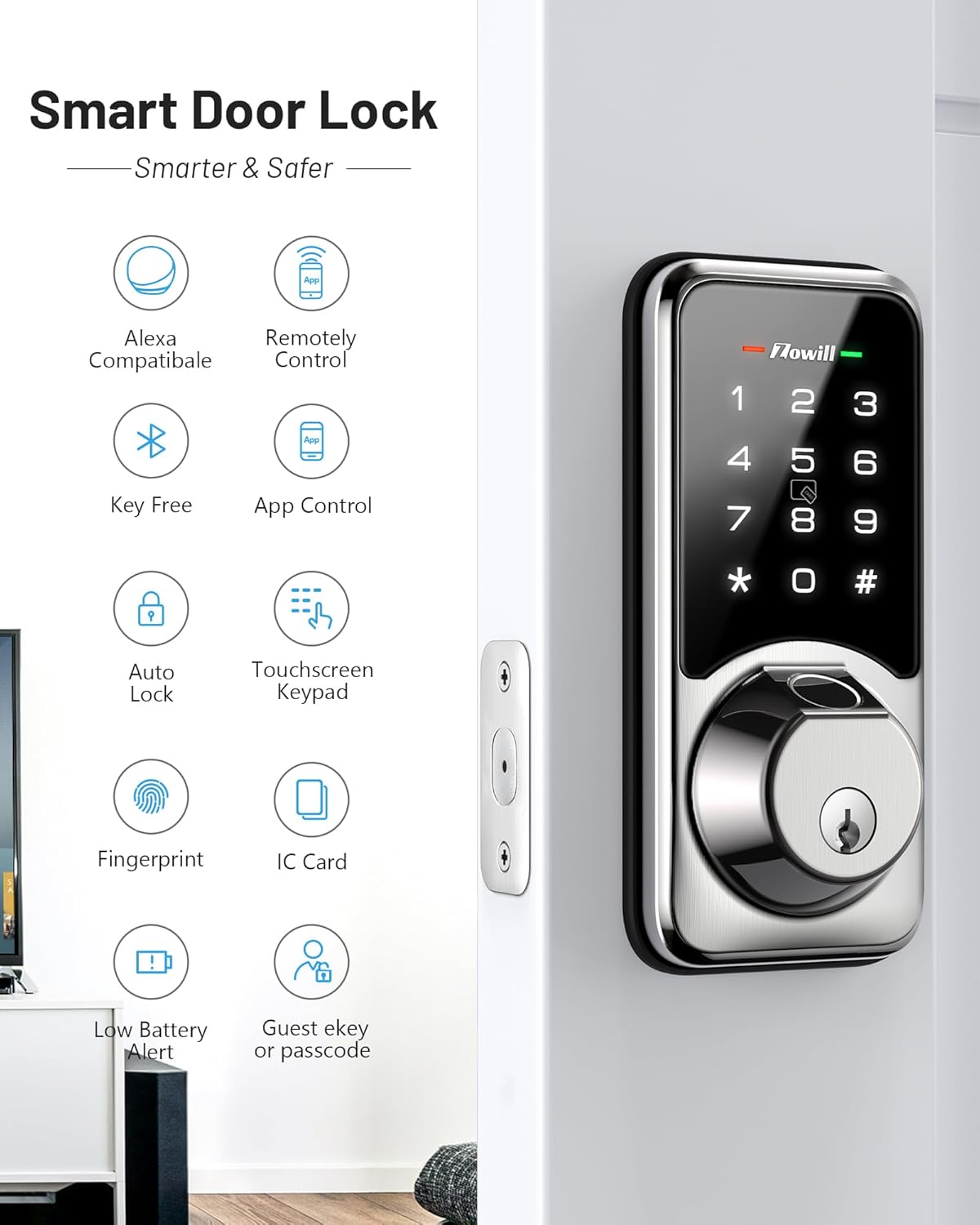
Image 4.1: Overview of smart features, indicating successful setup and readiness for operation.
5. Operating Instructions
The Zowill DK07G offers multiple convenient ways to unlock your door.
5.1 Multiple Unlocking Methods

Image 5.1: Visual guide to the various unlocking methods available with the Zowill DK07G Smart Lock.
- Fingerprint: Place your registered finger on the fingerprint sensor for quick access. The lock features a 0.3-second fingerprint unlock.
- Passcode: Enter your registered passcode on the touchscreen keypad.
- IC Fob: Tap the IC fob against the designated area on the lock.
- Mechanical Key: Use the provided physical key as a backup.
- DDLock App: Unlock remotely via the app (requires G2 Gateway for Wi-Fi control).
- Voice Control: Use voice commands with Amazon Alexa or Google Assistant (requires G2 Gateway).
5.2 App Control (DDLock APP)
The DDLock APP provides comprehensive control and management of your smart lock.
- Remote Access: Unlock or lock your door from anywhere (with G2 Gateway).
- eKey Sharing: Generate and share temporary, permanent, or recurring eKeys with guests or service providers.
- Passcode Management: Create, modify, or delete passcodes.
- Access Records: View a real-time log of who entered and when.
- Real-time Notifications: Receive alerts on your phone regarding lock status (requires G2 Gateway).

Image 5.2: Sharing access rights using the DDLock app's eKey feature.

Image 5.3: Real-time notifications from the DDLock app showing lock status.
5.3 Voice Control
Integrate your Zowill DK07G with Amazon Alexa or Google Assistant for convenient voice commands. The G2 Gateway is required for this functionality.
- Ensure your G2 Gateway is connected and configured within the DDLock app.
- Link your DDLock account to your Alexa or Google Home app.
- Use commands such as "Alexa, unlock the front door" or "Hey Google, lock the back door."

Image 5.4: Controlling the Zowill DK07G Smart Lock using voice commands with Alexa.
6. Advanced Features
6.1 Auto-Lock Function
The auto-lock feature automatically locks your door after a set period, providing peace of mind. You can customize the auto-lock delay time (1-900 seconds) via the DDLock app.

Image 6.1: Customizing the auto-lock delay time through the DDLock app.

Image 6.2: Illustration of the auto-lock and quick lock functionality.
6.2 Passage Mode
Activate Passage Mode when you want the door to remain unlocked for an extended period, such as during a party or when moving items. The lock will stay unlocked until Passage Mode is manually deactivated.

Image 6.3: The lock in Passage Mode, allowing free entry and exit.
6.3 Privacy Mode
When Privacy Mode is activated from the interior, all external access methods (fingerprint, passcode, IC fob) are temporarily disabled, providing enhanced security and privacy within your home.

Image 6.4: Activating Privacy Mode from the interior of the lock.
6.4 Silent Mode
Enable Silent Mode via the app to disable all sound prompts from the lock, ideal for quiet environments or late-night entries/exits.

Image 6.5: The lock operating in Silent Mode.
7. User Management
The Zowill DK07G Smart Lock supports a large number of users and access credentials, making it suitable for various applications.
- Up to 50 Fingerprints
- Up to 250 Passcodes
- Up to 1000 Key Fobs (2 fobs included)

Image 7.1: User capacity for fingerprints, passcodes, and key fobs.
7.1 Adding/Deleting Users
All user management, including adding or deleting fingerprints, passcodes, and IC fobs, is performed through the DDLock APP. Refer to the app's help section for specific instructions.
7.2 Timed, One-Time, and Recurring Passcodes
The DDLock app allows you to generate various types of passcodes for flexible access control:
- Timed Passcodes: Valid only for a specific duration.
- One-Time Passcodes: Valid for a single use.
- Recurring Passcodes: Valid on specific days or times (e.g., for a cleaner every Tuesday).

Image 7.2: Generating a timed passcode for temporary access.

Image 7.3: Generating a one-time passcode for single use access.

Image 7.4: Setting up a recurring passcode for scheduled access.
8. Maintenance
8.1 Battery Replacement
The Zowill DK07G Smart Lock is powered by 4 AA batteries. When the battery level is low, the lock will provide a low battery alert on its display and send an alert to the DDLock app (if connected via G2 Gateway).
- Replace all 4 AA batteries promptly when a low battery alert is indicated.
- To replace, remove the interior battery cover, insert new batteries, and replace the cover.
- Always use high-quality alkaline AA batteries for optimal performance and battery life.

Image 8.1: Low battery alerts on the lock and via the DDLock app.
8.2 Cleaning
Clean the lock's exterior with a soft, damp cloth. Avoid abrasive cleaners or solvents that could damage the finish or electronic components.
9. Troubleshooting
This section addresses common issues you might encounter with your Zowill DK07G Smart Lock.
9.1 Lock Not Responding
- Check Batteries: Ensure batteries are not depleted. Replace if necessary.
- Reset: Use the reset tool to perform a factory reset if the issue persists. Refer to the 'Zowill Programming Quick Set Up Guide' for reset instructions.
9.2 Fingerprint Not Recognized
- Ensure your finger is clean and dry.
- Try repositioning your finger on the sensor.
- Re-register your fingerprint in the DDLock app if recognition issues continue.
9.3 App Connectivity Issues
- Bluetooth: Ensure your phone's Bluetooth is on and you are within range of the lock for direct Bluetooth connection.
- Wi-Fi (G2 Gateway): Verify the G2 Gateway is powered on, connected to your home Wi-Fi, and within range of both the lock and your router. Check the DDLock app for gateway status.
- App Update: Ensure your DDLock app is updated to the latest version.
9.4 Anti-Peeping Touchscreen Keypad
The lock features an anti-peeping function. You can enter random digits before and after your actual passcode to prevent others from guessing your code.

Image 9.1: Using the anti-peeping feature with random digits.
10. Warranty and Support
Zowill stands behind the quality of its products.
- Money-Back Guarantee: Enjoy a 30-day money-back guarantee from the date of purchase.
- Product Warranty: The Zowill DK07G Smart Lock comes with a 1-year product warranty.
- Customer Support: Lifetime customer support is available to assist you with any questions or issues.
For support, please refer to the contact information provided in your product packaging or visit the official Zowill website.


