
Celly SPMEMKEYBOARD
Celly Stealth Keyboard User Manual
Model: SPMEMKEYBOARD
1. Introduction
This manual provides comprehensive instructions for the setup, operation, maintenance, and troubleshooting of your Celly Stealth Keyboard. Please read this manual carefully before using the product to ensure proper functionality and longevity.
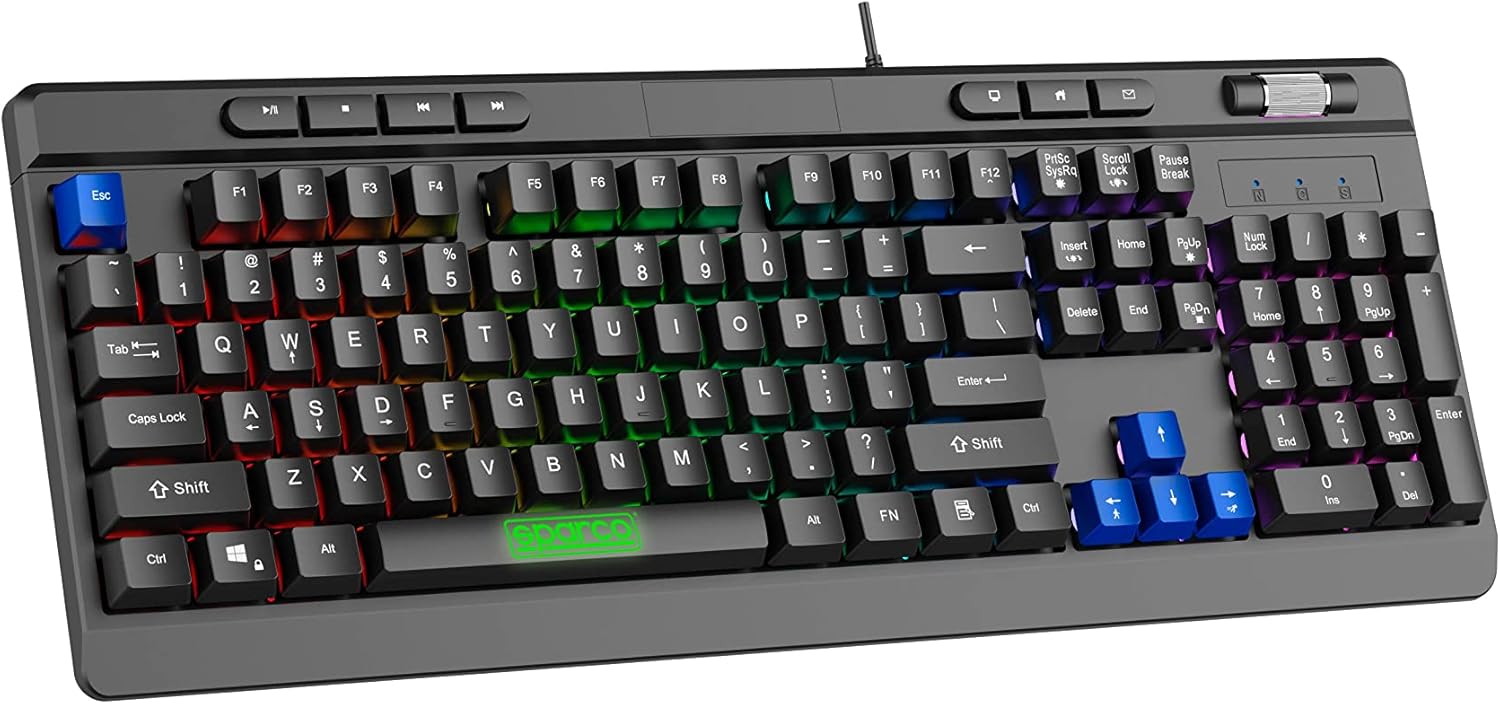
Image 1.1: The Celly Stealth Keyboard, showcasing its full layout and vibrant RGB backlighting.
2. Key Features
- Membrane Keys: Equipped with silent and responsive membrane keys for comfortable typing and gaming.
- RGB Backlighting: Features dynamic RGB lighting with 12 selectable modes and adjustable speed.
- Anti-Ghosting: 19 anti-ghosting keys ensure accurate input during simultaneous key presses.
- Multimedia Controls: Dedicated multimedia keys and a volume scroll wheel for easy content management.
- Adjustable Tilt: Integrated feet allow for height and tilt adjustment for ergonomic comfort.
- Plug & Play Connectivity: Simple USB-A wired connection (1.5m cable) requires no additional drivers or software.

Image 2.1: Detail of the keyboard's membrane keys and the Sparco branding on the spacebar.
3. Setup Instructions
- Unpacking: Carefully remove the keyboard from its packaging. Ensure all components are present.
- Connect to PC: Locate an available USB-A port on your computer. Insert the keyboard's USB-A cable into the port.
- Automatic Recognition: The keyboard is Plug & Play. Your operating system (e.g., Windows 10) will automatically detect and configure the device. No additional drivers are required.
- Keyboard Layout (Important): The keyboard features a US layout. You may need to adjust your computer's keyboard settings to match the US layout for correct character input. Refer to your operating system's documentation for instructions on changing keyboard layouts.
- Adjust Tilt: Extend the adjustable feet located on the underside of the keyboard to set your preferred typing angle.

Image 3.1: The USB-A cable connection point on the keyboard, illustrating its wired connectivity.
4. Operating Instructions
4.1 Basic Typing and Gaming
The Celly Stealth Keyboard functions as a standard QWERTY keyboard. Its membrane keys provide a comfortable and quiet typing experience suitable for extended use.
4.2 RGB Backlighting Control
The keyboard features 12 dynamic RGB lighting modes. Use the dedicated keys to cycle through modes and adjust brightness/speed.
- Changing Modes: Press the Fn key combined with specific function keys (e.g., Fn + Scroll Lock or Fn + Print Screen) to cycle through the 12 available lighting effects. Refer to the keyboard's keycap legends for specific combinations.
- Adjusting Brightness/Speed: Use Fn + Up/Down Arrow keys to adjust brightness, and Fn + Left/Right Arrow keys to adjust the speed of dynamic effects.
4.3 Multimedia and Volume Controls
The keyboard includes dedicated multimedia keys and a volume scroll wheel for convenient control:
- Volume Wheel: Located in the upper right corner, rotate the wheel to increase or decrease system volume.
- Multimedia Keys: Use the dedicated keys above the function row for quick access to media playback controls (e.g., Play/Pause, Stop, Previous/Next Track) and other functions (e.g., Home, Email, My Computer).

Image 4.1: The volume scroll wheel and multimedia control buttons, designed for quick access to audio and system functions.
5. Maintenance
- Cleaning: Use a soft, dry cloth to wipe down the keyboard surface. For stubborn dirt, slightly dampen the cloth with water or a mild, non-abrasive cleaner. Do not spray liquids directly onto the keyboard.
- Dust Removal: Use compressed air to remove dust and debris from between the keys.
- Avoid Liquids: Keep the keyboard away from liquids to prevent damage to internal components.
- Storage: When not in use for extended periods, store the keyboard in a clean, dry environment.
6. Troubleshooting
| Problem | Possible Cause | Solution |
|---|---|---|
| Keyboard not responding | Loose USB connection; faulty USB port; system error. | Ensure USB cable is securely plugged in. Try a different USB port. Restart your computer. |
| Keys not registering correctly | Incorrect keyboard layout setting; debris under keys. | Verify your operating system's keyboard layout is set to US. Clean the keyboard as per maintenance instructions. |
| RGB lighting not working | Lighting mode off; system conflict. | Press Fn + lighting control keys to activate or change modes. Ensure no conflicting software is running. |
| Volume wheel not functioning | System audio issue; driver conflict. | Check your computer's audio settings. Restart your computer. |
7. Specifications
- Brand: Celly
- Model: SPMEMKEYBOARD
- Connectivity: Wired USB-A
- Cable Length: 1.5 meters
- Key Type: Membrane
- Anti-Ghosting: 19 keys
- Backlighting: RGB with 12 modes
- Compatible Operating Systems: Windows 10 (and generally compatible with other Windows versions, macOS, Linux that support standard USB keyboards)
- Color: Multicolored (referring to RGB lighting)
- Manufacturer: BSC SpA
- Country of Origin: China
8. Warranty and Support
For warranty information and technical support, please refer to the official Celly website or contact your point of purchase. Keep your proof of purchase for warranty claims.
Manufacturer: BSC SpA
Website: www.celly.com
Ask a question about this manual
Ask about setup, troubleshooting, compatibility, parts, safety, or missing instructions. Manuals+ will review the question and use this page’s manual context to help answer it.