
1. Introduction
The vLinker FD+ is a portable wireless Bluetooth OBD2 diagnostic scan tool designed for comprehensive vehicle diagnostics. It functions as a code reader, trip computer, logger, and real-time performance monitor. This device is compatible with iOS, Android, and Windows operating systems, making it a versatile tool for both DIY enthusiasts and small repair shops. It supports a wide range of third-party applications, including FORScan, Carista, Torque, DashCommand, JScan, and BimmerCode.
The vLinker FD+ offers advanced features such as MS-CAN protocol support, allowing access to proprietary Ford networks in addition to the 5 standard OBD-II protocols. It is fully compatible with ELM (ELM327, ELM329) and STN command sets, ensuring broad compatibility with various diagnostic software.
2. Product Overview
The vLinker FD+ is engineered for reliability and performance, featuring protection against over-voltage, over-current, over-temperature, and battery drain. Its compact design ensures it does not obstruct driver legroom when plugged into the OBD-II port.

Figure 2.1: vLinker FD+ Connection Modes (Bluetooth, iOS, Android)
This diagnostic tool supports all available electronic control modules, enabling users to read and reset fault codes, retrieve ECU information, and perform various system diagnostics. It is particularly recommended for use with FORScan Lite APP, offering functionalities like reading/clearing fault codes, reading data streams, module resets, and ECU programming.
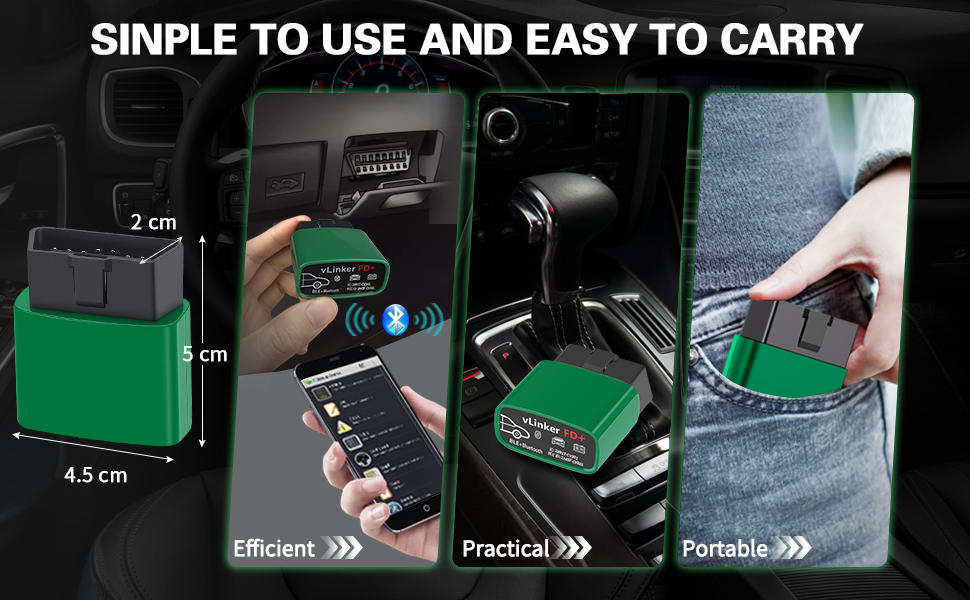
Figure 2.2: Simple to Use and Easy to Carry Design

Figure 2.3: All System Diagnostic Capabilities
3. Setup Instructions
3.1 Initial Connection
- Locate the OBD-II Port: The OBD-II diagnostic port is typically located under the dashboard on the driver's side.
- Plug in the vLinker FD+: Insert the vLinker FD+ device firmly into the vehicle's OBD-II port. The device will power on automatically.
- Download a Compatible App: Search for and download a compatible third-party OBD2 diagnostic application (e.g., FORScan Lite, Torque, Car Scanner) from your device's app store (iOS App Store, Google Play Store, or Windows Store).
- Enable Bluetooth: On your smartphone or tablet, enable Bluetooth.
- Pair the Device: Open the chosen diagnostic app. The app should guide you through connecting to the vLinker FD+ via Bluetooth. Look for "vLinker FD+" or a similar name in the Bluetooth device list within the app or your device's Bluetooth settings.
3.2 Firmware Update (Optional)
To ensure optimal performance and access to the latest features, it is recommended to keep the vLinker FD+ firmware updated. Pirated products cannot be upgraded.
- Download "VgateFwUpdater" App: Search for and download the "VgateFwUpdater" app from your device's app store. This app is specifically for firmware updates.
- Scan QR Code: Open the VgateFwUpdater app and scan the QR code provided on the product packaging or in the manual. Alternatively, you can use the direct link: https://qr19.cn/ALHUXg.
- Auto-connect and Download: In the app, select "Auto connect" based on your product model and click "DOWNLOAD" to initiate the firmware update.
- Wait for Completion: The app will display the update status. Wait until it shows "Upgrade successful."

Figure 3.1: Firmware Update Process for vLinker FD Series
4. Operating Instructions
Once the vLinker FD+ is connected to your vehicle and paired with your device, you can use a compatible diagnostic application to access various vehicle data and functions.
4.1 Using Diagnostic Apps
- FORScan Lite: Recommended for Ford, Mazda, Lincoln, and Mercury vehicles. Allows access to proprietary MS-CAN protocols for advanced diagnostics and module configuration.
- Torque (Android): Popular for reading engine parameters, fault codes, and performance data.
- Carista (iOS/Android): Offers diagnostics, coding, and service functions for various car brands.
- DashCommand (iOS/Android): Provides customizable dashboards for real-time vehicle data.
- JScan (iOS/Android): Specialized for Jeep vehicles.
- BimmerCode (iOS/Android): For BMW and Mini coding.

Figure 4.1: FORScan Lite App Interface
4.2 Key Functions
- Read/Clear DTCs: Retrieve and erase Diagnostic Trouble Codes (DTCs) from the vehicle's ECU.
- Live Data Stream: View real-time sensor data, such as engine RPM, coolant temperature, fuel system status, and more.
- Module Reset: Reset specific control modules.
- ECU Programming/Coding: Perform advanced coding functions (app-dependent).
- Adjust Parameters: Modify certain vehicle parameters (app-dependent).

Figure 4.2: Compatibility with Multiple Diagnostic Apps
5. Maintenance
The vLinker FD+ is designed for durability and minimal maintenance. Follow these guidelines to ensure its longevity:
- Keep Clean: Wipe the device with a soft, dry cloth. Avoid using harsh chemicals or abrasive cleaners.
- Storage: Store the device in a cool, dry place away from direct sunlight and extreme temperatures when not in use.
- Firmware Updates: Regularly check for and install firmware updates using the "VgateFwUpdater" app to maintain optimal performance and compatibility.
- Battery Protection: The device features built-in battery drain protection. However, for prolonged periods of inactivity, it is advisable to unplug the device from the OBD-II port.

Figure 5.1: Battery Saver Feature
6. Troubleshooting
If you encounter issues with your vLinker FD+, refer to the following common problems and solutions:
- Device Not Powering On:
Ensure the vLinker FD+ is fully inserted into the vehicle's OBD-II port. Check if the vehicle's ignition is on (some vehicles require the ignition to be in the 'ON' position, not just 'ACC'). - Unable to Connect via Bluetooth:
Verify that Bluetooth is enabled on your smartphone/tablet. Close and reopen the diagnostic app. Try restarting your smartphone/tablet. Ensure no other devices are actively connected to the vLinker FD+. For Windows, ensure advanced Bluetooth functions are enabled. - App Not Detecting Vehicle:
Confirm that the vLinker FD+ is properly connected and powered on. Ensure your diagnostic app is up-to-date. Check the app's settings to confirm the correct adapter is selected. If you are unsure about vehicle compatibility, contact vLinker support. - Intermittent Connection Loss:
This can sometimes be caused by interference or a weak Bluetooth signal. Try to keep your smartphone/tablet closer to the vLinker FD+. Ensure the device's firmware is updated. - App Functionality Issues:
Some advanced functions may require a paid version of the third-party app. Ensure the app is compatible with your specific vehicle model and year. - Firmware Update Failure:
Ensure a stable internet connection during the update process. Make sure you are using the official "VgateFwUpdater" app. Note that pirated products cannot be upgraded.
7. Specifications
| Feature | Detail |
|---|---|
| Model Number | FD+ BT3.0/BLE4.0 |
| Brand | vLinker |
| Connectivity | Bluetooth 3.0/4.0 (BLE) |
| Operating System Compatibility | iOS, Android, Windows |
| Power Source | Vehicle OBD-II port (Battery-free operation) |
| Supported Protocols | OBD-II 5 standard protocols (SAE J1850 PWM, SAE J1850 VPW, ISO 9141-2, ISO 14230-4 KWP, ISO 15765-4 CAN), MS-CAN, SAE J1939 CAN, ISO 11898 (raw CAN), up to 64 user-defined protocols. |
| Data Buffer | Up to 2K bytes (USART) |
| Baud Rate | Up to 230.4 Kbps |
| OBD Request Byte | Up to 1024 bytes |
| Wake-up Modes | 3 ways (battery voltage drop, OBD bus active, etc.) |
| Protection | Over-voltage, over-current, over-temperature, battery drain |
| Dimensions (Approx.) | 5 cm (Length) x 4.5 cm (Width) x 2 cm (Height) |

Figure 7.1: vLinker FD+ Device Dimensions

Figure 7.2: Supported Protocols
8. Warranty & Support
8.1 Manufacturer's Warranty
The vLinker FD+ comes with a 1-year manufacturer's warranty. This warranty covers defects in materials and workmanship under normal use. Please retain your proof of purchase for warranty claims.
8.2 Customer Support
vLinker is committed to providing professional customer service. If you have any questions, concerns, or require technical assistance, please do not hesitate to contact our support team. We are dedicated to assisting you and ensuring your satisfaction with our products.
For support, please refer to the contact information provided with your product packaging or visit the official vLinker website.


