
Introduction
This manual provides essential information for setting up, operating, maintaining, and troubleshooting your Dell Vostro 3500 Laptop. Please read this guide thoroughly to ensure proper use and to maximize the performance and longevity of your device.
1. Setup
1.1 Unboxing and Initial Inspection
Carefully remove your laptop and its accessories from the packaging. Verify that all components are present:
- Dell Vostro 3500 Laptop
- AC Power Adapter and Power Cord
- Documentation (this manual, safety information)
Inspect the laptop for any physical damage. If you find any damage or missing components, contact your vendor immediately.
1.2 Connecting the Power Adapter
Connect the AC power adapter to the power port on your laptop and then plug the power cord into an electrical outlet. It is recommended to fully charge the battery before initial use.

Image: Left side of the Dell Vostro 3500 Laptop, illustrating the various ports including the power input, USB, and SD card slot.
1.3 Initial Power On and Windows Setup
Press the power button to turn on your laptop. The power button is typically located on the top right of the keyboard deck.
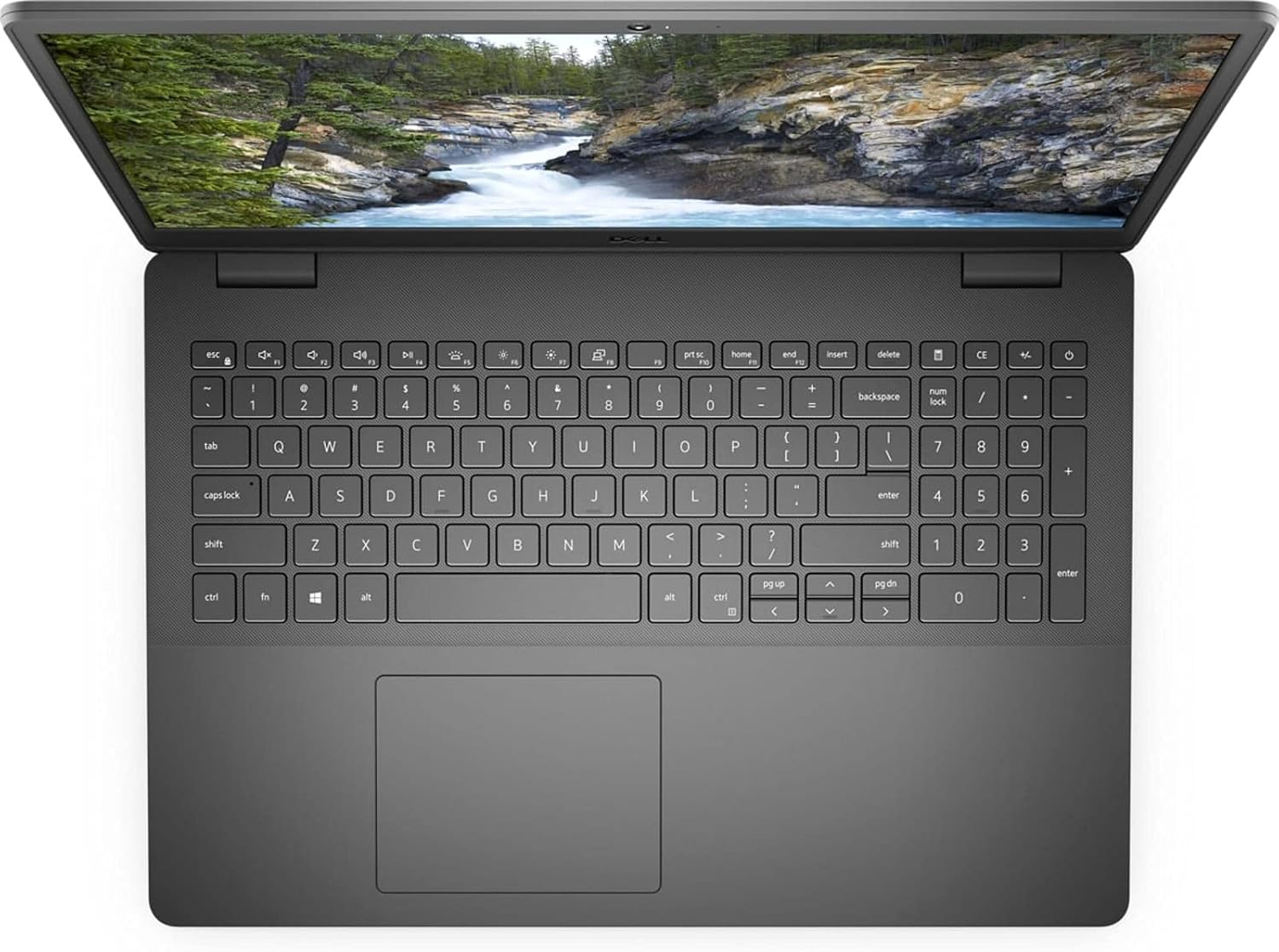
Image: Top-down view of the Dell Vostro 3500 Laptop's keyboard and touchpad, showing the power button location.
Follow the on-screen instructions to complete the Windows 11 Pro setup. This includes selecting your region, language, connecting to a Wi-Fi network, and creating a user account.
2. Operating Your Laptop
2.1 Using the Keyboard and Touchpad
The laptop features a standard QWERTY keyboard and a multi-touch touchpad. Refer to the keyboard layout for specific function keys (Fn keys) which control features like screen brightness, volume, and external display output.
2.2 Connecting to Networks
- Wi-Fi: To connect to a wireless network, click the Wi-Fi icon in the system tray, select your desired network, and enter the password if required.
- Ethernet: For a wired connection, plug an Ethernet cable into the RJ-45 port on the side of your laptop.
- Bluetooth: To pair Bluetooth devices, go to Windows Settings > Bluetooth & devices, and follow the instructions to add a new device.

Image: Right side of the Dell Vostro 3500 Laptop, showing the Ethernet (RJ-45), HDMI, and USB ports.
2.3 Using External Devices and Ports
Your Vostro 3500 Laptop is equipped with various ports for connecting external devices:
- USB Ports: Connect USB devices such as mice, keyboards, external hard drives, or flash drives. The laptop has USB 2.0 and USB 3.2 Gen 1 ports, including a Type-C port (data only).
- HDMI 1.4: Connect an external monitor or projector for extended display.
- SD Media Card Reader: Insert an SD card to transfer photos or other files.
- Audio Jack: Connect headphones or an external microphone.
3. Maintenance
3.1 Cleaning Your Laptop
- Screen: Use a soft, lint-free cloth lightly dampened with water or a screen cleaner. Do not spray liquid directly onto the screen.
- Keyboard and Chassis: Use a soft cloth. For stubborn dirt, a slightly damp cloth with mild soap solution can be used, ensuring no liquid enters the device.
- Vents: Periodically clean the air vents with compressed air to prevent dust buildup, which can affect cooling performance.
3.2 Software Updates
Regularly update your Windows 11 Pro operating system and drivers to ensure optimal performance, security, and compatibility. Go to Windows Settings > Windows Update to check for and install updates.
3.3 Battery Care
To prolong battery life:
- Avoid extreme temperatures.
- Do not leave the laptop plugged in constantly after it is fully charged for extended periods.
- Calibrate the battery periodically by fully discharging and recharging it.
4. Troubleshooting
This section addresses common issues you might encounter with your Dell Vostro 3500 Laptop.
4.1 Power Issues
- Laptop does not turn on: Ensure the AC adapter is securely connected to both the laptop and a working power outlet. Check the power indicator light on the adapter.
- Battery not charging: Verify the power adapter connection. Try a different power outlet. If the issue persists, the battery or adapter may require service.
4.2 Display Problems
- No display on screen: Connect an external monitor to the HDMI port to check if the issue is with the laptop's internal display. Press Fn + F8 (or the appropriate function key for display toggle) to cycle through display modes.
- Dim display: Adjust screen brightness using the function keys (e.g., Fn + F11/F12).
4.3 Connectivity Issues
- Wi-Fi not connecting: Ensure Wi-Fi is enabled (check function keys or Windows settings). Restart your router and the laptop.
- Bluetooth device not pairing: Ensure the Bluetooth device is in pairing mode and within range. Check Bluetooth settings on your laptop.
4.4 Operating System Issues
If you experience persistent software issues, consider using Windows troubleshooting tools or performing a system restore. For advanced users, Windows 11 Pro allows for downgrading to Windows 10 via Microsoft's website if desired.
5. Specifications
Below are the key technical specifications for the Dell Vostro 3500 Laptop:
| Feature | Detail |
|---|---|
| Model Name | Vostro 3500 Laptop |
| Processor | Intel Core i5-1135G7 (4 cores, up to 4.2 GHz) |
| RAM | 8 GB DDR4 @ 3200MHz |
| Storage | 256 GB PCIe NVMe M.2 SSD |
| Display | 15.6-inch FHD (1920x1080) Non-Touch |
| Graphics | Intel Integrated Graphics |
| Operating System | Windows 11 Pro |
| Connectivity | Wi-Fi, Bluetooth, Ethernet |
| Ports | USB 2.0, USB 3.2 Gen 1 (x2), USB 3.2 Gen 1 Type-C (Data only), HDMI 1.4, Ethernet RJ-45, 3-in-1 SD Media Card Reader, Audio Jack, Power In |
| Dimensions (L x W x Th) | 9.8"L x 14.33"W x 0.71"Th |
| Weight | 3.93 Pounds |
6. Warranty Information
This Dell Vostro 3500 Laptop comes with a 90-day limited warranty. For specific terms and conditions, please refer to the warranty documentation provided with your purchase or contact the seller.
As an Amazon Renewed product, it is also covered by Amazon's 90-day refund or replacement policy. For details on this policy, please refer to the Amazon Renewed program terms.
7. Support
For technical assistance, warranty claims, or further inquiries, please contact:
- Dell Support: Visit the official Dell support website for drivers, manuals, and troubleshooting guides.
- Seller Support: For issues related to your renewed product purchase, contact "cables4computer" (the seller) through your Amazon order history.
Please have your laptop's service tag or serial number ready when contacting support.


