
1. Introduction
The Maxcom MM724 is a simple mobile phone designed for ease of use, featuring straightforward software and practical functions. It is particularly suitable for users who prefer a device without complicated menus. Key features include an emergency SOS button, a built-in flashlight, and Bluetooth connectivity for hearing aid compatibility.
2. Package Contents
Please check the box for the following items:
- 1 Maxcom MM724 Mobile Phone
- 1 Desktop Charger
- 1 Matching Cords (for charger)
- 1 User Manual (this document)
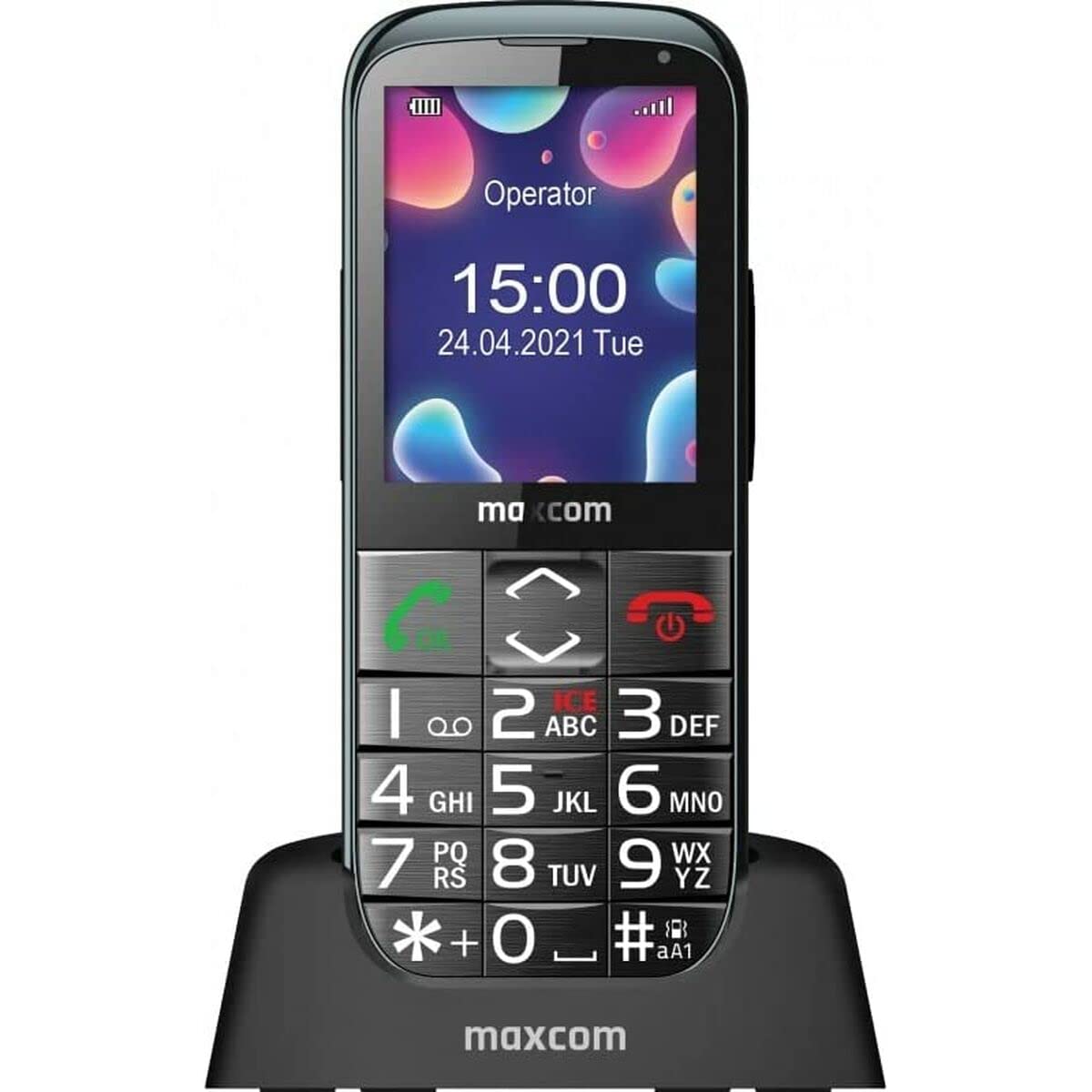
Image: The Maxcom MM724 simple mobile phone, typically black, with a clear display and large buttons.
3. Setup
3.1. Inserting the SIM Card and Battery
- Carefully remove the back cover of the phone.
- Insert your SIM card(s) into the designated slot(s) with the gold contacts facing down.
- Insert the battery, ensuring the contacts align correctly.
- Replace the back cover until it clicks securely into place.
3.2. Charging the Device
The Maxcom MM724 uses a convenient desktop charger. To charge your phone:
- Connect the charger cord to a power outlet.
- Place the phone upright into the desktop charging cradle.
- Ensure the charging indicator on the phone or cradle illuminates, indicating that charging has begun.
- For optimal battery life, keep the phone in the cradle when not in use to ensure it is always charged.
4. Operating Instructions
4.1. Powering On/Off
- To Power On: Press and hold the Power/End Call button (usually red) until the screen lights up.
- To Power Off: Press and hold the Power/End Call button until the power-off options appear, then confirm.
4.2. Making and Receiving Calls
- To Make a Call: Dial the number using the keypad and press the Call button (usually green).
- To Receive a Call: Press the Call button when the phone rings. The phone is designed to ring very loudly to ensure calls are not missed.
- To End a Call: Press the Power/End Call button.
4.3. Sending and Receiving Messages
Navigate to the 'Messages' menu to compose new SMS messages or read incoming ones. Use the keypad to type your message.
4.4. Using the SOS Button
The SOS button is located on the back of the phone and is designed for emergencies.
- Setup: Access the phone's settings to pre-define a list of emergency contacts.
- Activation: In an emergency, press and hold the SOS button. The phone will automatically call the pre-defined contacts in sequence until one answers.
4.5. Activating the Flashlight
The phone features a dedicated button for the flashlight, making it easy to activate when needed. Refer to your phone's specific button layout for its location.
4.6. Bluetooth and Hearing Aid Compatibility
The Maxcom MM724 supports Bluetooth connectivity, allowing it to pair with compatible devices, including certain hearing aids. This enables hands-free calling.
- Pairing: Go to the Bluetooth settings on your phone and enable Bluetooth. Put your hearing aid into pairing mode (consult your hearing aid's manual). Select your hearing aid from the list of available devices on the phone to pair.
- Note: Compatibility with hearing aids depends on the hearing aid's features. Consult your audiologist for specific compatibility information. The phone also features a ring line and additional gain for improved audio performance with or without hearing aids.
5. Maintenance
- Cleaning: Use a soft, dry cloth to clean the phone's screen and body. Avoid using liquid cleaners or abrasive materials.
- Battery Care: Keep the battery charged regularly. Avoid extreme temperatures, which can affect battery performance and lifespan.
- Storage: Store the phone in a cool, dry place when not in use for extended periods.
6. Troubleshooting
- Phone does not power on: Ensure the battery is correctly inserted and charged. Connect the phone to the charger and try again.
- No network signal: Check if the SIM card is properly inserted. Move to an area with better network coverage. Contact your service provider if the issue persists.
- Cannot make/receive calls: Verify that you have sufficient credit or an active plan. Check network signal strength.
- Bluetooth pairing issues: Ensure both devices are in pairing mode and within range. Try restarting both the phone and the Bluetooth device.
7. Specifications
| Brand | Maxcom |
| Model Name | MM724 |
| Operating System | Android |
| Screen Size | 3 inches |
| Connectivity Technology | Bluetooth |
| Cellular Technology | 4G |
| Wireless Network Technology | GSM |
| Color | Black |
| Item Weight | 85 Grams |
| Wireless Carrier | Unlocked |
8. Warranty and Support
Warranty information for the Maxcom MM724 mobile phone is typically provided with your purchase documentation or can be found on the official Maxcom website. For technical support or service inquiries, please refer to the contact information provided by your retailer or the manufacturer.


