
Introduction
Thank you for choosing the Varmilo Minilo VXB67 65% Bluetooth Mechanical Keyboard. This manual provides detailed instructions for setting up, operating, and maintaining your new keyboard. The VXB67 offers a compact 65% layout, dual-mode connectivity (wired USB-C and Bluetooth), and a comfortable typing experience with Varmilo EC Daisy V2 switches and durable ABS double-shot keycaps. It also features a Type-Cool sound dampening structure for a clear typing sound.

Image: The Varmilo Minilo VXB67 keyboard, showcasing its compact design and color scheme.
Package Contents
Please check the package contents to ensure all items are present:
- Varmilo Minilo VXB67 Mechanical Keyboard
- USB-C Cable
- Keycap Puller
- Switch Puller
- Dust Cover
- User Manual (this document)

Image: The Varmilo Minilo VXB67 keyboard alongside its USB-C cable, keycap puller, switch puller, and a clear dust cover.
Setup
1. Wired Connection
- Locate the USB-C port on the keyboard.
- Connect one end of the provided USB-C cable to the keyboard.
- Connect the other end of the USB-C cable to an available USB port on your computer.
- The keyboard will be automatically recognized by your operating system.
2. Bluetooth Connection
The VXB67 keyboard can connect to up to 3 devices via Bluetooth.
- Ensure the keyboard is charged or connected via USB-C.
- Turn on Bluetooth on your device (computer, tablet, or smartphone).
- On the keyboard, press and hold the Fn key and one of the Bluetooth keys (Q, W, or E) for 3-5 seconds to enter pairing mode. The indicator light will flash.
- On your device, search for Bluetooth devices and select "Varmilo VXB67" (or similar) from the list.
- Once paired, the indicator light on the keyboard will stop flashing and remain solid.
- Repeat for up to two additional devices using the other Bluetooth keys.
3. Adjusting Keyboard Angle
The keyboard features 3-level adjustable kickstands on the bottom to customize your typing angle for comfort.

Image: The underside of the keyboard, highlighting the foldable kickstands for ergonomic adjustment.
Video: Demonstrates the features of the Varmilo Minilo Eucalyptus keyboard, including the adjustable kickstands and multi-device connectivity.
Operating Instructions
1. Keycap and Switch Replacement
The VXB67 features hot-swappable switches, allowing you to change switches without soldering. Use the provided keycap and switch pullers for this process.
- Removing Keycaps: Use the keycap puller to gently grip the keycap and pull upwards.
- Removing Switches: Use the switch puller to carefully grip the top and bottom clips of the switch and pull upwards.
- Installing Switches: Align the pins of the new switch with the holes on the PCB. Press down firmly until the switch clicks into place. Ensure pins are not bent.
- Installing Keycaps: Place the keycap over the switch stem and press down gently until it is secure.
Video: Demonstrates the process of changing switches and keycaps on the Varmilo Minilo 67 keyboard.
2. Backlight Control
The keyboard features white LED backlighting. Use the following key combinations to control the backlight:
- Fn + \ |: Cycle through backlight effects.
- Fn + ↑: Increase backlight brightness.
- Fn + ↓: Decrease backlight brightness.
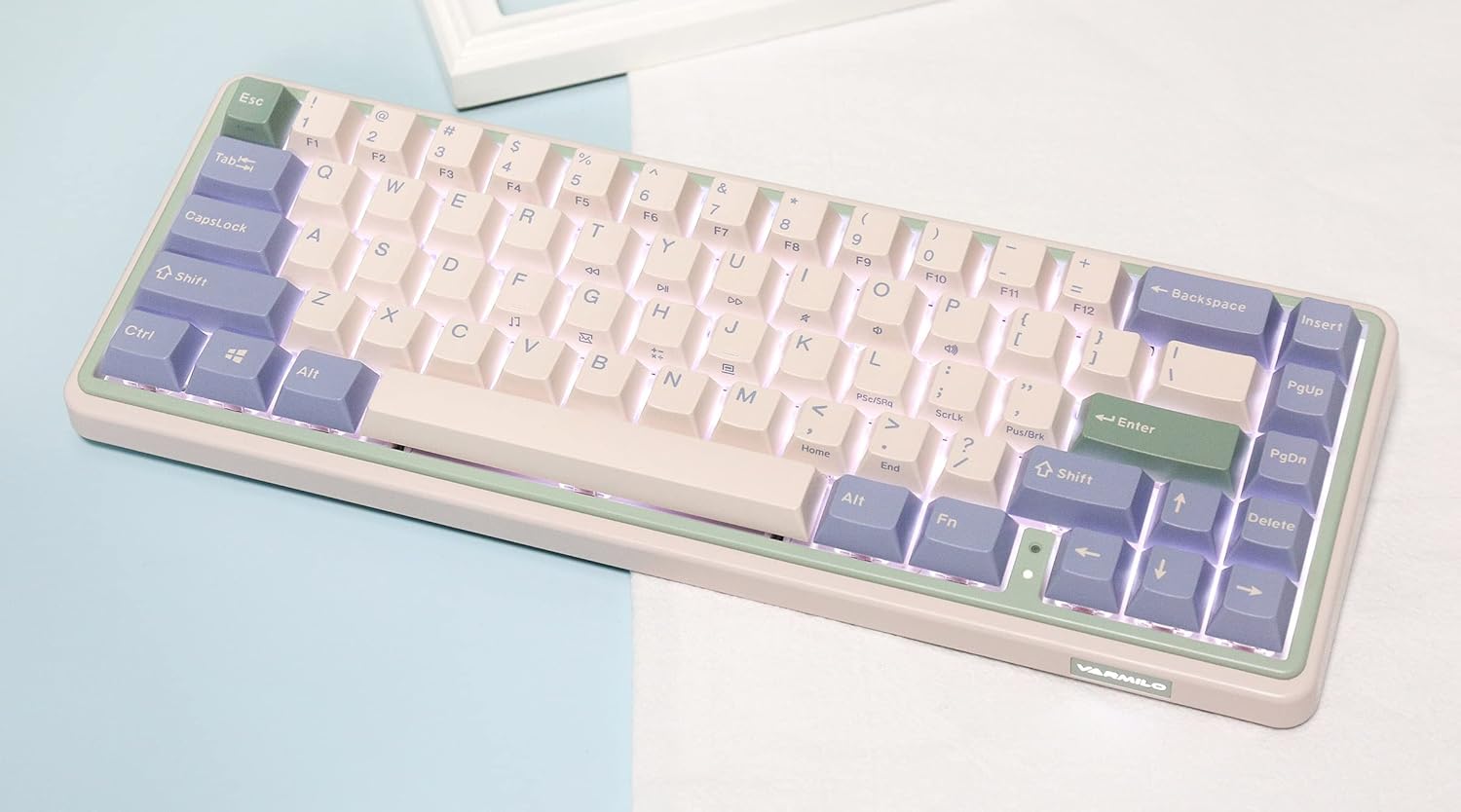
Image: The Varmilo Minilo VXB67 keyboard illuminated by its white LED backlighting.
3. Multi-Device Switching
To switch between paired Bluetooth devices:
- Press Fn + Q to switch to Bluetooth Device 1.
- Press Fn + W to switch to Bluetooth Device 2.
- Press Fn + E to switch to Bluetooth Device 3.
The keyboard will quickly connect to the selected device.
Maintenance
- Cleaning: Use a soft, dry cloth to wipe the keyboard surface. For deeper cleaning, remove keycaps using the provided keycap puller and use compressed air to clear debris.
- Battery Charging: Connect the keyboard via the USB-C cable to a power source (computer USB port or USB wall adapter). The Escape key will light up while charging and flash when the battery is low.
- Storage: When not in use, store the keyboard in a cool, dry place. Use the provided dust cover to protect it from dust and spills.
Troubleshooting
- Keyboard not responding (Wired):
- Ensure the USB-C cable is securely connected to both the keyboard and the computer.
- Try a different USB port on your computer.
- Try a different USB-C cable.
- Keyboard not responding (Bluetooth):
- Ensure Bluetooth is enabled on your device.
- Make sure the keyboard is charged.
- Re-enter pairing mode (Fn + Q/W/E) and attempt to re-pair with your device.
- Forget the device on your computer/tablet/phone and try pairing again.
- Keys not registering:
- Ensure the keycap and switch are properly seated. Remove and re-install if necessary.
- If using hot-swappable switches, ensure the switch pins are not bent.
- Backlight not working:
- Check backlight brightness settings (Fn + ↑/↓).
- Ensure the keyboard is not in a low power state.
Specifications
| Model | VXB67 |
| Layout | 65% (67 keys) |
| Connectivity | Bluetooth 5.0, USB-C Wired |
| Switches | Varmilo EC Daisy V2 (Hot-swappable) |
| Keycaps | 1.5mm thick ABS Double Shot |
| Backlight | White LED |
| Battery Capacity | 3400mAh |
| Compatible Devices | PC (and other Bluetooth-enabled devices) |
| Material | Acrylonitrile Butadiene Styrene (ABS) |
| Dimensions | Approx. 15 x 7 x 2.5 inches (based on package dimensions) |
| Weight | 3.21 pounds |
Warranty and Support
For warranty information and technical support, please refer to the official Varmilo website or contact your retailer. Keep your proof of purchase for warranty claims.
Varmilo Official Website: www.varmilo.com


