
1. Product Overview
The Inandon JH19 is an all-in-one karaoke system designed for home, business, and KTV use. It features a 15.6-inch touch screen, wireless microphones, and supports various connectivity options for a comprehensive entertainment experience.

Figure 1.1: The Inandon JH19 integrates multiple components into a single, compact unit, simplifying setup and operation compared to traditional multi-component karaoke systems. This design saves space and enhances portability.
2. What's in the Box
Carefully unpack the box and ensure all the following items are present:
- Inandon JH19 Karaoke Machine (with 15.6-inch touch screen)
- Wireless Microphones (2 units)
- Power Adapter
- HDMI HD Cable
- RCA Audio Cable
- RCA to AUX Cable
- Auxiliary Cable
- Built-in WiFi Adapter
- Microphone Covers

Figure 2.1: Included accessories with the Inandon JH19 Karaoke Machine. This image displays the 15.6-inch touch screen unit, two wireless microphones, HDMI cable, RCA audio cable, RCA to AUX cable, power adapter, built-in WiFi adapter, and microphone covers.
3. Setup Instructions
3.1 Power Connection
- Connect the power adapter to the DC input port on the back of the karaoke machine.
- Plug the power adapter into a standard electrical outlet.
- Press the power switch located on the back panel to turn on the device.
3.2 Audio and Video Connections
The JH19 offers multiple ports for connecting to external displays and audio systems:
- HDMI Output: Connect an HDMI cable from the HDMI output port on the karaoke machine to an HDMI input port on your TV or monitor for video and audio output.
- RCA Audio Output: Use the RCA audio cable to connect the RCA audio output ports (red and white) to an external amplifier or speaker system.
- Digital Optical Output: For high-quality digital audio, connect an optical cable to a compatible audio receiver.
- Coaxial Output: Connect a coaxial cable to a compatible audio receiver for digital audio.
- Recording Output: Connect to a recording device if you wish to record your performance.
- MIC Input: Additional microphone input port.

Figure 3.1: Rear panel of the Inandon JH19 showing various input/output ports including HDMI, RCA audio, digital optical, coaxial, recording, USB, and MIC inputs, along with the power switch and network port.
3.3 Network Connection
The JH19 supports both Wi-Fi and wired network connections:
- Wi-Fi: The device has built-in Wi-Fi. Navigate to the system settings on the touch screen to connect to your wireless network.
- Network Port: Connect an Ethernet cable to the network port on the back of the machine for a stable wired internet connection.
3.4 Microphone Setup
The system comes with two wireless microphones. Ensure they are charged and powered on. The microphones will automatically pair with the karaoke machine.
4. Operating Instructions
4.1 Navigating the Touch Screen Interface
The 15.6-inch touch screen provides intuitive control over the system. Tap icons and menus to select functions, browse songs, and adjust settings.
4.2 Song Selection Methods
The Inandon JH19 offers multiple ways to find and select songs:
- By Touch Screen: Browse the extensive song library directly on the 15.6-inch touch screen.
- By Mobile App: Download the dedicated mobile application to control the karaoke machine from your smartphone.
- By Intelligent Voice Assistant: Use voice commands to search for and select songs.
- By WeChat Scan Code: Utilize the WeChat application to scan a code for song ordering.

Figure 4.1: Illustration of the four primary methods for ordering songs on the Inandon JH19: WeChat Scan Code, Mobile App, Intelligent Voice Assistant, and direct Touch Screen interaction.
4.3 Sound Effect Settings
Adjust microphone and music sound effects for a personalized audio experience. The system features DSP digital reverb for enhanced vocal quality.
- Access the "Sound" menu on the touch screen.
- Adjust parameters such as Microphone Volume, Music Volume, Frequency, and various sound effects (e.g., Reverb, Echo).
- Utilize the Music EQ settings to fine-tune audio output (e.g., Default, Popular, Rock, Classical, Straight, Custom).

Figure 4.2: Screenshot of the DSP digital reverb microphone and sound effect settings interface on the Inandon JH19, showing options for adjusting microphone and music parameters, and various EQ presets.
4.4 Language Selection
The system supports multiple languages. To change the interface language:
- Navigate to the system settings.
- Select the "Lang" or "Language" option.
- Choose your preferred language from the available options (e.g., English, Chinese, Japanese, Korean, Vietnamese, Thai, Malay, Indonesian, Filipino, French, Russian).

Figure 4.3: The multi-language selection screen of the Inandon JH19, displaying various language options for the user interface.
4.5 Cloud Song Library and Entertainment Modes
Access a vast library of songs and various entertainment features:
- Cloud Download: The system allows free download of songs from the cloud. The library includes a wide range of genres and languages, such as Chinese, Cantonese, Hokkien, English, Japanese, Korean, Vietnamese, Thai, and Malaysian songs.
- Home Entertainment Mode: Beyond karaoke, the JH19 supports applications like YouTube, Live Online TV, Music Apps, and screen casting for games, providing a comprehensive home entertainment hub.

Figure 4.4: Overview of the Inandon JH19's cloud song download feature, highlighting the extensive library of songs available in various languages.
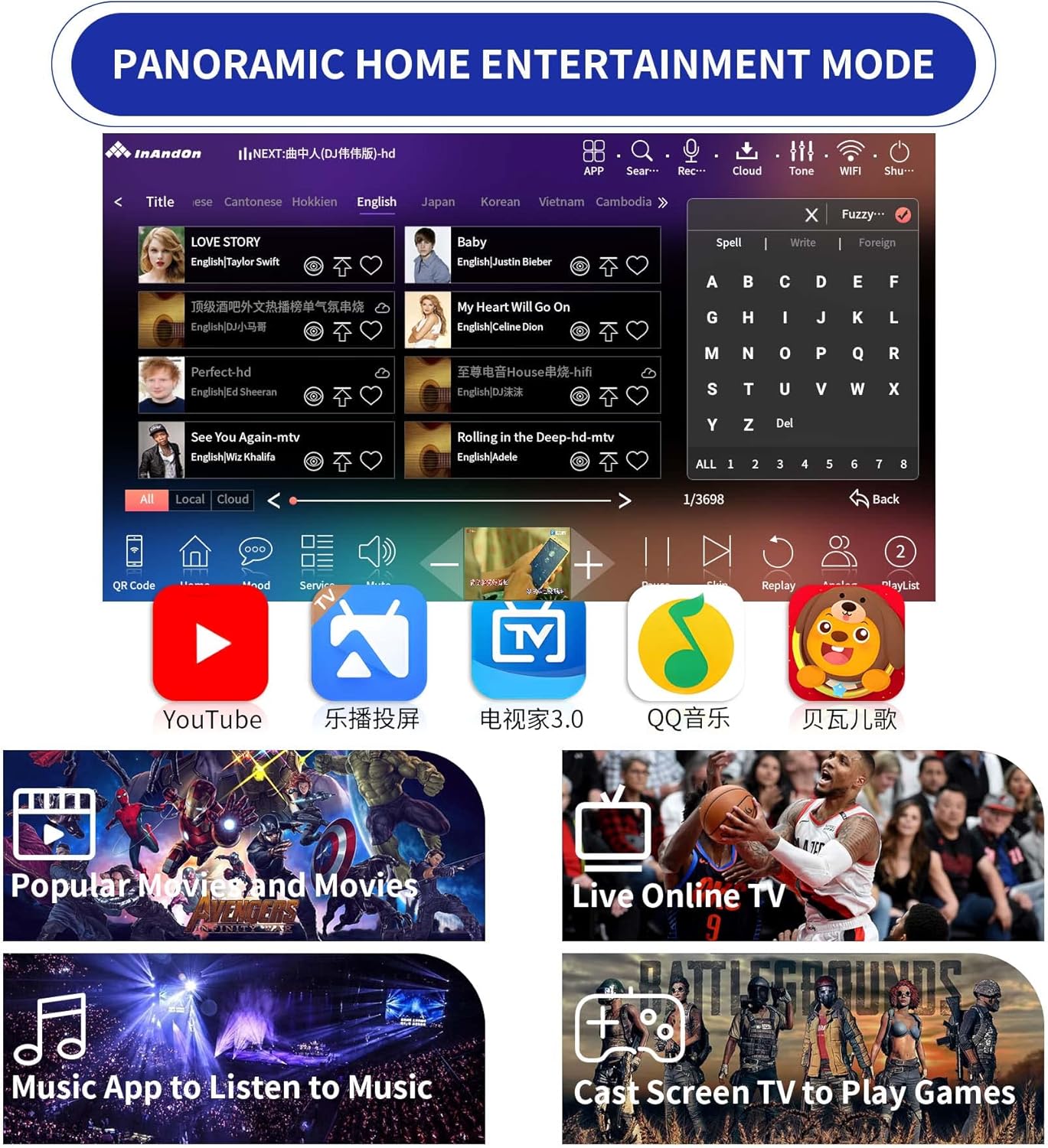
Figure 4.5: Screenshot of the Inandon JH19's panoramic home entertainment mode, showcasing access to platforms like YouTube, Live TV, music applications, and screen casting for games.
5. Maintenance
- Cleaning: Use a soft, dry cloth to clean the touch screen and exterior surfaces. Avoid abrasive cleaners or solvents.
- Storage: When not in use for extended periods, store the karaoke machine in a cool, dry place away from direct sunlight and extreme temperatures.
- Microphone Care: Keep microphones dry and clean. Replace microphone covers periodically for hygiene.
- Software Updates: Periodically check for system software updates through the device's settings to ensure optimal performance and access to new features.
6. Troubleshooting
- No Power:
- Ensure the power adapter is securely connected to both the machine and a working electrical outlet.
- Check if the power switch on the back of the unit is in the "ON" position.
- No Sound Output:
- Verify that the HDMI or RCA audio cables are correctly connected to your TV/audio system.
- Check the volume levels on both the karaoke machine and your external audio system.
- Ensure the correct input source is selected on your TV or audio receiver.
- Microphones Not Working:
- Ensure the wireless microphones are powered on and have sufficient battery charge.
- Confirm that the microphones are paired with the karaoke machine. Refer to the microphone's specific instructions if pairing issues persist.
- Cannot Connect to Wi-Fi:
- Check if your Wi-Fi router is working correctly and within range.
- Verify that you have entered the correct Wi-Fi password.
- Try restarting both the karaoke machine and your Wi-Fi router.
- Touch Screen Unresponsive:
- Restart the device.
- Ensure the screen is clean and free from debris.
7. Specifications
| Feature | Detail |
|---|---|
| Model Number | JH19 |
| Screen Size | 15.6 inches (Touch Screen) |
| Storage | 4TB HDD (approx. 92,000 songs pre-loaded) |
| Memory | 8GB |
| Processor | 8-Core Chip |
| Audio Processing | Built-in DSP Chip |
| Connectivity | Wi-Fi, Ethernet, HDMI, RCA Audio, Digital Optical, Coaxial, USB (2.0), 3.5 mm Jack |
| Microphones | 2 Wireless Microphones |
| Power Source | Battery Powered (with Power Adapter) |
| Compatible Devices | Smartphone |
| Item Weight | 11 pounds |
| Package Dimensions | 16.93 x 11.81 x 8.86 inches |
| Date First Available | November 4, 2022 |
8. Customer Support
For further assistance, technical support, or warranty inquiries, please contact Inandon customer service through the retailer where the product was purchased or visit the official Inandon website.
Please have your model number (JH19) and purchase date available when contacting support.


