
1. Introduction
The ASHATA MF800-2 is a portable 4G LTE mobile WiFi router designed to provide high-speed internet access on the go. This device allows you to create a personal Wi-Fi hotspot, enabling multiple devices to connect to the internet via a 4G LTE network. Its compact design and long-lasting battery make it ideal for travel, outdoor activities, and business use.
2. Package Contents
Please check the package contents upon unboxing to ensure all items are present:
- 1 x ASHATA MF800-2 Portable WiFi Router
- 1 x 2100mAh Lithium Battery
- 1 x USB Charging Cable
- 1 x User Manual

Image: Package contents including the router, battery, and charging cable.
3. Product Overview
The ASHATA MF800-2 router is designed for convenience and performance. It features a lightweight and compact body, making it easy to carry. The device includes an intelligent LED display to show important status information such as network signal, battery level, and Wi-Fi connection status.
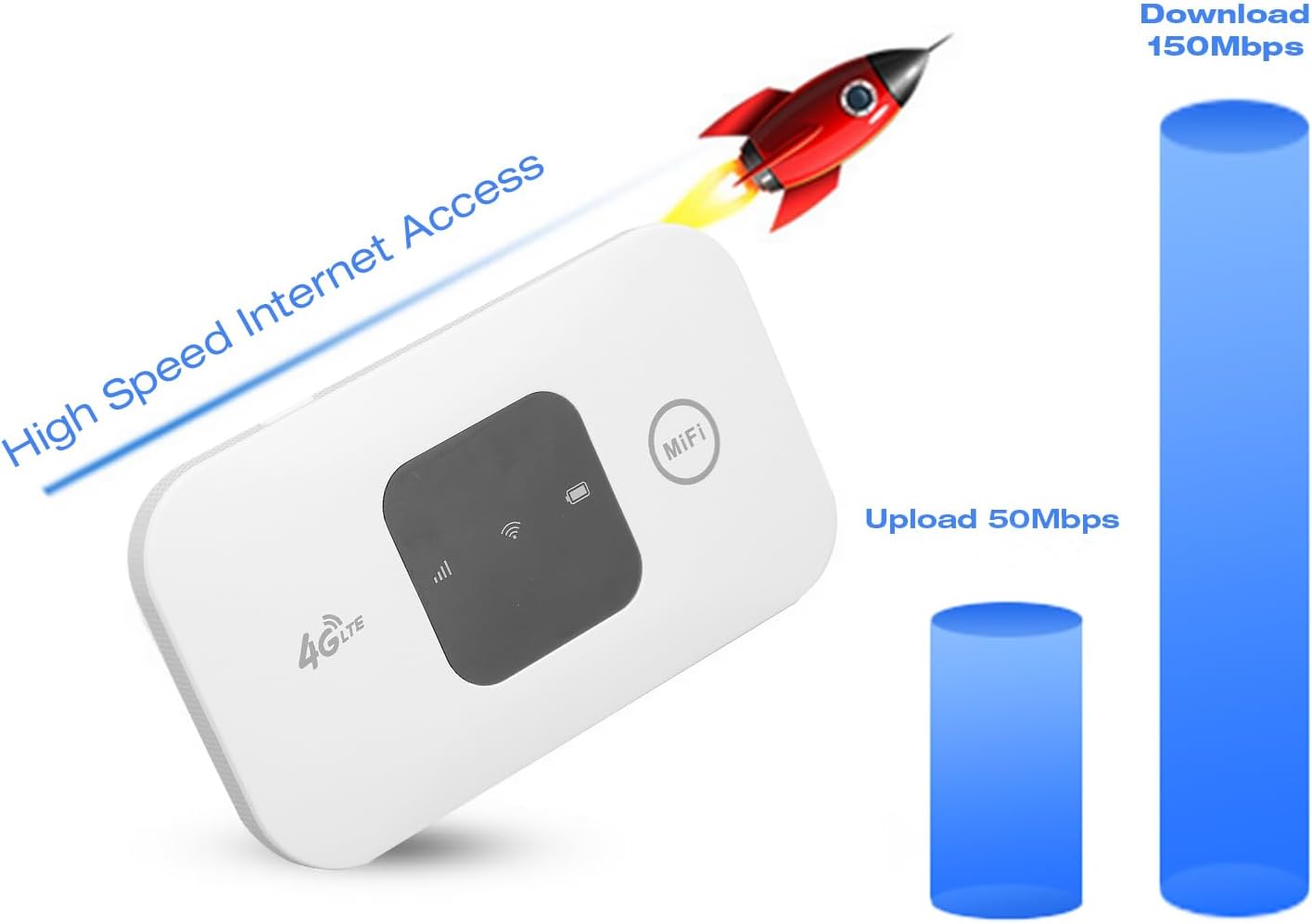
Image: Front view of the ASHATA MF800-2 4G LTE Mobile WiFi Router.
Key Features:
- High-Speed Internet: Supports 4G LTE networks with download speeds up to 150 Mbps and upload speeds up to 50 Mbps.
- Portable Design: Lightweight, thin, and compact for easy carrying.
- Long-Lasting Battery: Equipped with a 2100mAh lithium battery, providing up to 72 hours of standby time.
- Multi-User Support: Allows up to 10 devices to connect simultaneously.
- Wide Compatibility: Connects to mobile phones, laptops, desktops, and tablets.
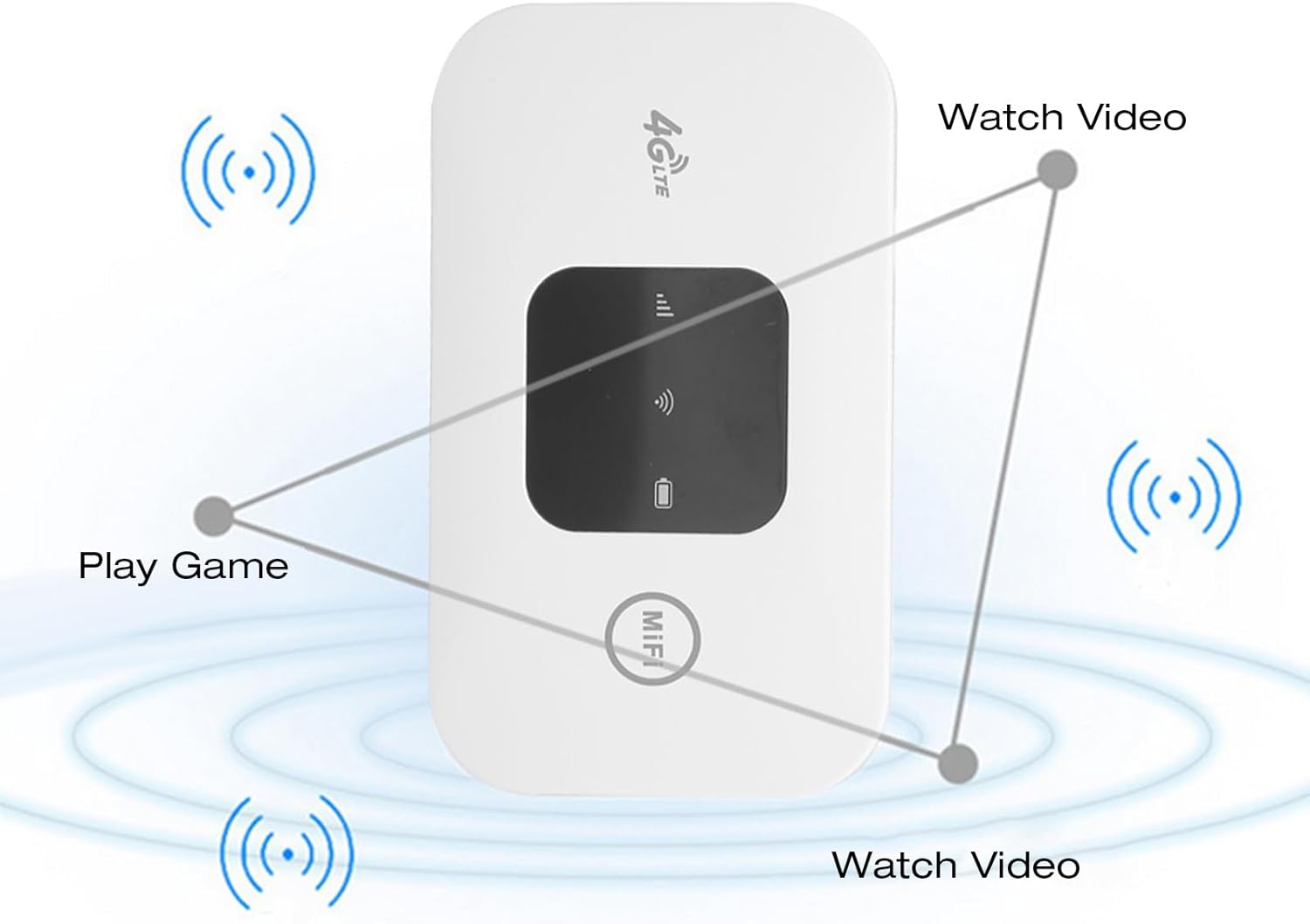
Image: Visual representation of the router's high-speed internet capabilities.
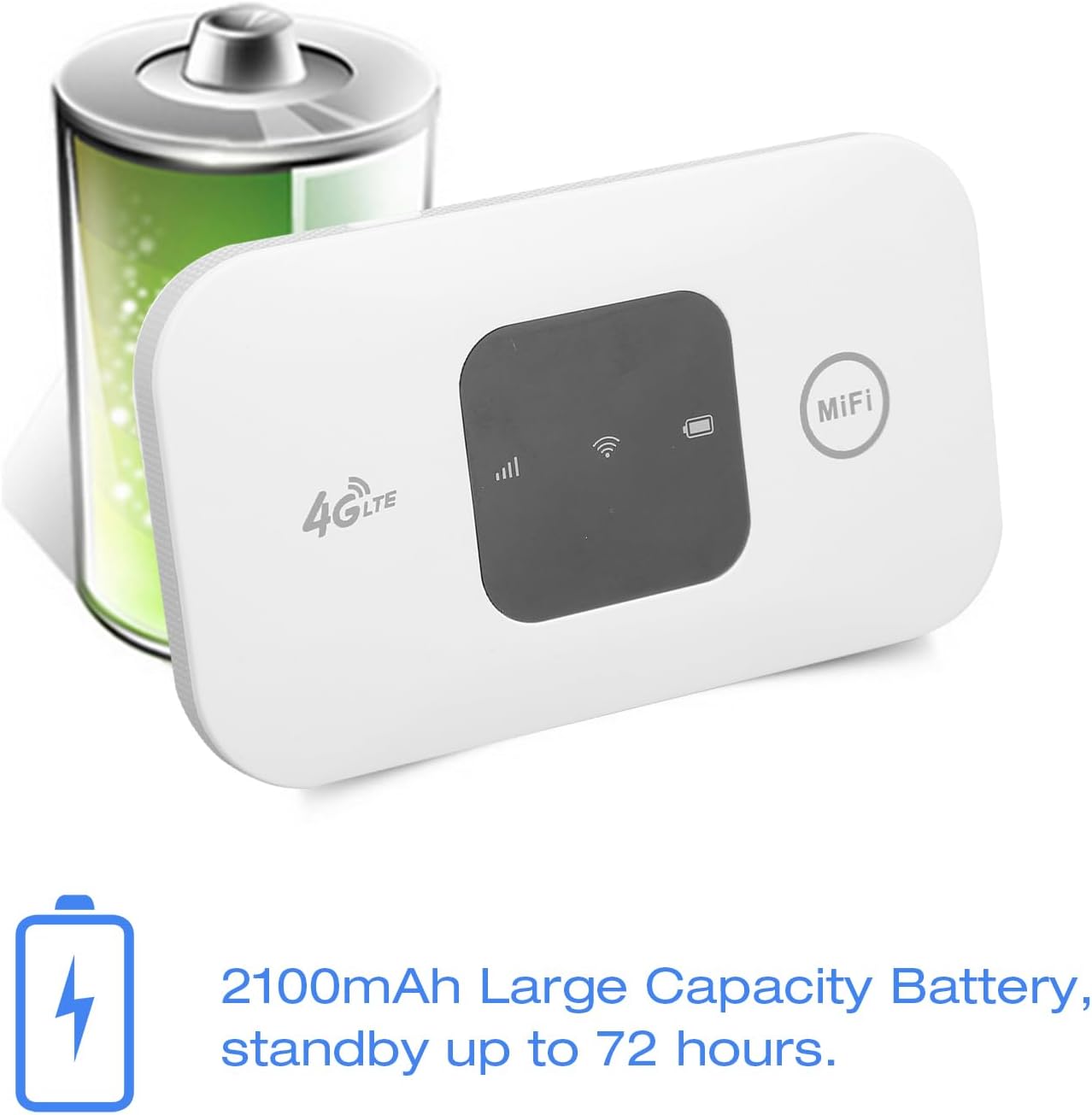
Image: The ASHATA MF800-2 router highlighting its 2100mAh battery capacity.

Image: The router demonstrating its portability by fitting into a pocket.

Image: Multiple devices connected to the ASHATA MF800-2 router, showing its multi-user support.
4. Setup
Follow these steps to set up your ASHATA MF800-2 router:
- Open the Back Cover: Gently slide or lift the back cover of the device to open it.
- Insert SIM Card: Locate the standard SIM card slot. Insert your active standard SIM card into the slot, ensuring it is correctly oriented.
- Insert Battery: Place the provided 2100mAh lithium battery into its compartment. Ensure any protective stickers on the battery contacts are removed before insertion.
- Close Cover: Replace the back cover, ensuring it clicks securely into place.
- Power On: Press and hold the power button (usually located on the side or front) for a few seconds until the LED indicators light up, indicating the device is powering on.

Image: Close-up of the router's front panel with 4G LTE logo and indicators.
5. Operating Instructions
5.1 Power On/Off
To power on the device, press and hold the power button for approximately 3-5 seconds until the LED screen or indicators illuminate. To power off, press and hold the power button again until the device shuts down.
5.2 Connecting Devices to Wi-Fi
Once the router is powered on and has established a network connection (indicated by the LED display), you can connect your devices:
- On your mobile phone, laptop, tablet, or other Wi-Fi enabled device, go to the Wi-Fi settings.
- Search for available Wi-Fi networks. The network name (SSID) for your ASHATA MF800-2 will typically be printed on a sticker inside the battery compartment or on the device itself.
- Select the correct SSID from the list.
- Enter the Wi-Fi password (also found on the sticker) when prompted.
- Your device should now be connected to the internet via the ASHATA MF800-2 router.

Image: Close-up of the 'MiFi' button on the router.
5.3 LED Indicators
The intelligent LED display provides visual feedback on the device's status. While specific indicator details may vary, common displays include:
- Signal Strength: Bars indicating the strength of the 4G LTE network signal.
- Battery Level: An icon showing the remaining battery charge.
- Wi-Fi Status: An icon indicating if Wi-Fi is active and if devices are connected.
- Network Type: May display '4G' or 'LTE' to indicate the current network connection.
6. Maintenance
To ensure the longevity and optimal performance of your ASHATA MF800-2 router, follow these maintenance guidelines:
- Keep Dry: Avoid exposing the device to water, moisture, or high humidity.
- Clean Gently: Use a soft, dry cloth to clean the device. Do not use harsh chemicals or abrasive cleaners.
- Temperature Control: Store and operate the device within recommended temperature ranges. Avoid extreme heat or cold.
- Battery Care: Use only the original 2100mAh battery and charging cable. Avoid overcharging or completely draining the battery frequently to prolong its lifespan.
- Avoid Disassembly: Do not attempt to open or repair the device yourself, as this may void the warranty and cause damage.
7. Troubleshooting
If you encounter issues with your ASHATA MF800-2 router, refer to the following common problems and solutions:
7.1 No Internet Connection
- SIM Card Check: Ensure the standard SIM card is correctly inserted and active with a valid data plan.
- Signal Strength: Check the LED display for network signal strength. If the signal is weak or absent, move to an area with better network coverage.
- Restart Device: Power off the router, wait a few seconds, and then power it back on. Restart your connected device as well.
- APN Settings: In some cases, you may need to manually configure the Access Point Name (APN) settings. Refer to your SIM card provider's instructions for the correct APN.
7.2 Cannot Connect to Wi-Fi
- Power Status: Ensure the router is powered on and its Wi-Fi indicator is active.
- Password Check: Double-check that you are entering the correct Wi-Fi password (SSID and password are usually on a sticker inside the battery compartment).
- Proximity: Move your device closer to the router to ensure a strong Wi-Fi signal.
- Device Limit: The router supports up to 10 connected devices. If you have too many devices connected, disconnect some and try again.
7.3 Slow Internet Speed
- Signal Strength: A weak 4G LTE signal will result in slower speeds. Try moving to an area with better signal.
- Connected Devices: More connected devices sharing the bandwidth can reduce individual speeds.
- Background Usage: Check if any applications on your connected devices are consuming significant bandwidth in the background.
8. Specifications
| Model | MF800-2 |
| Brand | ASHATA |
| Color | White |
| Material | ABS |
| Connectivity Technology | 4G LTE, Wi-Fi |
| Wireless Standard | 802.11 b/g/n |
| 4G LTE Frequency Bands | B1, B3, B5, B7, B8, B20, B38, B40 |
| 3G UMTS WCDMA | B1 |
| Max Download Speed | 150 Mbps |
| Max Upload Speed | 50 Mbps |
| Battery Type | 2100mAh Lithium Battery |
| Standby Time | Up to 72 hours |
| SIM Card Type | Standard SIM Card |
| Sharing Capacity | Up to 10 users |
| Compatible Devices | Laptops, Tablets, Mobile Phones |
| Operating System (Internal) | Linux |
| Special Features | Portable, Long Battery Life, LED Display |
9. Warranty and Support
Specific warranty details and direct support contact information are not provided in the product description. For warranty claims, technical assistance, or further inquiries, please contact your original retailer or the ASHATA customer support channels available through their official website or product packaging.