
AICase E0527-P
AICase Smart Fingerprint Padlock User Manual
Model: E0527-P
1. Introduction
Thank you for choosing the AICase Smart Fingerprint Padlock. This keyless biometric lock offers convenient and secure access using your fingerprint or a mobile application. It is designed for various applications including luggage, suitcases, backpacks, bikes, school lockers, and gym lockers.
This manual provides detailed instructions for setting up, operating, and maintaining your smart padlock. Please read it thoroughly before use to ensure proper functionality and longevity of the device.
2. Safety Information
- Do not expose the padlock to extreme temperatures or direct sunlight for prolonged periods.
- Avoid immersing the padlock in water. While it is splash-proof, it is not designed for submersion.
- Do not attempt to disassemble or modify the padlock. This will void the warranty and may cause damage.
- Keep the fingerprint sensor clean and dry for optimal performance.
- Ensure the padlock is fully charged before initial use and when the low battery indicator appears.
3. Package Contents
Please check the package for the following items:
- 1 x AICase Smart Fingerprint Padlock
- 1 x USB Charging Cable
- 1 x User Manual (this document)
4. Product Overview
The AICase Smart Fingerprint Padlock features a durable zinc alloy body and shackle, designed for anti-theft, anti-dust, and anti-erosion properties. It integrates a high-precision fingerprint sensor and Bluetooth connectivity for smart control.

Figure 4.1: Front and back view of the AICase Smart Fingerprint Padlock.

Figure 4.2: Key features including 0.5s unlock, 19 fingerprint storage, Bluetooth, Smart Life/Tuya App remote control, splash-proof, and USB rechargeable.
Components:
- Fingerprint Sensor: For biometric unlocking.
- LED Indicator: Displays status (e.g., unlocked, low battery).
- USB Charging Port: For recharging the internal battery.
- Shackle: The locking mechanism.
- Lock Body: Main housing of the padlock.
5. Setup
Before using your padlock, it is essential to set it up correctly. In factory mode, any skin contact can open the lock. You must register an administrator fingerprint to secure the device.
Initial Setup and App Installation:
Follow these steps to install the Smart Life/Tuya App and bind your padlock:
- Charge the Padlock: Connect the padlock to a USB power source using the provided cable. A full charge takes approximately one hour and provides up to 6 months of standby time or over 9,000 unlocks.
- Download the App: Scan the QR code provided in the included manual or search for "Smart Life" or "Tuya Smart" in your mobile app store (Google Play Store or Apple App Store).
- Install and Register: Install the app and register a new user account using your cellphone number or email. Agree to the User Agreement and Privacy Policy.
- Enable Permissions: Ensure Bluetooth, network, and location services are enabled on your mobile device for the app to function correctly.
- Add Device:
- Open the Smart Life/Tuya App.
- Click "Add Device" or the "+" icon.
- Press the fingerprint sensor on the padlock to wake it up. The app should begin discovering nearby devices.
- Once "BLELock" appears, click "Add" to bind the device.
- After successful binding, the padlock will no longer open with any finger touching the sensor. Only authorized fingerprints or app control will unlock it.
Video 5.1: Detailed guide on initial setup, app installation, and device binding for the AICase Smart Fingerprint Padlock.
6. Operating Instructions
6.1. Adding Fingerprints (Up to 19 total):
The padlock supports up to 19 fingerprints, including 2 administrator fingerprints. To add a fingerprint:
- Open the Smart Life/Tuya App and select your padlock.
- Navigate to "Member Management" or "Settings" and then "Fingerprint".
- Click "Add" to begin the fingerprint registration process.
- Follow the on-screen prompts in the app to place and lift your finger on the padlock's sensor multiple times until registration is complete.
- Name the fingerprint for easy identification (e.g., "Right Thumb").
Note: If the app displays "connecting 10s, connecting 9s" but fails, press the sensor of the lock to wake it up, then try again.
6.2. Unlocking the Padlock:
- By Fingerprint: Place a registered finger firmly on the fingerprint sensor. The LED indicator will turn green, and the padlock will unlock in approximately 0.5 seconds.
- By Mobile App: Open the Smart Life/Tuya App, select your padlock, and tap the unlock icon. Ensure your phone's Bluetooth is enabled and you are within range of the padlock.

Figure 6.1: The padlock can be unlocked using a registered fingerprint or via the Smart Life/Tuya mobile application.
6.3. Remote Authorization and Unlocking:
You can authorize other users to unlock your padlock remotely via the app. This requires creating a "home" in the app and adding members.
- Create a Home: In the app, go to "Me" > "Home Management" > "Create a home". Follow the prompts to set up your home information.
- Add Members: Within "Home Management", select your home and click "Add Member". Enter the account details (usually cellphone number) of the person you wish to authorize.
- Accept Invitation: The invited party must download and register the same app. They will receive an invitation which they need to accept.
- Remote Unlock: Once authorized, the new member can unlock the padlock through their app.
Note: If the invited party's account is not registered, the app will prompt "The account does not exist." Please ensure they register first.
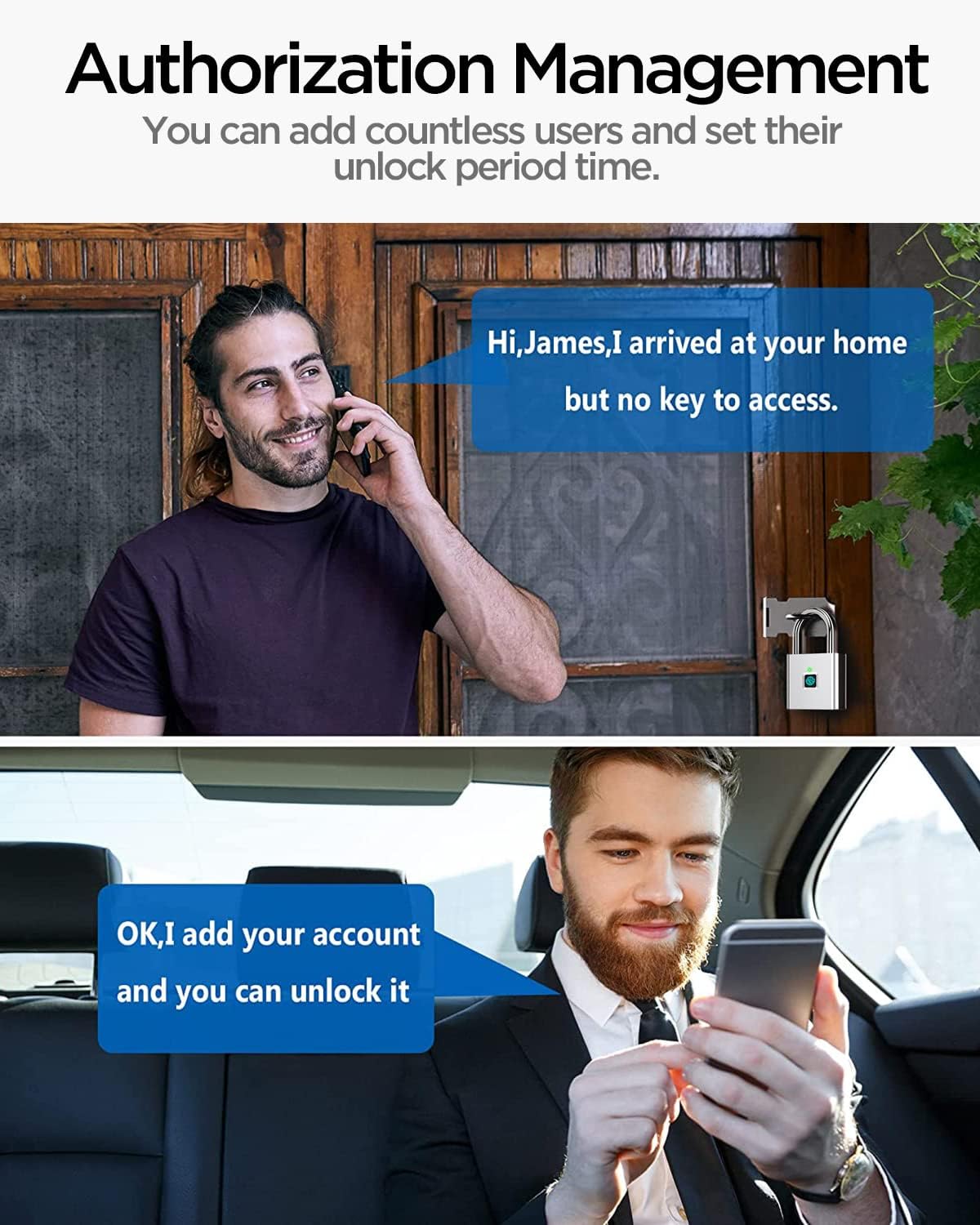
Figure 6.2: Illustrates the process of authorizing other users for remote unlocking via the app.
6.4. Removing Fingerprints and Unbinding Device:
To remove a registered fingerprint or unbind the padlock from your account:
- Delete Fingerprint: In the app, go to "Member Management" > select the user > "Fingerprint" > select the fingerprint to delete > "Delete Fingerprint".
- Remove Device (Unbind): In the app, select the padlock, go to "Settings" (or device information), and choose "Remove Device" or "Disconnect and wipe data". Confirm the action. After unbinding, the padlock will revert to factory settings, meaning any finger can unlock it until a new administrator fingerprint is registered.
- Remove Authorized User: In the app, go to "Me" > "Home Management" > select your home > select the member you wish to remove > "Remove Member".
7. Maintenance
7.1. Charging the Padlock:
The padlock is equipped with a rechargeable 150mAh lithium battery. When the battery is low, the LED indicator will flash red. You can still unlock the padlock approximately 60 times after the red light flashes, but it is recommended to charge it promptly.
- Connect the provided USB charging cable to the padlock's charging port and a USB power source.
- A full charge takes about one hour.
- The app can display the remaining battery level.
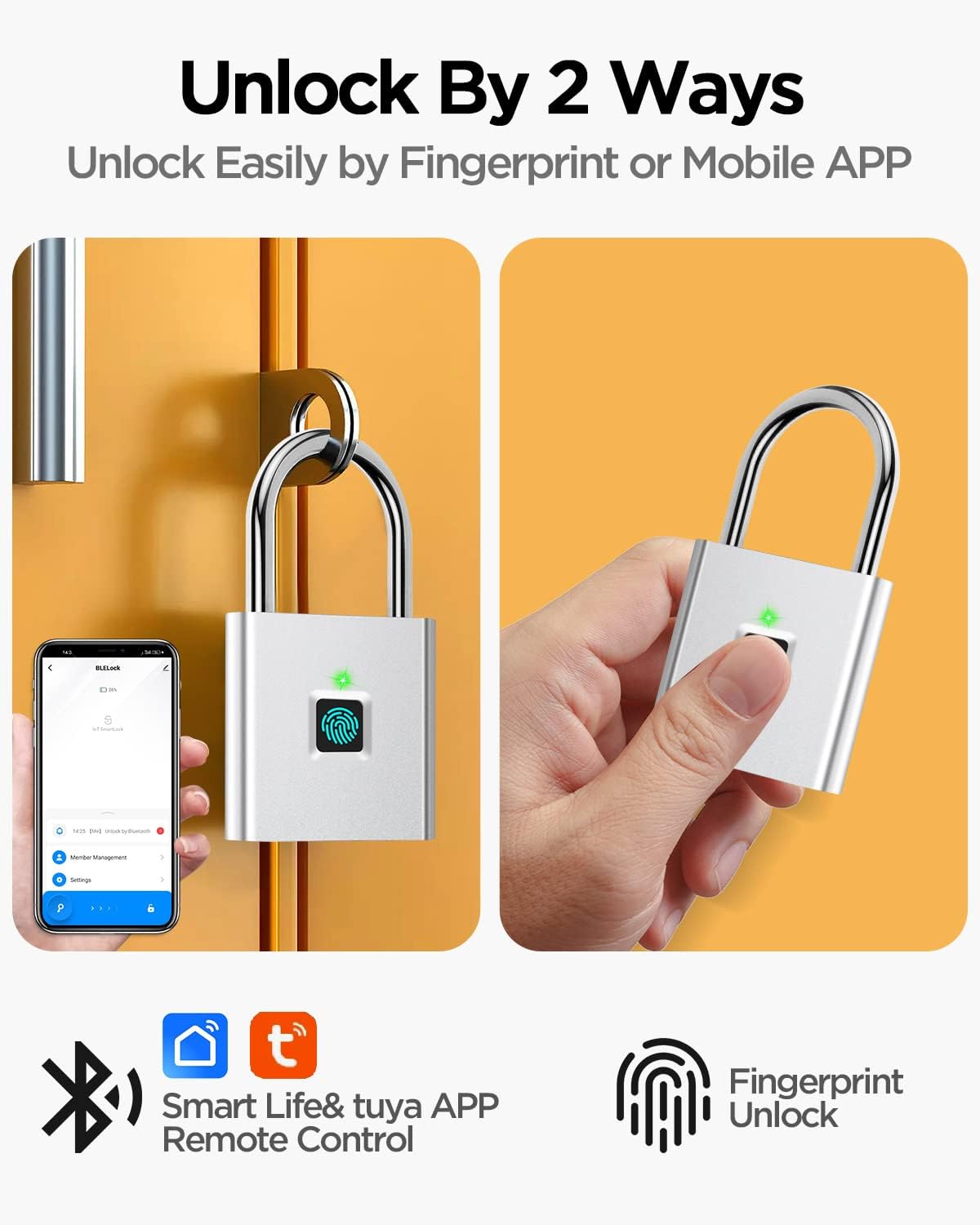
Figure 7.1: The padlock features a low battery alert function and is rechargeable via USB.
7.2. Cleaning:
Wipe the padlock body and fingerprint sensor with a soft, dry cloth. Do not use abrasive cleaners or solvents.
8. Troubleshooting
| Problem | Possible Cause | Solution |
|---|---|---|
| Padlock does not unlock with fingerprint. | Fingerprint not registered, sensor dirty, finger not placed correctly, low battery. | Ensure fingerprint is registered. Clean the sensor. Place finger firmly and cover the sensor completely. Charge the padlock. |
| App cannot connect to the padlock. | Bluetooth off, padlock in sleep mode, app permissions not granted, out of range. | Turn on Bluetooth. Press sensor to wake up padlock. Grant necessary app permissions (Bluetooth, location). Move closer to the padlock. |
| Low battery indicator (red light flashes). | Battery is low. | Charge the padlock immediately using the USB cable. |
| Cannot add new fingerprints. | Maximum fingerprints reached (19), connection issue. | Delete existing fingerprints if necessary. Ensure stable Bluetooth connection. Wake up the lock by pressing the sensor. |
9. Specifications
| Feature | Detail |
|---|---|
| Brand | AICase |
| Model Name | E0527-P |
| Lock Type | Biometric |
| Material | Alloy Steel, Stainless Steel |
| Color | Silver |
| Item Weight | 90 Grams (3.17 ounces) |
| Product Dimensions | 0.39 x 0.39 x 0.39 inches |
| Connectivity Protocol | Bluetooth |
| Special Features | Fingerprint unlock, Bluetooth padlock, App can display remaining power, admin can authorize other users, review unlock record. |
| Battery | 150mAh Lithium (USB Rechargeable) |
| Unlock Speed | 0.5 seconds |
| Fingerprint Capacity | Up to 19 (2 administrators) |
10. Applications
The AICase Smart Fingerprint Padlock is versatile and suitable for a wide range of indoor and outdoor applications:
- Gym Lockers
- School Lockers
- Employee Lockers
- Suitcases and Luggage
- Golf Bags
- Handbags
- Bicycles
- Furniture (e.g., wardrobes, cabinets)
- Gates and Fences
- Backpacks
- Storage Baskets
- Doors (where a padlock is suitable)
- Warehouses
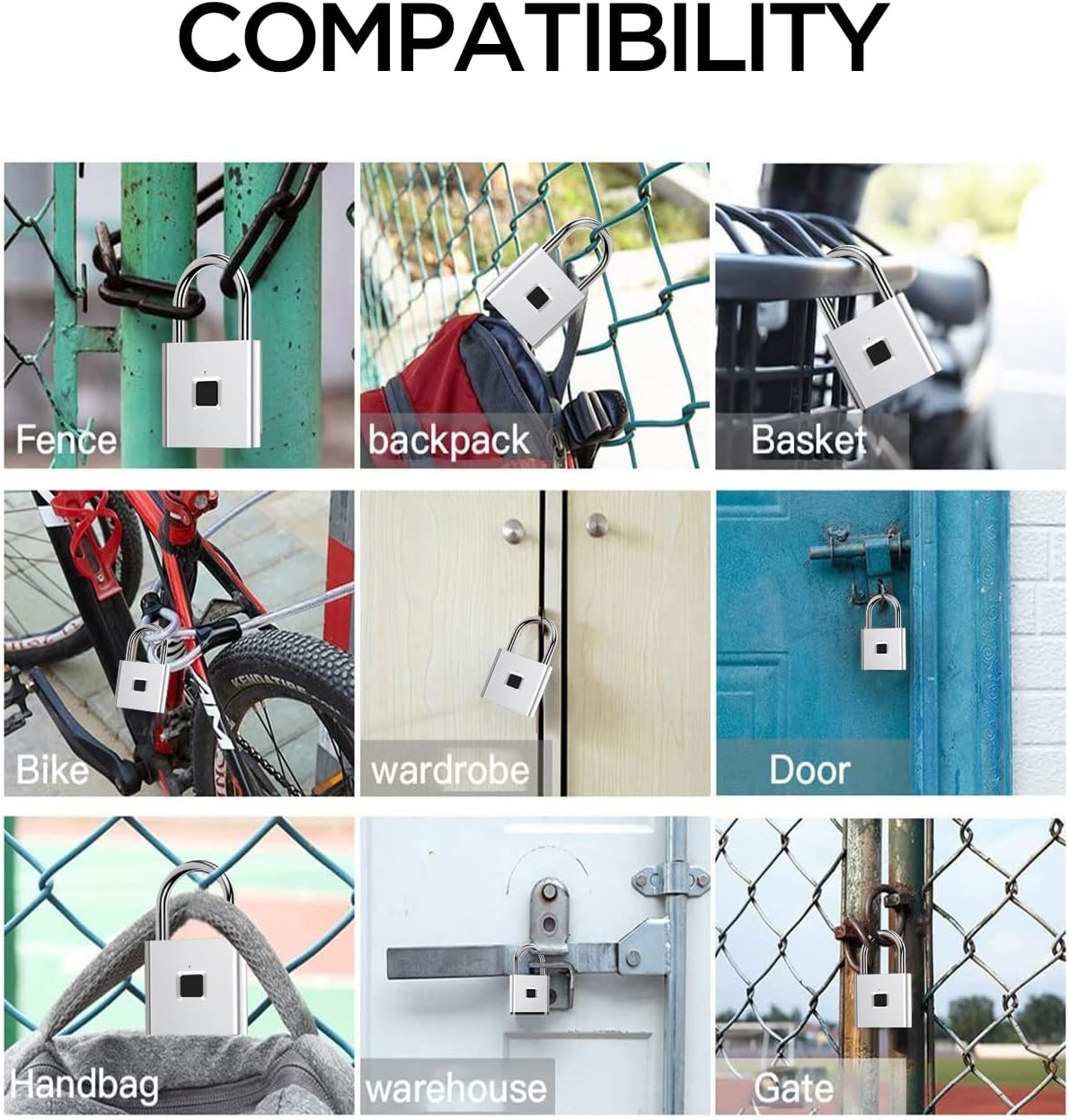
Figure 10.1: Examples of various applications for the smart padlock, including fences, backpacks, baskets, bikes, wardrobes, doors, handbags, warehouses, and gates.
11. Warranty and Support
AICase products come with a Two-year warranty and a Two-month return policy.
If you require troubleshooting assistance or technical support, please do not hesitate to contact us. We are committed to providing the best customer service.
For support, please refer to the contact information provided with your product packaging or visit the official AICase store on Amazon: AICase Store.
Ask a question about this manual
Ask about setup, troubleshooting, compatibility, parts, safety, or missing instructions. Manuals+ will review the question and use this page’s manual context to help answer it.