
1. Product Overview
The Diamond Lark LF-D108 Dash Camera is designed to provide reliable video recording for your vehicle, ensuring clear footage of your journeys and parking incidents. It features high-definition recording, a wide-angle lens, and intelligent functions for enhanced safety.
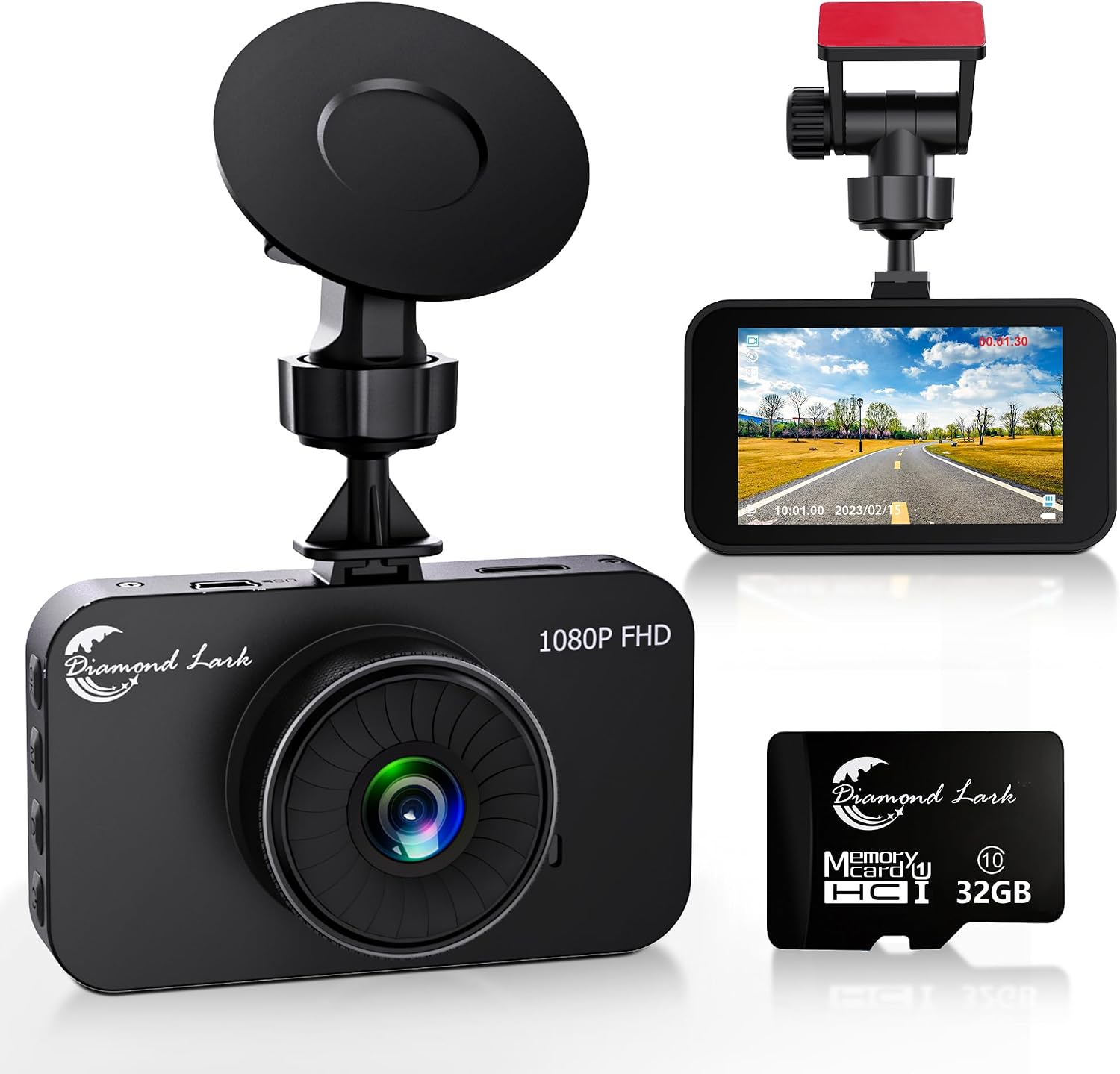

- 1080P FHD Front Dash Cam: Features a 3-inch LCD display screen and 1080P video recording, capturing clear scenes during driving and emergencies.
- 170° Wide Angle: The 170-degree wide-angle lens minimizes blind spots for comprehensive shooting.
- Loop Recording: Automatically overwrites old videos with new ones to ensure uninterrupted recording. Configurable to 1, 3, or 5-minute segments.
- Collision Lock (G-Sensor): Built-in G-sensor detects sudden crashes and automatically locks the video to prevent overwriting.
- Parking Guard: Automatically records a short video for 5 minutes if a collision is detected while parked (requires separate hardware kit for longer periods).
- Voice Recording: Supports voice recording.
- Night Vision: Enhanced night vision capabilities for clear recording in low-light conditions.
2. What's in the Box
Verify that all components are present in the package:
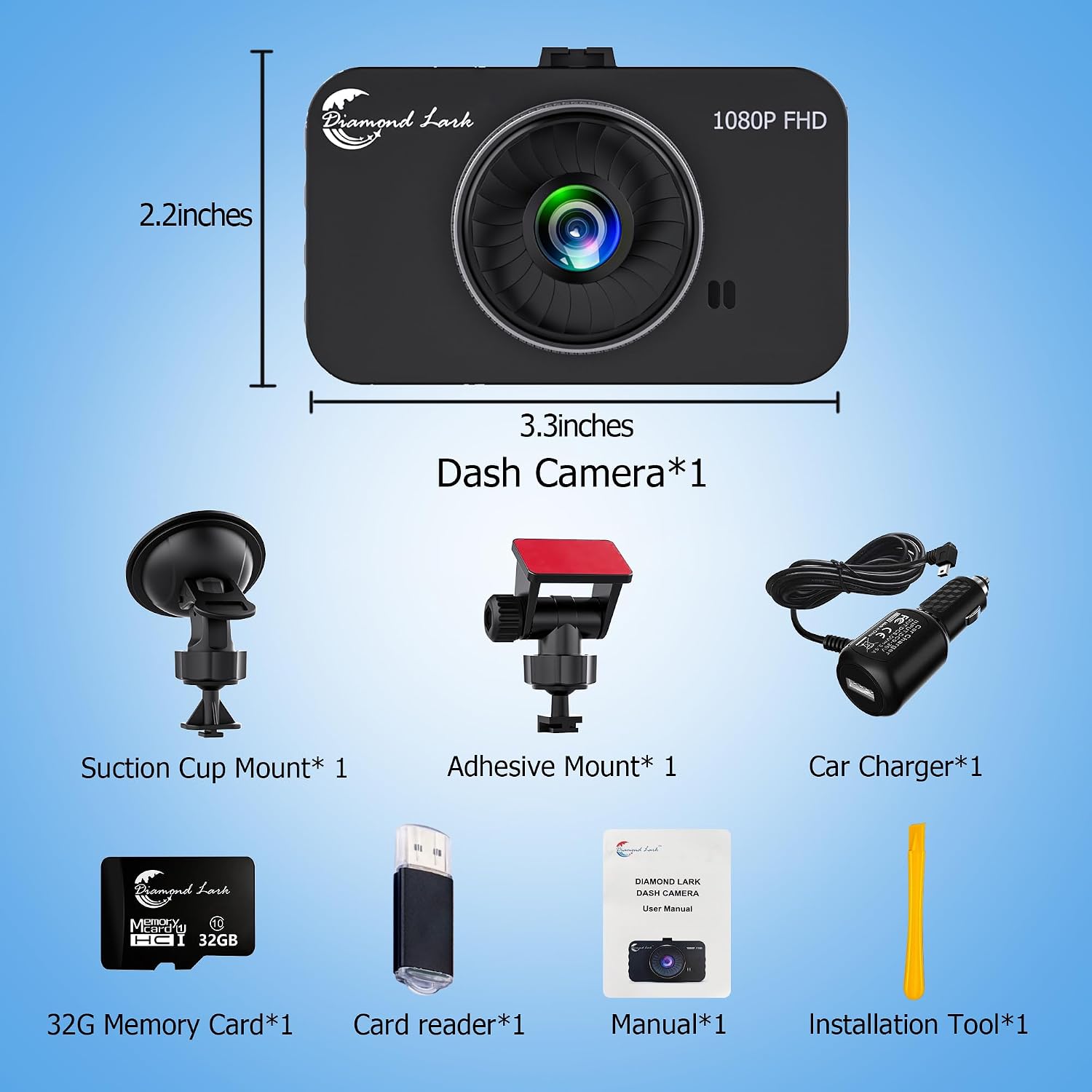
- 1 x Dash Camera
- 1 x Car Charger (11.5FT, 5V/2A)
- 1 x Suction Cup Mount
- 1 x Stickup Bracket (Adhesive Mount)
- 1 x User Manual
- 1 x 32GB SD Card (pre-installed)
- 1 x USB Card Reader
- 1 x Crowbar (for cable routing)
3. Specifications
| Feature | Specification |
|---|---|
| Product Dimensions | 1.2 x 3.3 x 2.2 inches |
| Item Weight | 3.35 ounces |
| Model Number | LF-D108 |
| Display | 3-inch LCD Screen |
| Video Resolution | 1080P Full HD (1920x1080) |
| Wide Angle Lens | 170° |
| Storage | Supports up to 64GB Micro SD Card (32GB included) |
| Connectivity | USB |
| Battery | 1 Lithium Ion battery (included) |
| Mounting Type | Suction Cup Mount / Stickup Bracket Mount |

4. Setup
Follow these steps to set up your Diamond Lark Dash Camera:
- Choose Mounting Option: The dash cam comes with both a suction cup mount and an adhesive mount. The suction cup mount is recommended for lower temperatures, while the adhesive mount is more robust in high temperatures.
- Install SD Card: The 32GB SD card is typically pre-installed. If not, insert the Micro SD card into the designated slot on the camera. Ensure correct insertion direction to avoid damage. The camera supports up to a 64GB SD card.
- Mount the Camera: Attach the chosen mount to your car's windshield. Ensure the camera's view is unobstructed and does not interfere with your driving visibility.
- Connect Power: Connect the car charger to the dash camera and plug it into your car's cigarette lighter outlet. The camera will automatically turn on and begin recording when the car starts.


Setup Video Guide
Video 1: Official Diamond Lark LF-D108 Dash Camera installation and feature overview. This video demonstrates the physical setup and initial power-on process.
5. Operating the Dash Camera
Understand the core functions of your dash camera for optimal use:
- Automatic Recording: The camera automatically turns on and starts recording when your car starts. It will automatically turn off after 3 seconds when you stop the car.
- Loop Recording: This feature ensures continuous recording by overwriting the oldest files when the SD card is full. You can set the video segment length (1, 3, or 5 minutes) in the settings.
- G-Sensor (Collision Lock): The built-in G-sensor detects sudden impacts or collisions. When triggered, it automatically locks the current video segment, preventing it from being overwritten by loop recording. This ensures critical footage is saved.
- Parking Guard: If your car experiences a collision while parked, the dash camera will automatically power on and record a 5-minute video. This function operates without external power supply for short periods due to the built-in battery. For extended parking surveillance, a separate hardwire kit is required.
- Night Vision: The camera is equipped with HDR technology and night vision capabilities to capture clear video even in low-light or nighttime conditions.
- Voice Recording: The dash camera supports voice recording to capture audio within the vehicle cabin. This feature can be toggled on/off in the settings.


6. Maintenance
Proper maintenance ensures the longevity and optimal performance of your dash camera:
- SD Card Management: Regularly format the Micro SD card to prevent data corruption and ensure smooth recording. Do not install memory cards larger than 64GB.
- Cleaning: Use a soft, dry cloth to clean the camera lens and screen. Avoid abrasive materials or chemical cleaners that could damage the surfaces.
- Temperature Considerations: The camera is designed to operate within a wide temperature range. However, extreme temperatures (below -40°F or above 158°F) can affect performance.

7. Troubleshooting
Here are some common issues and their solutions:
- Q: What should I do if the driving recorder cannot turn on?
A: If your newly purchased dash cam won't power on, it might be due to the internal battery being depleted from prolonged inactivity. Please try the following steps:- Connect to Power Source: Use the provided power adapter to connect the dash cam to an external power source. This ensures the device receives adequate power to operate.
- Attempt to Power On: After connecting to power, press the power button to see if the dash cam starts up.
- Contact After-Sales Support: If the device still doesn't power on after these steps, please reach out to our after-sales service team for further assistance.
- Q: Is there an app for this car dash camera?
A: No, the dashcam has no wireless function, so you can only control it with physical buttons. - Q: Does this work on any vehicle?
A: It can be used as long as your car has a cigarette lighter. - Q: Can I put a SD card with 128GB?
A: No, the driving recorder supports maximum of 64GB SD card. - Q: Is there a time stamp on the video?
A: Yes, you can set it yourself in the car dash cam. - Q: Can I playback the video on the dashcams?
A: Yes, after the car camera stops recording, press the M key twice to enter the video playback mode. - Q: How to upload the recorded video to the computer?
A: Insert the memory card into the USB card reader, and then insert the card reader into the USB interface of the computer and upload video to the computer. - Q: How long is the wire to go from the car dash cam to the lighter outlet?
A: The wire is 11.5FT long. - Q: Does it start recording automatically when car is on?
A: Yes, when you start the car, the car cam will automatically turn on and start recording video. When you stop the car, the camera for car will automatically turn off after waiting for 3 seconds. - Q: When dashboard camera is powered down, does it keep settings or does it revert back to factory settings?
A: Because the car camera has built in Li-ion, so it will keep settings.
8. Warranty and Support
Warranty Policy: The Diamond Lark Dash Camera comes with a 12-month warranty. If the vehicle camera you bought from our store breaks down due to non-human intervention, please contact our after-sales service. After verifying the product failure, we will replace it with a new product for free.
For further assistance or inquiries, please refer to the contact information provided in your product packaging or reach out to Diamond Lark's official customer support channels.