
Introduction
This user manual provides comprehensive instructions for the installation, operation, and maintenance of your MSI Radeon RX 6500 XT Graphics Card. Please read this manual thoroughly before installation to ensure proper functionality and to maximize the performance of your new graphics card.
Safety Information
Ensure your system is powered off and unplugged from the wall outlet before installing or removing the graphics card.
Handle the graphics card by its edges to avoid touching sensitive components or the PCIe connector.
Use an anti-static wrist strap or discharge static electricity by touching a grounded metal object before handling the card.
Do not expose the graphics card to moisture or extreme temperatures.
Ensure adequate airflow within your PC case to prevent overheating.
Package Contents
Verify that all items are present in your package:
MSI Radeon RX 6500 XT Graphics Card
Documentation (this manual, quick start guide)
Product Overview
The MSI Radeon RX 6500 XT is a high-performance graphics card designed for gaming and multimedia applications. It features AMD RDNA 2 architecture, 4GB of GDDR6 memory, and supports PCIe 4.0 for fast data transfer. The card is equipped with MSI's TORX Fan 3.0 technology for efficient cooling.
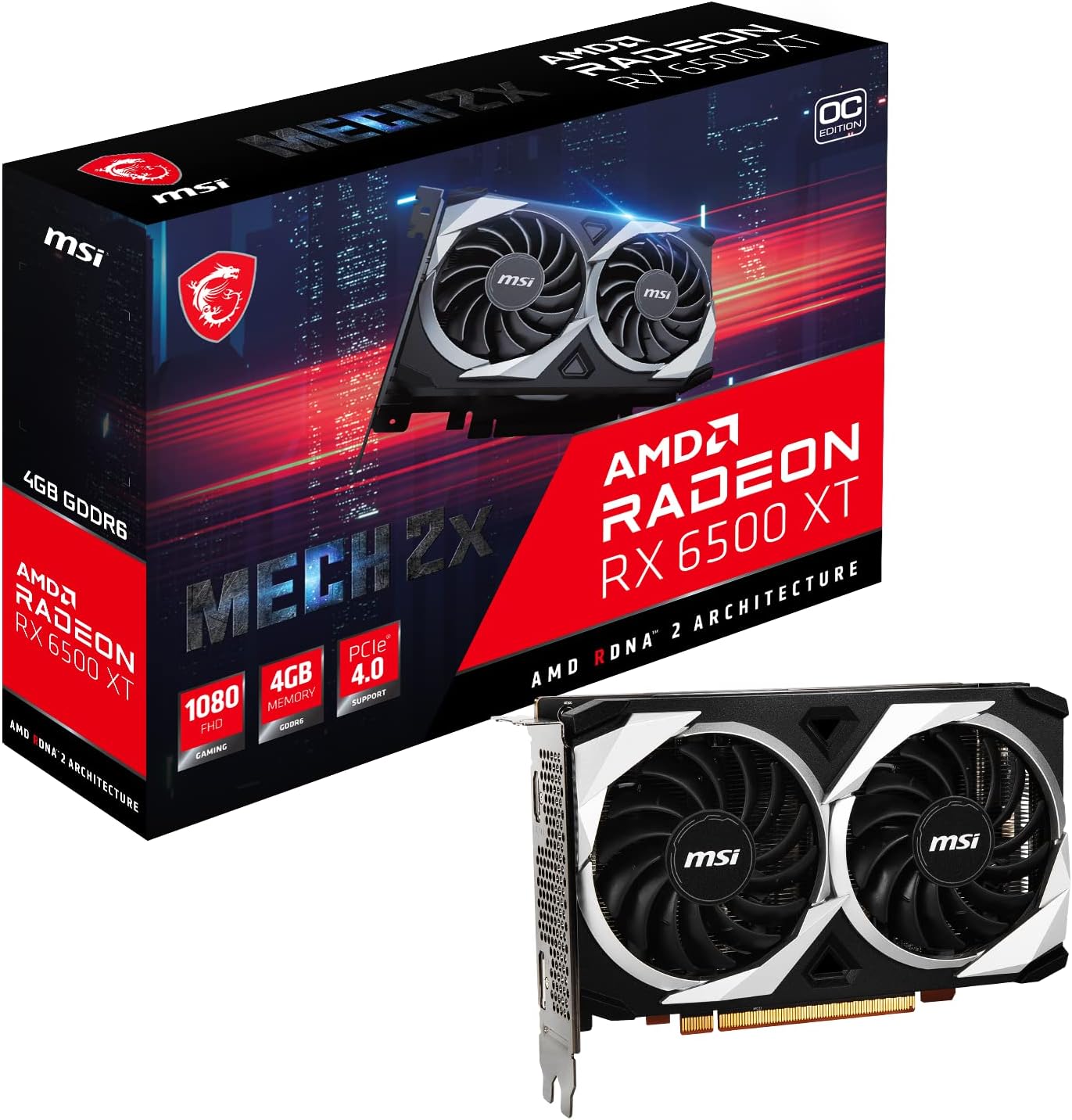
Figure 1: MSI Radeon RX 6500 XT Graphics Card and its retail packaging, highlighting the product's branding and key features.

Figure 2: Front view of the graphics card, showcasing the dual TORX fans designed for optimal airflow and cooling performance.

Figure 3: Rear input/output panel of the graphics card, featuring DisplayPort and HDMI connectors for display output.
Setup
1. Pre-Installation Checklist
System Compatibility: Ensure your motherboard has a free PCIe 4.0 x16 slot (or PCIe 3.0 x16, though performance may be limited).
Power Supply: Verify your power supply unit (PSU) meets the recommended wattage for the RX 6500 XT (typically 400W or higher, check specific requirements from MSI's official site if available).
Case Clearance: Confirm your PC case has sufficient space for the card's dimensions (6.8 x 4.4 x 0.04 inches).
Latest Drivers: Download the latest AMD Radeon drivers from the official AMD website before installation for a smoother experience.
2. Hardware Installation
Power Off: Shut down your computer completely and unplug the power cable from the wall outlet.
Open Case: Open your computer case. Refer to your PC case manual for instructions.
Locate PCIe Slot: Identify an available PCIe x16 slot on your motherboard. This is typically the top-most long slot.
Remove Slot Covers: Remove the metal slot covers from the back of your PC case corresponding to the PCIe slot you will use.
Insert Graphics Card: Carefully align the graphics card with the PCIe slot and press down firmly until it clicks into place. Ensure the retention clip on the motherboard engages.
Secure Card: Secure the graphics card to the case with screws.
Connect Power (if applicable): The RX 6500 XT typically does not require an external PCIe power connector, drawing power directly from the PCIe slot. However, always refer to the specific model's requirements. If an external connector is present, connect the appropriate PCIe power cable from your PSU to the card.
Close Case: Close your computer case and reconnect all cables.
3. Software Installation
Boot System: Power on your computer.
Install Drivers: Run the AMD Radeon driver installer you downloaded earlier. Follow the on-screen prompts to complete the installation.
Restart: Restart your computer after the driver installation is complete.
Verify Installation: After restarting, you can verify the installation by checking Device Manager (Windows) or by opening AMD Radeon Software.
Operating Your Graphics Card
Once installed and drivers are updated, your MSI Radeon RX 6500 XT is ready for use. Connect your display to one of the card's output ports (DisplayPort or HDMI).
AMD Radeon Software
The AMD Radeon Software provides a comprehensive interface for managing your graphics card. Through this software, you can:
Monitor performance metrics (temperature, clock speeds, fan speeds).
Adjust game settings for optimal performance and visual quality.
Enable features like AMD FreeSync™ for tear-free gaming.
Update drivers.
Access recording and streaming tools.
MSI Afterburner (Optional)
For advanced users, MSI Afterburner is a widely recognized utility that allows for detailed monitoring, overclocking, and custom fan curve control of your graphics card. Download it from the official MSI website.
Maintenance
Proper maintenance ensures the longevity and optimal performance of your graphics card.
Dust Removal: Periodically clean dust from the graphics card's fans and heatsink using compressed air. Ensure the system is powered off and unplugged before cleaning.
Driver Updates: Regularly check for and install the latest graphics drivers from AMD's official website. Driver updates often include performance improvements, bug fixes, and new feature support.
System Airflow: Ensure good airflow within your PC case. Keep cables tidy and ensure case fans are functioning correctly to prevent heat buildup.
Troubleshooting
If you encounter issues with your graphics card, refer to the following common troubleshooting steps:
No Display Output
Check Cables: Ensure the display cable (HDMI/DisplayPort) is securely connected to both the graphics card and the monitor.
Correct Input: Verify your monitor is set to the correct input source.
Reseat Card: Power off your PC, unplug it, and reseat the graphics card firmly in its PCIe slot.
Power Connection: If your card requires external power, ensure the PCIe power cable is securely connected.
Test with Integrated Graphics: If your CPU has integrated graphics, remove the RX 6500 XT and test if the system boots with integrated graphics. This helps determine if the issue is with the card or another system component.
Performance Issues / Low FPS
Driver Update: Ensure you have the latest AMD Radeon drivers installed.
Game Settings: Lower in-game graphics settings (resolution, texture quality, anti-aliasing) to improve performance.
Temperature: Monitor the card's temperature using AMD Radeon Software or MSI Afterburner. High temperatures can lead to thermal throttling. Ensure good case airflow.
PCIe Slot: Verify the card is installed in a PCIe 4.0 x16 slot if your motherboard supports it, as the RX 6500 XT's performance is optimized for PCIe 4.0.
Background Applications: Close unnecessary background applications that might be consuming system resources.
Driver Crashes / Black Screens
Clean Driver Installation: Use a utility like Display Driver Uninstaller (DDU) in Safe Mode to completely remove old drivers, then perform a fresh installation of the latest AMD drivers.
System Stability: Ensure your system's power supply is adequate and stable.
Specifications
| Feature | Detail |
|---|---|
| Brand | MSI |
| Model Number | Radeon RX 6500 XT MECH 2X 4G OC-cr |
| Graphics Coprocessor | AMD Radeon RX 6500 XT |
| Graphics RAM Size | 4 GB GDDR6 |
| Video Output Interface | DisplayPort, HDMI |
| Product Dimensions | 6.8 x 4.4 x 0.04 inches |
| Item Weight | 1.76 pounds |
| Manufacturer | MSI |
| ASIN | B0BLH6KD8S |
| Date First Available | January 3, 2023 |
Warranty and Support
For warranty information and technical support, please refer to the official MSI website or the documentation included with your product. Keep your proof of purchase for warranty claims.
MSI Official Website: www.msi.com
AMD Support: www.amd.com/support


