
1. Introduction
Thank you for choosing the Midea Fresh Dry 10 Dehumidifier. This manual provides essential information for the safe and efficient operation, maintenance, and troubleshooting of your appliance. Please read it thoroughly before use and retain it for future reference.

The Midea Fresh Dry 10 Dehumidifier offers multiple air improvement features, including air purification and effective dehumidification for spaces up to 16 square meters.
2. Safety Information
To prevent injury to the user or others and property damage, the following instructions must be followed. Incorrect operation due to ignoring instructions may cause harm or damage.
- Always ensure the appliance is placed on a stable, level surface.
- Do not operate the unit with a damaged power cord or plug.
- Keep the appliance away from heat sources and direct sunlight.
- Do not block the air inlet or outlet. Maintain at least 20 cm clearance from walls or other objects.
- Unplug the unit before cleaning or performing any maintenance.
- Do not use the appliance in areas where flammable gases or liquids are stored.
- This appliance is not intended for use by persons (including children) with reduced physical, sensory or mental capabilities, or lack of experience and knowledge, unless they have been given supervision or instruction concerning use of the appliance by a person responsible for their safety.
3. Product Features
- Silent Dehumidification: Operates at a low noise level of 39 dB, with a daily dehumidification capacity of up to 10 liters, suitable for rooms up to 16 m².
- Multiple Operating Modes: Includes Set Mode, Smart Mode, Dry Mode, and Continuous Mode for versatile use.
- Smart Control: Compatible with WLAN, Alexa, and Google Assistant for convenient remote operation via smartphone.
- Air Purification: Features an integrated ion generator and a high-density HEPA filter for simultaneous dehumidification and air cleaning.
- User-Friendly Design: Equipped with universal wheels for easy movement, an ambient light indicator for quick humidity status, and a child lock to prevent accidental changes.
- Energy Saving: Includes a 24-hour timer and automatic shut-off function. Uses eco-friendly R290 refrigerant.
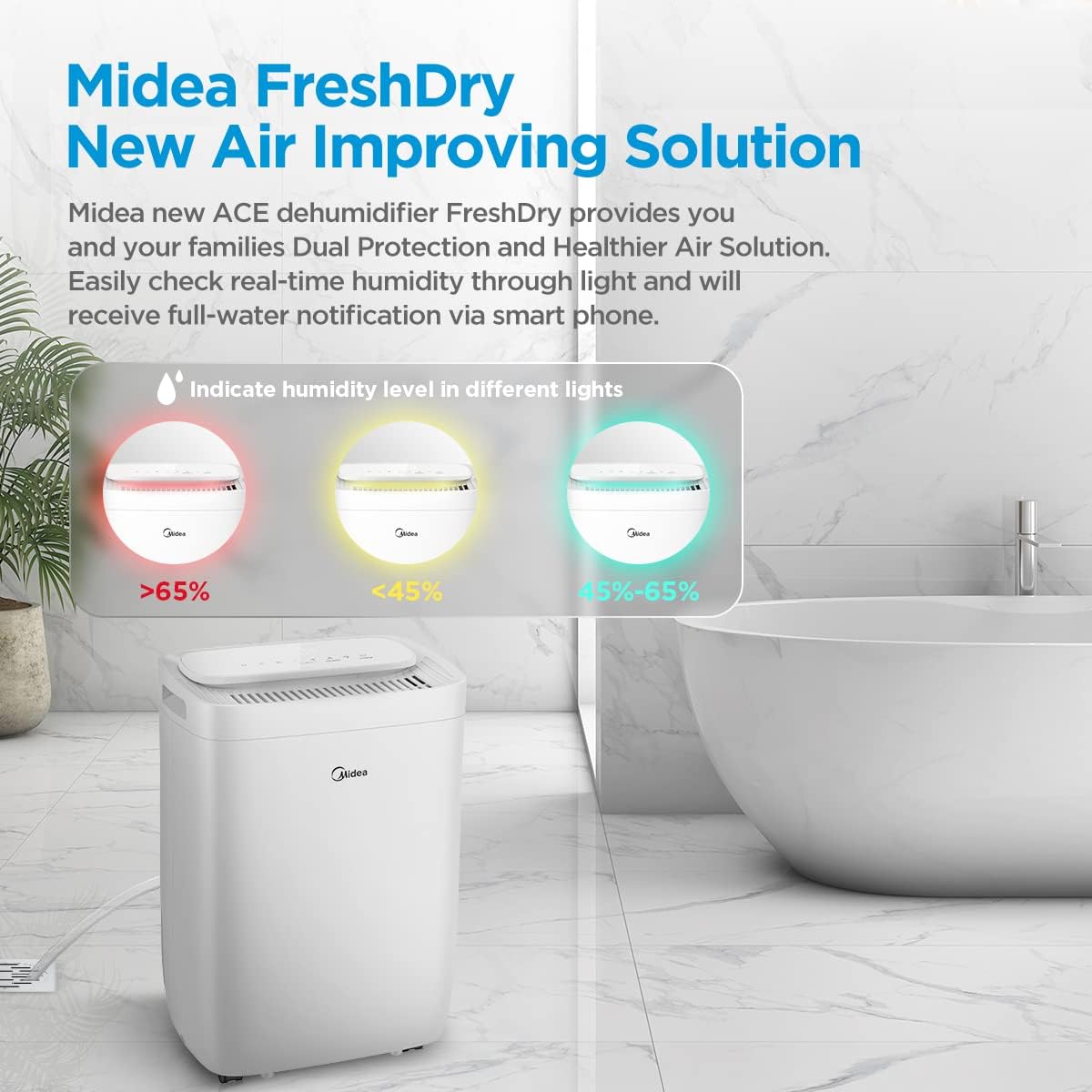
The ambient light indicates real-time humidity levels: Red (>65%), Yellow (<45%), and Green (45-65%).
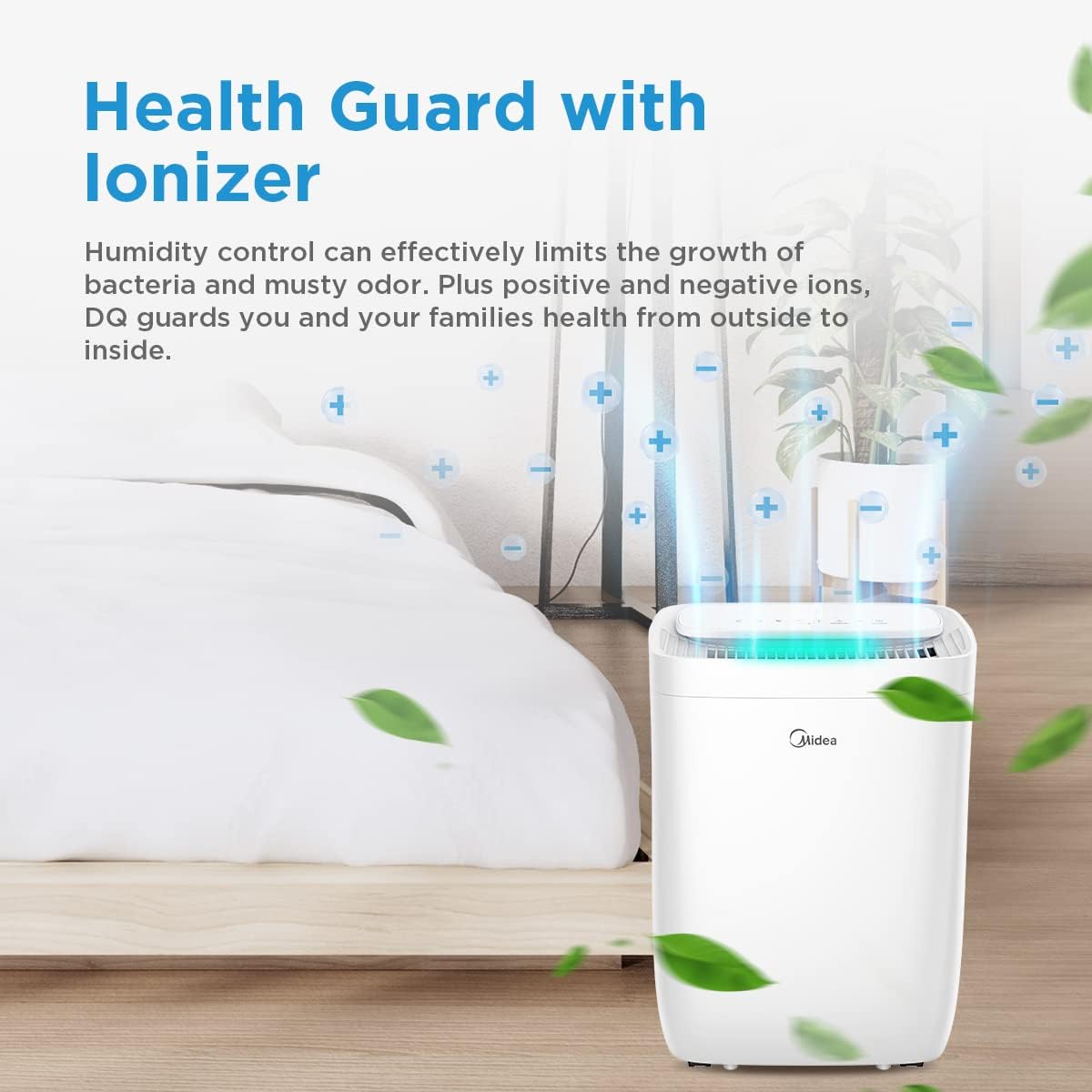
The built-in ionizer helps control humidity and reduce odors by releasing positive and negative ions.
4. Setup
- Unpacking: Carefully remove the dehumidifier from its packaging. Retain packaging materials for future storage or transport.
- Placement: Place the unit on a firm, level surface in the desired location. Ensure there is at least 20 cm of space around the unit for proper airflow. Avoid placing it near heat sources or in direct sunlight.
- Power Connection: Plug the power cord into a grounded electrical outlet. Ensure the voltage matches the specifications of the unit.
- Continuous Drainage (Optional): For continuous operation without emptying the water tank, connect a drainage hose (not included) to the continuous drainage port at the back of the unit. Ensure the hose is sloped downwards to allow water to flow out by gravity.

The 360-degree wheels allow for easy movement of the dehumidifier to different rooms.
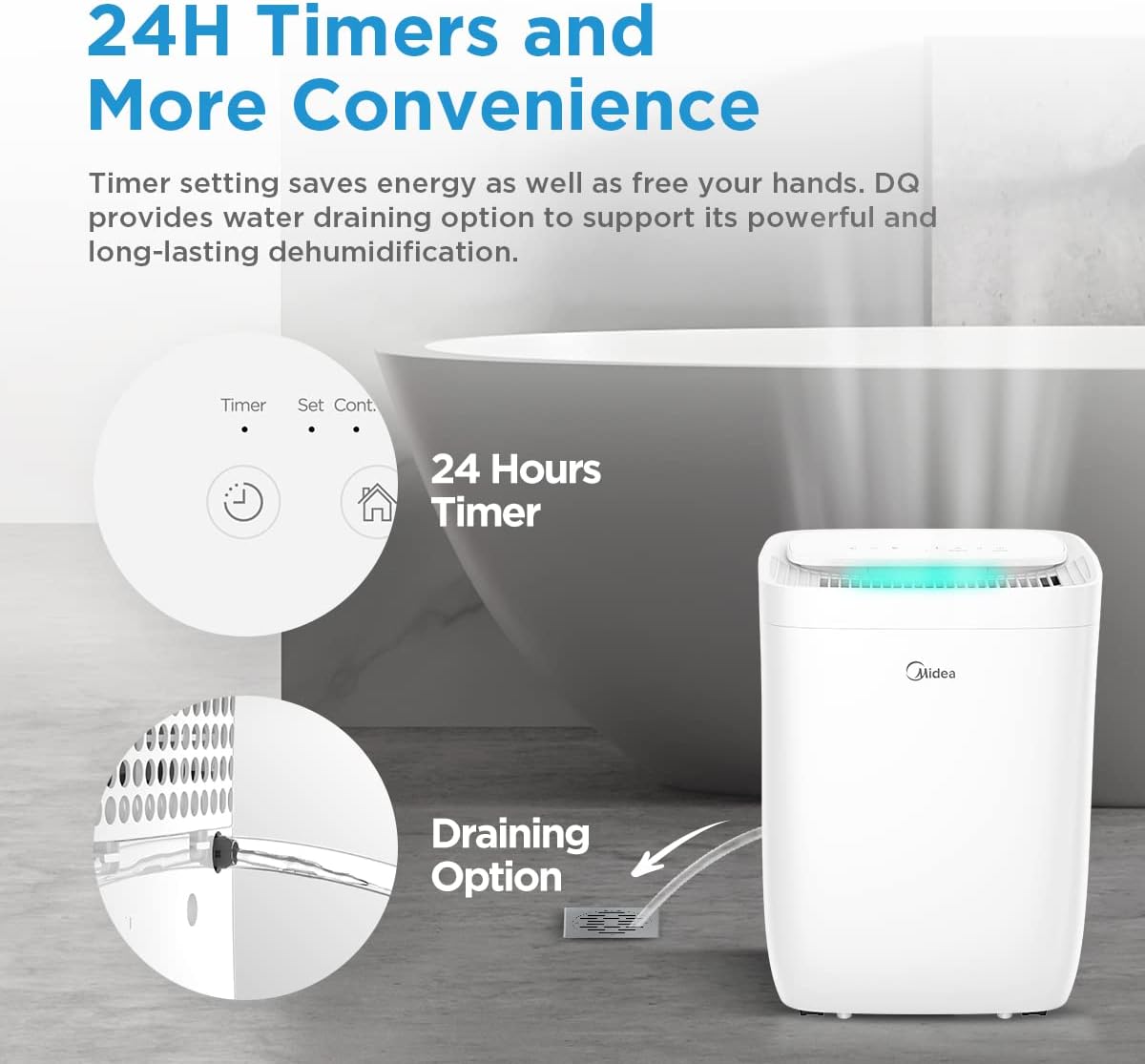
For continuous operation, connect a drainage hose to the designated port.
5. Operating Instructions
5.1 Control Panel Overview

The control panel allows access to all functions of the dehumidifier.
- Power Button: Turns the unit ON or OFF.
- Mode Button: Cycles through available operating modes (Set, Smart, Dry, Continuous).
- Humidity Setting Buttons (+/-): Adjusts the desired humidity level.
- Timer Button: Sets the 24-hour timer for delayed start or stop.
- Fan Speed Button: Adjusts fan speed (Low, Medium, High).
- Light Button: Controls the ambient light indicator.
- Filter Reset Button: Resets the filter indicator after cleaning/replacement.
- Connect Button: Initiates Wi-Fi pairing mode.
5.2 Basic Operation
- Power On: Press the Power button to turn on the dehumidifier.
- Select Mode: Press the Mode button to choose your desired operating mode.
- Set Humidity: In Set Mode, use the +/- buttons to set the target humidity level (e.g., 50%). The unit will operate until this level is reached.
- Set Timer: Press the Timer button to set a delay for the unit to turn on or off (up to 24 hours).
5.3 Smart Control (Wi-Fi, Alexa, Google Assistant)
The Midea Fresh Dry 10 can be controlled remotely via the Midea application and integrated with smart home systems.
- Download App: Download the Midea app from your smartphone's app store.
- Pairing: Follow the in-app instructions to connect your dehumidifier to your home Wi-Fi network. This typically involves pressing the 'Connect' button on the unit for 3 seconds.
- Smart Home Integration: Once connected to the Midea app, you can link it to Amazon Alexa or Google Assistant by following the instructions in their respective apps.
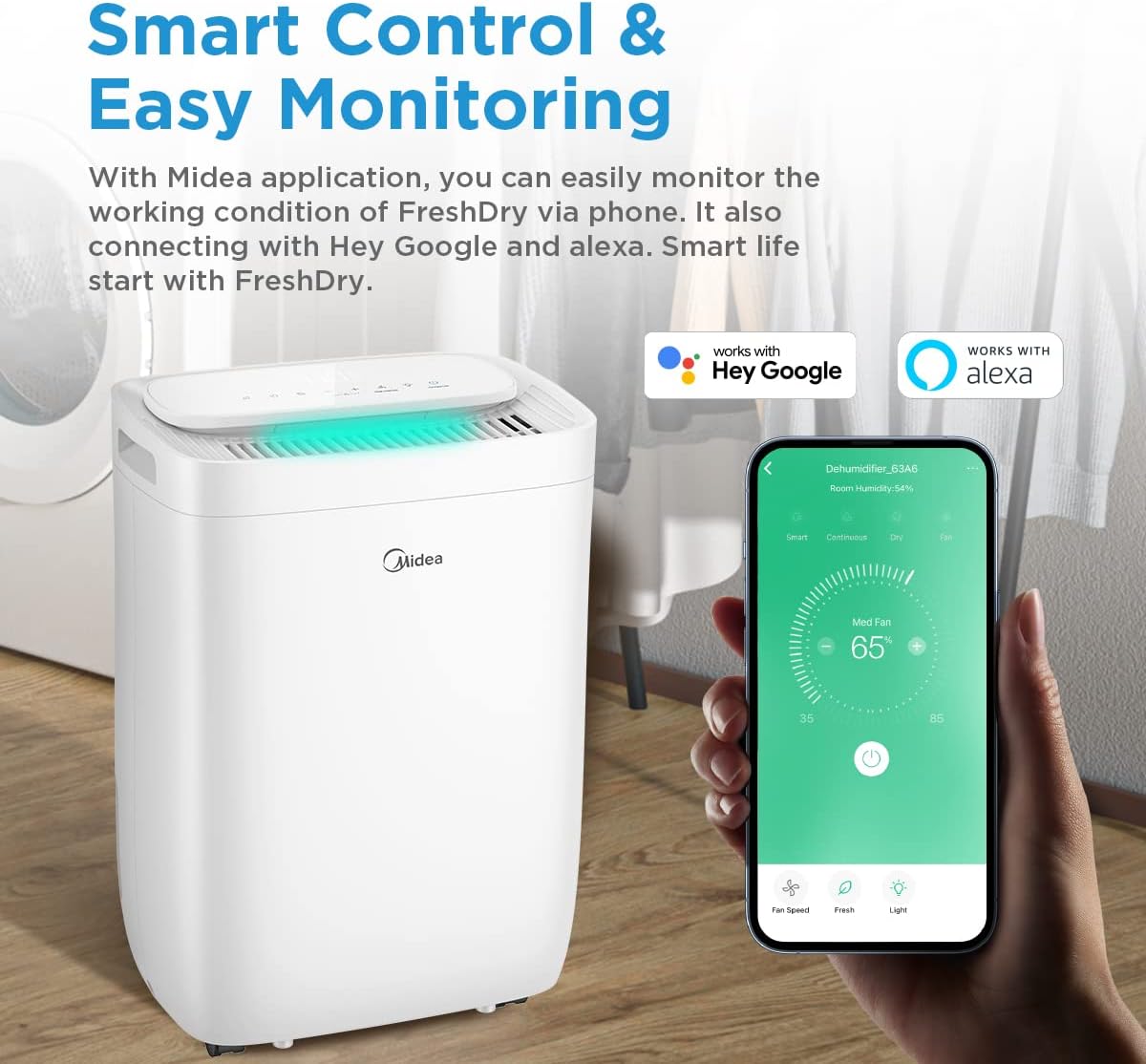
Control your dehumidifier remotely using the Midea app, compatible with Hey Google and Alexa.
6. Maintenance
Regular maintenance ensures optimal performance and longevity of your dehumidifier.
6.1 Emptying the Water Tank
- When the water tank is full, the unit will automatically shut off and an indicator light will illuminate.
- Carefully pull out the water tank from the back of the unit.
- Empty the collected water.
- Slide the empty tank back into place until it clicks securely. The unit will resume operation.

The water tank is easily accessible from the rear of the unit for emptying.
6.2 Cleaning the Air Filter
The dehumidifier is equipped with a washable pre-filter and an H13 True HEPA filter.
- Power Off: Turn off and unplug the dehumidifier.
- Remove Filter: Locate the filter access panel (usually at the back or side) and remove the filter assembly.
- Clean Pre-Filter: The washable pre-filter can be cleaned with a vacuum cleaner or rinsed with warm water. Ensure it is completely dry before reinstallation.
- HEPA Filter: The H13 True HEPA filter is not washable and should be replaced periodically (e.g., every 6-12 months, depending on usage and air quality). Do not wash the HEPA filter.
- Reinstall: Place the clean/new filters back into the unit and close the access panel.
- Reset Filter Indicator: Press and hold the 'Reset Filter' button on the control panel for 3 seconds to clear the filter cleaning reminder.

The H13 True HEPA filter and washable pre-filter work together to capture 99.9% of air pollutants.
7. Troubleshooting
Before contacting customer service, please refer to the following troubleshooting guide.
| Problem | Possible Cause | Solution |
|---|---|---|
| Unit does not turn on | No power supply; Power cord not plugged in; Water tank full or incorrectly placed. | Check power connection; Empty and re-seat water tank correctly. |
| No dehumidification | Air filter clogged; Room temperature too low; Humidity setting too high. | Clean or replace air filter; Ensure room temperature is above 5°C; Lower the target humidity setting. |
| Unit is noisy | Unit not on a level surface; Air filter clogged; Obstruction in fan. | Place on a level surface; Clean air filter; Check for and remove any obstructions. |
| Wi-Fi connection fails | Incorrect Wi-Fi password; Router too far; App not updated. | Verify Wi-Fi password; Move unit closer to router; Update Midea app. |
8. Specifications
| Feature | Specification |
|---|---|
| Model Name | FRESH DRY 10 |
| Dehumidification Capacity | 10 Liters/day |
| Applicable Area | 16 m² |
| Dimensions (D x W x H) | 22.4 x 33.4 x 44.1 cm |
| Weight | 10 kg |
| Noise Level | 39 Decibels |
| Wattage | 380 watts |
| Refrigerant | R290 (Eco-friendly) |
| Filter Type | Washable Pre-filter, H13 True HEPA Filter |
| Connectivity | Wi-Fi, Alexa, Google Assistant |

Product dimensions for placement planning.
9. Warranty and Support
Midea products are manufactured to the highest quality standards. For warranty information, please refer to the warranty card included with your purchase or visit the official Midea website. For technical support or service inquiries, please contact Midea customer service through their official channels.
Please have your model number (FRESH DRY 10) and purchase date ready when contacting support.


