1. Introduction
This manual provides essential information for the safe and efficient operation of your PRISM+ Q32 TV. Please read it thoroughly before using the television and retain it for future reference. This guide covers installation, initial setup, feature usage, maintenance, and troubleshooting.
2. Safety Information
Always observe the following safety precautions to prevent electric shock, fire, or injury:
- Do not expose the TV to rain or moisture.
- Ensure proper ventilation; do not block ventilation openings.
- Do not place the TV on an unstable cart, stand, tripod, bracket, or table.
- Unplug the TV during lightning storms or when unused for long periods.
- Refer all servicing to qualified service personnel.
- Keep small parts and packaging materials out of reach of children.
3. Package Contents
Verify that all items are present in the package:
- PRISM+ Q32 TV Unit
- TV Stand (2 pieces)
- Remote Control
- Power Cable
- User Manual (this document)
4. Setup
4.1 Unpacking
Carefully remove the TV from its packaging. It is recommended to keep the original packaging for future transport or servicing.
4.2 Stand Installation (Table Mount)
To install the TV stand:
- Place the TV face down on a soft, clean surface to prevent screen damage.
- Align each stand piece with the corresponding slots on the bottom of the TV.
- Secure the stands using the provided screws. Ensure they are firmly attached.
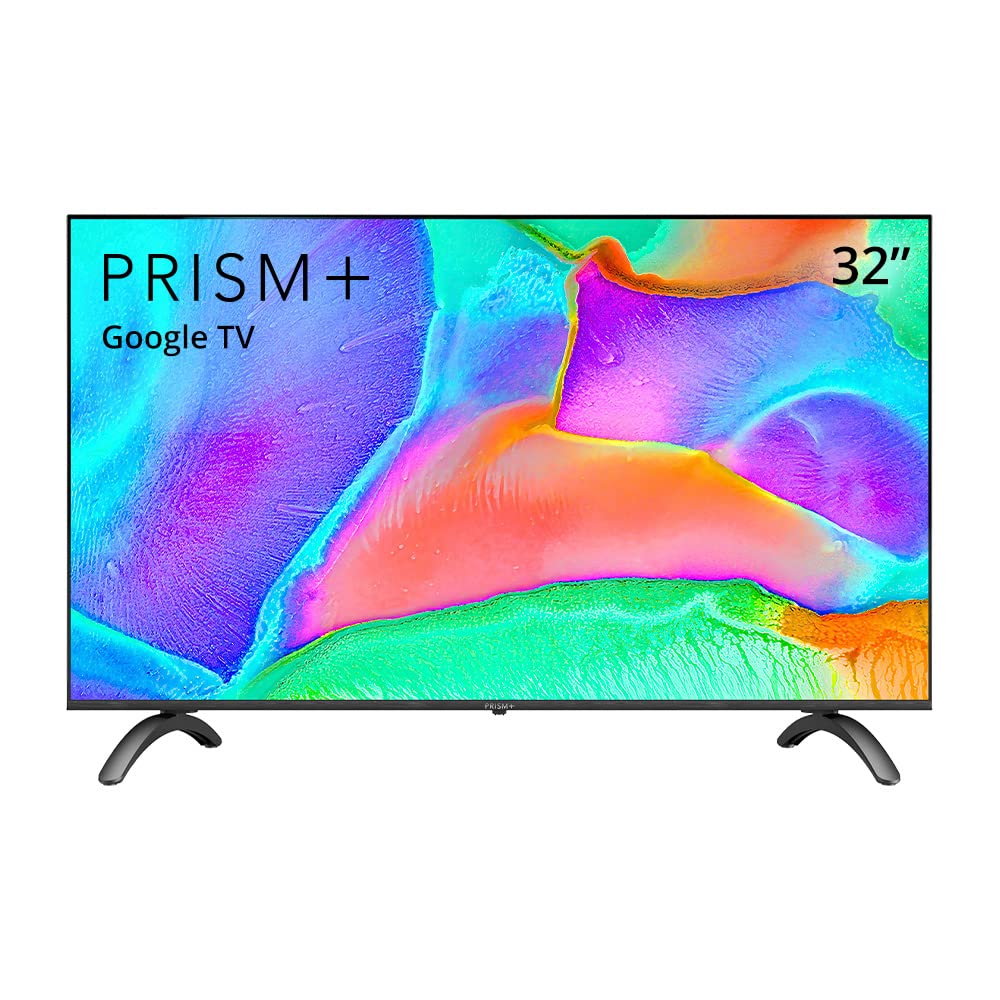
Image: Front view of the PRISM+ Q32 TV with its stand attached, ready for placement.

Image: Rear view of the PRISM+ Q32 TV, illustrating the attachment points for the stand.
4.3 Wall Mounting (Optional)
The PRISM+ Q32 TV supports VESA wall mounts (sold separately). Follow the instructions provided with your wall mount kit. Ensure the wall can support the weight of the TV.
4.4 Connecting Peripherals
Connect your devices (e.g., cable box, gaming console, soundbar) to the TV's HDMI ports. Plug the power cable into the TV and then into a wall outlet.
5. Operating Instructions
5.1 Power On/Off
Press the power button on the remote control or on the TV itself to turn the TV on or off.
5.2 Initial Setup (Google TV)
Upon first power-on, the TV will guide you through the initial setup process. This includes:
- Language selection
- Network connection (Wi-Fi)
- Google account sign-in (optional, but recommended for full Google TV features)
- Channel scanning (if using an antenna)

Image: The Google TV interface displayed on the PRISM+ Q32 screen, showing content recommendations and app access.
5.3 Navigation and Voice Control
Use the remote control to navigate the Google TV interface. The PRISM+ Q32 features voice control via Google Assistant:
- Press the Google Assistant button on your remote.
- Speak commands or questions into the remote's microphone (e.g., "Hey Google, find action movies").
- Adjust volume, open apps, search for content, and control smart home devices using your voice.

Image: A PRISM+ Q32 TV screen displaying a voice command prompt, with the remote control shown next to it, illustrating the voice control feature.
5.4 Smart TV Features
- Built-in Apps: Access a wide range of applications directly from the Google Play Store, including Netflix, YouTube, and many others.
- Chromecast Built-in: Seamlessly cast content from your compatible smartphone, tablet, or computer directly to your TV.
- Wireless Connectivity: Connect to your home network via Wi-Fi and use Bluetooth for connecting accessories like headphones or game controllers.

Image: The PRISM+ Q32 TV screen displaying a grid of popular streaming and entertainment application icons.
6. Key Features
- IPS Panel: Enjoy consistent and accurate colors with wide viewing angles, ensuring a clear picture from various positions.
- 16.7 Million Colors: Experience vibrant and lifelike color reproduction for an enhanced viewing experience.
- Premium ZeroBezel Design: A sleek, near-bezel-less design maximizes screen space for an immersive viewing experience.
- Dolby Audio & DTS TruSurround: Integrated audio technologies provide rich, clear, and immersive sound.

Image: A visual comparison demonstrating the superior color and clarity of an IPS panel from wide viewing angles compared to a standard panel.

Image: An illustration comparing a television with a thick bezel to one with a ZeroBezel design, highlighting the increased screen area of the latter.
7. Maintenance
7.1 Cleaning the Screen
Gently wipe the screen with a soft, lint-free cloth. For stubborn marks, slightly dampen the cloth with water or a specialized screen cleaner. Do not spray liquid directly onto the screen.
7.2 Cleaning the Cabinet
Use a soft, dry cloth to clean the TV cabinet. Avoid using abrasive cleaners or solvents.
8. Troubleshooting
If you encounter issues with your PRISM+ Q32 TV, refer to the following common solutions:
- No Power: Ensure the power cable is securely connected to both the TV and the wall outlet. Try a different outlet.
- No Picture/Sound: Check all cable connections (HDMI, antenna). Ensure the correct input source is selected on the TV.
- Remote Control Not Working: Replace the batteries. Ensure there are no obstructions between the remote and the TV's IR sensor.
- Network Connection Issues: Restart your Wi-Fi router. Reconnect the TV to the Wi-Fi network through the settings menu.
- Picture Quality Issues: Adjust picture settings (brightness, contrast, color) in the TV menu. Ensure the input source is providing a high-quality signal.
If the problem persists, contact customer support.
9. Specifications
| Feature | Specification |
|---|---|
| Model Name | Q32 |
| Screen Size | 32 Inches |
| Display Technology | LCD (IPS Panel) |
| Resolution | 1080p |
| Product Dimensions (D x W x H) | 17D x 72W x 46H centimetres |
| Connectivity Technology | Wi-Fi, Bluetooth |
| Supported Internet Services | Netflix, Google TV, Google Play Store |
| Special Features | Chromecast built-in, Voice Control (Google Assistant) |
| Audio Output Mode | Surround |
| Integrated Surround Sound Format | Dolby Audio, DTS TruSurround |
| HDR Format Supported | Dolby Vision |
| Mounting Type | Table Mount |
10. Warranty and Support
For warranty information and technical support, please refer to the warranty card included with your product or visit the official PRISM+ website. Keep your purchase receipt as proof of purchase.


