
Introduction
Thank you for choosing the ATTACK SHARK K87 Wireless Mechanical Keyboard. This manual provides detailed instructions for setting up, operating, and maintaining your keyboard to ensure optimal performance. The K87 offers versatile connectivity options including 2.4G wireless, Bluetooth 5.0, and wired USB-C, making it compatible with various operating systems and devices.
Package Contents
Please verify that all items are present in your package:
- ATTACK SHARK K87 Wireless Mechanical Keyboard
- USB-C to USB-A Coiled Cable
- 2.4G Wireless Receiver (USB Dongle)
- Keycap Puller
- User Manual (this document)
Product Overview
The ATTACK SHARK K87 is a Tenkeyless (TKL) mechanical keyboard designed for both gaming and productivity. It features a compact layout, hot-swappable switches, customizable RGB backlighting, and a durable construction.
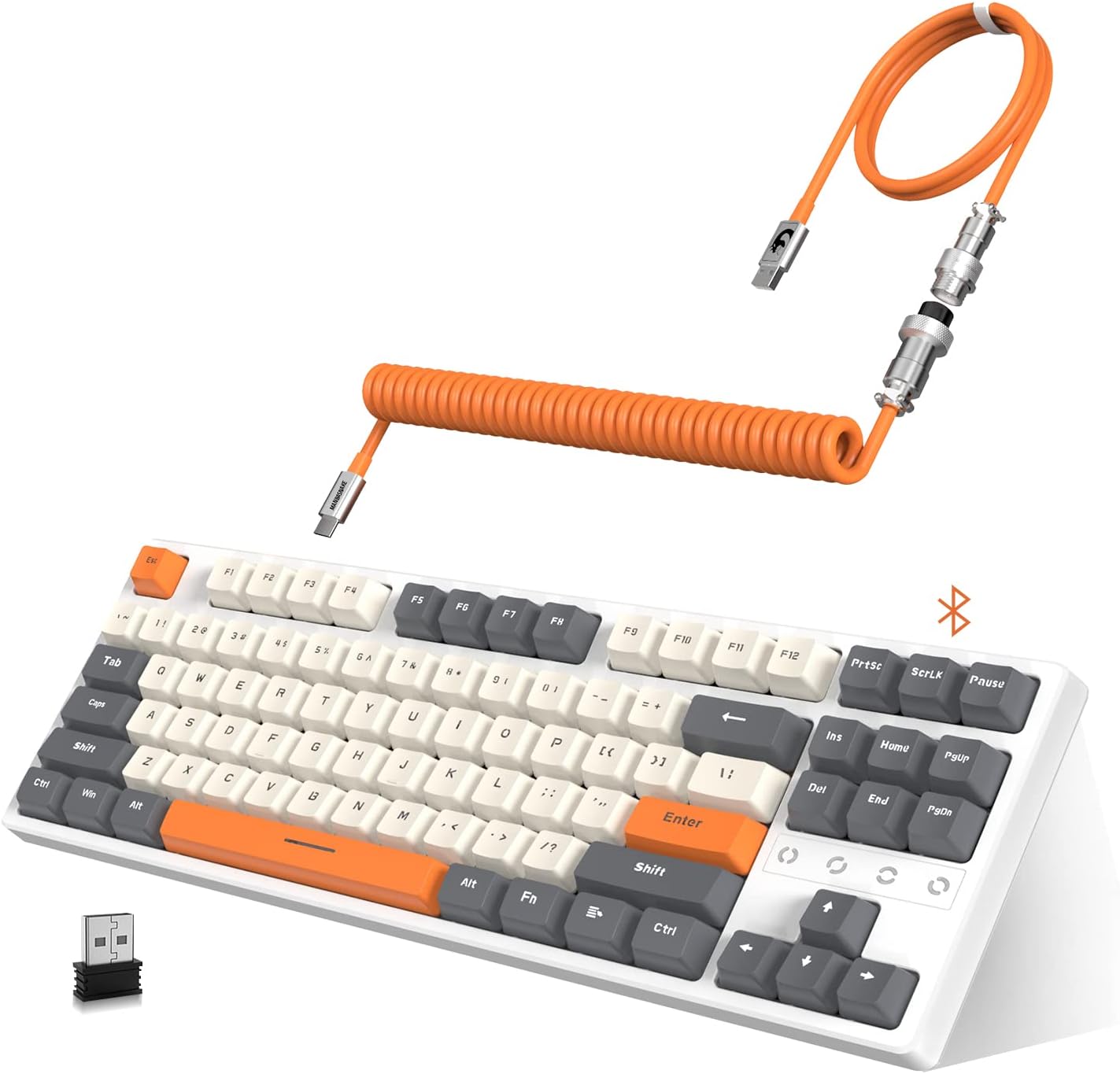
Image: The ATTACK SHARK K87 keyboard in white and gray, shown with its orange coiled USB-C cable and 2.4G wireless dongle.
Key Features:
- Triple Mode Connectivity: Seamlessly switch between 2.4G wireless, Bluetooth 5.0, and wired USB-C connections.
- Hot-Swappable Switches: Compatible with most 3-pin or 5-pin mechanical switches, allowing for easy customization and maintenance. The keyboard comes equipped with tactile blue switches.
- Chroma RGB Backlight: Features 28 RGB backlight modes, 8 monochrome modes, and 20 full-color backlight options. Backlight customization and macro settings are available.
- 3000mAh Rechargeable Battery: Provides extended wireless usage and includes an intelligent power-saving mode.
- Dual Layer Sound Absorbing Silicone Pads: Enhances typing and gaming experience by reducing noise and improving acoustics.
- 80% TKL Compact Design: Space-saving layout without a numeric keypad, ideal for gaming and minimalist setups.
- Custom Coiled Cable: Durable double-sleeved USB Type-C to USB-A cable with an aviation connector for reliable wired connection and charging.

Image: An exploded diagram illustrating the K87's unique gasket structure, showing layers like the top case, ABS keycaps, 3/5 pin switches, aluminum plate with silicone gasket, Poron plate foam, PCB, Poron switch pad, and bottom case, designed for sound absorption.
Setup
1. Charging the Keyboard
Before initial use, it is recommended to fully charge the keyboard. Connect the provided USB-C coiled cable to the keyboard's USB-C port and the USB-A end to a power source (e.g., computer USB port, USB wall adapter). The 3000mAh battery provides long-lasting power.

Image: The K87 keyboard connected via its coiled cable, indicating charging status and compatibility with Windows XP, 7, 10, macOS, and Linux OS.
2. Connecting the Keyboard
The K87 supports three connection modes: Wired, 2.4G Wireless, and Bluetooth 5.0.

Image: The K87 keyboard connected to a laptop via 2.4G wireless, a tablet via Bluetooth, and a phone via Bluetooth, illustrating its triple mode connectivity.
Wired Connection:
- Ensure the keyboard's mode switch (usually on the back or side) is set to 'Wired' or 'USB'.
- Connect the USB-C end of the coiled cable to the keyboard and the USB-A end to your computer's USB port.
- The keyboard will be automatically recognized by your operating system.
2.4G Wireless Connection:
- Locate the 2.4G wireless receiver (USB dongle) in the package.
- Plug the 2.4G receiver into an available USB port on your computer.
- Set the keyboard's mode switch to '2.4G' or the corresponding wireless icon.
- The keyboard should connect automatically. If not, press the designated pairing key combination (refer to keyboard legends or a quick start guide if provided separately) to initiate pairing.
Bluetooth 5.0 Connection:
- Set the keyboard's mode switch to 'BT' or the Bluetooth icon.
- On your device (computer, tablet, phone), enable Bluetooth and search for new devices.
- The keyboard should appear as 'ATTACK SHARK K87' or similar. Select it to pair.
- The K87 can connect to up to 5 devices simultaneously. Use specific key combinations (e.g., Fn + 1, Fn + 2, Fn + 3) to switch between paired Bluetooth devices.
Operating Instructions
1. RGB Backlight Control
The K87 offers extensive RGB customization. Use the function keys (Fn) in combination with other keys to change backlight modes, colors, and brightness.
- Changing Modes: Refer to the keyboard's key legends for specific Fn key combinations to cycle through 28 RGB modes and 8 monochrome modes.
- Adjusting Brightness/Speed: Typically, Fn + Arrow keys or other designated keys control brightness and animation speed.
- Customization: The keyboard supports macro settings for personalized lighting effects. Consult the official ATTACK SHARK software (if available) for advanced customization.

Image: The K87 keyboard displaying various RGB backlight patterns, highlighting its ergonomic design, hot-swappable keys, and triple mode connection capabilities.
2. Hot-Swappable Switches
The K87's hot-swappable design allows you to change mechanical switches without soldering. This feature is compatible with most 3-pin or 5-pin switches available on the market.
- Removing Keycaps: Use the provided keycap puller to gently remove the desired keycap.
- Removing Switches: Use a switch puller (not always included, but often with replacement switches) to carefully extract the switch from the PCB.
- Installing New Switches: Align the pins of the new switch with the holes on the PCB and press down gently until it clicks into place. Ensure pins are not bent.
- Re-installing Keycaps: Place the keycap onto the new switch and press down firmly.
3. Power Saving Mode
To conserve battery life, the K87 features an intelligent power-saving mode:
- If not used for 2 minutes, the backlight will turn off, entering the first power-saving mode.
- If not used for 30 minutes, the keyboard will enter sleep mode. Press any key to wake it up.
Maintenance
1. Cleaning
- Disconnect the keyboard from all power sources before cleaning.
- Use a soft, lint-free cloth slightly dampened with water or a mild cleaning solution to wipe the keycaps and chassis.
- For deeper cleaning, remove keycaps using the provided puller and use compressed air to clear debris from between switches.
- Avoid using harsh chemicals or abrasive materials.
2. Battery Care
- Avoid fully discharging the battery frequently.
- Store the keyboard in a cool, dry place when not in use for extended periods.
- Use only the provided USB-C cable or a certified equivalent for charging.
Troubleshooting
| Problem | Possible Cause | Solution |
|---|---|---|
| Keyboard not responding in 2.4G wireless mode | Keyboard switch is off or in another mode; dongle not properly connected; low battery. | Ensure the keyboard's mode switch is set to '2.4G'. Verify the 2.4G dongle is securely plugged into a USB port. Charge the keyboard. |
| Bluetooth connection issues | Keyboard not in pairing mode; device Bluetooth off; interference; low battery. | Set keyboard to 'BT' mode. Ensure Bluetooth is enabled on your device. Try re-pairing. Move closer to the device. Charge the keyboard. |
| Keys not registering or double-clicking | Faulty switch; debris under keycap; software issue. | Remove keycap and clean around the switch. If hot-swappable, try replacing the switch. Test on another computer. |
| Backlight not working or flickering | Backlight turned off; low battery; software glitch. | Adjust backlight brightness/mode using Fn key combinations. Charge the keyboard. Restart the keyboard/computer. |
| Wired connection not working | Cable issue; USB port issue; keyboard mode switch. | Ensure the keyboard's mode switch is set to 'Wired'. Try a different USB port or a different USB-C cable. |
Specifications
| Feature | Detail |
|---|---|
| Model Number | K87 |
| Connectivity Technology | Bluetooth 5.0, 2.4G Wireless, USB-C Wired |
| Keyboard Description | Mechanical (Tactile Blue Switches) |
| Special Feature | Hot-Swappable, RGB Backlight, Water Resistant |
| Compatible Devices | PC (Windows, macOS, Android) |
| Battery Capacity | 3000 mAh |
| Product Dimensions | 14.3"L x 5.4"W x 1.5"H (approx. 36.3cm L x 13.7cm W x 3.8cm H) |
| Item Weight | 2.59 pounds (approx. 1.17 kg) |
| Material | Acrylonitrile Butadiene Styrene, Aluminum, Silicone |
| Color | White Gray |
Warranty and Support
For warranty information and technical support, please refer to the official ATTACK SHARK website or contact your retailer. Keep your purchase receipt for warranty claims.
You can also visit the ATTACK SHARK Store on Amazon for more product information and support resources.


