
1. Introduction
This manual provides detailed instructions for the VANGREE USB C Hub, Model VAN01. This device expands the connectivity of your USB-C enabled laptop, tablet, or desktop, offering multiple ports for data transfer, video output, and power delivery. Please read this manual thoroughly before use to ensure proper operation and to maximize the product's capabilities.

Figure 1: VANGREE USB C Hub (Model VAN01)
2. Product Features
The VANGREE USB C Hub (Model VAN01) offers a versatile range of connectivity options:
- 3 x USB 3.2 Gen 2 Type-C Data Ports: Provides high-speed data transfer up to 10Gbps. Note: These USB-C ports are for data transfer only and do not support video output.
- 3 x USB 3.0 Type-A Data Ports: Offers data transfer speeds up to 5Gbps, backward compatible with USB 2.0 and USB 1.1 devices.
- 1 x HDMI Port: Supports 4K@60Hz UHD (3840x2160@60Hz) video output for mirroring or extending your screen to an HDTV, monitor, or projector.
- 1 x USB-C Power Delivery (PD) Port: Supports up to 100W pass-through charging for your host device. Approximately 80W is delivered to the laptop, with 20W reserved for hub operation.

Figure 2: VANGREE USB C Hub Port Overview

Figure 3: USB-C Port Type Compatibility Guide
3. Package Contents
Upon opening the package, you should find the following items:
- 1 x VANGREE USB C Hub (Model VAN01)
- 1 x User Manual (this document)
4. Setup Instructions
The VANGREE USB C Hub is designed for plug-and-play functionality. No driver installation is typically required for most operating systems.
- Connect the Hub to your Host Device: Plug the integrated USB-C cable of the VANGREE Hub into an available USB-C port on your laptop, tablet, or desktop. Ensure your host device's USB-C port supports the desired functions (data, video, charging).
- Connect Peripherals:
- For data transfer, connect your USB-A or USB-C devices (e.g., flash drives, external hard drives, keyboards, mice) to the corresponding data ports on the hub.
- For video output, connect an HDMI cable from the hub's HDMI port to your monitor or TV.
- For power delivery, connect your laptop's original USB-C power adapter to the hub's USB-C PD input port. A 100W power adapter is recommended for optimal charging.
Video 1: Overview of VANGREE 8-in-1 USB C Hub features and connectivity. This video demonstrates the various ports and their functions, including data transfer and HDMI output. Note that USB-C video output is not supported by this hub.
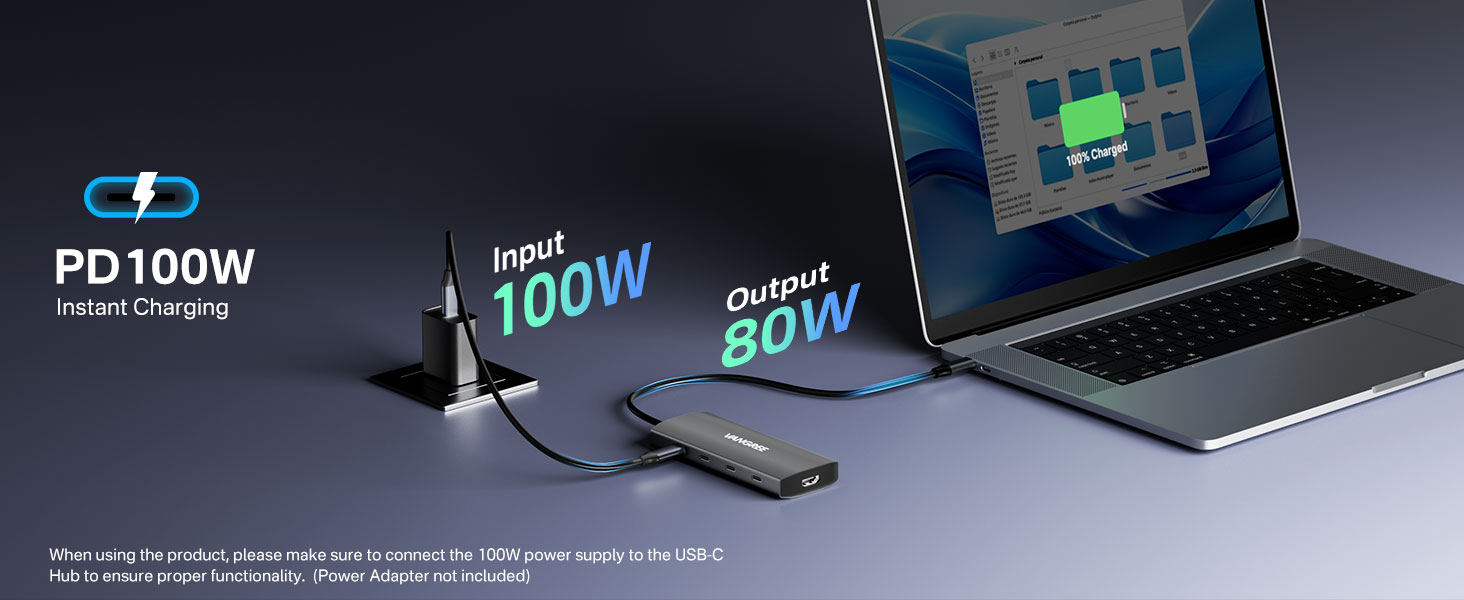
Figure 4: Power Delivery Setup
5. Operating Instructions
Once connected, the hub operates automatically. Here are key operational aspects:
5.1 Data Transfer
- Connect your USB-A 3.0 devices to the blue USB-A ports for speeds up to 5Gbps.
- Connect your USB-C 3.2 Gen 2 devices to the dedicated USB-C data ports for speeds up to 10Gbps.
- Ensure devices are properly mounted by your operating system before transferring files.

Figure 5: USB 3.0 Data Transfer

Figure 6: USB 3.2 Gen 2 Data Transfer Speed
5.2 Video Output (HDMI)
- Connect an HDMI cable from the hub to your display.
- Your host device should automatically detect the external display. You may need to adjust display settings (e.g., mirror or extend mode) in your operating system.
- The HDMI port supports resolutions up to 4K at 60Hz.

Figure 7: 4K@60Hz HDMI Video Output
Important Note: This hub does not support USB-C DisplayPort functionality. Video/audio output via the USB-C data ports is not possible. Ensure your laptop's USB-C port supports DisplayPort Alternate Mode (DP Alt Mode) for HDMI video output.
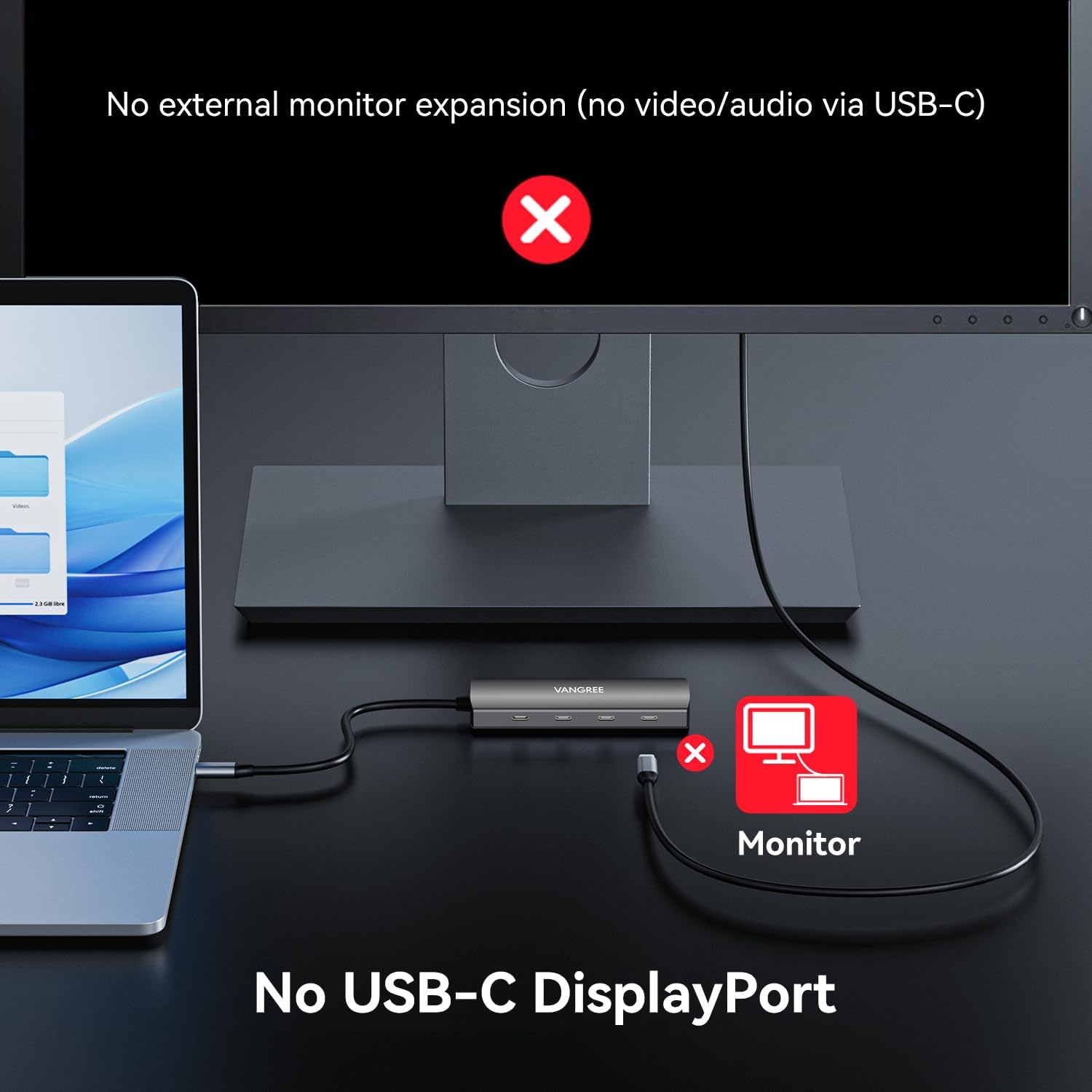
Figure 8: USB-C DisplayPort Not Supported
5.3 Power Delivery
- Connect your laptop's power adapter to the hub's PD port to charge your laptop while using the hub.
- The hub reserves 20W for its own operation, delivering up to 80W to your host device from a 100W input.
6. Maintenance
To ensure the longevity and optimal performance of your VANGREE USB C Hub, follow these maintenance guidelines:
- Keep the hub clean and free from dust. Use a soft, dry cloth for cleaning.
- Avoid exposing the hub to extreme temperatures, humidity, or direct sunlight.
- Do not attempt to disassemble or repair the hub yourself. This may void the warranty and cause damage.
- Disconnect the hub from your device when not in use for extended periods.
- Handle the hub and its cables gently to prevent damage to connectors.
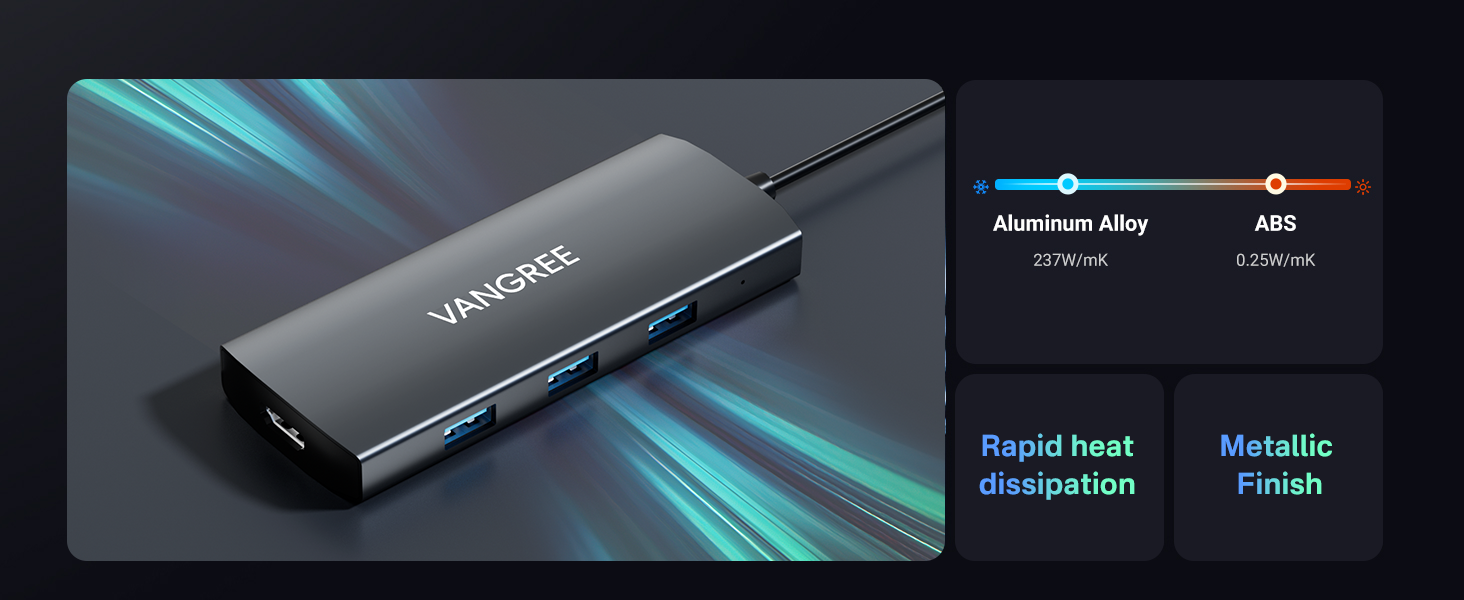
Figure 9: Heat Dissipation Design
7. Troubleshooting
If you encounter issues with your VANGREE USB C Hub, refer to the following common problems and solutions:
- Wireless Mice and Keyboards Experience Interference: USB 3.0 operation can introduce approximately 20dB of noise in the 2.4GHz frequency band, which may interfere with wireless devices. To mitigate this, try repositioning the wireless receiver or the hub.
- Multiple Hard Drives Disconnect: Most computer USB-C ports support a maximum of 15W output. If the total power draw of connected hard drives exceeds 15W, disconnections may occur. It is recommended to avoid connecting multiple high-power hard drives simultaneously. Each USB-C port on this product outputs 5V 3A.
- PD Port Charging Slowly:
- Verify if a charging indicator is displayed on your device.
- If your laptop requires a charger with higher wattage than the PD port's output, the device may charge slowly or fail to charge entirely.
- For Dell or Lenovo laptops, the system may prompt you to switch to low-speed charging mode. This behavior is primarily restricted by the default settings of these specific laptop brands. Using only the original power supply can help resolve this.
- No Video Output via HDMI:
- Ensure your host device's USB-C port supports DisplayPort Alternate Mode (DP Alt Mode). Not all USB-C ports support video output.
- Check the HDMI cable connection between the hub and the display.
- Verify your display settings on your computer.
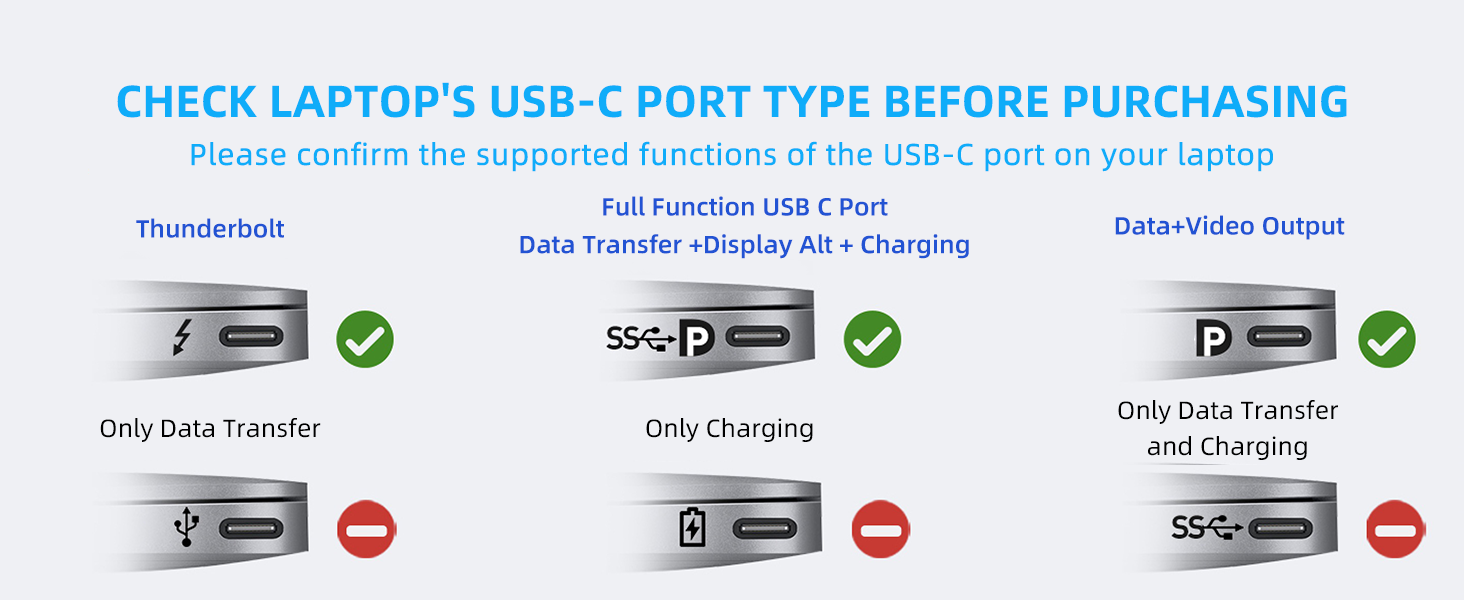
Figure 10: Common Troubleshooting Tips
8. Specifications
| Feature | Detail |
|---|---|
| Model Number | VAN01 |
| Product Dimensions | 4.65 x 1.81 x 0.6 inches |
| Item Weight | 3.28 ounces |
| HDMI Output | 4K@60Hz UHD (3840x2160@60Hz) |
| USB-C Data Ports | 3 x USB 3.2 Gen 2 (10Gbps data transfer, no video output) |
| USB-A Data Ports | 3 x USB 3.0 (5Gbps data transfer) |
| Power Delivery (PD) | Up to 100W pass-through charging (80W to host, 20W for hub) |
| Hardware Interface | HDMI, USB, USB 3.0, USB Type C |
| Special Features | Fast Data Transfer, Heat Resistant, Lightweight, Plug and Play |
| Compatible Devices | Desktops, Hard Disk Drive, Laptops, Tablets, USB Flash Drives |
| Compatible Operating Systems | macOS, iPad OS, Windows, Chrome OS |
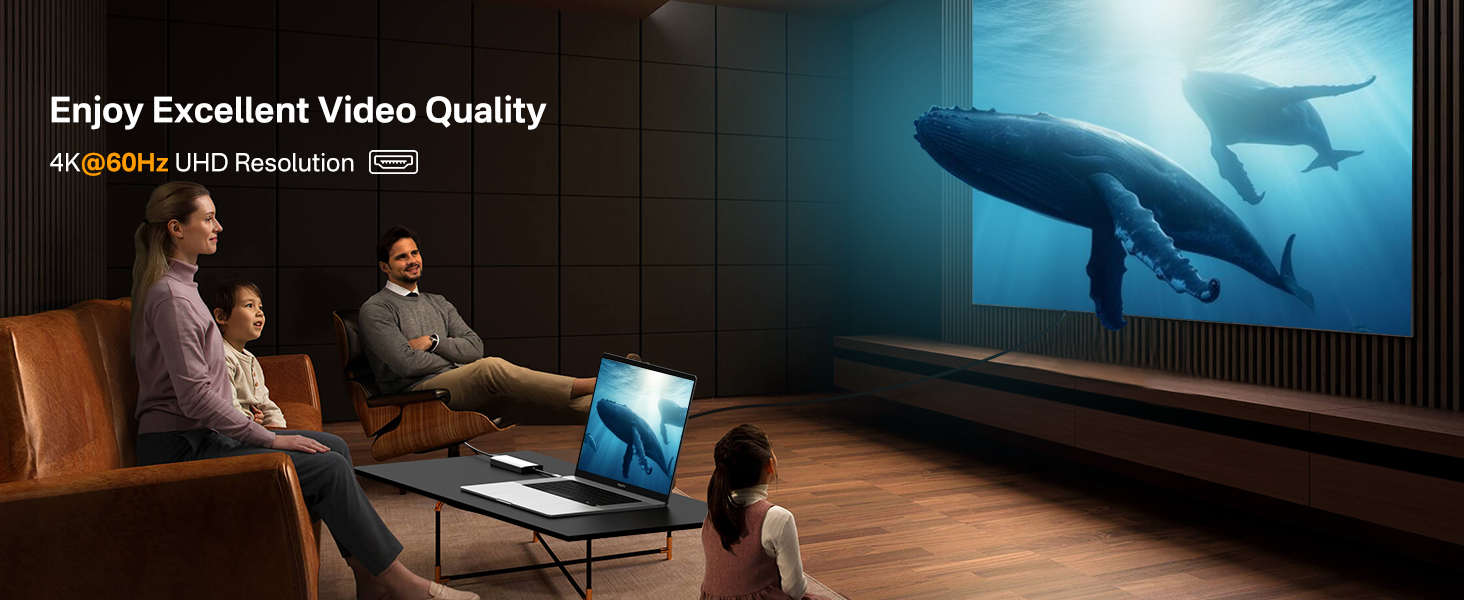
Figure 11: Enjoying 4K Video Quality
9. Compatibility
The VANGREE USB C Hub is compatible with a wide range of devices and operating systems. Below is a partial list:
9.1 Compatible Devices (Examples)
- Dell: Inspiron, XPS, Latitude, Precision, etc.
- Lenovo: Yoga, ThinkPad, Legion, IdeaPad Chromebook Flex, etc.
- HP: Spectre, EliteBook, Zbook, etc.
- Apple: MacBook (2017-2024), Mac Mini M1/M4, iMac M1/M3/M4, iPad Pro (2018-2024), iPad Air (2020-2024)
- Asus: Zenbook, Rog GX501, etc.
- Samsung: Note (20/10/9/8+), Galaxy (S20 ultra/S10+/S10/S9/S8+/Tablet S5e/Tablet New S7), Chromebook/Flex alpha 2-in-1, etc.
- Huawei: MateBook (X Pro/E/Mate/Pro), etc.
- Acer: Aspire, Swift, Spin, Predator Helios, etc.
- Google Chromebook: Pixel (2016/2017), C340-15, etc.
- Microsoft Surface: Book 2, Go, Laptop, Pro, etc.
9.2 Compatible Operating Systems
- macOS
- iPad OS
- Windows
- Chrome OS
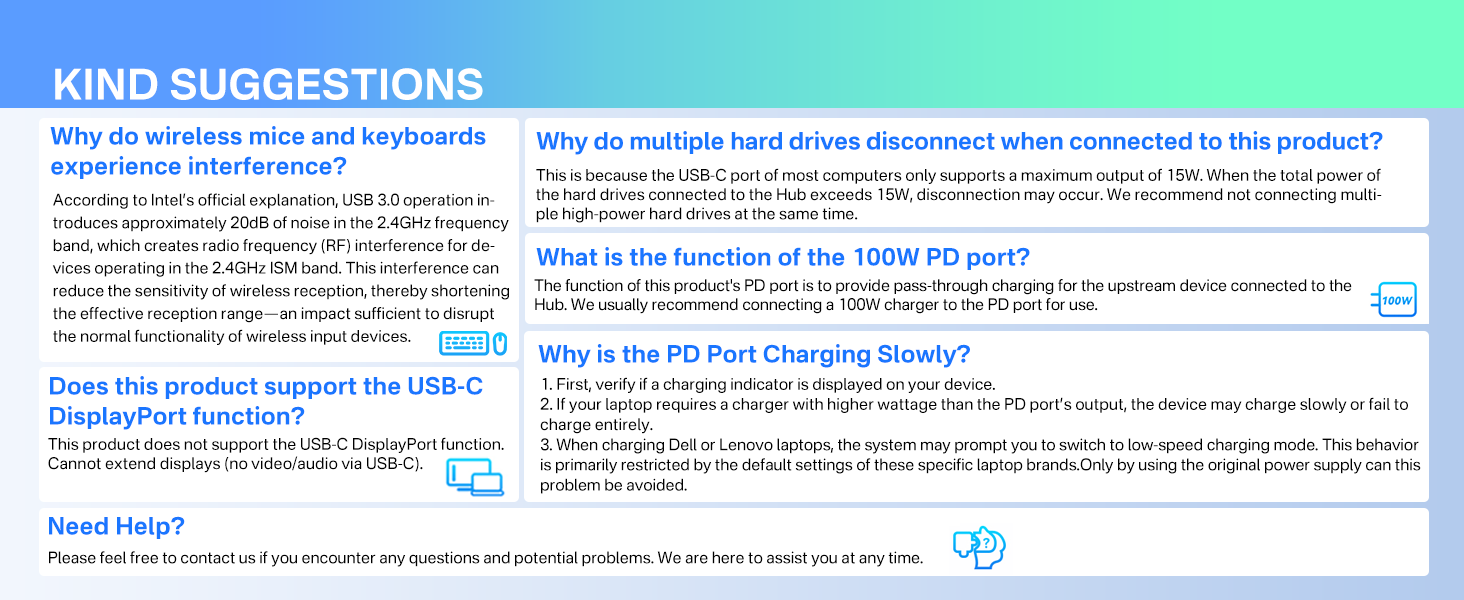
Figure 12: Wide Compatibility Overview
10. Warranty and Support
VANGREE is committed to providing high-quality products and excellent customer service. If you encounter any questions or potential problems with your USB C Hub, please do not hesitate to contact us.
- Customer Service: VANGREE offers 24-hour customer support.
- Contact Information: Please refer to the product packaging or the official VANGREE website for the most current contact details.
Figure 13: VANGREE Support Resources
