
Introduction
This manual provides detailed instructions for the safe and effective use of your KINSEI TPC-K20-G15 Thermal Imaging Monocular. Please read this manual thoroughly before operating the device and keep it for future reference. This device is designed for observing thermal signatures in various environments, including low light and complete darkness.
Safety Information
- Do not point the laser pointer directly at eyes or reflective surfaces. The laser pointer automatically deactivates after 10 seconds to prevent eye injury.
- Do not disassemble or modify the device. Unauthorized modifications can void the warranty and pose safety risks.
- Keep the device away from extreme temperatures, direct sunlight, and corrosive substances.
- Ensure the device is fully charged before extended use.
- Clean the lens with a soft, lint-free cloth. Avoid abrasive materials.
- This device is IP67 rated for water resistance. While it can withstand splashes and temporary immersion, avoid prolonged submersion.
Package Contents
Verify that all items are present in the package:
- KINSEI Thermal Monocular (TPC-K20-G15)
- Carrying Case
- Micro USB Charging/Data Cable
- Power Adapter (Charger)
- Plug Converter (if applicable, 4 male plugs mentioned in specifications)
- User Manual
Product Overview
The KINSEI TPC-K20-G15 is a compact thermal imaging monocular designed for precision observation. It features a 15mm focal length lens, a 256x192 effective pixel thermal sensor, and a 4x digital zoom. The device offers multiple display modes and an automatic distance measurement function.

Figure 1: Overview of the KINSEI Thermal Monocular's key features, including 15mm focal length, 50Hz refresh rate, 256x192 effective pixels, 4x digital zoom, 5 display modes, IP67 waterproof rating, laser pointer with eye protection, support for up to 256GB storage, 4500mAh battery, and 416m detection range.
Device Components and Controls

Figure 2: Detailed diagram of the monocular showing its components and controls. These include the Digital Zoom button (1x, 2x, 3x, 4x, long press for laser pointer on/off), Mode Switch (Green Hot, White Hot, Black Hot, Red Hot, Iron Oxide Red), Photo Capture button, Power On/Off button, Laser Pointer, Protective Lens Cover, Eyecup (skin-friendly silicone), Diopter Adjustment Knob, Body Sensor, Micro-USB Port (for charging and PC connection), CVBS Port (for external display), Micro SD Card slot (supports up to 256GB), and Tripod Nut.

Figure 3: Close-up view of the monocular's control buttons, indicating Power On/Off, Photo Capture, Mode Switch, Digital Zoom, and Diopter Adjustment.
Setup
1. Initial Charging
Before first use, fully charge the device. Connect the Micro USB cable to the monocular's Micro-USB port and the other end to the power adapter. Plug the adapter into a wall outlet. The charging indicator will show the charging status. A full charge provides approximately 9-10 hours of operation (Wi-Fi hotspot deactivated, at 25°C).

Figure 4: Illustration of the monocular's durable 4500mAh rechargeable battery, Micro-USB charging port, and approximately 10 hours of operating time.
2. Inserting a Micro SD Card (Optional)
To store photos and videos, insert a Micro SD card (up to 256GB, not included) into the designated slot. Ensure the device is powered off before inserting or removing the card.
3. Diopter Adjustment
Adjust the diopter knob near the eyepiece to match your vision. This ensures a clear image for users with different eyesight. Rotate the knob until the on-screen display is sharp and clear.
Operating Instructions
1. Power On/Off
- To Power On: Press and hold the Power On/Off button (refer to Figure 2 or 3) until the display activates.
- To Power Off: Press and hold the Power On/Off button until the display shuts down.
2. Changing Display Modes (Color Palettes)
The monocular offers 5 color palettes to visualize thermal images. Press the Mode Switch button (refer to Figure 2 or 3) to cycle through the available modes:
- White Hot: Hottest objects appear white, cooler objects appear black.
- Black Hot: Hottest objects appear black, cooler objects appear white.
- Red Hot: Highlights hottest areas in red.
- Green Hot: Highlights hottest areas in green.
- Iron Oxide Red: A common palette for general thermal observation.

Figure 5: Examples of the five available color palettes: Green Hot, White Hot, Black Hot, Red Hot, and Iron Oxide Red, demonstrating how thermal signatures are displayed differently.
3. Digital Zoom
The device features a 4x digital zoom. Press the Digital Zoom button (refer to Figure 2 or 3) to cycle through zoom levels: 1x, 2x, 3x, and 4x.
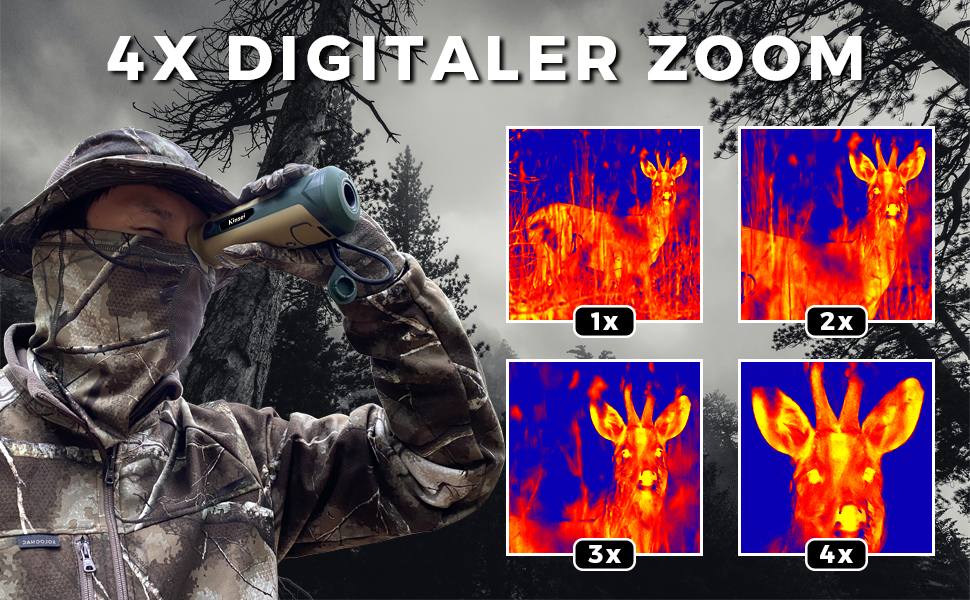
Figure 6: Illustration of the monocular's detection range for animals (107-267m discernible, 416-1041m detectable) and vehicles (277-694m discernible, 1111-2777m detectable), alongside examples of 1x, 2x, 3x, and 4x digital zoom on a deer.

Figure 7: Visual demonstration of the 4x digital zoom capability, showing a thermal image of a deer at 1x, 2x, 3x, and 4x magnification.
4. Laser Pointer
To activate the laser pointer, long-press the Digital Zoom button (refer to Figure 2). The laser pointer will automatically deactivate after 10 seconds to protect eyes. Long-press again to turn it off manually.
5. Automatic Distance Measurement
The device features an automatic distance measurement function. Mark the top and bottom of a target on the screen, and the user interface will automatically display the estimated distance to the target.
6. Photo Capture
Press the Photo Capture button (refer to Figure 2 or 3) to take a still image. Images are saved to the inserted Micro SD card.
7. Connecting to an External Display (CVBS)
The monocular includes a CVBS port for connecting to an external display. Use a compatible cable (not included) to view the thermal feed on a larger screen.
8. Data Transfer
Connect the monocular to a computer using the Micro USB cable to transfer captured photos and videos from the Micro SD card.
Maintenance
- Cleaning: Use a soft, dry, lint-free cloth to clean the device body. For the lens, use a specialized lens cleaning cloth and solution if necessary. Avoid harsh chemicals or abrasive materials.
- Storage: Store the monocular in its carrying case in a cool, dry place when not in use. Avoid extreme temperatures and high humidity.
- Battery Care: For long-term storage, ensure the battery is charged to approximately 50-70%. Recharge every few months to maintain battery health.
- Firmware Updates: Check the manufacturer's website periodically for any available firmware updates to ensure optimal performance.
Troubleshooting
| Problem | Possible Cause | Solution |
|---|---|---|
| Device does not power on. | Low or depleted battery. | Charge the device fully using the provided cable and adapter. |
| Image is blurry or unclear. | Diopter not adjusted correctly. | Adjust the diopter knob until the image is sharp. |
| Cannot save photos/videos. | No Micro SD card inserted or card is full/corrupted. | Insert a Micro SD card. Check if the card is full and delete unnecessary files, or try a different card. Ensure the card is formatted correctly (FAT32). |
| Laser pointer does not work. | Not activated correctly or automatically turned off. | Long-press the Digital Zoom button to activate. Note that it turns off automatically after 10 seconds. |
| Device freezes or becomes unresponsive. | Temporary software glitch. | Perform a soft reset by holding the Power On/Off button for an extended period (e.g., 10-15 seconds) until it restarts or shuts down. If the issue persists, contact customer support. |
Specifications
| Feature | Specification |
|---|---|
| Model Number | TPC-K20-G15 |
| Focal Length | 15 mm |
| Effective Pixels | 256 x 192 (50 Hz) |
| Digital Zoom | 1x, 2x, 3x, 4x |
| Display | 0.2-inch LCOS, 720 x 540 resolution |
| Field of View | 18.6 Degrees |
| Detection Distance (Vehicles) | Up to 455 yards (approx. 416 meters) |
| Detection Distance (Animals) | Up to 175 yards (approx. 160 meters) |
| Color Palettes | White Hot, Black Hot, Red Hot, Green Hot, Iron Oxide Red |
| Battery Type | 1 Lithium-ion (included) |
| Battery Capacity | 4500 mAh |
| Operating Time | Approximately 9-10 hours (Wi-Fi hotspot deactivated, @25°C) |
| Storage | Micro SD card support up to 256GB |
| Waterproof Rating | IP67 |
| Operating Temperature | -20°C to +50°C |
| Dimensions (L x W x H) | 17.09 x 5.76 x 5.86 cm |
| Weight | 349.27 grams |

Figure 8: Comparison illustrating the benefit of a 50Hz image refresh rate over 25Hz for smoother and more stable capture of moving images.

Figure 9: Illustration of the 15mm objective focal length and fully multi-coated lens coating, designed for enhanced image quality.

Figure 10: Visual representation of the thermal sensor's specifications: 256x192 effective pixels, 12 µm pixel pitch, and 0.2-inch display dimensions.

Figure 11: Image highlighting video specifications: H.265 video compression, 50 Hz frame rate, and 720 x 540 display resolution.

Figure 12: Image illustrating the monocular's durability features: 3m close focus limit, -20°C to +50°C operating temperature, and IP67 waterproof rating.

Figure 13: The monocular demonstrating its IP67 waterproof rating, ensuring excellent performance in all weather conditions.
Warranty and Support
The KINSEI TPC-K20-G15 Thermal Imaging Monocular comes with a 2-year (24-month) warranty. This warranty covers manufacturing defects and ensures friendly customer service. Please retain your proof of purchase for warranty claims.
For technical support, warranty claims, or any questions regarding your device, please contact KINSEI customer service through the retailer where you purchased the product or refer to the contact information provided on the official KINSEI website (if available).