
1. Introduction
This instruction manual provides essential information for the proper setup, operation, and maintenance of your LogiLink USB 3.2 Gen2 3-Port Hub, Model UA0395. This device is designed to expand the USB connectivity of your computer or laptop, offering high-speed data transfer and broad compatibility.
The hub features an aluminium housing for durability and includes a protective cap for the USB-A connector. It provides two USB 3.2 Gen2 ports and one USB 2.0 port, supporting data transfer rates up to 10 Gbps. The device is plug-and-play, requiring no driver installation.
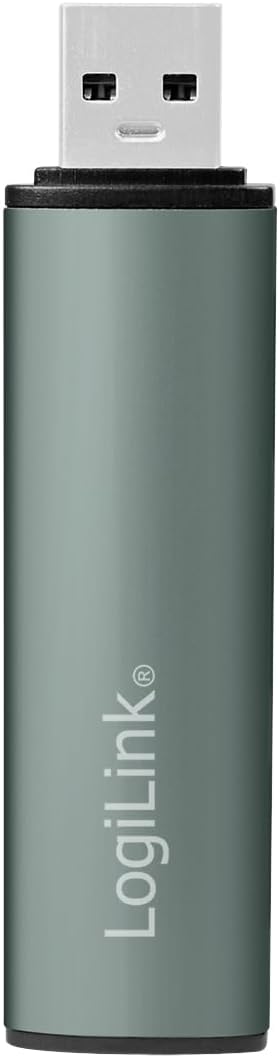
Image 1.1: Front view of the LogiLink USB 3.2 Gen2 3-Port Hub with its protective cap.
2. Package Contents
- LogiLink USB 3.2 Gen2 3-Port Hub (Model UA0395)
- Protective Cap
3. Setup Instructions
The LogiLink USB 3.2 Gen2 3-Port Hub is designed for simple plug-and-play operation. No software drivers are required for installation.
- Connect the Hub: Insert the USB-A connector of the LogiLink hub into an available USB-A port on your computer or laptop. Ensure the connection is firm.
- Power Indication: A blue LED light on the hub will illuminate, indicating that the device is powered and ready for use.
- Operating System Compatibility: The hub is compatible with Windows, Mac OS, Linux, Android, and Chrome OS. Your operating system will automatically detect and configure the hub.
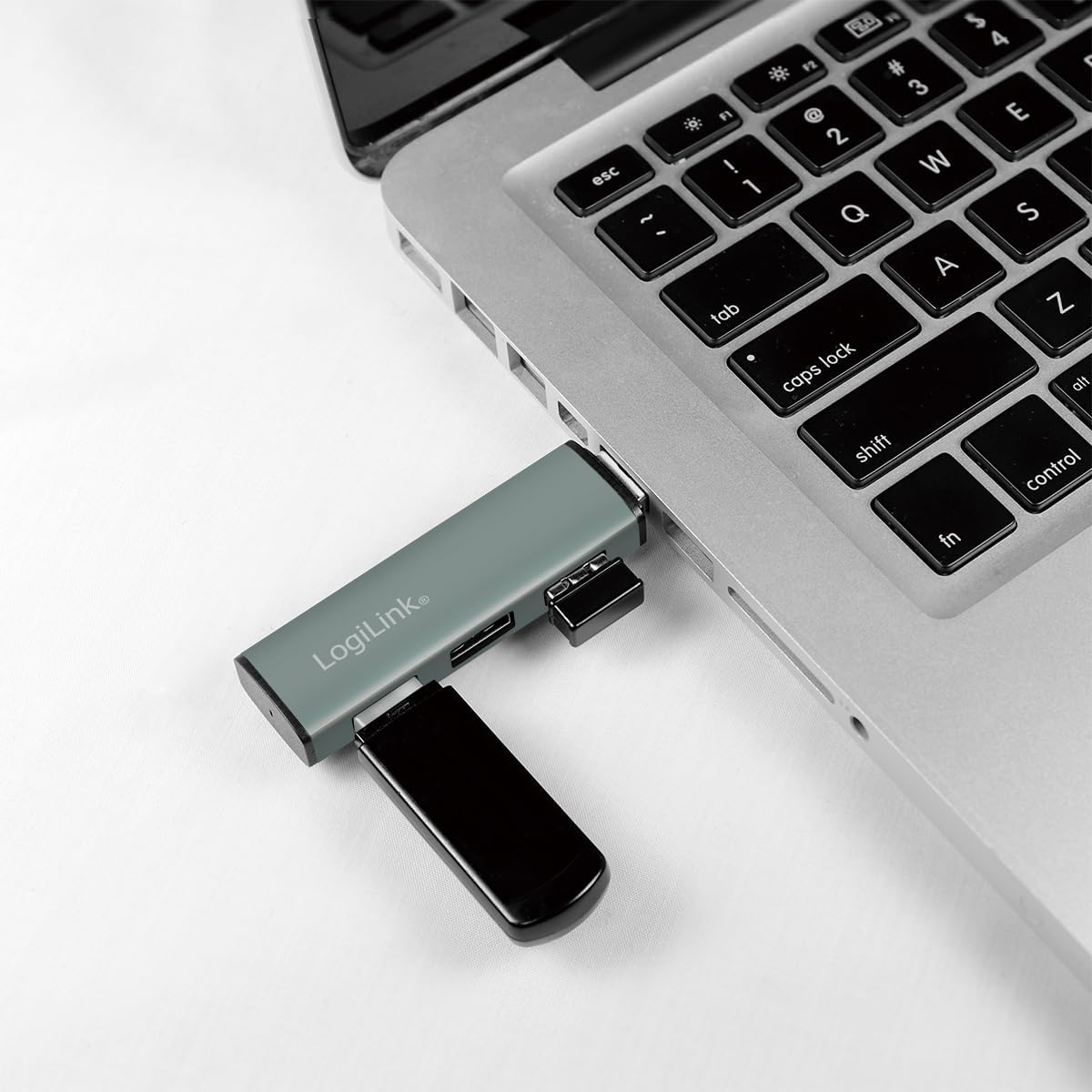
Image 3.1: The LogiLink USB hub connected to a laptop, demonstrating its compact use.
4. Operating Instructions
Once connected, the hub allows you to expand your device's USB capabilities.
- Connecting USB Devices: Insert your USB devices (e.g., flash drives, external hard drives, keyboards, mice) into the available ports on the hub. The hub features two USB 3.2 Gen2 ports (blue inserts) and one USB 2.0 port (black insert).
- Hot Swap Support: The hub supports hot swapping, meaning you can connect and disconnect USB devices without needing to restart your computer or the hub.
- Data Transfer: For optimal performance, connect USB 3.2 Gen2 compatible devices to the blue USB 3.2 Gen2 ports to achieve transfer rates up to 10 Gbps. Older USB generations are also supported, but will operate at their respective maximum speeds.
- Power: The hub is powered via the USB connection from your host device. It includes over-current and over-voltage protection to safeguard connected devices.

Image 4.1: Diagram illustrating the ports and features of the LogiLink USB Hub.

Image 4.2: Detailed view of the hub's ports.
5. Maintenance
To ensure the longevity and optimal performance of your LogiLink USB Hub, follow these simple maintenance guidelines:
- Cleaning: Use a soft, dry cloth to gently wipe the surface of the hub. Avoid using liquid cleaners or abrasive materials, as they may damage the aluminium finish or internal components.
- Protective Cap: When the hub is not in use, especially during transport, place the protective cap over the USB-A connector to prevent dust and damage.
- Storage: Store the hub in a cool, dry place away from direct sunlight and extreme temperatures.
6. Troubleshooting
If you encounter issues with your LogiLink USB Hub, please refer to the following common troubleshooting steps:
- Hub Not Recognized:
- Ensure the hub is firmly connected to your computer's USB port.
- Try connecting the hub to a different USB port on your computer.
- Restart your computer and reconnect the hub.
- Connected Device Not Working:
- Ensure the device is properly inserted into the hub's port.
- Try connecting the device to a different port on the hub.
- Connect the device directly to your computer's USB port to verify its functionality.
- Some high-power devices may require a direct connection to the computer or a powered USB hub.
- Slow Data Transfer Speeds:
- Ensure both the connected device and the hub port are USB 3.2 Gen2 compatible for maximum speeds. USB 2.0 devices will operate at USB 2.0 speeds.
- Verify that the computer's USB port to which the hub is connected is also a USB 3.2 Gen2 port.
- Avoid connecting multiple high-bandwidth devices simultaneously if you experience slowdowns.
- Loose Connection to Computer's USB Port:
- While the hub is designed to be compact, ensure it is not subjected to excessive leverage or movement that could loosen its connection.
- If the connection feels consistently loose, try a different USB port on your computer.
7. Specifications
| Feature | Detail |
|---|---|
| Product Model Number | UA0395 |
| Hardware Interface | USB-A (Input), 2x USB 3.2 Gen2, 1x USB 2.0 (Output) |
| Data Transfer Rate | Up to 10 Gbps (USB 3.2 Gen2) |
| Compatible Devices | Laptops, PCs, and other devices with USB-A ports |
| Operating System Support | Windows, Mac OS, Linux, Android, Chrome OS |
| Special Feature | Portable, Plug & Play, Hot Swap, Over-current/Over-voltage protection |
| Housing Material | Aluminium |
| Color | Gray |
| LED Indicator | Blue |
| Product Dimensions | 3.29 x 0.8 x 0.47 inches (8.36 x 2.03 x 1.19 cm) |
| Item Weight | 0.67 ounces (19 grams) |
8. Warranty Information
LogiLink products are covered by a manufacturer's warranty against defects in materials and workmanship. The specific terms and duration of the warranty may vary by region and product. Please retain your proof of purchase for warranty claims.
For detailed warranty information, please refer to the warranty card included with your product or visit the official LogiLink website.
9. Support
If you require further assistance or have questions not covered in this manual, please contact LogiLink customer support.
- Online Support: Visit the official LogiLink website for FAQs, driver downloads (if applicable), and support contact information.
- Contact Information: Refer to the product packaging or the LogiLink website for the most current customer service contact details.


