
1. Introduction
Welcome to the ATEZR P20 Plus Laser Engraver user manual. This guide provides essential information for the safe and effective operation, maintenance, and troubleshooting of your laser engraving and cutting machine. Please read this manual thoroughly before operating the device.
2. Safety Information
WARNING: Laser engravers operate with high-power lasers and can be dangerous if not used properly. Always adhere to the following safety guidelines:
- Wear appropriate laser safety glasses at all times when the machine is operating.
- Ensure proper ventilation to remove fumes and smoke generated during engraving and cutting.
- Never leave the machine unattended during operation.
- Keep a fire extinguisher nearby.
- Do not engrave or cut unknown materials, as some may produce toxic fumes or catch fire.
- Keep children and pets away from the operating area.
- Disconnect power before performing any maintenance or adjustments.

Image: The ATEZR P20 Plus machine, highlighting the emergency stop button and safety labels.
3. Setup and Assembly
The ATEZR P20 Plus is designed for straightforward assembly. Follow these steps carefully.
3.1 Package Contents
Verify all components are present before beginning assembly. Refer to the packing list provided with your machine.
3.2 Assembly Steps
- Unpack all components and place them on a stable, flat surface.
- Assemble the main frame according to the included quick start guide. Ensure all screws are securely tightened.
- Install the laser module onto the gantry.
- Connect all cables, including power, USB, and air assist (if applicable).
- Position the machine in a well-ventilated area, away from flammable materials.

Image: Overview of the assembled ATEZR P20 Plus laser engraver.

Image: Components of the aluminum alloy frame, highlighting stability and ease of installation.
4. Operating Instructions
The ATEZR P20 Plus offers versatile control options for your engraving and cutting projects.
4.1 Software Compatibility
The machine is compatible with popular laser control software:
- LightBurn (recommended for advanced users)
- LaserGRBL (free, open-source)
- ATEZR App (for mobile control)

Image: The ATEZR P20 Plus is compatible with multiple software platforms and operating systems.
4.2 Connecting to the Machine
You can connect to your ATEZR P20 Plus via:
- USB Connection: Direct connection to your computer.
- WiFi Connection: For wireless control via the ATEZR App.
- Offline Work: Utilize the offline controller for pre-loaded projects.
4.3 Basic Operation Steps
- Power on the machine using the main power switch.
- Place your material on the working area.
- Connect to the machine using your preferred software or the ATEZR App.
- Import or create your design.
- Adjust laser parameters (power, speed, passes) based on the material.
- Use the frame preview function to ensure correct positioning of your design on the material.
- Initiate the engraving or cutting process.
- Monitor the process closely and ensure proper ventilation.

Image: The laser module's internal structure and its ability to cut thick materials like 15mm wood and 10mm black acrylic.

Image: The built-in air duct design for effective air assist, resulting in cleaner engraving and cutting.
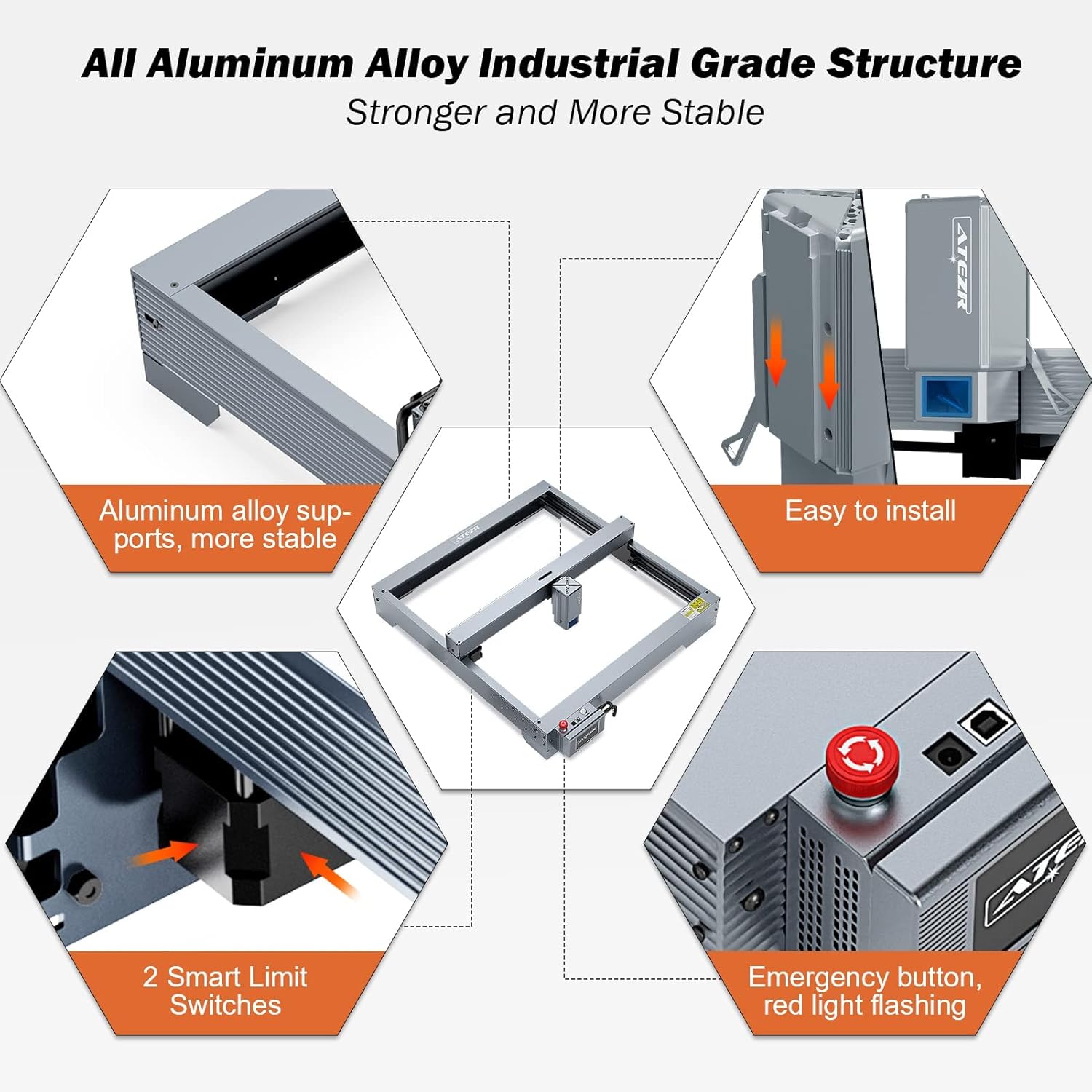
Image: The generous 430mm x 430mm (17" x 17") working area, allowing for large-scale projects.

Image: The precision of the 0.08 x 0.06mm ultra-fine compression laser for detailed engraving.

Image: The machine's high operating speed of 24800 mm/min, significantly reducing processing time.

Image: The ATEZR Laser App interface, demonstrating G-code and frame preview capabilities for precise project setup.
5. Maintenance
Regular maintenance ensures optimal performance and extends the lifespan of your ATEZR P20 Plus.
- Laser Lens Cleaning: Regularly inspect and clean the laser lens with a specialized lens cleaning solution and lint-free cloth to prevent debris buildup and maintain laser power.
- Rail and Belt Cleaning: Keep the guide rails and belts free from dust and debris. Lubricate the rails periodically with a suitable lubricant.
- Air Assist Nozzle: If using air assist, ensure the nozzle is clear of obstructions.
- General Cleaning: Wipe down the machine exterior with a soft, dry cloth.
6. Troubleshooting
This section addresses common issues you might encounter during the operation of your ATEZR P20 Plus.
| Problem | Possible Cause | Solution |
|---|---|---|
| Laser not firing | Loose connection, laser module fault, software settings | Check all cable connections. Verify laser power settings in software. Contact support if issue persists. |
| Engraving/Cutting is weak or inconsistent | Dirty lens, incorrect focus, material issues, low laser power | Clean the laser lens. Ensure proper focus. Adjust laser power and speed settings. |
| Machine not homing correctly | Limit switch obstruction, motor issue, firmware settings | Check for obstructions near limit switches. Ensure belts are properly tensioned. Refer to software documentation for firmware settings. |
7. Technical Specifications
Key specifications for the ATEZR P20 Plus Laser Engraver:
- Laser Power: 20000MW (20W)
- Working Area: 17” x 17” (430mm x 430mm)
- Package Dimensions: 29.1 x 22 x 5.7 inches
- Item Weight: 24.7 pounds
- Connectivity: USB, WiFi (App Control), Offline
- Compatible Software: LightBurn, LaserGRBL, ATEZR App
- Supported File Formats: SVG, PNG, DXF, TIF, BMP, PDF, NG
- Operating System: Mac OS / Windows
- Manufacturer: ATEZR
- Date First Available: September 14, 2023
8. Warranty and Support
For warranty information and technical support, please refer to the official ATEZR website or contact their customer service directly.
Additional resources:
- User Guide (PDF): Download User Guide
- User Manual (PDF): Download User Manual


