
Introduction
Thank you for choosing the Angetube 863PLUS 2K Streaming Webcam. This manual provides essential information for setting up, operating, and maintaining your webcam to ensure optimal performance. Please read these instructions carefully before use.

Image: Angetube 863PLUS 2K Streaming Webcam, showing the webcam unit, remote control, USB-A to USB-C adapter, and USB cable.
Setup
1. Connecting the Webcam
- Placement: Position the webcam securely on top of your monitor, laptop screen, or a tripod using its flexible clip. The clip allows for various angles and stable mounting.
- Plug and Play: Connect the webcam's USB cable directly to an available USB-A port on your computer. If your computer only has USB-C ports, use the included USB-A to USB-C adapter.
- Driver Installation: The webcam is plug-and-play and typically does not require additional drivers for basic functionality. Your operating system (Windows, macOS, Linux, Chrome OS) should automatically detect and install the necessary drivers.

Image: The Angetube 863PLUS webcam shown mounted on a computer monitor and a separate tripod, demonstrating its versatile mounting options.
2. Software Installation (Optional)
For advanced features and customization, Angetube provides optional software. This software allows for fine-tuning of image properties and applying filters.
- Download: Visit the official Angetube website's download section to obtain the latest webcam software for your operating system (Mac OS/Windows).
- Installation: Follow the on-screen instructions to install the software. Registration may be required to unlock all features.
Video: A short demonstration of the Angetube webcam software interface, showing options for adjusting brightness, contrast, hue, and applying various filters to the webcam feed.
Operating the Webcam
1. Video Quality and Features
- 2K Ultra HDR Resolution: The webcam supports up to 2560x1440p resolution, providing clear and high-quality video. Note: Windows 7 supports a maximum resolution of 1080p/30fps. Ensure your software and screen support 2K for full resolution.
- HDR Technology: High Dynamic Range (HDR) ensures optimal exposure and vibrant colors, even in challenging lighting conditions.
- 5X Digital Zoom: Utilize the 5x digital zoom capability to focus on specific areas without blur.
- Dual Omnidirectional Microphones: Built-in dual stereo microphones capture clear audio from within 10 feet.
- Built-in Privacy Cover: A sliding privacy cover is integrated into the webcam for enhanced security when not in use.
- All Glass Lens: Features a 6-element glass lens for improved image quality.

Image: A visual representation of the webcam's 2K resolution, highlighting fine details in an image.

Image: A split image demonstrating the effect of HDR, with one side showing a well-lit face (HDR On) and the other showing a darker, less detailed face (HDR Off).

Image: Illustration of the 5X digital zoom feature, showing how the image can be magnified from 1x to 5x.

Image: A diagram highlighting the dual omnidirectional microphones integrated into the webcam for clear audio capture.

Image: The webcam with its built-in privacy cover closed, ensuring privacy when the camera is not in active use.

Image: An exploded view of the webcam's all-glass lens, illustrating its multi-element design for superior image clarity.
2. Ring Light Operation
The webcam features an integrated ring light with touch control on the back of the unit.
- Brightness Adjustment: Rotate the multi-step brightness spin button on the back of the webcam to increase or decrease the light intensity.
- Color Temperature: The ring light offers three color temperatures: White, Warm, and Natural. Tap the touch control button to cycle through these options.

Image: A visual comparison of the three available ring light color temperatures: White, Warm, and Natural, demonstrating their effect on a subject.
Video: A demonstration showing how to turn off the webcam's ring light by rotating the control on the back of the unit.
3. Remote Control Functions
The included remote control provides convenient access to various webcam settings from a distance. Note: The remote cannot control the webcam ring light.
- Mute: One-button mute for the microphone.
- Image On/Off: Turn the video image on or off.
- e-PTZ (Electronic Pan-Tilt-Zoom): Control pan, tilt, and zoom functions digitally.
- Autofocus/Fixed Focus Switching: Toggle between automatic and manual focus modes.
- Exposure Value Adjustment: Adjust the exposure to optimize lighting in various environments.
- Default Settings: Reset settings to factory defaults.
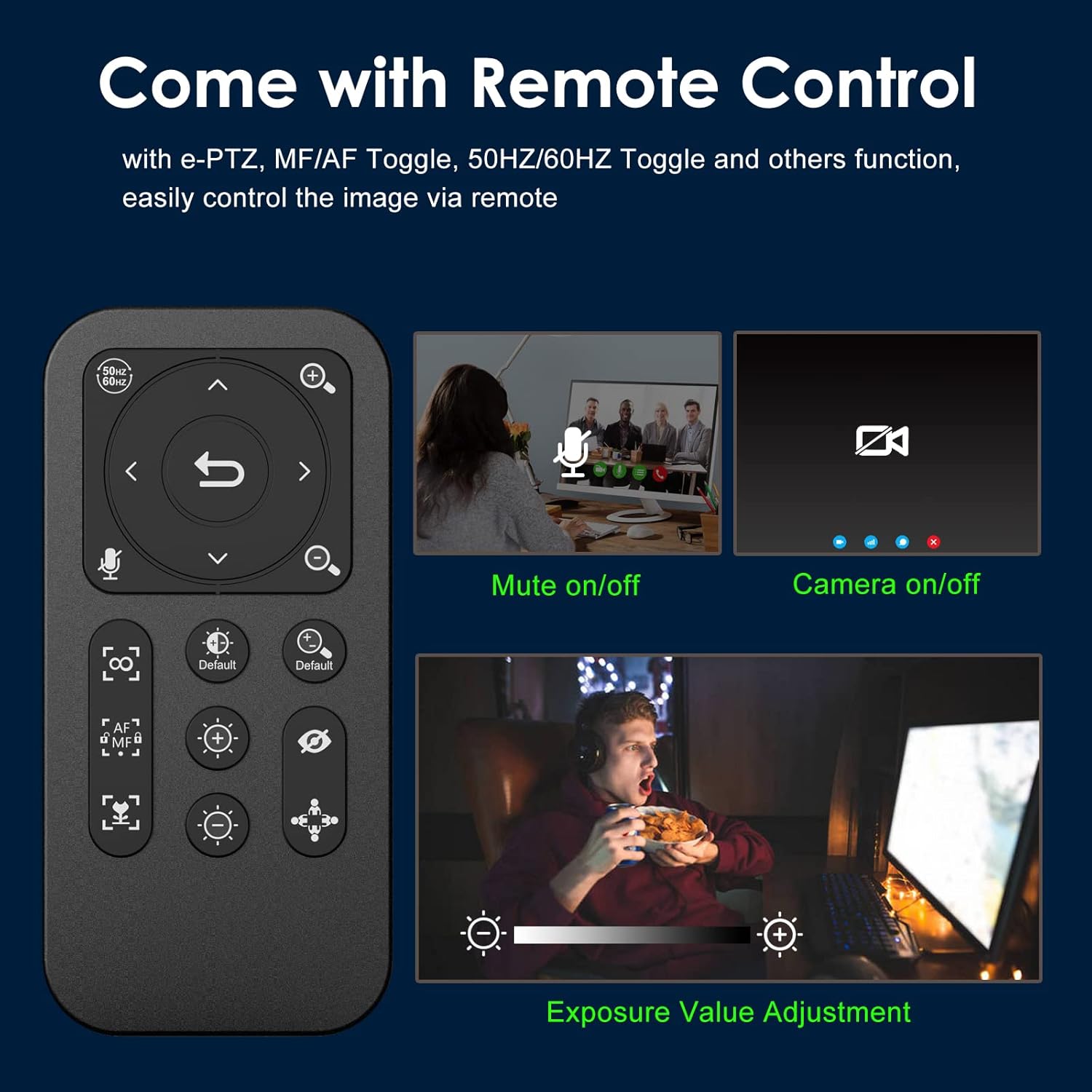
Image: The remote control for the webcam, detailing its various buttons for functions like mute, camera on/off, e-PTZ, and exposure adjustment.
Video: A comprehensive overview of the Angetube 2K HDR 5X zoom streaming webcam, showcasing its features including the remote control, HDR, and zoom capabilities.
Compatibility
The Angetube 863PLUS webcam offers wide compatibility with various operating systems and applications:
- Operating Systems: Compatible with Windows XP/7/8/10/11, Mac OS 10.6 and above, Linux 2.6.24 and above, Chrome OS 29.0.1547.70 and above, Ubuntu Linux 10.04 and above.
- Applications: Ideal for Zoom, Facetime, Video Calling, OBS, Twitch, Facebook, YouTube, Conferencing, Recording, and Online School.
Specifications
| Feature | Detail |
|---|---|
| Model Number | 863Plus |
| Video Capture Resolution | 1440p (2K) |
| Photo Sensor Technology | CMOS |
| Maximum Focal Length | 800 Millimeters |
| Maximum Aperture | 2 f |
| Connectivity Technology | USB |
| Item Weight | 9.2 ounces |
| Package Dimensions | 4.09 x 3.86 x 3.78 inches |
| Batteries | 1 CR2 batteries required (included for remote) |
Troubleshooting
- 2K Resolution Issue on Windows 7: If you are using Windows 7, the maximum supported resolution is 1080p/30fps. To experience 2K resolution, ensure your operating system and video conferencing software support it.
- Remote Control Not Operating Ring Light: The remote control is designed for camera settings (zoom, focus, mute, etc.) and does not control the integrated ring light. Adjust the ring light directly using the touch controls on the back of the webcam.
- Image Blur/Focus Issues: If the image appears blurry, use the remote control to switch between autofocus and manual focus modes. In manual focus, use the near/far focus buttons to adjust. Ensure the lens is clean and free from obstructions.
- No Audio/Poor Audio Quality: Verify that the webcam's microphone is selected as the input device in your computer's sound settings and your video conferencing application. Ensure the microphone is not muted via the remote or software. For professional audio, consider using a dedicated external microphone.
- Webcam Not Detected: Try connecting the webcam to a different USB port. Ensure the USB cable and adapter (if used) are securely connected. Restart your computer if the issue persists.
Warranty and Support
Warranty Information
Angetube provides warranty service for its products. This product includes warranty service within 18 months from the date of purchase. To claim warranty service, present your warranty card and fill in the relevant content in detail to customer service.
Customer Support
For any technical assistance or inquiries, please contact Angetube customer support. Angetube is committed to providing lifetime technical customer support.
- Online Support: Visit the Angetube Store on Amazon or the official Angetube website for FAQs and contact information.
- Response Time: Expect a quick response within 24 hours for support inquiries.
- Returns/Exchanges: Returns for an exchange or refund are typically accepted within 30 days.


