
1. Introduction
This manual provides detailed instructions for the setup, operation, maintenance, and troubleshooting of your Cmokifuly GK102 Wired Mechanical Keyboard. Please read this manual thoroughly before using the product to ensure optimal performance and longevity.
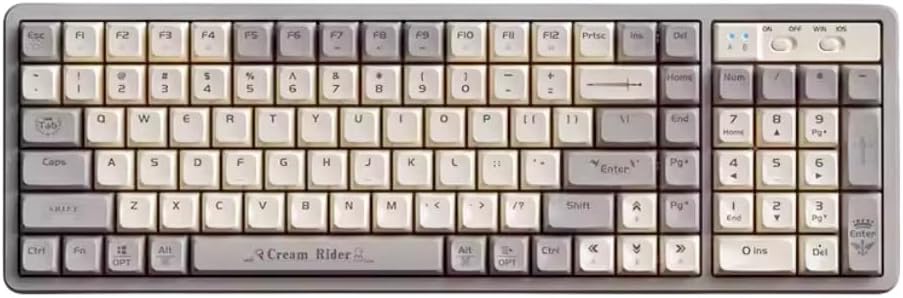
Image 1.1: Overview of the Cmokifuly GK102 Wired Mechanical Keyboard.
2. Package Contents
Verify that all items are present in the package:
- Cmokifuly GK102 Wired Mechanical Keyboard
- USB Cable (Type-C)
- Keycap Puller
3. Setup
- Connect the Keyboard: Locate the USB Type-C port on the back of the keyboard. Connect one end of the provided USB cable to this port and the other end to an available USB port on your computer (PC, Mac, or compatible device).

Image 3.1: The keyboard features a detachable USB-C cable for stable wired connection and portability.
- System Recognition: Your operating system (Windows or macOS) should automatically detect and install the necessary drivers for the keyboard. This process may take a few moments.
- Initial Test: Open a text editor or any application that accepts text input and test typing to ensure all keys are functioning correctly.
4. Operating Instructions
4.1. Connectivity
The GK102 keyboard utilizes a stable wired USB Type-C connection. The detachable cable design allows for easy transport and storage, separating the keyboard from its connection cable.
4.2. RGB Backlighting
The keyboard features RGB backlighting with 19 distinct effects. You can cycle through these effects and adjust brightness directly on the keyboard. For advanced customization and to program specific backlight modes, dedicated software is available. Refer to the manufacturer's website for software download and instructions.
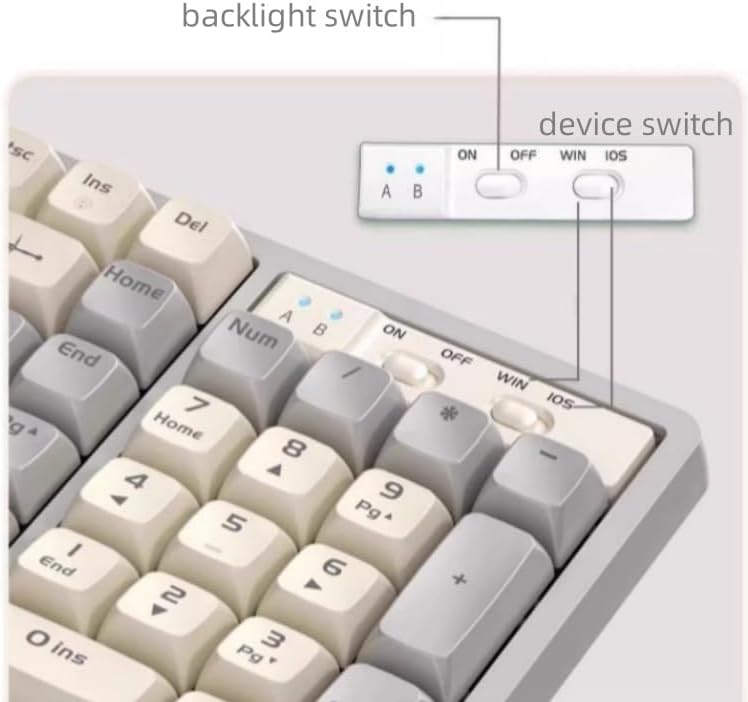
Image 4.1: Top-right switches for backlight control and operating system selection.
4.3. Hot-Swappable Switches
The GK102 is equipped with 3-pin hot-swappable sockets, allowing users to easily remove and replace mechanical switches without soldering. This feature enables customization of typing feel and simplifies switch maintenance or replacement.
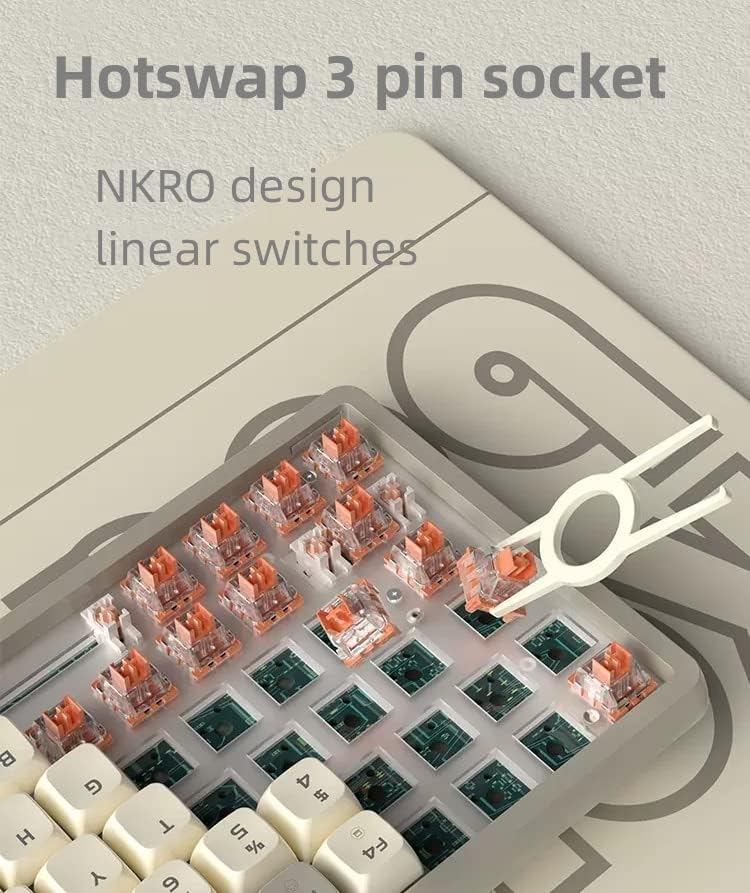
Image 4.2: Illustration of the hot-swappable switch design, allowing easy removal and replacement of switches.

Image 4.3: Exploded view of a GK Orange linear switch, detailing its components and specifications.
4.4. MDA Profile Keycaps
The keyboard features MDA profile keycaps, designed for ergonomic comfort during extended use. This profile is slightly lower than SA profile keycaps, with a sculpted shape that conforms to the natural arc of finger movement, reducing fatigue.

Image 4.4: Close-up view of the MDA profile keycaps, highlighting their ergonomic shape.
4.5. Dual Silencing Design
To enhance the typing experience, the GK102 incorporates a dual silencing design. A noise-absorbing pad is placed between the PC positioning plate, and sound-deadening cotton fills the bottom of the keyboard. This construction reduces noise generated by switch presses and ensures a more comfortable key sound. The stabilizers are also pre-lubricated for smoother operation.

Image 4.5: Diagram illustrating the internal layers, including EVA sandwich cotton and sound insulation cotton, for noise reduction.
4.6. Compatibility
The Cmokifuly GK102 is compatible with various operating systems, including Windows 10, Win 8, Win 7, Win Vista, Windows XP, and Mac OS. Simply connect the USB cable to your device for immediate use.

Image 4.6: Comparison of the 102-key layout, demonstrating a compact design that saves approximately 60mm compared to standard 104-key keyboards.
5. Maintenance
- Cleaning: Regularly clean the keyboard with a soft, dry cloth. For deeper cleaning, use a can of compressed air to remove dust and debris from between the keycaps.
- Keycap Removal: Use the provided keycap puller to carefully remove keycaps for cleaning or replacement. Gently pull straight up to avoid damaging the switch stem.
- Switch Replacement: Utilize the keycap puller to remove the keycap, then use a switch puller (not included, but often comes with replacement switches) to carefully extract the switch from its socket. Align the new 3-pin switch with the socket and press firmly until it clicks into place. Ensure pins are not bent.
- Avoid Liquids: Do not expose the keyboard to liquids. In case of accidental spills, immediately disconnect the keyboard and allow it to dry completely before reconnecting.
6. Troubleshooting
- Keyboard Not Responding:
- Ensure the USB cable is securely connected to both the keyboard and the computer.
- Try connecting the keyboard to a different USB port on your computer.
- Test the keyboard on another computer to rule out system-specific issues.
- If using a USB hub, try connecting directly to the computer.
- Specific Keys Not Working:
- Due to the hot-swappable design, a switch might be improperly seated or faulty. Carefully remove the keycap and then the switch using a switch puller. Reinsert the switch firmly, ensuring the pins are straight and fully engaged.
- If a switch is confirmed faulty, replace it with a new 3-pin mechanical switch.
- Backlighting Issues (Flickering/Not Working):
- Check the backlight switch on the keyboard (refer to Image 4.1).
- Ensure the keyboard is receiving sufficient power from the USB port.
- If using the programmable software, ensure settings are correctly applied and try resetting them.
- Input Lag or Disconnections:
- Ensure the USB cable is not damaged. Try using a different compatible USB Type-C cable.
- Avoid connecting through unpowered USB hubs.
7. Specifications
| Model Number | GK102 |
| Brand | Cmokifuly |
| Connectivity Technology | USB-C (Wired) |
| Keyboard Description | Mechanical |
| Switch Type | Linear (Hot-swappable 3-pin) |
| Keycap Profile | MDA Profile |
| Backlighting | RGB (19 effects, programmable) |
| Compatible Devices | PC (Windows 10, 8, 7, Vista, XP), Mac OS |
| Material | Plastic |
| Item Weight | 2.18 pounds |
| Package Dimensions | 17.28 x 7.05 x 2.24 inches |
| Date First Available | October 31, 2022 |
8. Warranty and Support
For warranty information and technical support, please refer to the documentation included with your purchase or visit the official Cmokifuly website. If you encounter any issues not covered in this manual, please contact Cmokifuly customer service for assistance.


