
EasySMX EasySMX AL-ST661
EasySMX 5-in-1 Docking Station for Steam Deck User Manual
Model: EasySMX AL-ST661
Brand: EasySMX
Introduction
Welcome to the user manual for your EasySMX 5-in-1 Docking Station, designed to enhance your gaming experience with the Steam Deck. This versatile hub provides expanded connectivity and display options, transforming your portable gaming device into a powerful desktop setup or a large-screen entertainment system.

The EasySMX 5-in-1 Docking Station with a Steam Deck connected, showcasing its compact design and multiple ports.
Key Features
- 5-in-1 Connectivity: Integrates essential ports for comprehensive expansion.
- 4K HDMI 2.0 Output: Supports high-resolution display up to 4K for an immersive visual experience.
- USB 3.0 Ports: Three USB 3.0 ports for high-speed data transfer and connecting peripherals like keyboards, mice, and controllers.
- 100W USB-C Power Delivery: Ensures fast and efficient charging of your Steam Deck while in use.
- Integrated Stand Design: Provides a stable and convenient stand for your Steam Deck.
- Wide Compatibility: Designed primarily for Steam Deck, also compatible with other USB-C devices like Nintendo Switch, tablets, and smartphones.
- Built-in Protection: Features overheat, overcurrent, overvoltage, and short circuit protection for safe operation.
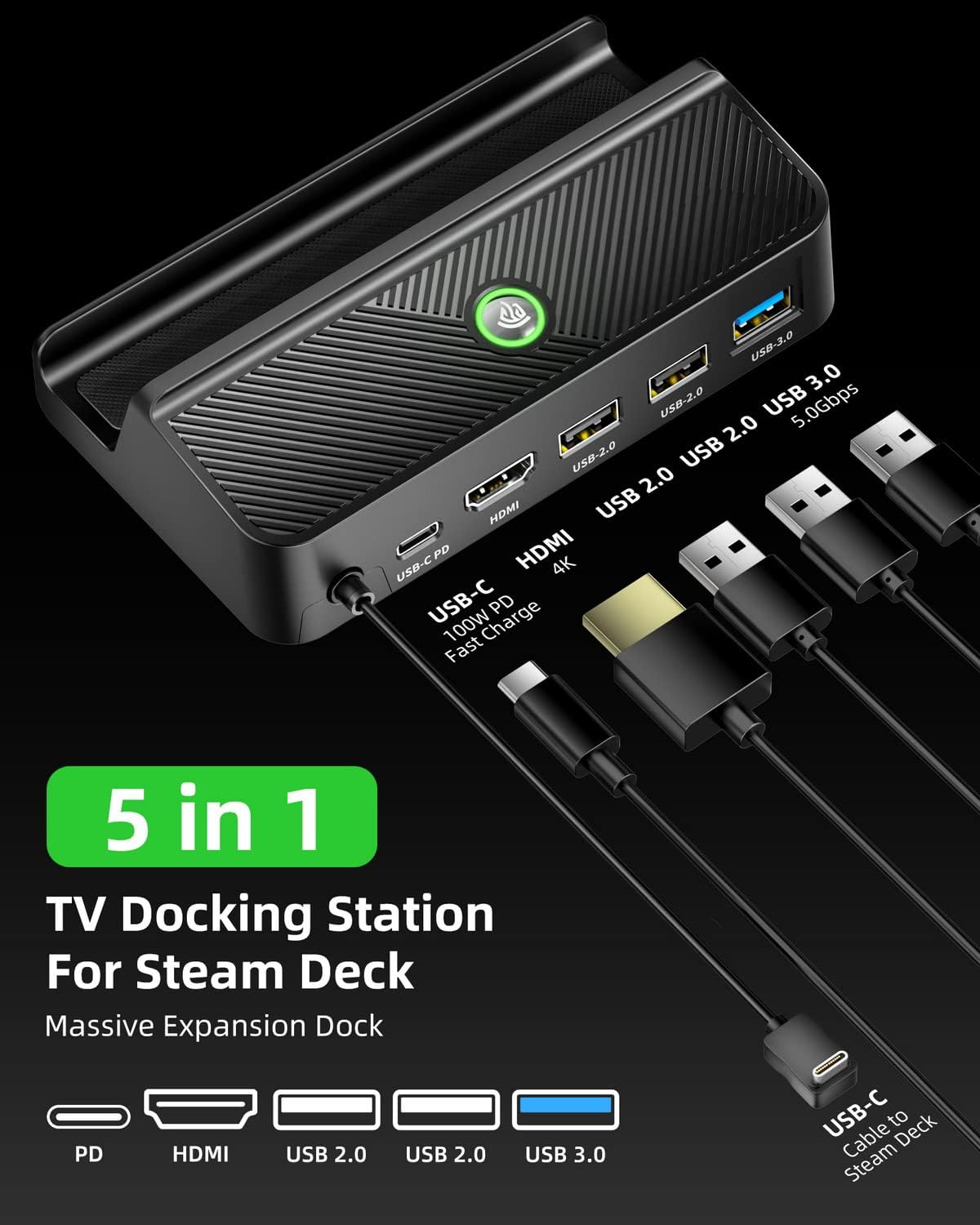
A detailed view of the EasySMX 5-in-1 Docking Station, highlighting its USB-C PD, HDMI, USB 2.0, and USB 3.0 ports.
Package Contents
- EasySMX 5-in-1 Docking Station
- User Manual (This document)
Setup Guide
Connecting Your Steam Deck
1. Place your Steam Deck securely into the docking station's integrated stand.
2. Connect the built-in USB-C cable from the docking station to the USB-C port on your Steam Deck.

This image illustrates how to connect the integrated USB-C cable from the docking station to the Steam Deck's USB-C port, ensuring a secure fit for power and data transfer.
Power Connection
Connect your original Steam Deck power adapter (or a compatible 100W USB-C PD charger) to the USB-C PD port on the docking station. This will power the dock and charge your Steam Deck.

This image shows the Steam Deck docked and connected to a 100W power source via the USB-C PD port on the docking station, highlighting its fast charging capability.
Connecting to a Display (HDMI)
Use an HDMI 2.0 cable (not included) to connect the HDMI port on the docking station to an HDMI input on your TV or monitor.

This image demonstrates connecting the docking station to a TV via an HDMI cable, showcasing the 4K display output for an enhanced gaming or viewing experience.
Connecting USB Peripherals
Connect your USB devices such as keyboards, mice, game controllers, or external storage drives to the available USB 3.0 ports on the docking station.

This image illustrates various USB peripherals like a keyboard, mouse, and headset connected to the docking station's USB 3.0 and USB 2.0 ports, demonstrating expanded connectivity.
Operating Instructions
Display Switching
Once connected, your Steam Deck should automatically output video to the connected display. If not, you may need to adjust display settings on your Steam Deck.
Some docking stations feature a button to switch between the Steam Deck's screen and the external display. Refer to the specific button on your dock if available.
This video demonstrates the process of docking the Steam Deck and connecting it to an external monitor, showcasing how the display automatically switches and the use of external peripherals like a keyboard and mouse. It also briefly shows compatibility with Nintendo Switch.
Charging Functionality
The docking station supports Power Delivery (PD) up to 100W, allowing your Steam Deck to charge at its maximum 45W speed while docked and in use.
Maintenance
- Keep the docking station clean by wiping it with a soft, dry cloth.
- Avoid exposing the device to extreme temperatures, humidity, or direct sunlight.
- Do not attempt to disassemble or repair the docking station yourself. Contact customer support for assistance.
Troubleshooting
No Display Output
- Ensure all cables (USB-C to Steam Deck, HDMI to display) are securely connected.
- Verify that your TV/monitor is set to the correct HDMI input source.
- Check the power connection to the docking station.
- Restart your Steam Deck.
Peripherals Not Working
- Ensure USB devices are properly inserted into the correct ports.
- Try connecting the peripheral directly to the Steam Deck (if possible) to rule out device issues.
- Restart the Steam Deck and reconnect the peripheral.
Slow Charging
- Ensure you are using a power adapter that supports USB-C Power Delivery (PD) and provides sufficient wattage (e.g., 45W or higher for Steam Deck).
- Check if the power cable is securely connected to both the adapter and the docking station.
Product Specifications
| Feature | Specification |
|---|---|
| Product Dimensions | 3.15 x 5.12 x 1.46 inches |
| Item Weight | 1.06 ounces (30 Grams) |
| ASIN | B0BKZMDQMB |
| Item Model Number | EasySMX AL-ST661 |
| Brand | EasySMX |
| Hardware Interface | USB Type C, USB, USB 3.0 |
| Total USB Ports | 3 |
| Number of Ports | 5 |
| Total HDMI Ports | 1 |
| Wattage | 100 watts |
Warranty and Support
EasySMX products come with a standard manufacturer's warranty. For detailed warranty information, technical support, or customer service inquiries, please visit the official EasySMX website or contact their customer support team.
Ask a question about this manual
Ask about setup, troubleshooting, compatibility, parts, safety, or missing instructions. Manuals+ will review the question and use this page’s manual context to help answer it.