
Introduction
Thank you for choosing the Vicloon Digital Alarm Clock. This manual provides detailed instructions for the setup, operation, and maintenance of your device. Please read it carefully to ensure proper use and to maximize the clock's features.
Product Overview
The Vicloon Digital Alarm Clock features a clear LCD display, showing time, date, day of the week, and temperature. It includes a 12/24-hour format switch, alarm with snooze, night light, and a timer function.

Image: Front view of the Vicloon Digital Alarm Clock displaying time, date, day, and temperature, with icons indicating its multifunctional capabilities including time, alarms, snooze, 12/24 hour format, thermometer, night light, key tone, and countdown function.
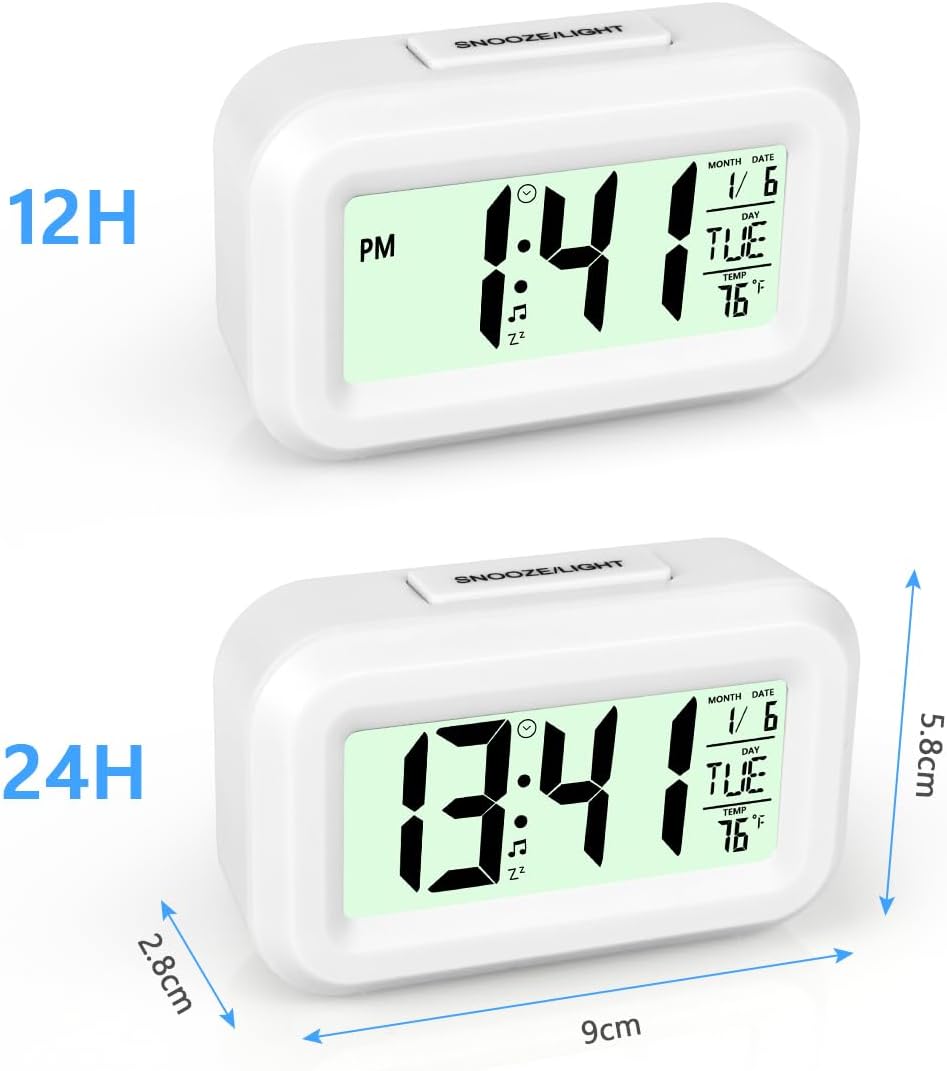
Image: Two views of the Vicloon Digital Alarm Clock, one showing time in 12-hour format (1:41 PM) and the other in 24-hour format (13:41), along with product dimensions (9cm width, 5.8cm height, 2.8cm depth).
Setup
Battery Installation
The alarm clock is powered by batteries (not included).
- Locate the battery compartment on the back of the clock.
- Remove the battery cover.
- Insert two AAA batteries, ensuring correct polarity (+/-).
- Replace the battery cover securely.

Image: Rear view of the Vicloon Digital Alarm Clock, highlighting the battery compartment for two AAA batteries (not included) and labeled control buttons: MODE, SET, TIMER, and ADJ, along with the SNOOZE/LIGHT button on top.
Operating Instructions
Button Functions Overview
- MODE: Switches between Normal Time, Alarm Time, and Timer modes.
- SET: Enters setting mode for time, date, alarm, or timer. Confirms settings.
- TIMER: Activates the countdown timer function.
- ADJ: Adjusts values (up/down) during setting mode. Toggles 12/24-hour format.
- SNOOZE/LIGHT (Top Button): Activates snooze during an alarm. Briefly illuminates the backlight.
Switching Display Modes
Press the MODE button to cycle through the display modes:
- Normal Time Mode: Displays current time, date, day, and temperature.
- Alarm Time Mode: Displays the set alarm time.
- Timer Mode: Displays the countdown timer.

Image: The alarm clock displaying two different modes. On the left, Normal Time Mode shows the current time (10:31), date (1/6), day (TUE), and temperature (16°C). On the right, Alarm Time Mode shows the alarm icon and the set alarm time (10:31).
Setting Time and Date
- Press the MODE button until you are in Normal Time Mode.
- Press and hold the SET button until the hour digits begin to flash.
- Use the ADJ button to adjust the hour.
- Press SET again to move to the minute digits, then use ADJ to adjust.
- Continue pressing SET to cycle through and adjust year, month, and day using the ADJ button.
- Press SET one last time to exit setting mode.

Image: Step-by-step guide for setting the normal time. It shows pressing MODE to enter normal time mode, then pressing SET until the number flashes, and finally using ADJ to adjust the time.
12/24 Hour Format
In Normal Time Mode, press the ADJ button to switch between 12-hour and 24-hour display formats.

Image: The alarm clock demonstrating the switch between 12-hour (1:31 PM) and 24-hour (13:31) time formats by pressing the ADJ button.
Setting the Alarm
- Press the MODE button to enter Alarm Time Mode (bell icon will appear).
- Press the ADJ button to toggle the alarm on or off. The alarm icon (♫) and snooze icon (zz) will appear when the alarm is active.
- Press and hold the SET button until the alarm hour digits flash.
- Use the ADJ button to adjust the alarm hour.
- Press SET again to move to the alarm minute digits, then use ADJ to adjust.
- Press SET again to select the alarm melody (there are 9 selectable melodies). Use ADJ to cycle through them.
- Press SET one last time to confirm and exit alarm setting mode.

Image: Step-by-step guide for setting the alarm time and melody. It shows pressing MODE to enter alarm mode, using ADJ to turn the alarm on/off, pressing SET to adjust flashing numbers, and using ADJ to select from 9 alarm melodies.
Snooze Function
When the alarm sounds, press the large SNOOZE/LIGHT button on top of the clock to activate the snooze function. The alarm will pause for five minutes and then sound again.

Image: A child sleeping next to the alarm clock, with a hand reaching to press the large SNOOZE/LIGHT button on top, illustrating how to activate the snooze or backlight function.
Night Light Function
Press the SNOOZE/LIGHT button to briefly illuminate the display for 5 seconds. This is useful for checking the time in the dark without disturbing sleep.

Image: A split image showing the alarm clock in a dark room. The left side shows the display off when the night time sensor is off. The right side shows the display illuminated when the night time light is on, making the time visible.
Timer Function
The clock features a countdown timer. This is useful for various tasks, such as cooking or study sessions.
- In any mode, press the TIMER button to enter Timer Mode.
- Press and hold the SET button until the timer digits flash.
- Use the ADJ button to set the desired countdown time (hours, minutes, seconds).
- Press SET to confirm each segment.
- Press TIMER again to start the countdown.
- When the timer reaches zero, an alarm will sound.

Image: Instructions for using the timer function. It shows pressing TIMER to enter timer mode, then pressing SET until the numbers flash, and using ADJ to adjust the countdown time.
Maintenance
- Clean the clock with a soft, dry cloth. Do not use abrasive cleaners or solvents.
- Avoid exposing the clock to extreme temperatures, direct sunlight, or high humidity.
- If the clock will not be used for an extended period, remove the batteries to prevent leakage.
Troubleshooting
| Problem | Possible Cause | Solution |
|---|---|---|
| Clock does not turn on or display is blank. | Batteries are dead or incorrectly installed. | Replace batteries with new ones, ensuring correct polarity. |
| Alarm is not sounding or is too quiet. | Alarm is not activated or volume is low (non-adjustable). | Ensure the alarm is turned on (bell icon visible). Note that alarm volume is fixed and cannot be adjusted. |
| Incorrect day of the week displayed. | Date was set incorrectly. | Re-enter time and date setting mode and ensure the correct year, month, and day are set. The day of the week is automatically calculated. |
| Backlight does not stay on. | This model features a temporary backlight. | The backlight is designed to illuminate for 5 seconds when the SNOOZE/LIGHT button is pressed. It does not have a permanent 'always-on' feature. |
Specifications
| Feature | Detail |
|---|---|
| Brand | Vicloon |
| Model Number | 3085065 (BS-XLJLCDNZ+WT-FBA) |
| Color | White |
| Display Type | Digital LCD |
| Special Features | Alarm, Snooze, Night Light, Timer, Temperature Display, Date/Week Display, 12/24 Hour Format |
| Product Dimensions (W x H) | 9.5 cm x 6 cm |
| Power Source | Batteries (AAA, not included) |
| Mounting Type | Tabletop |
| Material | Acrylonitrile Butadiene Styrene (ABS) |
| Movement Type | Quartz |
| Intended Use | Indoor (Bedroom, Office, Travel) |
| Country of Origin | China |
Warranty and Support
Limited Warranty
This Vicloon Digital Alarm Clock comes with a limited warranty. Please retain your proof of purchase for any warranty claims. Specific terms and conditions of the warranty may vary and are typically provided at the time of purchase or on the manufacturer's official website.
Customer Support
For further assistance, technical support, or inquiries regarding your product, please contact Vicloon customer service through the retailer where the product was purchased or refer to the official Vicloon website for contact information.