
Losfom Z03
Losfom Z03 Body Camera Video Recorder User Manual
Model: Z03
Product Overview
The Losfom Z03 Body Camera is a compact and versatile video recorder designed for various applications, including outdoor activities, home security, and professional use. It features 1080P video recording, adjustable LED brightness, and comes with a 64GB memory card for immediate use. Its portable design allows for multiple wearing options, making it suitable for diverse scenarios.

Figure 1: Losfom Z03 Body Camera with included accessories, including USB charging cables, a head strap, a wrist strap, and a 64GB SD card.
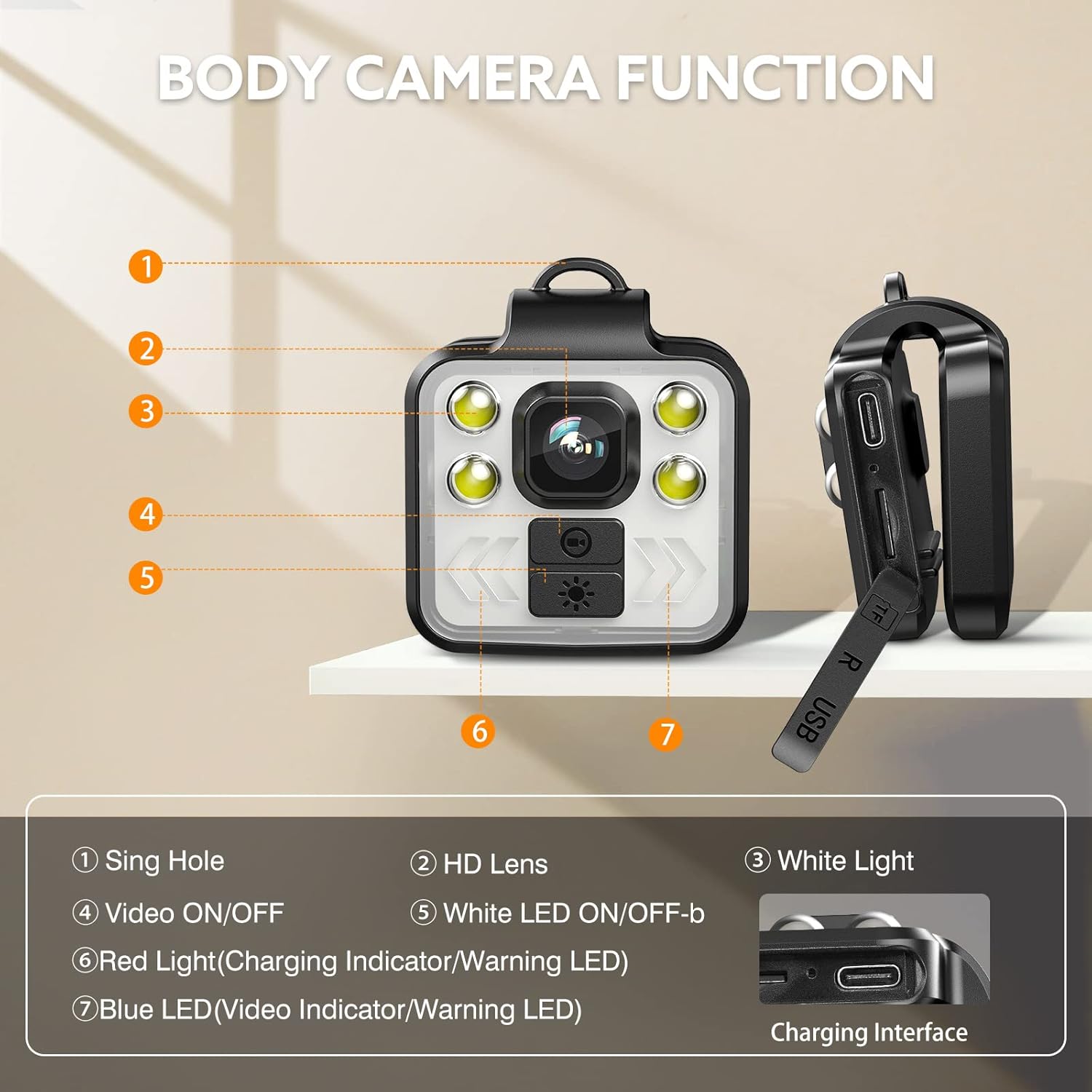
Figure 2: Detailed diagram illustrating the key components of the Z03 Body Camera, including the Sing Hole, HD Lens, White Light, Video ON/OFF button, White LED ON/OFF button, Red Indicator Light, and Blue Indicator Light, along with the Charging Interface.
The camera is equipped with a 1000mAh built-in battery, offering approximately 5.5 hours of recording time and requiring about 3 hours for a full charge. It supports TF cards up to 128GB, with a 64GB card included in the package.
Getting Started: Setup
1. Charging the Device
Before first use, fully charge the Z03 Body Camera. Connect the camera to a USB power source (e.g., computer USB port or wall adapter) using the provided USB cable. The red indicator light will illuminate during charging and turn off when fully charged.

Figure 3: The camera's built-in 1000mAh battery provides approximately 5.5 hours of recording time and takes about 3 hours to fully charge. The image also shows the TF card slot, which supports up to 128GB cards.
2. Inserting the Memory Card
The Z03 Body Camera supports TF (microSD) cards up to 128GB. A 64GB card is included. Locate the TF card slot on the side of the camera (refer to Figure 3). Gently insert the memory card with the gold contacts facing down until it clicks into place. To remove, push the card in slightly until it springs out.
3. Attaching Accessories
The camera comes with a head strap and a wrist strap for various wearing options. Attach the camera securely to the desired strap using the integrated clip or loop. Ensure the camera is firmly attached before use.

Figure 4: Examples of how the Z03 Body Camera can be worn: on the head using the head strap, clipped to clothing, or held in hand using the wrist strap, demonstrating its versatility for daily life.
Operating Instructions
1. Power On/Off
To power on the camera, short press the Video ON/OFF button (refer to Figure 2, labeled 4). The blue indicator light will illuminate. To power off, long press the Video ON/OFF button until the indicator lights turn off.
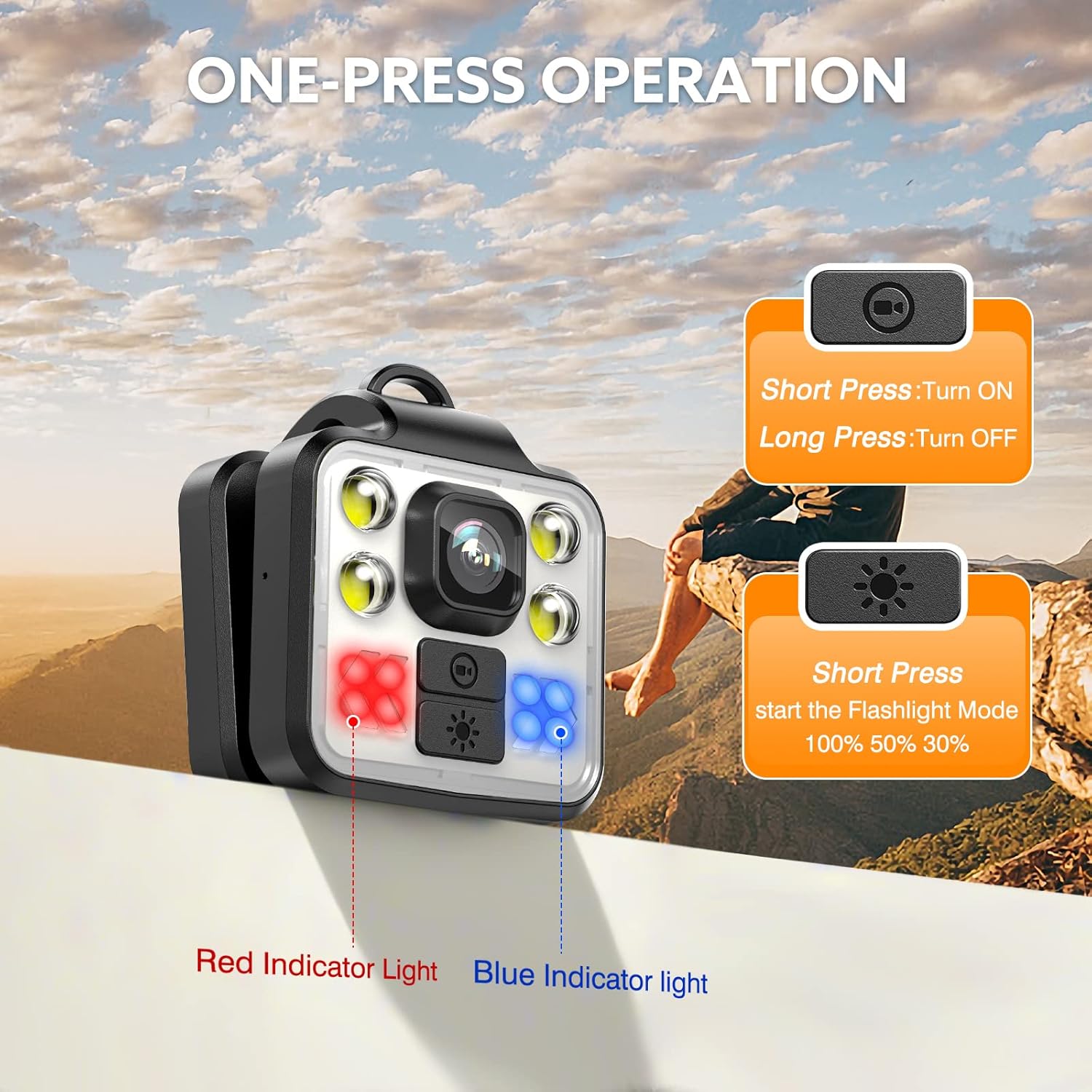
Figure 5: Guide to one-press operation: Short press the top button to turn ON, long press to turn OFF. Short press the bottom button to cycle through flashlight modes (100%, 50%, 30%). The image also shows the Red and Blue Indicator Lights.
2. Video Recording
Once powered on, the camera automatically begins recording video. The blue indicator light will flash to indicate recording is in progress. To stop recording, short press the Video ON/OFF button again. The blue light will become solid.
3. Using the Flashlight Mode
The Z03 Body Camera features an adjustable white light for illumination. To activate the flashlight mode, short press the White LED ON/OFF button (refer to Figure 2, labeled 5). Each subsequent short press will cycle through brightness levels: 100%, 50%, 30%, and then off.

Figure 6: The adjustable white light feature of the Z03 Body Camera, demonstrating its utility for video recording in low-light conditions or as a standalone flashlight, with brightness levels of 30%, 50%, and 100%.
4. Accessing Files (Connecting to Computer)
To view recorded videos and photos, connect the camera to a computer using the provided USB cable. The camera will appear as a removable disk drive. You can then copy files to your computer.
5. Time Stamping
The camera automatically applies time stamps to recorded footage. Ensure the camera's internal clock is set correctly for accurate time stamping. (Note: Specific instructions for setting the internal clock are typically found in advanced settings or require connecting to a computer and modifying a configuration file. Refer to the manufacturer's website for detailed instructions if needed.)
Maintenance
1. Cleaning
Use a soft, dry cloth to clean the camera body. For the lens, use a specialized lens cleaning cloth and solution to avoid scratches. Do not use harsh chemicals or abrasive materials.
2. Storage
Store the camera in a cool, dry place away from direct sunlight and extreme temperatures. If storing for extended periods, ensure the battery is partially charged (around 50%) to prolong its lifespan.
3. Battery Care
To maximize battery life, avoid fully discharging the battery frequently. Recharge the camera regularly, even if not in constant use. Do not expose the battery to high temperatures.
Troubleshooting
- Camera not turning on:
Ensure the battery is charged. Connect to a power source and check if the red indicator light illuminates. If not, try a different USB cable or power adapter.
- Cannot record video:
Check if a memory card is properly inserted. Ensure the memory card has sufficient free space. If the card is full, transfer files to a computer and format the card (this will erase all data).
- Poor video quality:
Ensure the lens is clean and free from smudges. Check lighting conditions; the camera performs best in well-lit environments or with the flashlight enabled in low light.
- Computer not recognizing camera:
Try a different USB port on your computer. Ensure the USB cable is securely connected to both the camera and the computer. Restart your computer and try again.
- Indicator lights not working:
If the camera functions otherwise, this might indicate a minor issue. If the camera is completely unresponsive, refer to the "Camera not turning on" steps.
Specifications
| Feature | Detail |
|---|---|
| Brand | Losfom |
| Model | Z03 |
| Video Capture Resolution | 1080p |
| Maximum Aperture | 3 f |
| Flash Memory Type | SD (Supports up to 128GB, 64GB included) |
| Screen Size | 1.77 Inches |
| Connectivity Technology | USB |
| Color | Black |
| Camcorder Type | Action Camera |
| Lens Type | Zoom |
| Recommended Uses | Running, walking the dog, mountaineering, fishing, night activity, riding, home, outdoor |
| Battery Capacity | 1000mAh (approx. 5-6 hours recording) |
Warranty and Support
For warranty information and technical support, please refer to the documentation included with your product packaging or visit the official Losfom website. Keep your purchase receipt as proof of purchase for warranty claims.
For further assistance, you may contact Losfom customer service through their official channels. Details are typically available on the product's packaging or the brand's official website.