
1. Introduction
This manual provides detailed instructions for setting up, operating, maintaining, and troubleshooting your KAMRUI Thin Client Mini PC, model TK11-A0-1135G7. Please read this manual thoroughly before using the device to ensure proper functionality and to prevent damage.
2. Package Contents
Verify that all items are present in the package:
- KAMRUI Thin Client Mini PC (TK11-A0-1135G7)
- Power Adapter
- HDMI Cable
- User Manual
- Mounting Bracket (Vesa Mount)
- Built-in Speaker (integrated)
3. Product Features
The KAMRUI Thin Client Mini PC TK11-A0-1135G7 is designed for efficient performance in a compact form factor.
3.1. High Performance Processor and Memory
Equipped with an 11th Generation Intel Core i5-1135G7 Processor (2.40 GHz, up to 4.20 GHz with Turbo Boost, 4 Cores, 8 Threads, 8 MB Cache) and 16GB DDR4 3200MHz RAM, this Mini PC delivers robust performance for various applications.
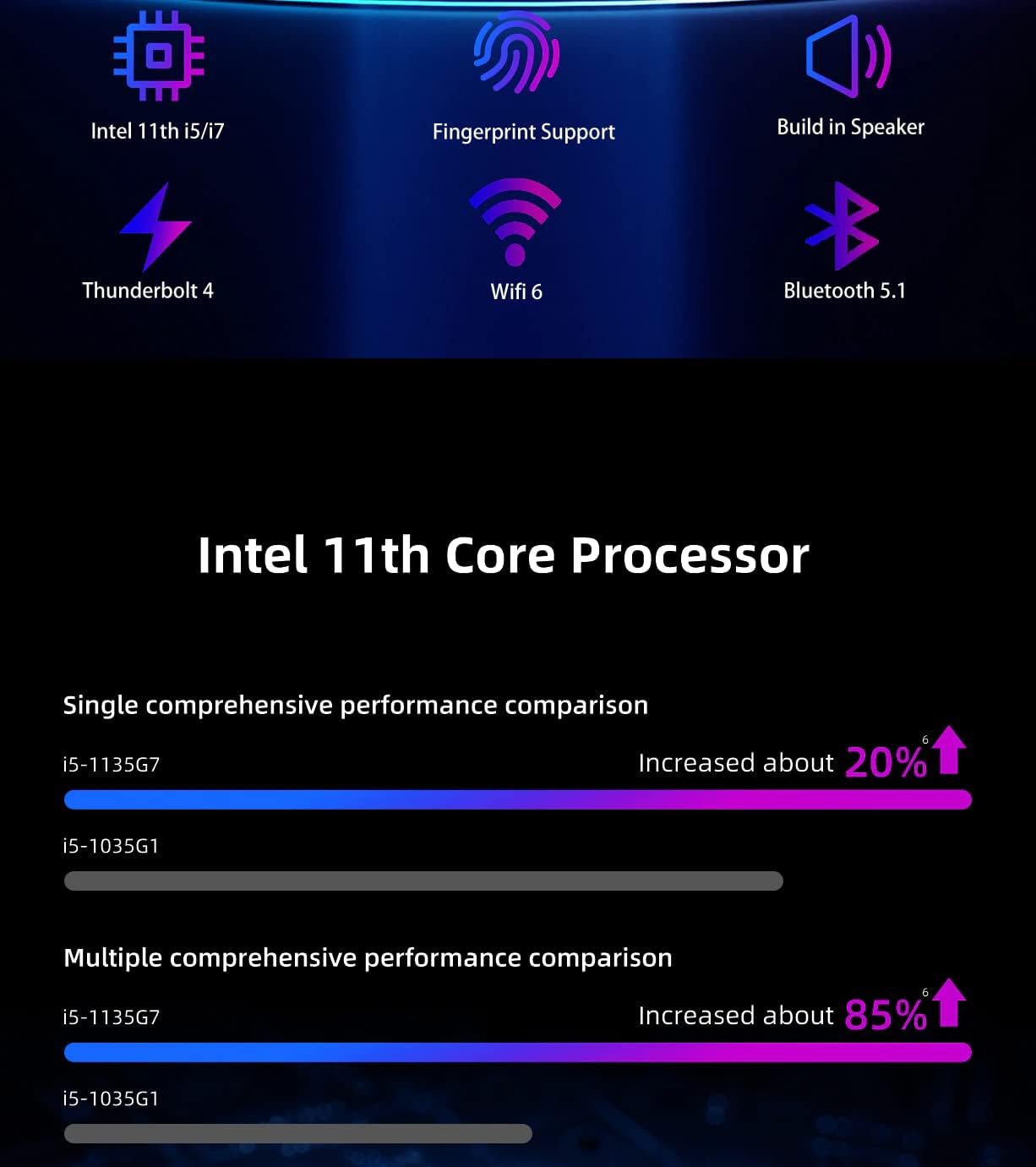
Image: Performance comparison chart for the Intel 11th Core Processor (i5-1135G7 vs i5-1035G1), showing significant performance increases.
3.2. Advanced Connectivity
The Mini PC features comprehensive connectivity options:
- Wireless: Built-in WiFi 6 (802.11ax, 2x2) 2.4G/5G and Bluetooth 5.1 Combo for high-speed wireless communication.
- Front Ports: 2 x USB 3.0 (Gen 1), 1 x Thunderbolt 4 (USB-C, 40Gbps), 1 x Audio 3.5mm jack.
- Rear Ports: 2 x USB 3.0 (Gen 1), 1 x HDMI 1.4b, 1 x Display Port, 1 x RJ45 (Gigabit Ethernet).

Image: Diagram illustrating WiFi 6 2x2 and Bluetooth 5.1 capabilities, highlighting improved throughput compared to older standards.

Image: Detailed view of the Mini PC's front and rear ports, including USB, HDMI, DisplayPort, LAN, and power input.
3.3. Secure and User-Friendly Design
- Fingerprint Unlock: The TK11-A0 Series incorporates fingerprint unlock technology for secure and convenient access, eliminating the need for password input.
- Built-in Speaker: Integrated speaker for audio output.

Image: A finger interacting with the power button, demonstrating the one-click fingerprint unlock feature for enhanced privacy and security.
3.4. Expandable Storage and RAM
The Mini PC supports storage expansion with an M.2 2280 NVMe SSD slot and a 2.5-inch HDD/SSD bay. It also features dual DDR4 RAM slots, allowing for memory upgrades up to 3200MHz.
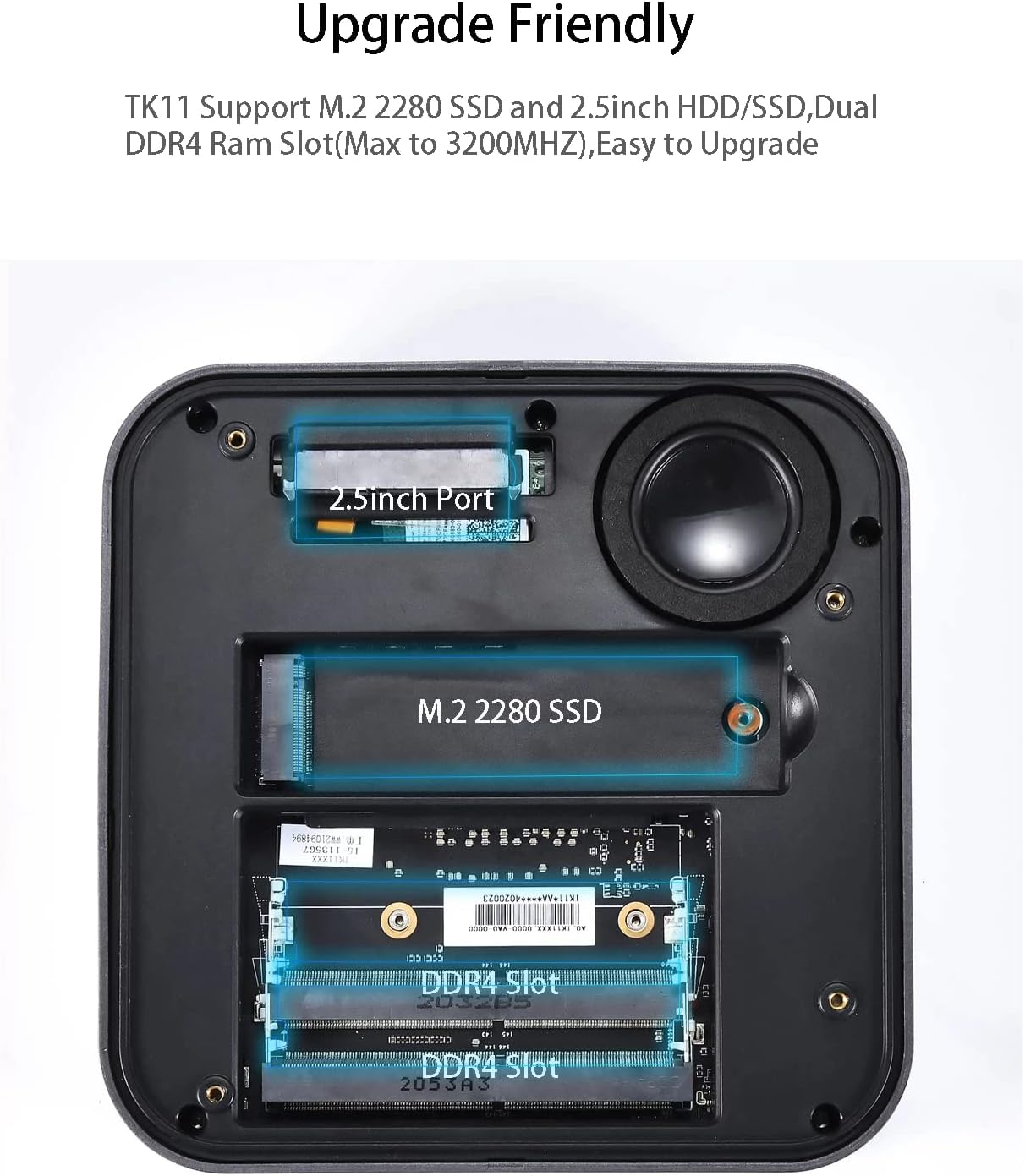
Image: Internal view of the Mini PC, illustrating the locations of the M.2 2280 SSD slot, 2.5-inch HDD/SSD port, and dual DDR4 RAM slots for easy upgrades.
3.5. Efficient Cooling System
An all-metal case combined with a silent dual ball cooling fan ensures optimal heat dissipation, maintaining system stability and performance.
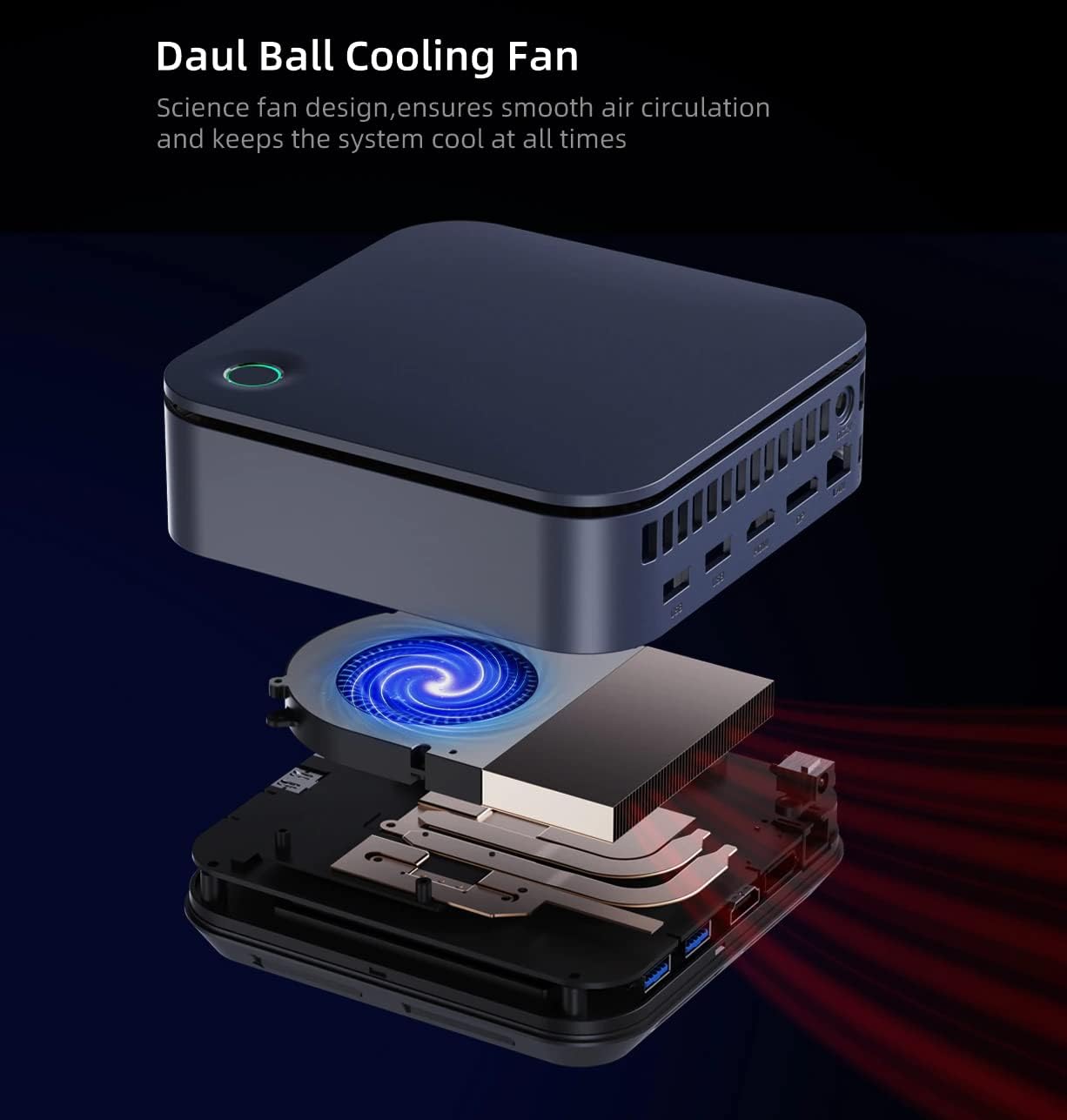
Image: Exploded view of the Mini PC, detailing the internal cooling system, including the dual ball cooling fan and heat sink components.
3.6. Multi-Display Support
Supports triple screen display via HDMI, DisplayPort, and Thunderbolt interfaces, enhancing multitasking capabilities.

Image: The Mini PC connected to three external monitors, showcasing its capability for a triple screen display setup, ideal for multitasking.
4. Setup Guide
Follow these steps to set up your KAMRUI Mini PC:
4.1. Connecting Peripherals
- Connect Monitor(s): Use an HDMI or DisplayPort cable to connect your monitor(s) to the corresponding ports on the rear of the Mini PC. For a third display, use the Thunderbolt 4 (USB-C) port on the front.
- Connect Keyboard and Mouse: Plug your USB keyboard and mouse into any available USB 3.0 ports on the front or rear of the Mini PC.
- Connect to Network (Optional): For a wired connection, plug an Ethernet cable into the RJ45 port on the rear. For wireless, ensure your WiFi network is available during initial setup.
- Connect Audio (Optional): If using external speakers or headphones, connect them to the 3.5mm audio jack on the front.
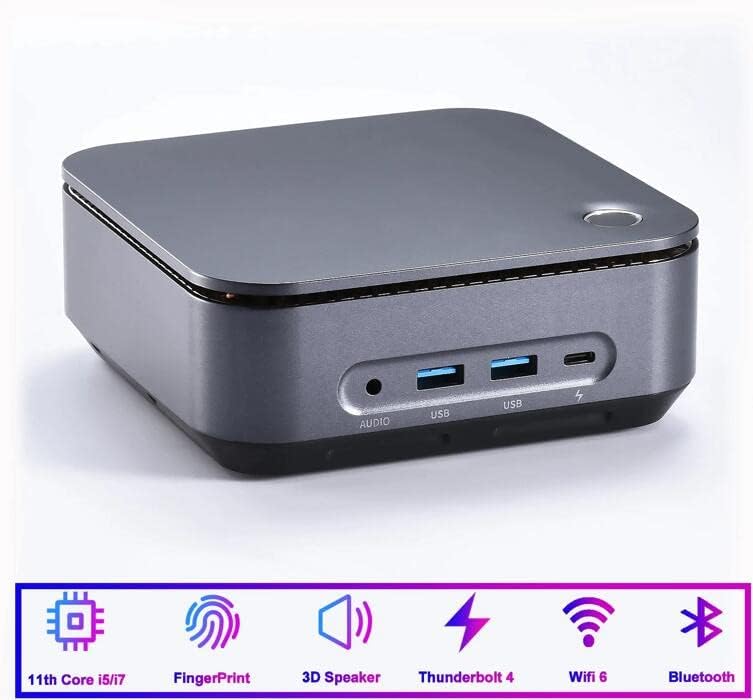
Image: Front view of the Mini PC, showing the audio jack, USB ports, and Thunderbolt 4 port for connecting peripherals.
4.2. Powering On
- Connect the power adapter to the DC-in port on the rear of the Mini PC, then plug the adapter into a power outlet.
- Press the power button located on the top of the Mini PC. The power indicator light will illuminate.
4.3. Initial Windows Setup
Upon first boot, the Windows 11 Pro operating system will guide you through the initial setup process. Follow the on-screen prompts to configure language, region, network, user accounts, and other settings.
5. Operating Instructions
5.1. Using Fingerprint Unlock
After setting up your fingerprint in Windows settings, simply place your registered finger on the power button to unlock the Mini PC quickly and securely.
5.2. Connecting to Wi-Fi
- Click the Wi-Fi icon in the system tray (bottom right corner of the screen).
- Select your desired Wi-Fi network from the list.
- Enter the network password if prompted and click 'Connect'.
5.3. Using Multiple Displays
To configure multiple displays:
- Ensure all monitors are connected and powered on.
- Right-click on the desktop and select 'Display settings'.
- Windows will detect the connected displays. You can arrange them, set their resolution, and choose display modes (e.g., Extend, Duplicate).
6. Maintenance
6.1. Cleaning
- Use a soft, dry cloth to clean the exterior of the Mini PC.
- For dust accumulation in vents, use compressed air. Ensure the device is powered off before cleaning.
- Avoid using liquid cleaners directly on the device.
6.2. Software Updates
Regularly update your Windows operating system and drivers to ensure optimal performance and security. Go to 'Settings' > 'Windows Update' to check for updates.
6.3. Hardware Upgrades
The Mini PC supports upgrades for RAM and storage:
- RAM: The device has two DDR4 RAM slots. Refer to the internal view image in Section 3.4 for slot locations. Ensure compatible DDR4 3200MHz modules are used.
- Storage: An M.2 2280 NVMe SSD slot and a 2.5-inch SATA HDD/SSD bay are available for storage expansion.
Caution: Opening the Mini PC for upgrades may void your warranty. Consult with KAMRUI support if you are unsure about performing upgrades.
7. Troubleshooting
If you encounter issues with your Mini PC, refer to the following common problems and solutions:
| Problem | Possible Cause | Solution |
|---|---|---|
| No power | Power adapter not connected properly; Power outlet issue | Check power adapter connection; Try a different power outlet; Ensure power button is pressed. |
| No display on monitor | Monitor not connected; Incorrect input source on monitor; Faulty cable | Ensure monitor cable is securely connected; Select correct input source on monitor; Try a different cable or monitor. |
| Wi-Fi not connecting | Incorrect password; Router issue; Driver issue | Verify Wi-Fi password; Restart your router; Check device manager for Wi-Fi driver status. |
| Slow performance | Too many applications running; Low disk space; Overheating | Close unnecessary applications; Free up disk space; Ensure proper ventilation and clean vents. |
| Fingerprint not recognized | Finger not placed correctly; Fingerprint not registered; Sensor dirty | Ensure finger covers the sensor completely; Re-register fingerprint in Windows settings; Clean the sensor with a soft cloth. |
If the problem persists after trying these solutions, please contact KAMRUI customer support.
8. Specifications
| Component | Specification |
|---|---|
| Model Name | TK11-A0-1135G7 |
| Processor | Intel Core i5-1135G7 (4 Cores, 8 Threads, 2.40 GHz base, up to 4.20 GHz Turbo Boost) |
| Graphics | Intel Iris Xe Graphics (Integrated) |
| RAM | 16GB DDR4 3200MHz (2x SODIMM slots, max 16GB) |
| Storage | 512GB M.2 NVMe SSD (Supports 2.5-inch HDD/SSD expansion) |
| Operating System | Windows 11 Pro |
| Wireless Connectivity | Wi-Fi 6 (802.11ax, 2x2), Bluetooth 5.1 |
| Front Ports | 2x USB 3.0, 1x Thunderbolt 4 (USB-C), 1x 3.5mm Audio Jack |
| Rear Ports | 2x USB 3.0, 1x HDMI 1.4b, 1x DisplayPort, 1x RJ45 (Gigabit LAN), 1x DC-in |
| Video Output | HDMI, DisplayPort, Thunderbolt 4 (supports triple display up to 3840x2160) |
| Security Feature | Fingerprint Scanning |
| Built-in Media | Speakers |
| Dimensions (W x D x H) | 5.43 x 5.43 x 2.11 inches (13.8 x 13.8 x 5.36 cm) |
| Weight | 1.24 lbs (0.56 kg) |
| Color | Silver |
| UPC | 755517604127 |
9. Warranty and Support
KAMRUI provides a standard warranty for this product. For detailed warranty information, including terms and conditions, please refer to the warranty card included in your package or visit the official KAMRUI website. If you require technical assistance, troubleshooting beyond this manual, or have questions about your product, please contact KAMRUI customer support through their official channels.
