
Targus AEM105AP-50
Targus Bluetooth Mobile Speaker AEM105AP-50 User Manual
Model: AEM105AP-50
1. Introduction
Thank you for purchasing the Targus Bluetooth Mobile Speaker AEM105AP-50. This compact and portable speakerphone is designed for clear communication and audio playback, offering versatile connectivity options for your devices. Please read this manual carefully to ensure proper use and to maximize the performance of your device.
Key features include:
- Compact and portable design (12.3cm width x 4.1cm height).
- Connects via USB or Bluetooth® 5.0 with a range of up to 10m.
- 360-degree microphone pickup up to 5m from laptops, tablets, or mobile phones.
- Environmental Noise Cancellation (ENC) and Acoustic Echo Cancellation (AEC) for clear audio.
- Up to 13 hours of talk time and 22 hours of music playback.
- Easy-to-understand voice guidance for power on/off, connection status, and disconnection.
- High compatibility with many online meeting platforms.
- Supports Windows, macOS, iOS, and Android operating systems.

Figure 1.1: Targus Bluetooth Mobile Speaker AEM105AP-50, showing its compact, circular design with top-mounted controls.
2. Package Contents
Please check the box for the following items:
- Targus Bluetooth Mobile Speaker Unit
- USB Charging Cable
- Warranty Card (if applicable)
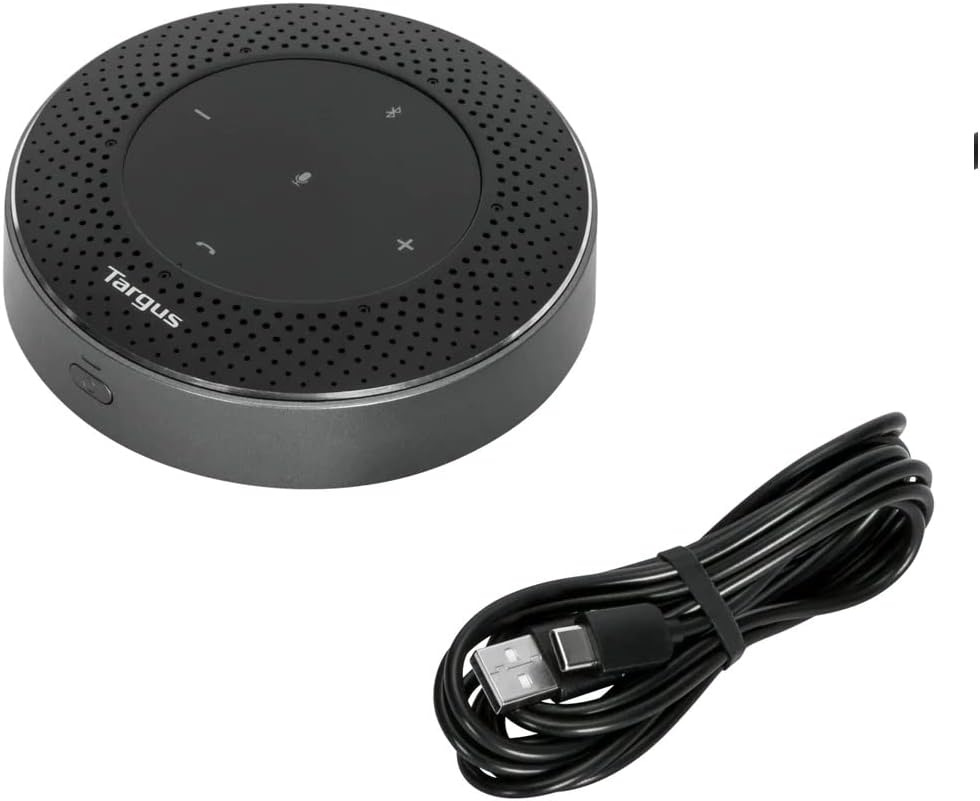
Figure 2.1: The Targus Bluetooth Mobile Speaker shown alongside its included USB charging cable.
3. Device Layout and Controls
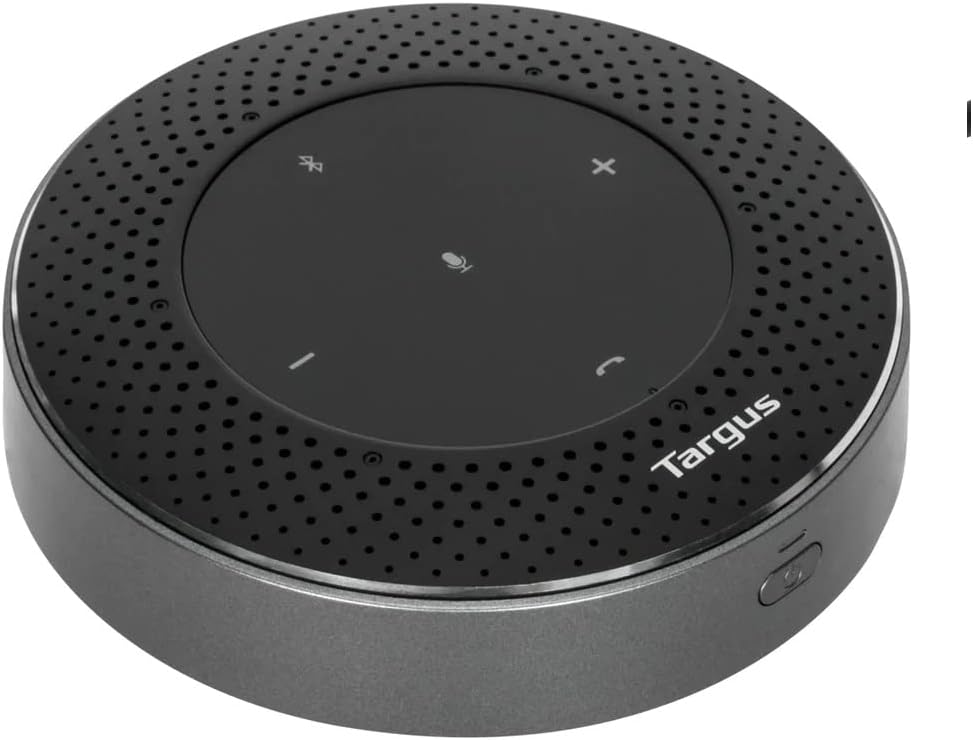
Figure 3.1: Top view of the speaker, highlighting the control panel with buttons for volume, mute, Bluetooth, and call management.
- Microphone Mute Button: Press to mute/unmute the microphone.
- Volume Down Button (-): Decreases the volume.
- Volume Up Button (+): Increases the volume.
- Bluetooth Pairing Button: Press and hold to enter Bluetooth pairing mode.
- Call Answer/End Button: Press to answer or end a call.
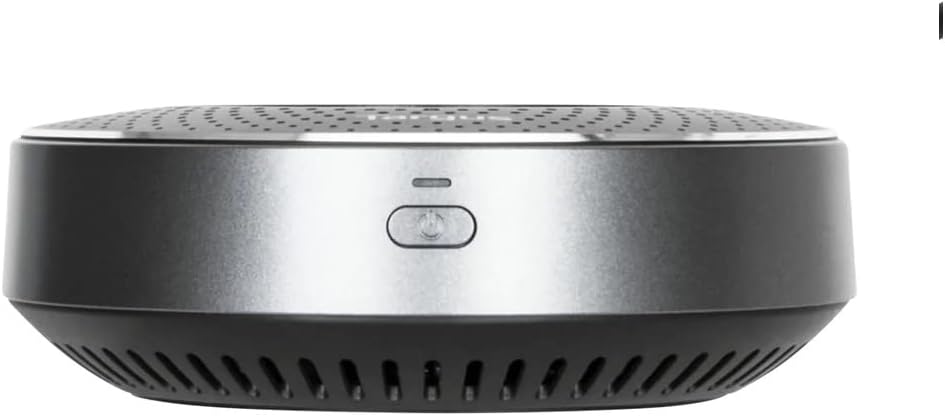
Figure 3.2: Side view of the speaker, showing the power button.
- Power Button: Press and hold to power on/off the device.
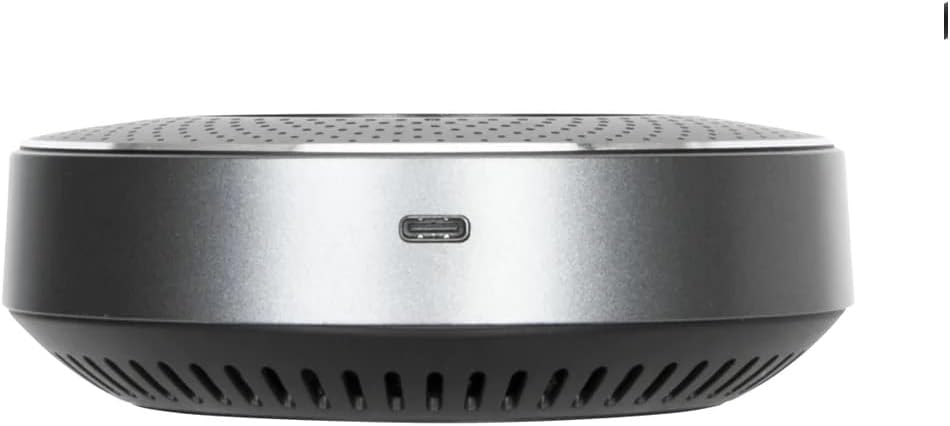
Figure 3.3: Side view of the speaker, showing the USB-C charging port.
- USB-C Charging Port: Connect the provided USB cable here for charging.
4. Setup
4.1 Charging the Speaker
Before first use, fully charge the speaker. Connect the provided USB cable to the USB-C port on the speaker and the other end to a USB power adapter (not included) or a computer's USB port.
- The LED indicator will show charging status.
- A full charge provides up to 13 hours of talk time or 22 hours of music playback.
4.2 Powering On/Off
To power on the speaker, press and hold the Power Button until you hear a voice prompt indicating "Power On".
To power off, press and hold the Power Button again until you hear "Power Off".
4.3 Bluetooth Pairing
To connect the speaker to your device via Bluetooth:
- Ensure the speaker is powered on.
- Press and hold the Bluetooth Pairing Button on the top panel until the LED indicator flashes, indicating it's in pairing mode. You may hear a voice prompt like "Pairing Mode".
- On your device (smartphone, tablet, laptop), go to Bluetooth settings and search for available devices.
- Select "Targus AEM105AP-50" from the list.
- Once connected, you will hear a voice prompt "Connected". The LED indicator will stop flashing and remain solid.
The speaker will automatically attempt to reconnect to the last paired device when powered on.
4.4 USB Connection
For a wired connection, simply connect the speaker to your computer using the provided USB cable. The speaker will be recognized as an audio device, and no additional drivers are typically required.
5. Operating Instructions
5.1 Call Management
- Answer a Call: Press the Call Answer/End Button once.
- End a Call: Press the Call Answer/End Button once during a call.
- Reject a Call: Press and hold the Call Answer/End Button for 2 seconds.
- Mute/Unmute Microphone: Press the Microphone Mute Button. The LED indicator will change to show mute status.

Figure 5.1: The Targus speaker being used during a video conference call, demonstrating its application in a professional setting.
5.2 Volume Control
- Increase Volume: Press the Volume Up Button (+).
- Decrease Volume: Press the Volume Down Button (-).
5.3 Audio Playback
When connected via Bluetooth or USB, the speaker will play audio from your device. Use your device's controls for play/pause, skip track, etc.
6. Maintenance
To ensure the longevity and optimal performance of your Targus Bluetooth Mobile Speaker, follow these maintenance guidelines:
- Cleaning: Use a soft, dry cloth to wipe the surface of the speaker. Do not use liquid cleaners, aerosols, or abrasive solvents.
- Storage: Store the speaker in a cool, dry place away from direct sunlight and extreme temperatures.
- Avoid Moisture: Keep the speaker away from water and high humidity. This product is not waterproof.
- Handle with Care: Avoid dropping the speaker or subjecting it to strong impacts.
- Battery Care: For optimal battery life, avoid fully discharging the battery frequently. Charge the speaker regularly, even if not in use for extended periods.
7. Troubleshooting
If you encounter issues with your speaker, please refer to the following common problems and solutions:
| Problem | Possible Cause | Solution |
|---|---|---|
| Speaker does not power on. | Battery is low or depleted. | Charge the speaker using the provided USB cable. |
| Cannot pair via Bluetooth. | Speaker is not in pairing mode; device's Bluetooth is off; too far from device. | Ensure speaker is in pairing mode (flashing LED). Turn on Bluetooth on your device. Move speaker closer to your device (within 10m). |
| No sound or low volume. | Volume is too low on speaker or connected device; incorrect audio output selected. | Increase volume on both the speaker and your connected device. Check audio output settings on your computer/phone to ensure the speaker is selected. |
| Microphone not working. | Microphone is muted; incorrect microphone input selected on device. | Press the Microphone Mute Button to unmute. Check microphone input settings in your communication software (e.g., Zoom, Teams) or device settings. |
| Poor audio quality / static. | Interference; device too far; low battery. | Move speaker closer to your device. Avoid strong electromagnetic interference. Ensure speaker is fully charged. |
If the problem persists, try resetting the speaker by powering it off and on again. If issues continue, contact Targus customer support.
8. Specifications
| Feature | Detail |
|---|---|
| Model Name | BLUETOOTH MOBILE SPEAKER |
| Product Model Number | AEM105AP-50 |
| Brand | Targus |
| Speaker Type | 3D |
| Connectivity Technology | Bluetooth 5.0, USB |
| Recommended Use | For Smartphones or Tablets |
| Included Components | Speaker unit, Warranty card |
| Product Dimensions (L x W x H) | 12 x 12 x 3.8 cm (approx. 4.72 x 4.72 x 1.5 inches) |
| Product Weight | 0.59 kg (approx. 1.3 lbs) |
| Water Resistance | No |
| Battery Included | Yes (Rechargeable) |
| Battery Usage | No (Does not use disposable batteries) |
| Max Speaker Output Power | 5 Watts |
| Mounting Type | Desktop/Floor Standing |
| Microphone Pickup Range | Up to 5m (360-degree) |
| Battery Life (Talk Time) | Up to 13 hours |
| Battery Life (Music Playback) | Up to 22 hours |
9. Warranty and Support
Targus products are designed for quality and reliability. For information regarding warranty coverage and customer support, please refer to the warranty card included in your package or visit the official Targus website. Keep your proof of purchase for warranty claims.
For technical assistance or further inquiries, please contact Targus customer support through their official channels.
Related documentsAEM105AP-50

Ask a question about this manual
Ask about setup, troubleshooting, compatibility, parts, safety, or missing instructions. Manuals+ will review the question and use this page’s manual context to help answer it.