
1. Introduction
This manual provides detailed instructions for the installation, operation, and maintenance of your SZSINOCAM QW5 2K PTZ Outdoor Solar WiFi Security Camera. Please read this manual thoroughly before using the product to ensure correct usage and optimal performance. Keep this manual for future reference.
2. Product Overview
2.1 Key Features
- 2K/3MP HD Video: Provides clear and detailed surveillance footage.
- Solar-Powered & Rechargeable Battery: Equipped with a 10000mAh battery and a high-efficiency solar panel for continuous power.
- PTZ Functionality: 355° horizontal pan and 110° vertical tilt for wide area coverage.
- Advanced Night Vision: Supports infrared, full-color, and sound & light alarm night vision modes.
- PIR Motion Detection: Intelligent human recognition to reduce false alarms, with customizable detection zones and adjustable sensitivity.
- Two-Way Audio: Built-in microphone and speaker for real-time communication.
- IP66 Weatherproof: Designed for outdoor use in various weather conditions.
- Dual Wi-Fi Antennas: 5dBi antennas for stable wireless connection.
- Flexible Storage: Supports local storage via Micro SD card (up to 256GB, not included) and cloud storage service.
- Multi-User Sharing: Allows multiple users to access the camera feed simultaneously.
2.2 Product Diagram
The image below illustrates the main components of the SZSINOCAM QW5 camera system.

Image: The SZSINOCAM QW5 camera unit, solar panel, and a smartphone displaying the camera's live view. The camera features dual antennas and a lens with integrated lights.
3. Installation Guide
3.1 Before Installation
- Ensure all components are present and undamaged.
- Fully charge the camera battery using a USB cable before the first use. This ensures the camera has sufficient power to operate while the solar panel begins charging.
- Verify a stable 2.4GHz Wi-Fi signal at the intended installation location. The camera does not support 5GHz Wi-Fi.
3.2 App Download and Account Setup
- Scan the QR code provided in the product packaging or visit veepai.com/veecam_download.html to download the 'O-KAM' application.
- Install the 'O-KAM' app on your smartphone.
- Register a new account or log in if you already have one.
3.3 Camera Pairing
- Open the 'O-KAM' app and follow the on-screen instructions to add a new device.
- Power on the camera. The camera will enter pairing mode.
- Use the app to scan the QR code located on the camera or in the manual to initiate the connection process.
- Follow the prompts to connect the camera to your 2.4GHz Wi-Fi network.

Image: A visual guide showing three steps for camera setup: 1. Scan the QR code for the 'O-KAM' app, 2. Fully charge the camera and configure Wi-Fi, 3. Add the camera to your phone.
3.4 Mounting the Camera and Solar Panel
Choose a location that provides optimal sunlight exposure for the solar panel and a clear view for the camera. Ensure the camera is within range of your Wi-Fi network.
- Use the provided mounting bracket and screws to securely attach the camera to a wall or other stable surface.
- Mount the solar panel in a location that receives direct sunlight for several hours daily.
- Connect the solar panel cable to the camera's charging port. Ensure the connection is secure and weatherproof.

Image: The SZSINOCAM QW5 camera and its solar panel are mounted on an outdoor wooden wall, demonstrating a strong and stable Wi-Fi connection. The image highlights 2.4GHz Wi-Fi compatibility and dual 5dBi antennas.

Image: The camera is shown mounted with its solar panel, illustrating its solar-powered capability for 365 days of uninterrupted security. It emphasizes the rechargeable battery and the option for USB charging, with an initial full charge recommended for first use.
4. Operating Instructions
4.1 Live View and Playback
Access the 'O-KAM' app to view the live feed from your camera. You can also review recorded footage from the SD card or cloud storage.
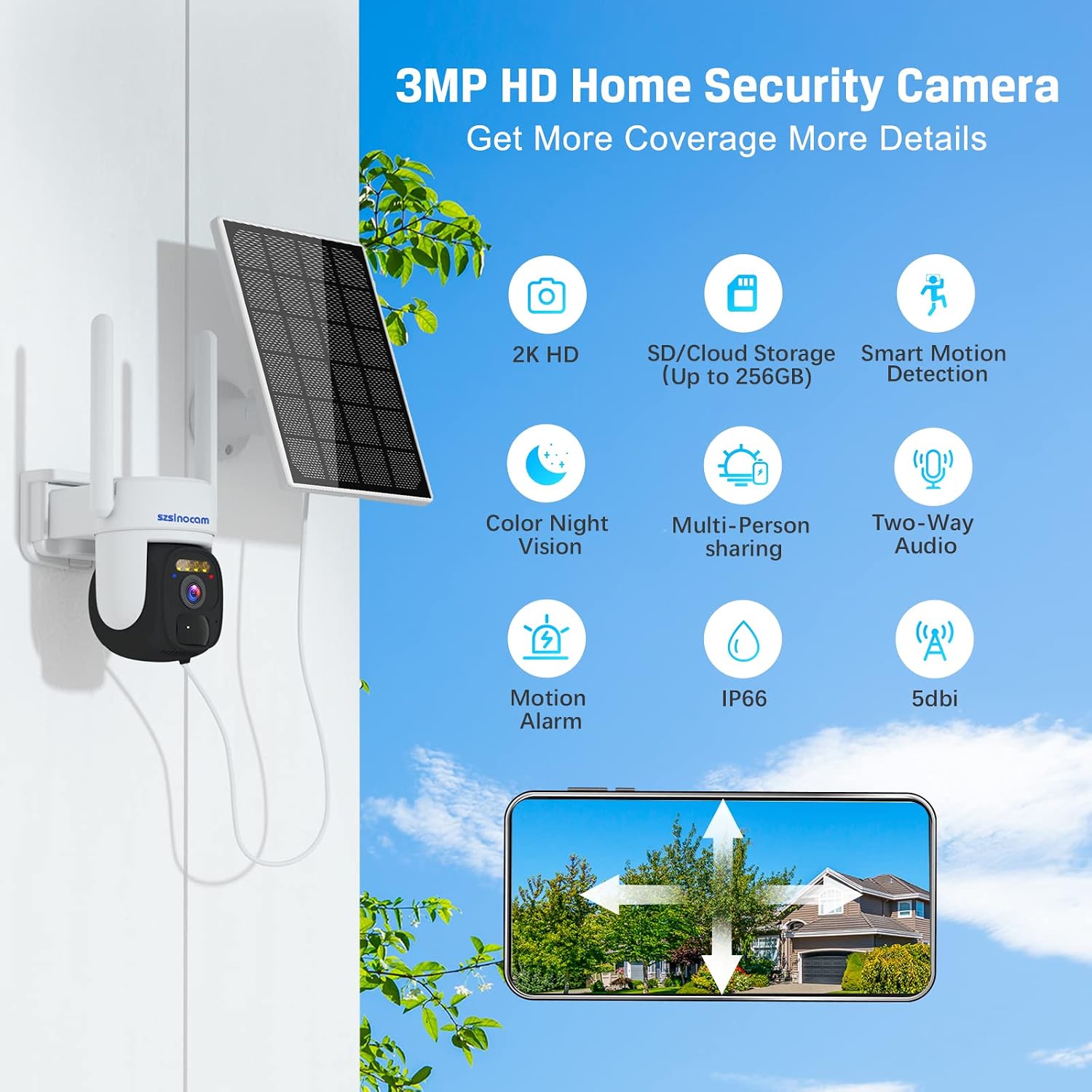
Image: A smartphone displaying the camera's live feed and options for local storage and remote playback, including calendar, screenshot, and record functions.
4.2 Pan and Tilt Control
Within the 'O-KAM' app, use the on-screen controls to remotely adjust the camera's viewing angle. The camera supports 355° horizontal pan and 110° vertical tilt.

Image: The camera is depicted with arrows indicating its 355° pan and 90° tilt capabilities, ensuring comprehensive coverage of the monitored area. It also mentions 4X digital zoom.
4.3 Night Vision Modes
The camera offers multiple night vision options:
- Infrared Night Vision: Standard black and white view in low light.
- Full-Color Night Vision: Activates built-in spotlights to provide color images in the dark.
- Sound and Light Alarm Night Vision: Combines full-color vision with an audible alarm and flashing lights upon motion detection.

Image: A visual comparison of the camera's night vision capabilities, including infrared night vision, full-color night vision, and sound and light alarm night vision, demonstrating enhanced visibility in low-light conditions.
4.4 Motion Detection and Alarms
The camera utilizes PIR (Passive Infrared) motion detection with an AI algorithm to identify human shapes, minimizing false alarms. When motion is detected, the camera can trigger various alarms and send instant notifications to your phone.
- Customizable Alarm Zones: Define specific areas within the camera's view for motion detection.
- Adjustable Detection Distance: Set the range at which motion is detected.
- Alarm Modes: Choose between siren, voice, or combined sound and light alarms.
- Instant Notifications: Receive alerts on your smartphone within seconds of detection.

Image: An illustration showing how to define custom alarm zones within the camera's field of view, highlighting a specific area like a garage entrance for monitoring.

Image: A screenshot from the app demonstrating the setting for PIR alarm detection distance, allowing users to adjust the range from near to far.

Image: A smartphone displaying an instant motion alarm message notification, indicating a visitor has been detected by the camera.
4.5 Two-Way Audio
Use the two-way audio feature in the 'O-KAM' app to speak through the camera's speaker and listen through its microphone. This allows for direct communication with individuals near the camera.

Image: A split image demonstrating color night vision capturing a child playing, and the two-way audio feature allowing a parent to speak to the child remotely via a smartphone.
4.6 Storage Options
The camera supports two storage methods for recorded footage:
- Micro SD Card: Insert a Micro SD card (up to 256GB, not included) into the designated slot on the camera for local storage.
- Cloud Storage: A 3-day free cloud storage service is available. Refer to the app for subscription options for extended cloud storage.

Image: A close-up of the camera showing the Micro SD card slot and an icon representing cloud storage, illustrating the dual storage options.
4.7 Multi-User Sharing
You can share access to your camera's live feed and recordings with family members or trusted individuals through the 'O-KAM' app.

Image: An illustration depicting multiple user profiles around a globe, with a smartphone showing a camera feed, symbolizing the multi-user sharing capability for family members.
5. Maintenance
5.1 Battery Charging
The camera's 10000mAh battery is primarily charged by the solar panel. In periods of low sunlight or heavy usage, the battery can also be charged via a standard USB power adapter (not included).
- Ensure the solar panel is clean and free from obstructions to maximize charging efficiency.
- If the battery level is critically low, remove the camera and charge it indoors using a USB cable until fully charged.
5.2 General Care
- Regularly clean the camera lens and solar panel with a soft, damp cloth to ensure clear images and efficient charging.
- Avoid using harsh chemicals or abrasive materials that could damage the camera's surface or lens.
- Ensure all ports and covers are securely closed to maintain the IP66 weatherproof rating.
6. Troubleshooting
- Camera not connecting to Wi-Fi: Ensure your Wi-Fi network is 2.4GHz. Check Wi-Fi signal strength at the camera's location. Restart your router and the camera.
- Battery not charging: Verify the solar panel is receiving direct sunlight and is clean. Check the connection between the solar panel and the camera. Charge the camera via USB if necessary.
- Poor image quality: Clean the camera lens. Ensure there are no obstructions in the camera's field of view. Check your internet connection speed.
- Frequent false alarms: Adjust the PIR detection sensitivity and customize alarm zones in the 'O-KAM' app to focus on relevant areas.
- No motion detection notifications: Ensure notifications are enabled in both the 'O-KAM' app and your smartphone's settings. Check the camera's motion detection settings.
For further assistance, refer to the 'O-KAM' app's help section or contact customer support.
7. Specifications
| Feature | Specification |
|---|---|
| Model Number | QW5 |
| Brand | SZSINOCAM |
| Effective Video Resolution | 3 MP (2K) |
| Video Recording Resolution | 1080p |
| Wireless Communication Technology | Wi-Fi (2.4GHz) |
| Pan/Tilt Range | 355° Pan / 110° Tilt |
| Special Features | Portable, Night Vision (Infrared, Full-Color, Alarm), PIR Motion Detection, Two-Way Audio |
| Usage Environment | Outdoor (IP66 Weatherproof) |
| Power Source | Battery Powered (10000mAh rechargeable battery) with Solar Panel |
| Power Consumption | 10 Watts |
| Compatible Devices | Smartphone |
| Storage Options | Micro SD Card (up to 256GB), Cloud Storage |
| Material | Plastic |
| Dimensions | 21.8 x 15 x 14.3 cm |
| Weight | 920 grams |
8. Warranty and Support
For information regarding warranty coverage, technical support, or replacement parts, please refer to the product packaging or visit the official SZSINOCAM website. Contact details for customer service are typically provided with your purchase documentation.

