
1. Introduction
This manual provides essential information for setting up, operating, maintaining, and troubleshooting your HP OMEN 16 Ultra Slim Gaming Laptop. This high-performance laptop features an Intel Core Ultra 7 255H processor, NVIDIA GeForce RTX 5060 graphics, a 16-inch FHD+ 144Hz display, 128GB DDR5 RAM, and an 8TB PCIe NVMe M.2 SSD, running on Windows 11 Home.
2. Setup
2.1 Unboxing and Initial Inspection
Carefully remove the laptop and all accessories from the packaging. Inspect for any visible damage. The package should include the HP OMEN 16 laptop, power adapter, and documentation.
2.2 Connecting the Power Adapter
Connect the power adapter to the laptop's AC smart pin port and then plug it into a power outlet. It is recommended to fully charge the battery before initial use.
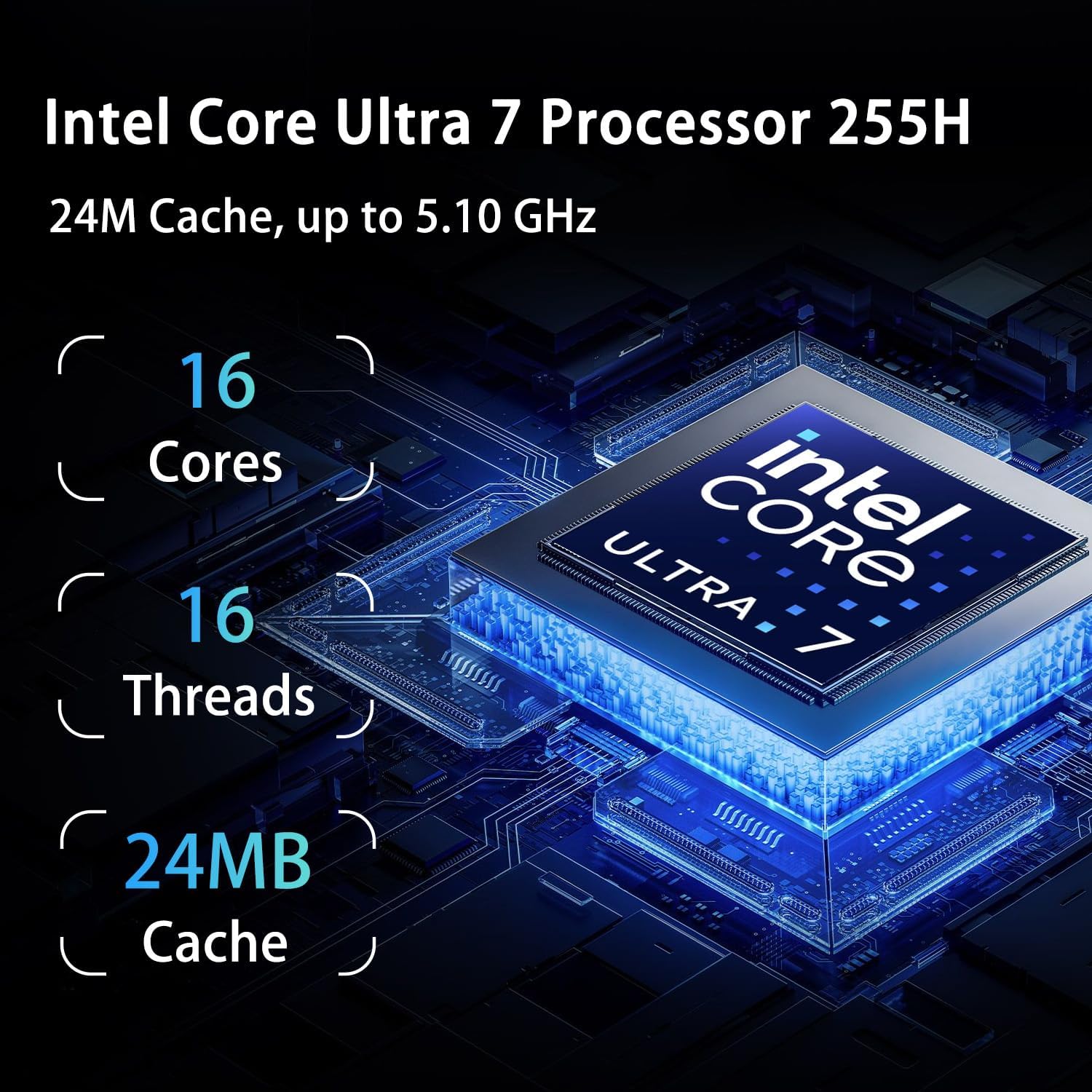
Image: The HP OMEN 16 laptop showing the power input and various ports on the sides.
2.3 Initial Boot-up and Windows 11 Setup
Press the power button to turn on the laptop. Follow the on-screen instructions to complete the Windows 11 Home setup, including language selection, network connection, and user account creation.
2.4 Connecting Peripherals
Connect your mouse, keyboard, or external display to the available USB or HDMI ports. Refer to the 'Specifications' section for port details.
3. Operating Instructions
3.1 Power Management
- Power On: Press the power button located on the laptop.
- Sleep Mode: Close the lid or select 'Sleep' from the Start Menu.
- Shut Down: Select 'Shut down' from the Start Menu.
3.2 Keyboard and Touchpad
The laptop features an RGB backlit keyboard and a precision touchpad. Use the Fn + F4 key combination to cycle through RGB backlight modes or turn it off. The touchpad supports multi-touch gestures for navigation.

Image: The HP OMEN 16 laptop with its RGB backlit keyboard and touchpad visible.
3.3 Display Settings
The 16-inch FHD+ (1920 x 1200) display operates at a 144Hz refresh rate. You can adjust display settings, including resolution and refresh rate, via Windows Display Settings (Right-click on desktop > Display settings).

Image: The HP OMEN 16 laptop's 16-inch FHD+ display, highlighting its 144Hz refresh rate during gameplay.
3.4 Connecting to a Network
- Wi-Fi: Click the network icon in the taskbar, select your Wi-Fi network, and enter the password. The laptop supports Wi-Fi 6.
- Ethernet: Connect an Ethernet cable to the RJ-45 port for a wired network connection.
3.5 Audio and External Devices
Connect headphones or external speakers to the headphone/microphone combo jack. Use the USB Type-A, USB Type-C, and HDMI ports for various external devices such as storage, monitors, or other peripherals.

Image: A detailed view of the HP OMEN 16 laptop's side ports, including USB Type-A, USB Type-C, HDMI, RJ-45, and the headphone/microphone combo jack.
4. Maintenance
4.1 Cleaning Your Laptop
- Use a soft, lint-free cloth slightly dampened with water or a screen cleaner to clean the display.
- Use compressed air to clear dust from the keyboard and ventilation grilles.
- Wipe the chassis with a soft, dry cloth. Avoid harsh chemicals.
4.2 Battery Care
To prolong battery life, avoid extreme temperatures and allow the battery to discharge partially before recharging. For long-term storage, charge the battery to about 50%.
4.3 Software and Driver Updates
Regularly check for and install Windows updates through 'Settings > Windows Update'. Keep your graphics drivers (NVIDIA) and other system drivers updated for optimal performance and security. You can typically find driver updates on the official HP support website or through the NVIDIA GeForce Experience application.
4.4 Cooling System
Ensure proper airflow by keeping the laptop's vents unobstructed. Using the bundled PCO Notebook Fold Radiator/Cooler can help maintain optimal operating temperatures during intensive tasks like gaming.
5. Troubleshooting
5.1 No Power
- Verify the power adapter is securely connected to both the laptop and a working power outlet.
- Check if the power outlet is functional by plugging in another device.
- If the battery is completely drained, allow it to charge for a few minutes before attempting to power on.
5.2 Display Issues
- Black Screen: Try connecting an external monitor to the HDMI port to check if the issue is with the laptop's internal display.
- Flickering/Distorted Image: Update your graphics drivers. Adjust display settings in Windows.
5.3 Performance Issues
- Close unnecessary applications running in the background.
- Ensure the laptop has adequate ventilation and is not overheating. Use the bundled cooler.
- Check for malware or viruses.
- Ensure Windows and drivers are up to date.
5.4 Network Connectivity Problems
- Wi-Fi: Restart your router and modem. Ensure Wi-Fi is enabled on the laptop. Reconnect to the network.
- Ethernet: Check the Ethernet cable connection. Verify your network adapter settings in Windows.
5.5 Audio Problems
- Check volume levels in Windows and on any connected external audio devices.
- Ensure the correct audio output device is selected in Windows Sound settings.
- Update audio drivers.
6. Specifications
| Feature | Detail |
|---|---|
| Model Name | TPN-Q304 |
| Processor | Intel Core Ultra 7 255H (16 Cores, 16 Threads, up to 5.1GHz) |
| Graphics | NVIDIA GeForce RTX 5060 (8GB GDDR7) |
| RAM | 128GB DDR5 |
| Storage | 8TB PCIe NVMe M.2 SSD |
| Display | 16-inch FHD+ (1920 x 1200), 144 Hz, IPS, micro-edge, anti-glare |
| Operating System | Windows 11 Home |
| Ports | 3x SuperSpeed USB Type-A, 1x SuperSpeed USB Type-C, 1x HDMI, 1x RJ-45, 1x Headphone/Microphone Combo |
| Wireless Connectivity | Wi-Fi 6 (802.11ax), Bluetooth |
| Keyboard | RGB Backlit Keyboard, Numeric Keypad |
| Weight | 5.1 Pounds (approx. 2.31 kg) |
| Dimensions (L x W x H) | 14.07" x 10.59" x 0.78" (approx. 35.74 x 26.90 x 1.98 cm) |
| Battery | Lithium Ion, 95 Watt Hours |
| UPC | 196548671946 |

Image: A visual summary of the HP OMEN 16 laptop's core specifications, including Intel Core Ultra 7 255H, NVIDIA GeForce RTX 5060, RAM, SSD, Wi-Fi 6, Windows 11, and display details.
7. Warranty and Support
7.1 Product Warranty
Your HP OMEN 16 laptop is covered by a manufacturer's warranty. For specific terms, conditions, and duration of your warranty, please refer to the official warranty documentation included with your product or visit the official HP support website. Warranty details may vary by region.
7.2 Technical Support
For technical assistance, driver downloads, or service inquiries, please visit the official HP support website. You will need your product's serial number (located on the bottom of the laptop) when contacting support.
HP Support Website: www.hp.com/support


