
1. Introduction
Thank you for purchasing the WZATCO C6 Projector. This manual provides essential information for the safe and efficient operation of your device. Please read it thoroughly before use and retain it for future reference.
2. Safety Information
To ensure safe operation and prevent damage, please observe the following precautions:
- Do not block the ventilation openings. Ensure adequate airflow around the projector.
- Avoid direct eye exposure to the projector lens when the lamp is on.
- Do not place the projector in unstable locations.
- Keep the projector away from water or other liquids.
- Use only the power adapter supplied with the projector.
- Do not attempt to open or repair the projector yourself. Contact qualified service personnel.
3. Package Contents
Please check that all items are present in your package:
- WZATCO C6 Projector
- Power Cable
- Remote Control
- HDMI Cable
- User Manual
4. Product Overview
Familiarize yourself with the various parts and connections of your WZATCO C6 Projector.

A detailed diagram illustrating all input/output ports on the rear of the WZATCO C6 projector, including HDMI, USB, VGA, AV, and audio jack, along with the top panel controls for focus, keystone correction, and menu navigation.
4.1 Rear Panel Connections
- IR: Infrared receiver for remote control.
- 3.5mm Audio Jack: For connecting external audio devices or headphones.
- AV: Composite video input.
- USB1 / USB2: For connecting USB storage devices.
- HD-1 / HD-2: HDMI inputs for connecting various devices.
- VGA: VGA input for computer connection.
- Ventilation: Air vents for cooling.
- Power Supply: For connecting the power cable.
4.2 Top Panel Controls
- Focus: Adjusts image sharpness.
- Keystone: Corrects trapezoidal image distortion.
- Source (S): Selects input source.
- On/Off: Power button.
- Left-Up-Right-Down: Navigation buttons.
- Menu (M): Accesses the projector's settings menu.
- Enter/Play/Pause: Confirms selections or controls media playback.
- Return: Goes back to the previous menu or screen.
5. Setup
5.1 Placement
Place the projector on a stable, flat surface or mount it securely. Ensure the projector is positioned at an appropriate distance from the screen or wall to achieve the desired image size. Avoid placing it in direct sunlight or near heat sources.

The WZATCO C6 projector, in its black finish, is shown set up on a table, ready for use in a home environment.
5.2 Power Connection
- Connect the power cable to the 'Power Supply' port on the rear of the projector.
- Plug the other end of the power cable into a suitable electrical outlet.
5.3 Connecting Devices
The WZATCO C6 projector supports various input sources:
- HDMI: Connect your laptop, game console, or streaming device to one of the 'HD-1' or 'HD-2' ports using an HDMI cable.
- USB: Insert a USB flash drive into the 'USB1' or 'USB2' port to play media files directly.
- VGA: Connect a computer using a VGA cable to the 'VGA' port.
- AV: Use an AV cable to connect older devices to the 'AV' port.
- Audio Out: Connect external speakers or headphones to the '3.5mm Audio Jack'.
5.4 Focus and Keystone Adjustment
- Focus: Rotate the 'Focus' knob on the top of the projector until the image appears sharp and clear.
- Keystone: If the projected image appears trapezoidal (wider at the top or bottom), adjust the 'Keystone' knob to correct the distortion and make the image rectangular.
6. Operating
6.1 Powering On/Off
- Power On: Press the 'On/Off' button on the projector or the remote control.
- Power Off: Press the 'On/Off' button again. The projector will go through a shutdown sequence. Do not unplug the power cable until the fan stops.
6.2 Source Selection
After powering on, press the 'Source' button on the projector or remote control to cycle through available input sources (HDMI1, HDMI2, USB1, USB2, AV, VGA). Select the source corresponding to your connected device.
6.3 Basic Projection
The WZATCO C6 projector supports native 1080P resolution and can accept 4K input, projecting a clear image up to 300 inches.

This image illustrates the WZATCO C6 projector's capability to project a large 200-inch screen at 1080P resolution, demonstrating its use with a smartphone as a source.

This graphic demonstrates the WZATCO C6 projector's resolution capabilities, supporting native 1080P and up to 4K input, with a visual comparison against 720P.
6.4 Menu Navigation
Press the 'Menu' button to access the projector's settings. Use the navigation buttons (Left, Up, Right, Down) to move through options and 'Enter' to select. Adjust settings such as picture mode, sound, and display options as needed.
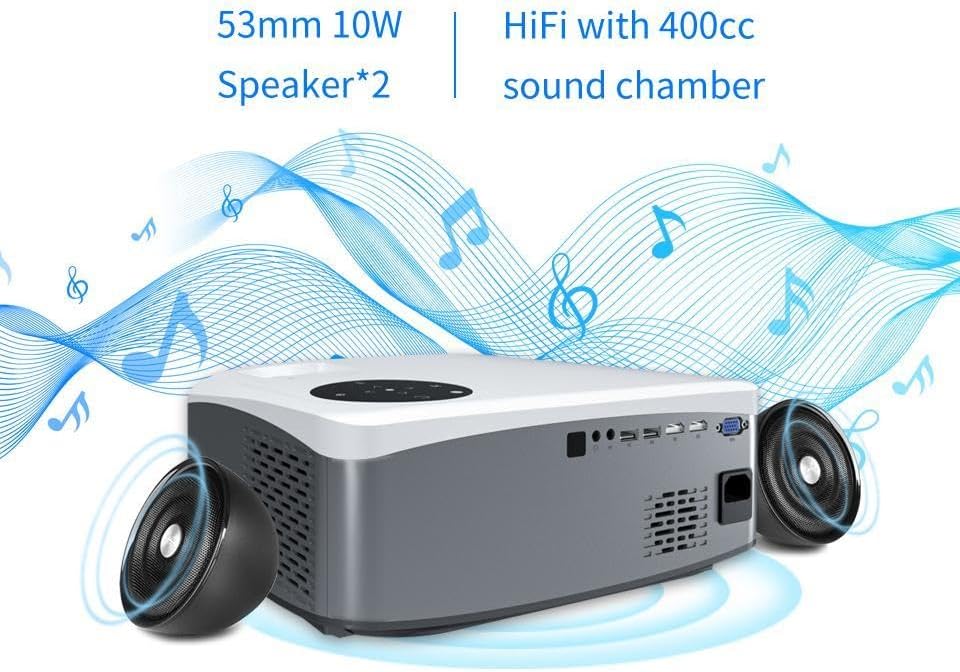
This image showcases the WZATCO C6 projector's integrated audio system, featuring 53mm 10W speakers and a 400cc sound chamber for enhanced sound quality.
7. Maintenance
7.1 Cleaning the Lens
Use a soft, lint-free cloth specifically designed for optical lenses to gently wipe the projector lens. Do not use abrasive cleaners or excessive force, as this can scratch the lens.
7.2 Ventilation
Regularly check and clean the projector's ventilation openings to prevent dust buildup, which can lead to overheating. Use a soft brush or compressed air to clear any obstructions.
7.3 Lamp Life
The WZATCO C6 projector utilizes an LED light source with an impressive operational life of up to 50,000 hours, minimizing the need for lamp replacement.

The WZATCO C6 projector features a long-lasting RGB 3LED light source with an operational life of up to 50,000 hours, ensuring extended use.
8. Troubleshooting
If you encounter issues with your projector, refer to the following common problems and solutions:
- No Image:
- Ensure the projector is powered on.
- Check that the input source is correctly selected.
- Verify that all cables are securely connected.
- Blurry Image:
- Adjust the 'Focus' knob until the image is clear.
- Ensure the projection distance is within the recommended range.
- Trapezoidal Image:
- Adjust the 'Keystone' knob to correct the image shape.
- No Sound:
- Check the volume settings on both the projector and the connected device.
- Ensure external speakers are properly connected if used.
- Remote Control Not Working:
- Replace the batteries in the remote control.
- Ensure there are no obstructions between the remote and the projector's IR receiver.
9. Specifications
| Feature | Specification |
|---|---|
| Brand | WZATCO |
| Connectivity Technology | HDMI, 3.5 mm Jack, USB |
| Form Factor | Desktop |
| Mounting Type | Freestanding, Table Mount |
| Compatible Devices | Laptop, Smartphone, Game Console |
| Light Source Operating Life | 50,000 Hours |
| Maximum Image Size | 300 Inches |
| Hardware Interface | HDMI |
| ASIN | B0BKTND3BJ |
10. Warranty and Support
The WZATCO C6 Projector comes with a standard manufacturer's warranty. Please refer to the warranty card included in your package for specific terms and conditions. For technical support or service inquiries, please contact your retailer or visit the official WZATCO website for contact information.


