1. Introduction
The ciciglow MF800-2 Mobile Hotspot is a portable 4G LTE router designed to provide high-speed internet access for multiple users. It supports up to 10 simultaneous connections, making it suitable for travel, business, and home use. Equipped with a 2100mAh battery, it offers extended usage time and convenient portability.

Image 1.1: Front view of the ciciglow MF800-2 Mobile Hotspot, showing the 4G LTE indicator, signal strength, Wi-Fi status, battery icon, and MiFi button.
2. Safety Information
- Do not expose the device to extreme temperatures, direct sunlight, or high humidity.
- Avoid dropping or subjecting the device to severe impact.
- Use only manufacturer-approved accessories and chargers.
- Do not attempt to disassemble or repair the device yourself. Refer to qualified service personnel.
- Keep the device away from water and other liquids.
3. Package Contents
Please check the package for the following items:
- ciciglow MF800-2 Mobile Hotspot
- Rechargeable 2100mAh Battery
- USB Charging Cable
- User Manual (this document)
4. Device Overview
The ciciglow MF800-2 features a compact design with essential indicators for easy monitoring of its status.
- 4G LTE Indicator: Shows the status of the 4G LTE network connection.
- Signal Strength Indicator: Displays the current cellular signal strength.
- Wi-Fi Indicator: Indicates Wi-Fi activity and status.
- Battery Indicator: Shows the remaining battery level.
- MiFi Button: Typically used for power on/off and possibly WPS functions.

Image 4.1: The ciciglow MF800-2 Mobile Hotspot connected via USB to a power source, surrounded by various compatible devices like smartphones, laptops, and tablets, illustrating its wide compatibility.
5. Setup
5.1. Battery Installation
- Remove the back cover of the device.
- Take out the battery.
- Locate and carefully tear off the yellow insulation tape (spacer sticker) from the battery's contact points. This step is crucial for the device to power on.
- Insert the battery correctly into its compartment, ensuring the contacts align.
- Replace the back cover.

Image 5.1: A visual guide demonstrating the steps to install the battery, including removing the insulation tape, for the ciciglow MF800-2 Mobile Hotspot.
5.2. SIM Card Installation
The device uses a micro SIM card.
- With the back cover removed and battery out (or carefully lifted), locate the SIM card slot.
- Insert your activated micro SIM card into the slot with the gold contacts facing down and the notched corner aligned as indicated on the device.
- Ensure the SIM card is securely seated.
5.3. Initial Power On
After installing the battery and SIM card, press and hold the power button (MiFi button) for a few seconds until the indicators light up. The device will begin searching for a network.
6. Operating Instructions
6.1. Connecting Devices to Wi-Fi
- Ensure the Mobile Hotspot is powered on and has established a cellular network connection (indicated by the 4G LTE and signal strength lights).
- On your Wi-Fi enabled device (smartphone, laptop, tablet), open the Wi-Fi settings.
- Search for available Wi-Fi networks. The network name (SSID) and password are typically found on a sticker inside the battery compartment or on the device itself.
- Select the Hotspot's SSID and enter the password when prompted.
- Your device should now be connected to the internet.
6.2. Managing Connections
The ciciglow MF800-2 supports up to 10 users simultaneously. For optimal performance, monitor the number of connected devices and ensure sufficient bandwidth for all users.

Image 6.1: A group of friends or family members sharing a mobile hotspot connection, demonstrating the device's capability to support multiple users for various activities like browsing and social media.
6.3. Charging the Device
Connect the provided USB charging cable to the device's charging port and plug the other end into a standard USB power adapter or a computer's USB port. The battery indicator will show charging status.
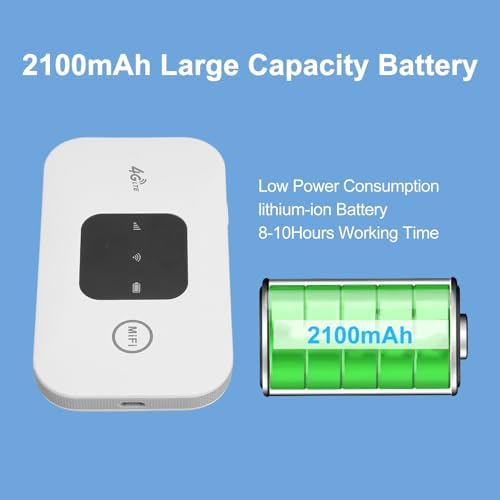
Image 6.2: The ciciglow MF800-2 Mobile Hotspot next to an illustration of a 2100mAh battery, highlighting its large capacity and long working time of 8-10 hours.
7. Maintenance
- Keep the device clean by wiping it with a soft, dry cloth.
- Avoid exposing the device to dust, dirt, or sand.
- Store the device in a cool, dry place when not in use.
- If the device will not be used for an extended period, charge the battery periodically to maintain its health.
8. Troubleshooting
If you encounter issues with your ciciglow MF800-2 Mobile Hotspot, refer to the following common problems and solutions:
- Device does not turn on:
- Ensure the battery is correctly installed and the yellow insulation tape has been removed.
- Charge the battery for at least 30 minutes.
- No internet connection:
- Verify that your micro SIM card is active and has a valid data plan.
- Check the cellular signal strength indicator on the device. If signal is weak or absent, move to an area with better coverage.
- Ensure the SIM card is properly inserted.
- Access the device's web interface (usually 192.168.0.1 or 192.168.1.1) to check APN settings. These should typically be configured automatically by your carrier, but manual adjustment may be needed.
- Slow internet speed:
- Check the signal strength. Weak signal can lead to slow speeds.
- Reduce the number of connected devices.
- Ensure no background applications are consuming excessive bandwidth on connected devices.
- Cannot connect to Wi-Fi network:
- Double-check the Wi-Fi network name (SSID) and password.
- Ensure your device is within the Wi-Fi range of the hotspot.
- Restart both the hotspot and the connecting device.

Image 8.1: A visual representation of a question mark, symbolizing the troubleshooting section and common user queries.
9. Specifications
| Feature | Detail |
|---|---|
| Brand | ciciglow |
| Model Name | MF800-2 |
| Item Model Number | MF800-2 |
| Package Dimensions | 4.33 x 2.83 x 1.14 inches |
| Item Weight | 3.87 ounces |
| Connectivity Technology | Wi-Fi |
| Wireless Communication Standard | 802.11b |
| Frequency Band Class | Dual-Band |
| Special Feature | WPS |
| Compatible Devices | Laptop, Tablet |
| Recommended Uses | Home |
| Color | Default |
| Antenna Type | Retractable |
| Battery Capacity | 2100mAh |
| Max Users Supported | 10 |
| Downlink Speed | Up to 150Mbps |
| Uplink Speed | Up to 50Mbps |
10. Warranty and Support
For warranty information or technical support, please refer to the contact details provided with your purchase or visit the official ciciglow website. Keep your proof of purchase for warranty claims.


