
AUSDOM Sofkeys 4
Contents
AUSDOM 2.4G Wireless Bluetooth Keyboard User Manual
Model: Sofkeys 4
Introduction
Thank you for choosing the AUSDOM 2.4G Wireless Bluetooth Keyboard. This manual provides detailed instructions for setting up, operating, and maintaining your new keyboard. Please read it thoroughly before use to ensure optimal performance and longevity of the product.
This keyboard offers multi-device connectivity, quiet typing, an ultra-slim design, and a rechargeable battery, making it ideal for various computing environments.
What's in the Box
- 1 x AUSDOM Wireless Keyboard
- 1 x USB Cable (for charging)
- 1 x USB Receiver (for 2.4G connection)
- 1 x User Manual
Specifications
| Feature | Detail |
|---|---|
| Product Dimensions | 16.73 x 4.49 x 0.5 inches |
| Item Weight | 1.02 pounds |
| Manufacturer | AUSDOM |
| Model Number | Sofkeys 4 |
| Batteries | 1 Lithium Polymer batteries required (included) |
| Compatible Devices | Laptop, PC, Smart TV, Smartphone, Tablet iPad |
| Connectivity Technology | 2.4G RF, Bluetooth 5.0 |
| Number of Keys | 110 |
| Special Features | Lightweight, Low-Profile Key, Silent, Rechargeable |
Setup Guide
Charging the Keyboard
Before first use, fully charge the keyboard using the provided USB cable. Connect the USB-C end to the keyboard's charging port and the USB-A end to a power source (e.g., computer USB port, USB wall adapter).

Image: The AUSDOM keyboard connected to a USB-C charging cable, illustrating the charging process. The image highlights the USB-C port and the charging indicator.
A full charge takes approximately 1.5 hours and provides over 30 days of usage time. The keyboard will enter sleep mode after 30 minutes of inactivity to conserve battery.
Connecting to Devices
The AUSDOM keyboard supports connection via 2.4G USB receiver and Bluetooth 5.0, allowing seamless switching between up to 3 devices.
2.4G Wireless Connection
- Locate the USB receiver, usually stored in a compartment on the keyboard.
- Plug the USB receiver into an available USB port on your computer or device.
- Turn on the keyboard. It should automatically connect to the receiver.
- The keyboard is now ready for use.
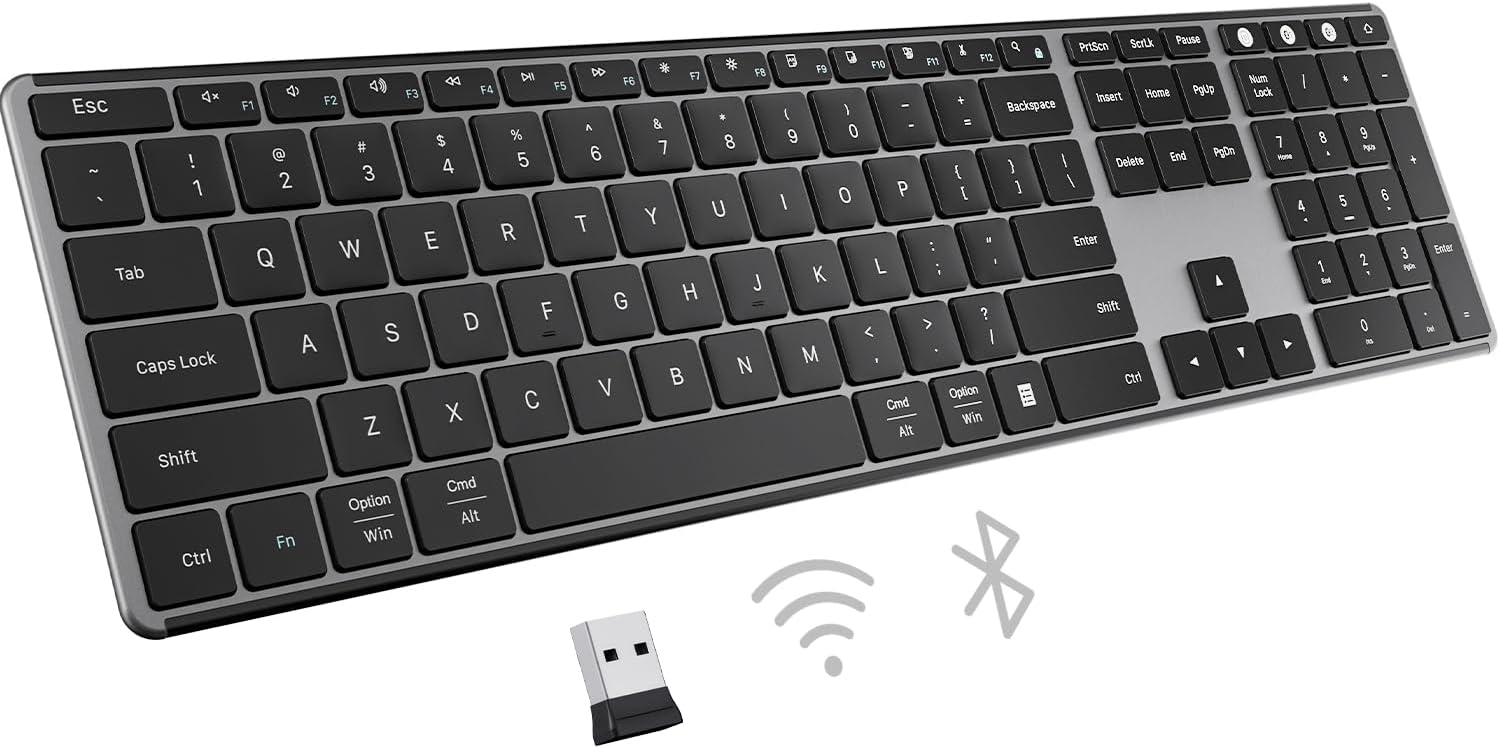
Image: The AUSDOM keyboard displayed with its 2.4G USB receiver and Bluetooth icons, indicating its dual connectivity options.
Bluetooth Connection (Up to 3 Devices)
The keyboard supports connecting to three different Bluetooth devices. Use the dedicated Bluetooth channel keys (BT1, BT2, BT3) to switch between them.
- Turn on the keyboard.
- Press and hold one of the Bluetooth channel keys (e.g., Fn + BT1) for 3-5 seconds until the indicator light flashes rapidly, indicating pairing mode.
- On your device (computer, tablet, smartphone), go to Bluetooth settings and search for "AUSDOM Keyboard" or similar.
- Select the keyboard to pair. Once connected, the indicator light will stop flashing.
- Repeat for other devices using Fn + BT2 and Fn + BT3.
- To switch between paired devices, simply press the corresponding Bluetooth channel key (Fn + BT1/BT2/BT3).

Image: An illustration showing the AUSDOM keyboard connected to a desktop monitor via 2.4G and to a tablet and laptop via Bluetooth, demonstrating its multi-device capability.
Operating Instructions
Keyboard Layout and Function Keys
The AUSDOM keyboard features a full-size QWERTY layout with a numeric keypad and 15 shortcut keys for enhanced productivity.

Image: A close-up view of the AUSDOM keyboard, highlighting its full-size layout, integrated number pad, and various shortcut keys.
Many function keys (F1-F12) have secondary multimedia or system control functions. These are typically accessed by pressing the Fn key simultaneously with the desired function key.
- Fn + F1: Home
- Fn + F2: Search
- Fn + F3: Select All
- Fn + F4: Copy
- Fn + F5: Paste
- Fn + F6: Cut
- Fn + F7: Previous Track
- Fn + F8: Play/Pause
- Fn + F9: Next Track
- Fn + F10: Mute
- Fn + F11: Volume Down
- Fn + F12: Volume Up
Typing Experience
The keyboard features a scissor-switch structure for precise, comfortable, and quiet typing. The low-profile keys reduce noise and increase stability.
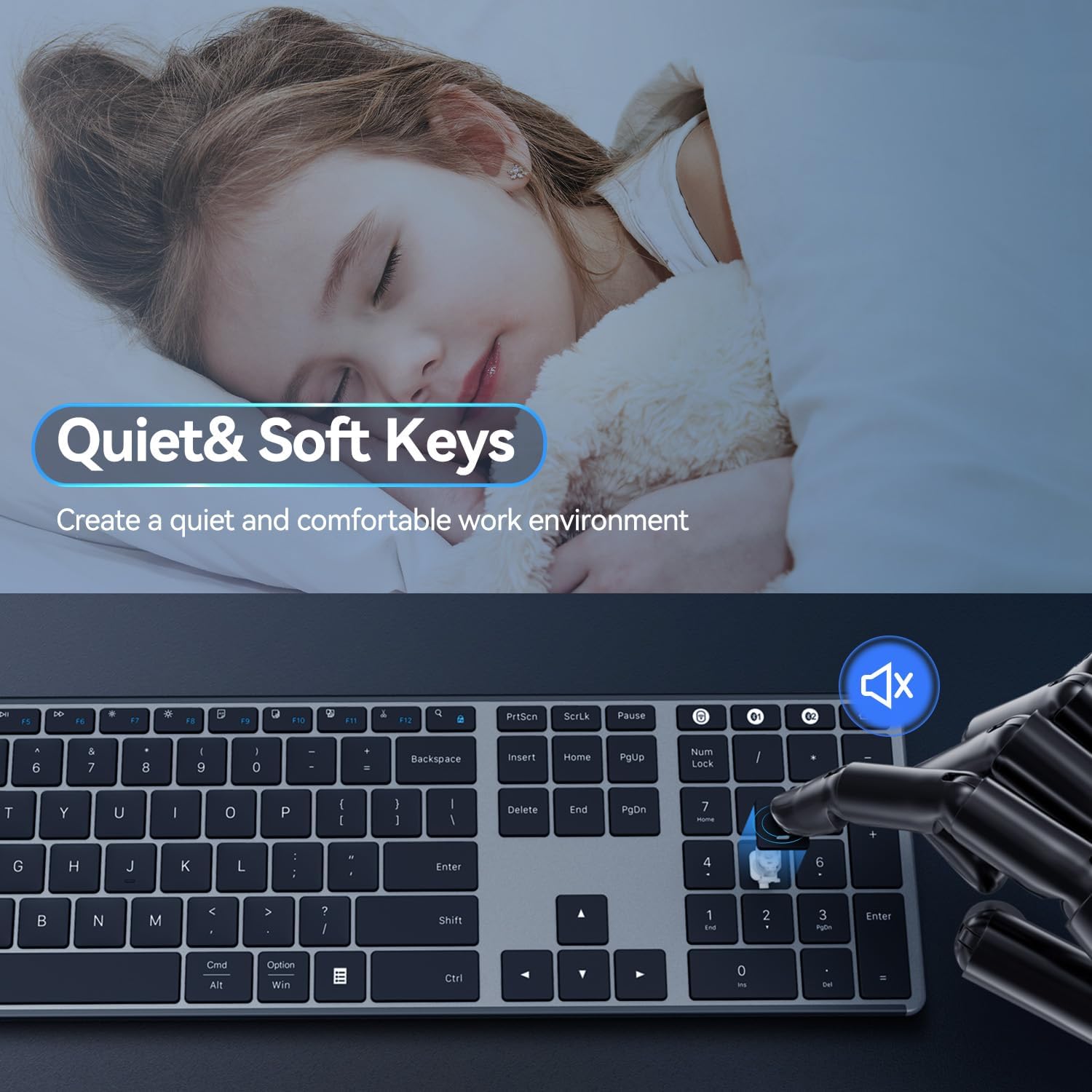
Image: An illustration emphasizing the quiet and soft keys of the AUSDOM keyboard, with a sleeping child in the background, symbolizing a peaceful work environment.

Image: A side view of the AUSDOM keyboard, showcasing its ultra-slim design and integrated typing angle for ergonomic comfort.
Maintenance and Care
- Cleaning: Use a soft, dry cloth to wipe the keyboard surface. For stubborn dirt, slightly dampen the cloth with water or a mild cleaning solution. Avoid excessive moisture.
- Storage: When not in use for extended periods, turn off the keyboard to conserve battery. Store in a cool, dry place away from direct sunlight and extreme temperatures.
- Battery: To prolong battery life, avoid fully discharging the keyboard frequently. Recharge when the low battery indicator appears.
- Avoid Spills: Keep liquids away from the keyboard to prevent damage to internal components.
Troubleshooting
| Problem | Possible Cause | Solution |
|---|---|---|
| Keyboard not responding | Low battery, not connected, incorrect mode. | Charge the keyboard. Ensure the USB receiver is properly plugged in or Bluetooth is paired. Switch to the correct connection mode (2.4G or BT1/2/3). |
| Lag or intermittent connection | Interference, distance, low battery. | Move the keyboard closer to the device. Remove obstacles. Ensure no other devices are causing interference. Recharge the keyboard. |
| Cannot pair via Bluetooth | Keyboard not in pairing mode, device Bluetooth off. | Ensure keyboard is in pairing mode (flashing indicator). Turn on Bluetooth on your device. Forget previous pairings and try again. |
| Keys not working correctly | Software issue, physical damage, dirt under keys. | Restart your device. Clean the keyboard. If problem persists, contact customer support. |
Frequently Asked Questions (FAQ)
Here are answers to some common questions:
- Can the keyboard be used as a wired keyboard with a USB cable connected?
Yes, the keyboard can function as a wired keyboard when connected via the USB cable, which also charges the device. - Can the battery be replaced when the keyboard stops working?
The keyboard has a built-in rechargeable lithium battery. It is not designed for user replacement. Please contact customer support for battery-related issues. - Is the keyboard compatible with any system or device?
This wireless keyboard is compatible with Mac, Windows, iOS, Android, and other operating systems. It works well with desktops, Chromebooks, Macbooks, PCs, laptops, and more.
Warranty and Support
AUSDOM provides a one-year warranty service for this product. If you encounter any problems during use, please contact us for assistance.
For customer support, please visit the official AUSDOM website or refer to the contact information provided in your product packaging.
You can also visit the AUSDOM Store on Amazon for more information and support resources.
Documents and downloads
Ask a question about this manual
Ask about setup, troubleshooting, compatibility, parts, safety, or missing instructions. Manuals+ will review the question and use this page’s manual context to help answer it.