
Riloer GF09
GF09 Mini GPS Tracker User Manual
Model: GF09 | Brand: Riloer
1. Introduction
The Riloer GF09 Mini GPS Tracker is a compact and versatile device designed for real-time tracking and positioning. It utilizes multiple precise positioning modes including GPS, WiFi, and LBS to provide accurate location information without distance restrictions. This device is ideal for tracking vehicles, children, elderly individuals, pets, and assets, offering features such as voice recording, remote pickup, and anti-lost functionalities.
Its super small and magnetic design allows for easy and discreet attachment to various surfaces. The GF09 also includes an SOS function for emergencies and a shock burglar alarm for enhanced security.

Figure 1.1: The GF09 Mini GPS Tracker, a compact black device with a power button and SOS label.
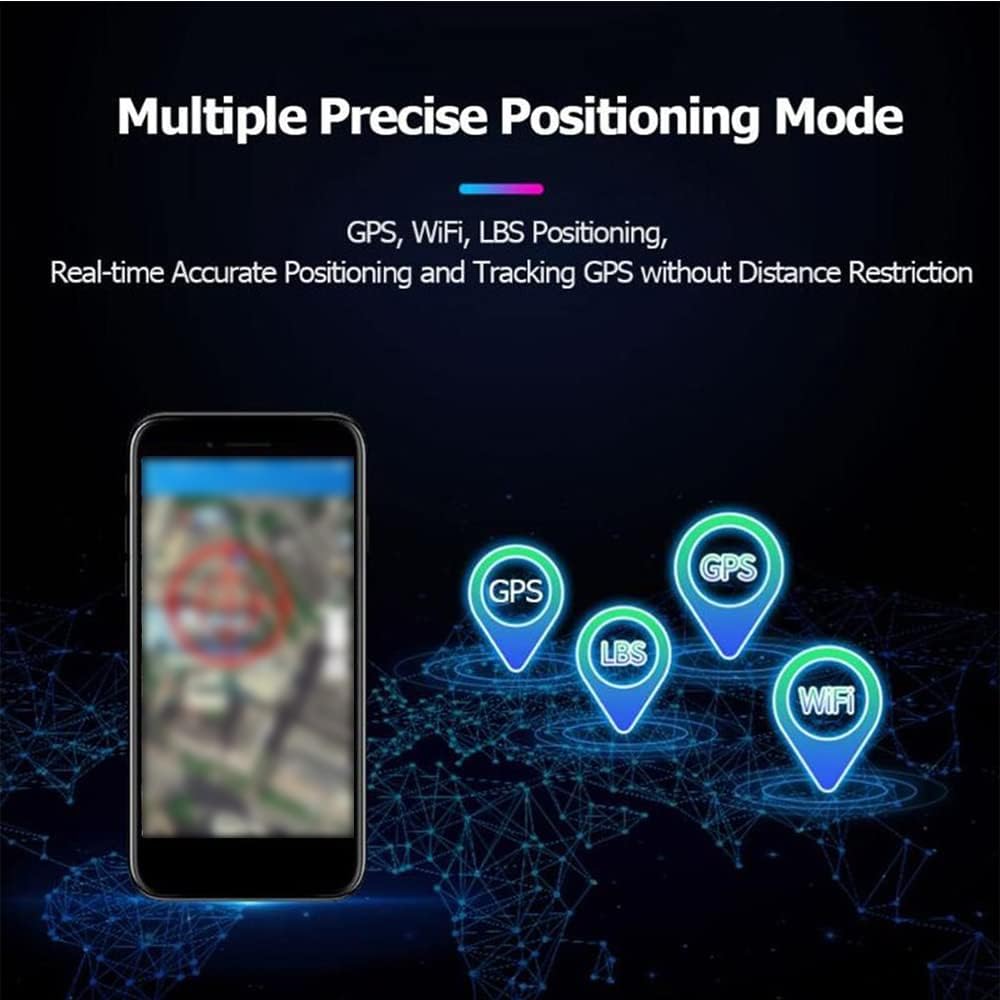
Figure 1.2: Illustration of the GF09's multiple precise positioning modes, including GPS, WiFi, and LBS, ensuring accurate real-time tracking.
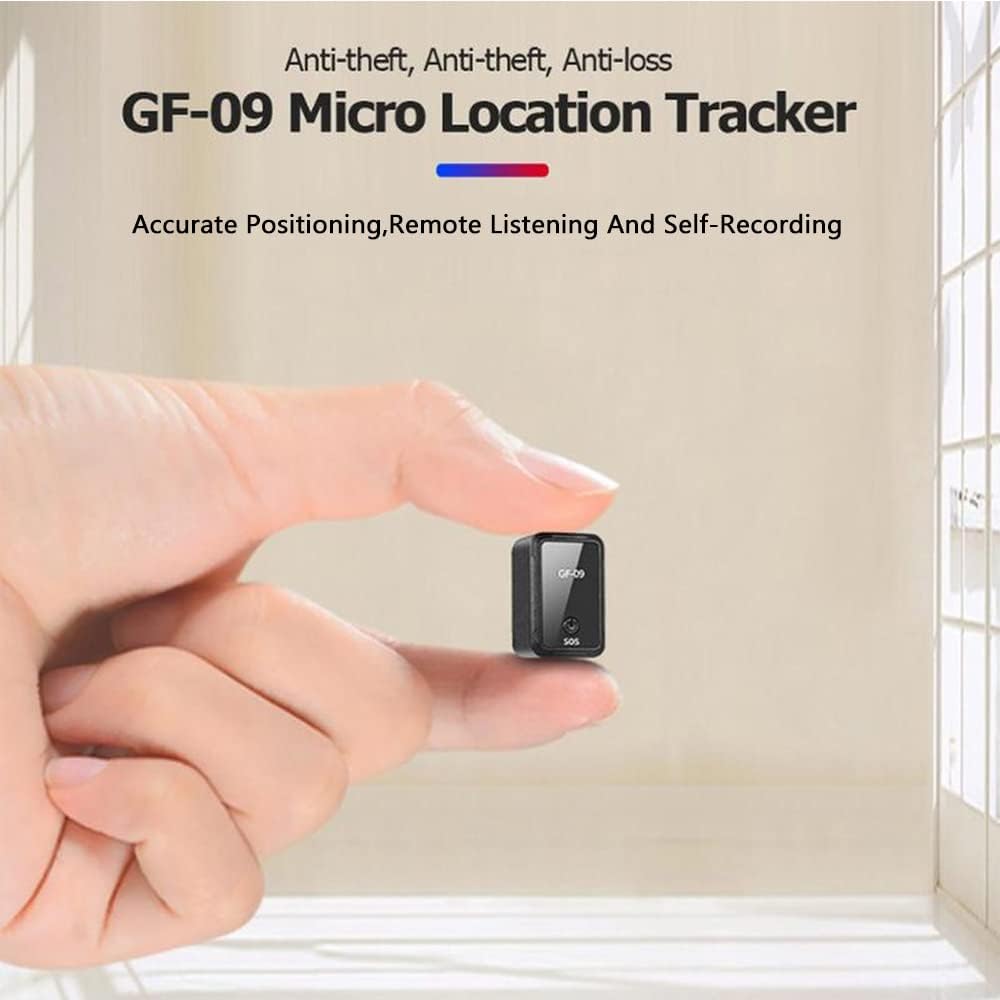
Figure 1.3: The GF09 Micro Location Tracker held between two fingers, highlighting its extremely small and portable size.

Figure 1.4: Various applications of the GF09 Mini GPS Tracker, including use for cars, children, elderly, pets, and motorcycles.
2. Package Contents
Upon opening the package, please verify that all components are present and in good condition:
- GF09 Mini GPS Tracker Unit
- USB Charging Cable
- User Manual (this document)

Figure 2.1: Contents of the GF09 package, showing the tracker unit, USB charging cable, and a small white manual.
3. Setup Guide
3.1 Preparation Before Use
- SIM Card Requirement: Obtain a nano SIM card that is compatible with a 2G GSM network. Ensure the SIM card is active. If it's a new SIM card, it may require up to 24 hours to activate properly.
- PIN Code Deactivation: Before inserting, ensure the PIN code of the SIM card is deactivated. This can usually be done through a mobile phone's settings.
- Service Activation: Activate GPRS (General Packet Radio Service) and Caller ID Display services for the SIM card. These services are essential for the tracker's functionality.
- App Download: Scan the QR code provided in the original product packaging or search for "365GPS" in your mobile app store (e.g., Google Play Store or Apple App Store) to download the official application.

Figure 3.1: Example QR code for downloading the 365GPS application. Scan this code with your smartphone to access the app download link.
3.2 Inserting the SIM Card and Powering On
- Insert SIM Card: Locate the SIM card slot on the GF09 tracker. Carefully insert the nano SIM card into the slot, ensuring the missing angle alignment matches the slot's design.
- Power On: The power button is the black button located next to the SIM card slot. Press and hold this button for approximately 3 seconds to power on the device.
Figure 3.2: The GF09 Mini GPS Tracker, showing the location of the power button and the SIM card slot on the side.
4. Operating Instructions
4.1 Key Functions
- Power On: Long press the power button for 3 seconds.
- SOS Function: In power-on mode, long press the SOS button for 3 seconds. The device will send an emergency message to pre-set guardian numbers.
- Power Off (with SIM card): Long press the power button for 10 seconds.
- Power Off (without SIM card): Long press the power button for 3 seconds.
4.2 Tracking and Monitoring
The GF09 tracker offers various methods for tracking and monitoring:
- Real-Time Tracking: Use the 365GPS mobile application or a computer platform to view the device's precise location in real-time.
- Historical Trajectory: Review past routes and movements of the tracker through the application.
- SOS and Positioning Query: In an emergency, the SOS button triggers an alert. You can also dial the SIM card number in the tracker to query its position.
- Remote Pickup & Recording: The device supports remote voice pickup and recording, allowing you to listen to the surroundings or record audio. The device operates silently during these functions.
- Voice Control Callback: Configure the device to call back a pre-set number when a certain sound level is detected.
- Shock Burglar Alarm: The built-in sensor can detect vibrations or shocks, triggering an alarm to your registered phone number.

Figure 4.1: Screenshot illustrating the historical route tracking feature within the 365GPS application, showing past movements on a map.

Figure 4.2: Diagram showing the geo-fencing capability, where an alarm is triggered if the tracker moves outside a predefined safe zone.

Figure 4.3: Illustration emphasizing that the GF09 tracker will not make any noise while performing remote recording or listening functions.
5. Maintenance
To ensure the longevity and optimal performance of your GF09 Mini GPS Tracker, please follow these maintenance guidelines:
- Cleaning: Use a soft, dry cloth to clean the device. Avoid using liquid cleaners or abrasive materials, as they may damage the tracker.
- Storage: Store the device in a cool, dry place away from direct sunlight and extreme temperatures.
- Temperature Range: The GF09 is designed to operate within a working temperature range of -20°C to 85°C (-4°F to 185°F). Avoid exposing the device to temperatures outside this range.
- Battery Care: Charge the device regularly, even if not in use, to maintain battery health. Avoid fully discharging the battery for extended periods.
- Water Exposure: The device is not waterproof. Avoid exposing it to water or high humidity.
6. Troubleshooting
If you encounter issues with your GF09 Mini GPS Tracker, please refer to the following common problems and solutions:
| Problem | Possible Cause | Solution |
|---|---|---|
| Device does not power on. | Low battery; incorrect power button press; faulty device. | Charge the device for at least 2 hours. Ensure you press and hold the power button for 3 seconds. If still unresponsive, contact support. |
| No signal or offline in app. | SIM card not inserted correctly; SIM card not activated; GPRS service not enabled; poor network coverage. | Reinsert the SIM card, ensuring proper alignment. Verify SIM card activation and GPRS service with your mobile carrier. Move to an area with better network coverage. |
| Inaccurate location. | Weak GPS signal (indoors/underground); reliance on LBS/WiFi in poor signal areas. | Move the device to an open outdoor area for better GPS signal. Ensure WiFi is available for more precise indoor positioning. |
| Cannot hear remote pickup/recording. | Microphone obstruction; low volume on monitoring device; network issues. | Ensure the microphone is not covered. Check volume settings on your phone. Verify network connection for both tracker and monitoring device. |
| SOS function not working. | No guardian numbers set; SIM card issues; insufficient balance. | Ensure emergency contact numbers are correctly configured in the app. Check SIM card status and balance. |
7. Specifications
| Feature | Detail |
|---|---|
| Model | GF09 |
| Brand | Riloer |
| Positioning Accuracy | 10-50 meters |
| Memory Support | TF card 32GB (not included) |
| Recording Range | 80 square meters |
| Platform View | SMS + APP + computer |
| Communication Frequency | 850/900/1800 / 1900MHz |
| Charging Input | 5V voltage |
| Working Temperature | -20-85 Deg.C |
| Network Standard | GSM/GPRS |
| Body Memory | 1024M |
| Material | ABS |
| Package Dimensions | 6 x 5 x 1.5 inches |
| Item Weight | 2.39 ounces |
| Connectivity Technologies | Cellular, Wi-Fi |
| Special Features | Magnetic Tracker |
| Supported Application | GPS |
| Specific Uses For Product | Vehicle Tracking, Personal Safety, Asset Tracking |
8. Warranty and Support
The Riloer GF09 Mini GPS Tracker is manufactured by Riloer. For specific warranty information, please refer to the documentation included with your purchase or contact the retailer where the product was acquired.
For technical support or further assistance, please reach out to Riloer customer service channels as provided on their official website or product packaging. Ensure you have your product model (GF09) and purchase details ready when contacting support.
Ask a question about this manual
Ask about setup, troubleshooting, compatibility, parts, safety, or missing instructions. Manuals+ will review the question and use this page’s manual context to help answer it.