
AMD 100-438416
AMD Radeon™ RX 6950 XT Graphics Card User Manual
Model: 100-438416
1. Product Overview
The AMD Radeon™ RX 6950 XT is a high-performance graphics card designed for demanding gaming and content creation. It features 16GB of GDDR6 memory and is built on the AMD RDNA™ 2 architecture, offering advanced features and exceptional visual fidelity.
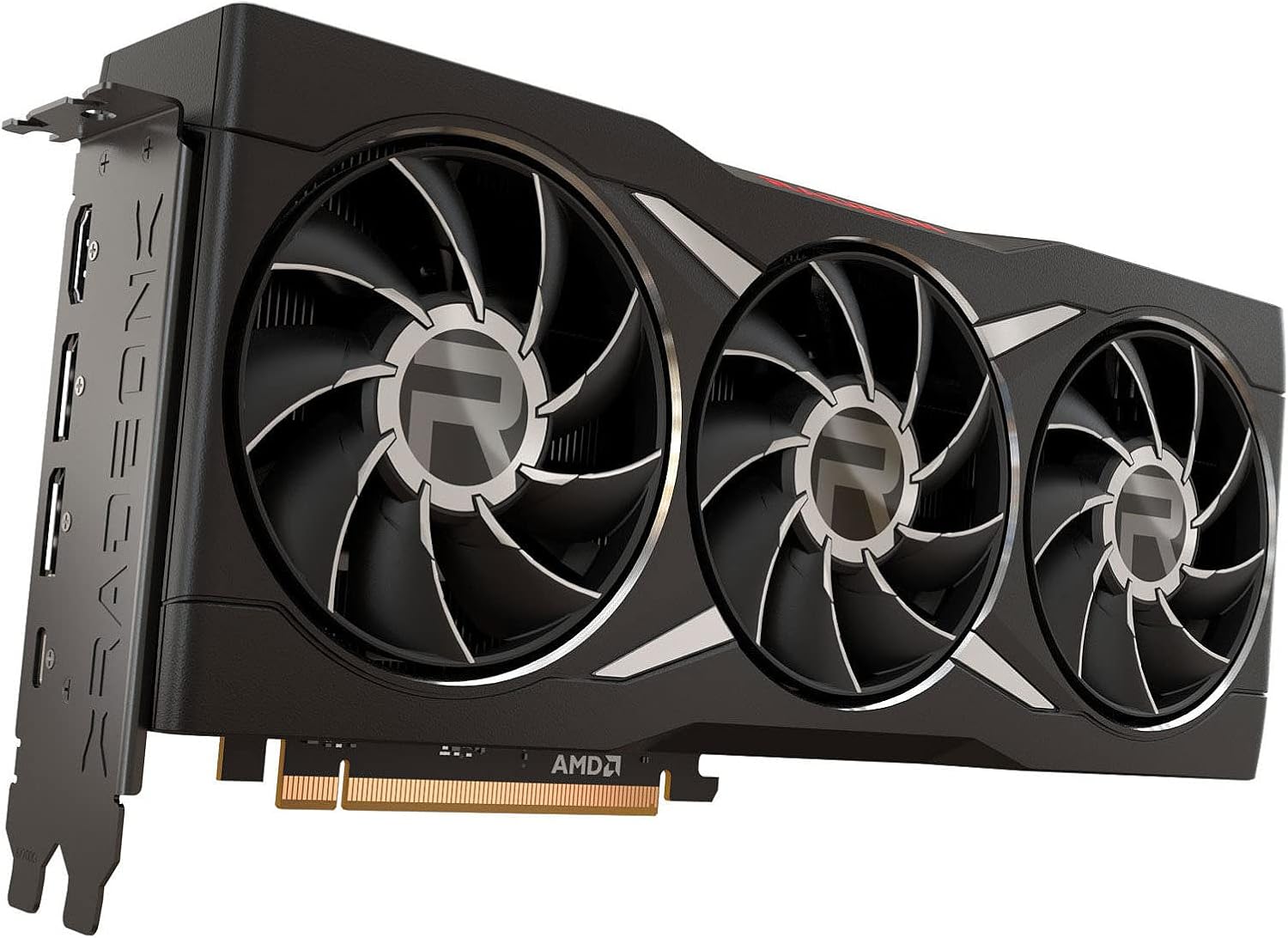
Figure 1: Angled view of the AMD Radeon™ RX 6950 XT Graphics Card, showcasing its triple-fan design and sleek black shroud.
2. Key Features
- Supported Technologies: AMD Software: Adrenalin Edition, AMD FidelityFX Super Resolution, AMD Link, AMD Noise Suppression, AMD Radeon Super Resolution, AMD Smart Access Memory, VSR(4K), AMD Privacy View, AMD Radeon Boost, AMD Radeon Anti-Lag, AMD Radeon Image Sharpening, AMD Enhanced Sync Technology, AMD FreeSync Technology, AMD Radeon Chill, TrueAudio Next, The Vulkan API, AMD Mantle API.
- Core and Clocks: Boost Clock up to 2310 MHz, 16GB GDDR6 Memory, 256-bit Memory Bus, Memory Speed up to 18 Gbps.
- Supported Rendering Format: HDMI 4K Support, 4K H264 Decode, 4K H264 Encode, H265/HEVC Decode, H265/HEVC Encode, AV1 Decode.
- Minimum PSU Recommendation: 850W.
3. System Requirements
Before installing your AMD Radeon™ RX 6950 XT Graphics Card, ensure your system meets the following minimum requirements:
- PCI Express Compatible Motherboard: With one x16 graphics slot.
- Power Supply Unit (PSU): Minimum 850W with appropriate PCIe power connectors (typically 8-pin + 8-pin or 8-pin + 6-pin, refer to card for exact configuration).
- System Memory (RAM): 16GB or more recommended for optimal performance.
- Operating System: Windows 10/11 64-bit or Linux 64-bit.
- Display: Monitor with DisplayPort or HDMI input.
- Internet Connection: Required for driver installation and updates.
4. Installation Guide
4.1. Preparation
- Power Off: Shut down your computer completely and disconnect the power cable from the wall outlet.
- Open Case: Remove the side panel of your computer case.
- Ground Yourself: Touch a metal part of your computer case to discharge any static electricity.
- Locate PCIe Slot: Identify an available PCI Express x16 slot on your motherboard.
- Remove Old Card (if applicable): If replacing an existing graphics card, carefully unlatch it, disconnect any power cables, and remove it from the slot.
4.2. Installing the Graphics Card
- Insert Card: Align the graphics card with the PCIe x16 slot and press down firmly until it clicks into place. Ensure the retention clip on the motherboard engages.
- Secure Card: Secure the graphics card to the computer case using the screw(s) or latch mechanism.
- Connect Power: Connect the required PCIe power cables from your power supply to the graphics card. The AMD Radeon™ RX 6950 XT typically requires two 8-pin PCIe power connectors.
- Close Case: Replace the side panel of your computer case.
- Connect Display: Connect your monitor to one of the display outputs on the graphics card (DisplayPort or HDMI).

Figure 2: Front view of the AMD Radeon™ RX 6950 XT Graphics Card, highlighting the fan array and overall length for installation planning.
5. Software Installation and Operation
5.1. Driver Installation
- Power On: Reconnect the power cable and turn on your computer.
- Download Drivers: Navigate to the official AMD support website (www.amd.com/support) and download the latest AMD Software: Adrenalin Edition drivers for your Radeon™ RX 6950 XT.
- Install Drivers: Run the downloaded installer and follow the on-screen prompts. It is recommended to perform a clean installation to avoid conflicts with previous drivers.
- Restart: Restart your computer after the installation is complete.
5.2. Operating the Graphics Card
Once drivers are installed, your graphics card is ready for use. The AMD Software: Adrenalin Edition provides a comprehensive interface for managing your graphics card settings, including:
- Gaming: Optimize game settings, monitor performance, and enable features like Radeon™ Anti-Lag and Radeon™ Boost.
- Display: Configure display resolutions, refresh rates, and FreeSync™ technology.
- Performance: Monitor GPU metrics, adjust fan curves, and apply overclocking profiles (advanced users).
- Streaming & Recording: Utilize built-in tools for capturing gameplay and streaming.
6. Maintenance
Proper maintenance ensures the longevity and optimal performance of your graphics card.
- Keep Drivers Updated: Regularly check the AMD website for the latest driver releases to benefit from performance improvements and bug fixes.
- Dust Removal: Periodically clean dust from the graphics card fans and heatsink using compressed air. Ensure the system is powered off and unplugged before cleaning.
- Monitor Temperatures: Use AMD Software: Adrenalin Edition or third-party tools to monitor GPU temperatures during heavy loads. Ensure adequate airflow within your PC case.
7. Troubleshooting
This section addresses common issues you might encounter.
7.1. No Display Output
- Check Cables: Ensure the display cable (HDMI/DisplayPort) is securely connected to both the graphics card and the monitor.
- Power Connections: Verify that all PCIe power connectors are firmly seated in the graphics card.
- Reseat Card: Power off the PC, unplug it, and reseat the graphics card in its PCIe slot.
- Monitor Input: Confirm your monitor is set to the correct input source.
7.2. Performance Issues / Low FPS
- Driver Update: Ensure you have the latest AMD drivers installed.
- Game Settings: Adjust in-game graphics settings. Lowering resolution or detail levels can significantly improve frame rates.
- Temperature: Check GPU temperatures. Overheating can lead to performance throttling. Ensure proper case airflow.
- Power Supply: Verify your PSU meets the minimum 850W recommendation. An insufficient PSU can cause instability and performance drops.
7.3. Driver Crashes / Black Screens
- Clean Driver Install: Use a utility like Display Driver Uninstaller (DDU) to completely remove old drivers, then perform a fresh installation of the latest AMD drivers.
- System Stability: Ensure your system's RAM and CPU are stable and not experiencing issues.
- Power Delivery: Confirm stable power delivery from your PSU.
8. Technical Specifications
| Feature | Specification |
|---|---|
| Model Number | 100-438416 |
| Graphics Coprocessor | AMD Radeon RX 6950 XT |
| Memory Size | 16 GB GDDR6 |
| Memory Speed | 1890 MHz (up to 18 Gbps) |
| Boost Clock | Up to 2310 MHz |
| Memory Bus | 256-bit |
| Max Screen Resolution | 3840x2160 |
| Video Output Interface | HDMI |
| Item Weight | 1.01 pounds |
| Product Dimensions (LxWxH) | 18.9 x 9.45 x 5.12 inches |
| Minimum PSU Recommendation | 850W |

Figure 3: Side view of the AMD Radeon™ RX 6950 XT Graphics Card, illustrating the backplate and overall card length.
9. Warranty and Support
For warranty information and technical support, please refer to the official AMD website or contact AMD customer service.
- AMD Support Website: www.amd.com/support
- Product Registration: Register your product on the AMD website to receive updates and support.
- Protection Plans: Additional protection plans may be available for purchase from authorized retailers.
Related documents100-438416


Ask a question about this manual
Ask about setup, troubleshooting, compatibility, parts, safety, or missing instructions. Manuals+ will review the question and use this page’s manual context to help answer it.