1. Product Overview
1.1 Compatibility
This HOU Keyboard Case is designed exclusively for the iPad mini 6th and 7th generation 8.3-inch models released in 2021 and 2024. Please verify your iPad model number in Settings > General > About to ensure compatibility. Compatible models include: A2567, A2568, A2569, A2993, A2995, A2996.

Image: Compatibility information for the HOU Keyboard Case, highlighting supported iPad mini models and their corresponding model numbers.
1.2 Key Features
- Ultra Slim and Lightweight Design: The keyboard case weighs approximately 240g, with a folding thickness of 8mm and the keyboard itself being 5mm thick.
- Strong Magnetic Attachment: Equipped with approximately 30 high-strength magnets for secure attachment of your iPad, preventing accidental detachment.
- Adjustable Viewing Angles: Features a high-precision, infinitely adjustable shaft for stable support and customizable viewing angles.
- Comfortable Typing Experience: The keyboard utilizes an internal scissor structure for responsive and comfortable typing, including shortcut keys for enhanced productivity.
- Automatic Key Lock: Gravity-sensing technology automatically locks the keyboard in reading and entertainment modes to prevent unintended key presses.
- Durable and Easy-to-Clean Material: Constructed from semi-silicone fabric, offering a soft touch, scratch resistance, and ease of cleaning.
- Power Display: The keyboard's power level is displayed directly on your iPad screen, allowing for effective battery management.
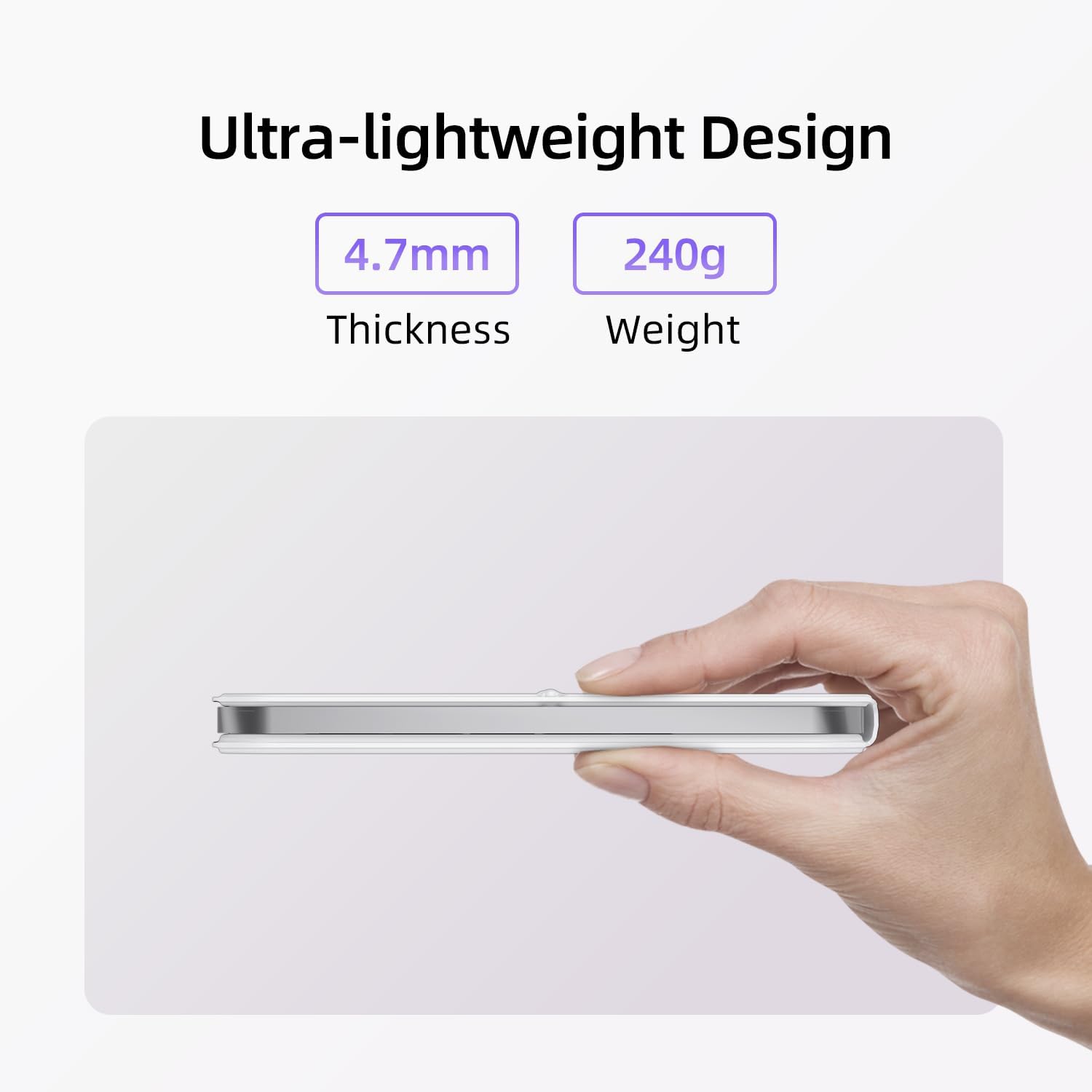
Image: The slim profile of the HOU Keyboard Case, emphasizing its minimal thickness and weight.

Image: An iPad mini securely attached to the HOU Keyboard Case, demonstrating the strong magnetic hold.

Image: The power display feature, showing the keyboard's battery status on the iPad mini screen.
1.3 What's in the Box
- HOU Keyboard Case
- USB Charging Cable
2. Setup Guide
2.1 Attaching Your iPad
- Align your iPad mini with the magnetic area on the keyboard case.
- The strong magnets will automatically secure your iPad in place.
2.2 Charging the Keyboard
The keyboard case uses a magnetic contact charging method. Connect the provided USB charging cable to the magnetic charging port on the keyboard and a power source. A full charge takes approximately 2 hours and provides up to 100 hours of uninterrupted use.

Image: The magnetic charging method for the HOU Keyboard Case, showing the cable connected to the keyboard.
2.3 Bluetooth Pairing
- Ensure the keyboard is charged.
- Turn on the keyboard.
- On your iPad, go to Settings > Bluetooth and turn Bluetooth on.
- Select the HOU Keyboard from the list of available devices to pair.
- Once paired, the keyboard is ready for use.
3. Operation
3.1 Adjusting Viewing Angles
The keyboard case features an infinitely adjustable shaft, allowing you to tilt your iPad to any desired viewing angle from 0 to 180 degrees. This provides stable support for various scenarios, including desk use, lap use, or in bed.

Image: The HOU Keyboard Case showcasing its steplessly adjustable stand, allowing for a wide range of viewing angles.
3.2 Typing and Shortcut Keys
The keyboard's scissor-switch mechanism provides a comfortable and responsive typing experience. Utilize the integrated shortcut keys to quickly access common functions and enhance your productivity.
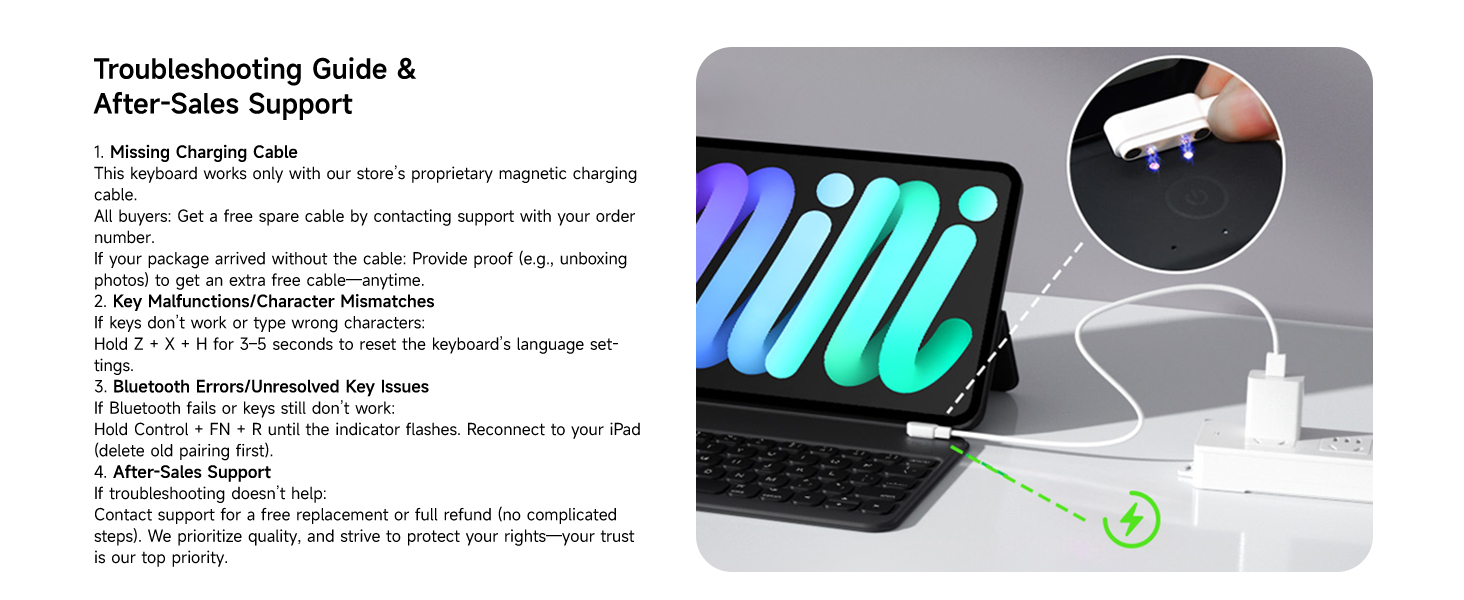
Image: A user typing on the HOU Keyboard Case, illustrating the comfortable keycap design.
3.3 Automatic Key Lock
When the iPad is positioned for reading or entertainment, the keyboard automatically locks using gravity-sensing technology. This prevents accidental key presses and ensures an uninterrupted experience.

Image: The keyboard automatically locking when the iPad is in reading mode, preventing accidental touches.
3.4 Switching Orientations
The design allows for seamless switching between landscape and portrait orientations, adapting to your content and workflow needs.

Image: The HOU Keyboard Case supporting both landscape and portrait orientations for the iPad mini.
4. Maintenance
4.1 Cleaning and Care
The keyboard case is made from a semi-silicone fabric that is scratch-resistant and easy to clean. To clean, gently wipe the surface with a soft, damp cloth. Avoid using harsh chemicals or abrasive materials.

Image: Features of the HOU Keyboard Case material, including scratch resistance and ease of cleaning.
5. Troubleshooting

Image: A visual guide to common troubleshooting steps for the HOU Keyboard Case.
5.1 Key Malfunctions or Character Mismatches
If keys are not functioning correctly or typing incorrect characters, you may need to reset the keyboard's language settings. Hold down Z + X + H simultaneously for 3-5 seconds to perform a reset.
5.2 Bluetooth Connection Issues
If the Bluetooth connection fails or keys are unresponsive, try the following:
- Hold down Control + FN + R until the indicator light flashes. This will reset the Bluetooth module.
- On your iPad, go to Settings > Bluetooth, forget or delete the old pairing for the HOU Keyboard.
- Attempt to re-pair the keyboard following the steps in Section 2.3.
5.3 Missing Charging Cable
This keyboard works only with its proprietary magnetic charging cable. If your cable is missing or damaged, please contact customer support for assistance.
6. Specifications
| Feature | Detail |
|---|---|
| Model Number | FY-8 |
| Product Dimensions | 35 x 0.3 x 0.7 inches (35"L x 0.3"W x 0.7"H) |
| Item Weight | 1.01 pounds (approx. 240g for keyboard part) |
| Connectivity Technology | Bluetooth |
| Keyboard Description | Wireless |
| Special Feature | Foldable |
| Color | White (variant) |
| Keyboard Backlighting | RGB |
| Battery | 1 C battery required (included) |
| Charging Method | Magnetic Contact Charging |
| Charging Time | Approx. 2 hours |
| Usage Time | Up to 100 hours (uninterrupted) |
7. Support & Warranty
HOU is committed to providing excellent customer service. If you encounter any issues, have questions about your product, or require assistance (e.g., a replacement magnetic charging cable), please do not hesitate to contact us.

Image: A customer service representative, symbolizing available support for HOU products.
7.1 Contact Information
For support, please refer to the contact details provided with your purchase or visit the official HOU store on Amazon.
7.2 Warranty Information
Please refer to the warranty documentation included with your product for details on coverage and terms. HOU strives to protect your rights and ensure your satisfaction.


