
Logicool M550MGR
Logicool Signature M550MGR Silent Wireless Mouse User Manual
Model: M550MGR
1. Introduction
The Logicool Signature M550MGR is a silent wireless mouse designed for comfort and productivity. It features the unique SmartWheel for versatile scrolling and SilentTouch technology for reduced click noise. This mouse offers dual connectivity options: Bluetooth Low Energy and the Logi Bolt USB receiver, ensuring stable performance across various operating systems.

Image: The Logicool Signature M550MGR mouse, highlighting its ergonomic design and advanced scrolling capabilities.
2. Package Contents
- Logicool Signature M550MGR Wireless Mouse
- Logi Bolt USB Receiver
- 1 AA Battery (pre-installed)
- User Documentation (this manual)
3. Setup
3.1. Battery Installation
- Locate the battery compartment on the underside of the mouse.
- Open the battery compartment cover.
- Ensure the AA battery is correctly oriented according to the polarity indicators (+/-).
- Close the battery compartment cover.
3.2. Connecting Your Mouse
The M550MGR offers two connection methods: Logi Bolt USB receiver or Bluetooth Low Energy.
3.2.1. Logi Bolt USB Receiver Connection
- Remove the Logi Bolt USB receiver from the battery compartment or packaging.
- Plug the Logi Bolt USB receiver into an available USB port on your computer.
- The mouse should automatically connect. If not, ensure the mouse is powered on.
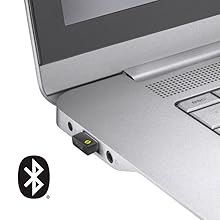
Image: The Logi Bolt USB receiver connected to a laptop, illustrating the wireless connection method.
3.2.2. Bluetooth Low Energy Connection
- Ensure your device's Bluetooth is enabled.
- Turn on the mouse.
- Press and hold the connect button on the underside of the mouse for 3 seconds until the LED indicator starts blinking rapidly.
- On your device, go to Bluetooth settings and select "Logicool M550MGR" from the list of available devices to pair.
- The LED indicator will turn solid for a few seconds, then turn off, indicating a successful connection.

Image: Visual representation of the two connectivity options: Bluetooth and the Logi Bolt USB receiver.
4. Operating Instructions
4.1. Basic Functions
- Left Click: Primary action, selection.
- Right Click: Secondary action, context menus.
- Scroll Wheel: Scroll up or down through documents and web pages.
4.2. SmartWheel Scrolling
The SmartWheel automatically switches between two scrolling modes:
- Line-by-line Scrolling: For precise navigation, ideal for detailed work.
- Hyper-fast Scrolling: Spin the wheel quickly to effortlessly glide through long documents and web pages. The wheel will automatically switch to this mode when spun with momentum.

Image: A close-up view of the SmartWheel, demonstrating its design for efficient scrolling.
4.3. SilentTouch Technology
The M550MGR incorporates SilentTouch technology, which reduces click noise by 90% compared to traditional mice, while maintaining the familiar click feel. This creates a quieter work environment without compromising tactile feedback.

Image: A user operating the silent mouse in a calm environment, illustrating the benefit of SilentTouch technology.
5. Features
- SmartWheel: Automatic switching between precise line-by-line and hyper-fast scrolling.
- SilentTouch Technology: 90% reduced click noise with retained click feel.
- Dual Connectivity: Connect via Logi Bolt USB receiver or Bluetooth Low Energy.
- Ergonomic Design: Comfortable shape with rubber side grips for extended use.
- Long Battery Life: Up to 24 months on a single AA battery.
- Multi-OS Compatibility: Supports Windows, macOS, Chrome OS, iPadOS, and Android.
6. Battery Information
- Battery Type: 1 x AA alkaline battery.
- Battery Life: Up to 24 months, depending on usage.
- Battery Replacement: Replace the AA battery when the LED indicator on the mouse turns red or when performance degrades. Follow the installation steps in Section 3.1.
7. Compatibility
The Logicool Signature M550MGR mouse is compatible with the following operating systems:
- Logi Bolt Connection:
- Windows 10, 11 or later
- macOS 10.10 or later
- Chrome OS
- Bluetooth Low Energy Connection:
- Windows 10, 11 or later
- macOS 10.15 or later
- Chrome OS
- iPadOS 13.4 or later
- Android 5.0 or later
Note: This mouse is not compatible with Logitech Unifying receivers.
8. Maintenance
- Cleaning: Use a soft, lint-free cloth to clean the mouse surface. For stubborn dirt, slightly dampen the cloth with water. Avoid harsh chemicals or abrasive materials.
- Sensor: Keep the optical sensor on the underside of the mouse clean and free from dust or debris for optimal tracking performance.
- Storage: When not in use for extended periods, turn off the mouse to conserve battery life. Store in a dry, cool place.
9. Troubleshooting
9.1. Mouse Not Responding
- Ensure the mouse is powered on.
- Check the battery level and replace if necessary.
- For Logi Bolt connection: Ensure the receiver is securely plugged into a working USB port. Try a different USB port.
- For Bluetooth connection: Ensure Bluetooth is enabled on your device and the mouse is paired. Try re-pairing the mouse (refer to Section 3.2.2).
- Restart your computer or device.
9.2. Erratic Cursor Movement
- Clean the optical sensor on the underside of the mouse.
- Ensure you are using the mouse on a suitable surface. Avoid highly reflective or transparent surfaces.
- Move the mouse closer to the Logi Bolt receiver or your Bluetooth-enabled device to reduce interference.
9.3. SmartWheel Not Switching Modes
- Ensure the wheel is spun with enough momentum to activate hyper-fast scrolling.
- Check for any debris around the scroll wheel that might impede its movement.
10. Specifications
| Brand | Logicool |
| Model Number | M550MGR |
| Color | Graphite |
| Connectivity Technology | Bluetooth, Logi Bolt (USB) |
| Movement Detection Technology | Optical |
| Special Features | SilentTouch, Wireless |
| Product Dimensions | 6.1 x 10.82 x 3.88 cm |
| Item Weight | 97.4 g |
| Battery Type | 1 x AA Battery |
| Continuous Usage Time | Up to 24 months |
11. Warranty and Support
The Logicool Signature M550MGR Wireless Mouse comes with a 2-year manufacturer's warranty from the date of purchase.
For technical support, warranty claims, or additional information, please visit the official Logicool support website or contact their customer service. Keep your proof of purchase for warranty purposes.
Official Logicool Support: www.logicool.co.jp
Related documentsM550MGR


Ask a question about this manual
Ask about setup, troubleshooting, compatibility, parts, safety, or missing instructions. Manuals+ will review the question and use this page’s manual context to help answer it.