
Nulea M505A
Nulea Wireless Ergonomic Trackball Mouse User Manual
Model: M505A
1. Introduction
The Nulea Wireless Ergonomic Trackball Mouse (Model M505A) is designed to provide superior comfort and precision for extended use. Its ergonomic design reduces muscle stress and promotes a natural hand position, making it an effective solution for wrist pain. Featuring a 44mm index finger trackball, adjustable DPI settings, and versatile connectivity options, this mouse is ideal for various computing environments.

Figure 1.1: Nulea Wireless Ergonomic Trackball Mouse (A-Red)
2. Setup
2.1 Connectivity Options
The Nulea M505A offers flexible connectivity, allowing you to connect to up to three devices simultaneously via Bluetooth or the included USB receiver. This enables seamless switching between your PC, laptop, iPad, Mac, Windows, and Android devices.
- USB Receiver: For devices without Bluetooth, locate the USB receiver stored in the mouse's base and plug it into an available USB port on your device.
- Bluetooth: The mouse supports two Bluetooth connections (BT1 and BT2). To pair, switch the mode button on the mouse's underside to BT1 or BT2, then follow your device's Bluetooth pairing instructions.
- Switching Devices: Use the mode button on the bottom of the mouse to easily switch between connected devices (USB, BT1, BT2).

Figure 2.1: True Wireless Freedom - Connect up to 3 Devices Simultaneously.

Figure 2.2: Underside of the mouse with connection mode buttons (USB, BT1, BT2) and DPI button.
Video 2.1: Official Nulea video demonstrating the wireless trackball mouse's features, including connectivity options and button functions.
2.2 Charging
The Nulea M505A features a built-in rechargeable battery, eliminating the need for disposable batteries. A single full charge can last up to 60 days, providing extended periods of use. The mouse charges via a USB-C port located at the front.
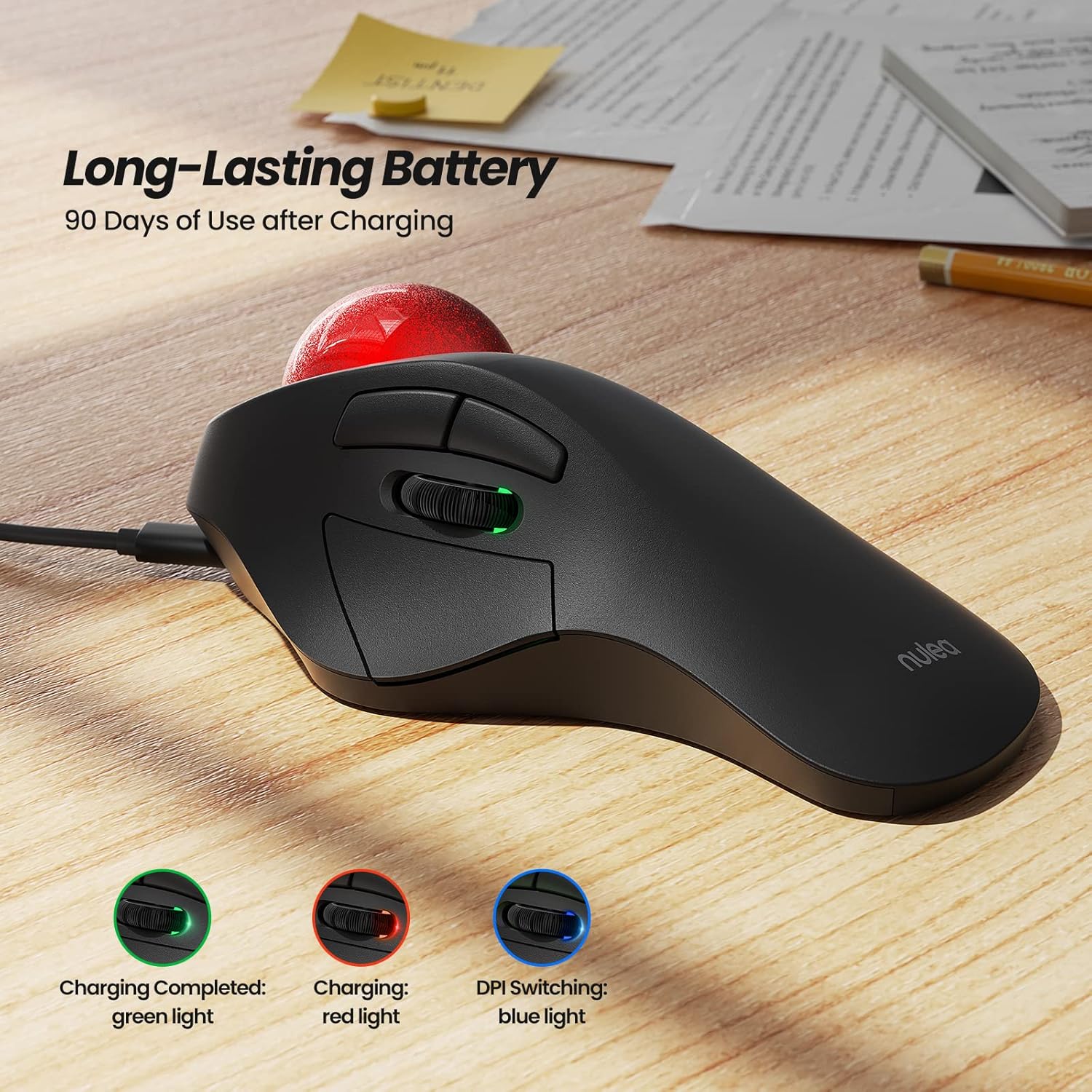
Figure 2.3: Long-Lasting Battery - Charging via USB-C with indicator lights for charging status and DPI.
3. Operating
3.1 Ergonomic Design and Usage
The ergonomic design of the Nulea M505A is crafted to fit your hand comfortably, reducing strain on your wrist and arm. The 44mm index finger trackball allows for precise cursor control without requiring extensive arm movement, making it ideal for small workspaces or comfortable use on various surfaces like a couch or bed.

Figure 3.1: Better Fit for Hand Curves - More Flexible Index Finger Manipulation.

Figure 3.2: Easier Work - Ideal for Tight Work Spaces.

Figure 3.3: More Precise Handling - Large 44mm Ball Control.
3.2 Adjustable DPI
The mouse offers 5 different DPI (Dots Per Inch) modes, allowing you to adjust cursor sensitivity for optimal accuracy and control. The default DPI is 200-400, with other options including 800, 1200, and 1600 DPI. You can easily switch between these modes using the dedicated DPI button located on the bottom of the mouse.
Figure 3.4: DPI Switching Modes (200-400 Default) - 800-1200-1600.
3.3 Button Functions
The Nulea M505A is equipped with multiple buttons for enhanced functionality:
- Left Mouse Button: Standard left-click function.
- Right Mouse Button: Standard right-click function.
- Precision Scroll Wheel: Located near the thumb, this wheel allows for smooth vertical scrolling.
- Forward/Backward Keys: Conveniently placed for quick navigation in web browsers or file explorers.
4. Maintenance
4.1 Cleaning the Trackball
To ensure optimal performance and smooth tracking, it is recommended to periodically clean the trackball and its housing. The 44mm trackball can be easily removed for cleaning:
- Locate the small hole on the underside of the mouse, directly beneath the trackball.
- Gently push the trackball out from the bottom using a non-abrasive tool (e.g., the blunt end of a pen).
- Once removed, clean the trackball with a soft, lint-free cloth.
- Clean the inside of the trackball housing, paying attention to the small sensor points.
- Carefully reinsert the trackball into its housing until it clicks into place.
Video 4.1: Demonstration of removing and cleaning the trackball for optimal performance.
5. Troubleshooting
If you encounter issues with your Nulea Trackball Mouse, try the following troubleshooting steps:
- No Cursor Movement:
- Ensure the mouse is powered on.
- Check battery level; recharge if low.
- Verify correct connection mode (USB, BT1, BT2) is selected on the mouse and your device.
- Clean the trackball and its housing as described in Section 4.1.
- Lagging or Intermittent Connection:
- Move the mouse closer to your device.
- Ensure no other wireless devices are causing interference.
- Try re-pairing the Bluetooth connection or re-inserting the USB receiver.
- Buttons Not Responding:
- Check battery level.
- Restart the mouse and your device.
- DPI Adjustment Not Working:
- Ensure the mouse is powered on and connected.
- Press the DPI button firmly to cycle through settings.
6. Specifications
| Feature | Detail |
|---|---|
| Brand | Nulea |
| Model Number | M505A |
| Connectivity Technology | Bluetooth, USB (2.4G Wireless) |
| Movement Detection Technology | Trackball |
| DPI Settings | 200-400 (Default), 800, 1200, 1600 |
| Trackball Size | 44mm |
| Battery Type | 1 Lithium Ion battery (included, rechargeable) |
| Battery Life | Up to 60 days on a single full charge |
| Product Dimensions | 6.6 x 2.2 x 0.1 inches |
| Item Weight | 6.9 ounces |
| Color | A-Red |
7. Warranty & Support
Nulea provides a 12-month hassle-free replacement warranty for this product, ensuring peace of mind. For any inquiries or assistance, please contact Nulea Customer Support:
- Live Chat: Visit www.nulea.com
- Email: support@nulea.com
Related documentsM505A


Ask a question about this manual
Ask about setup, troubleshooting, compatibility, parts, safety, or missing instructions. Manuals+ will review the question and use this page’s manual context to help answer it.