
Introduction
This manual provides detailed instructions for the installation, operation, and maintenance of your Tenda NVR N3L-8H 4K 8CH Network Video Recorder. Please read this manual thoroughly before using the device to ensure proper setup and functionality. The Tenda N3L-8H supports up to 8-channel 8MP/4K network camera inputs, 4-channel 1080p decoding, and up to 10TB HDD storage.

Image: Tenda N3L-8H NVR device highlighting 4K Ultra HD capabilities.
What's in the Box
Verify that all items are present in the package:
- Tenda N3L-8H 8 Channel Non-PoE NVR
- Power Adapter
- USB Mouse
- Screws for HDD Installation
- Quick Installation Guide
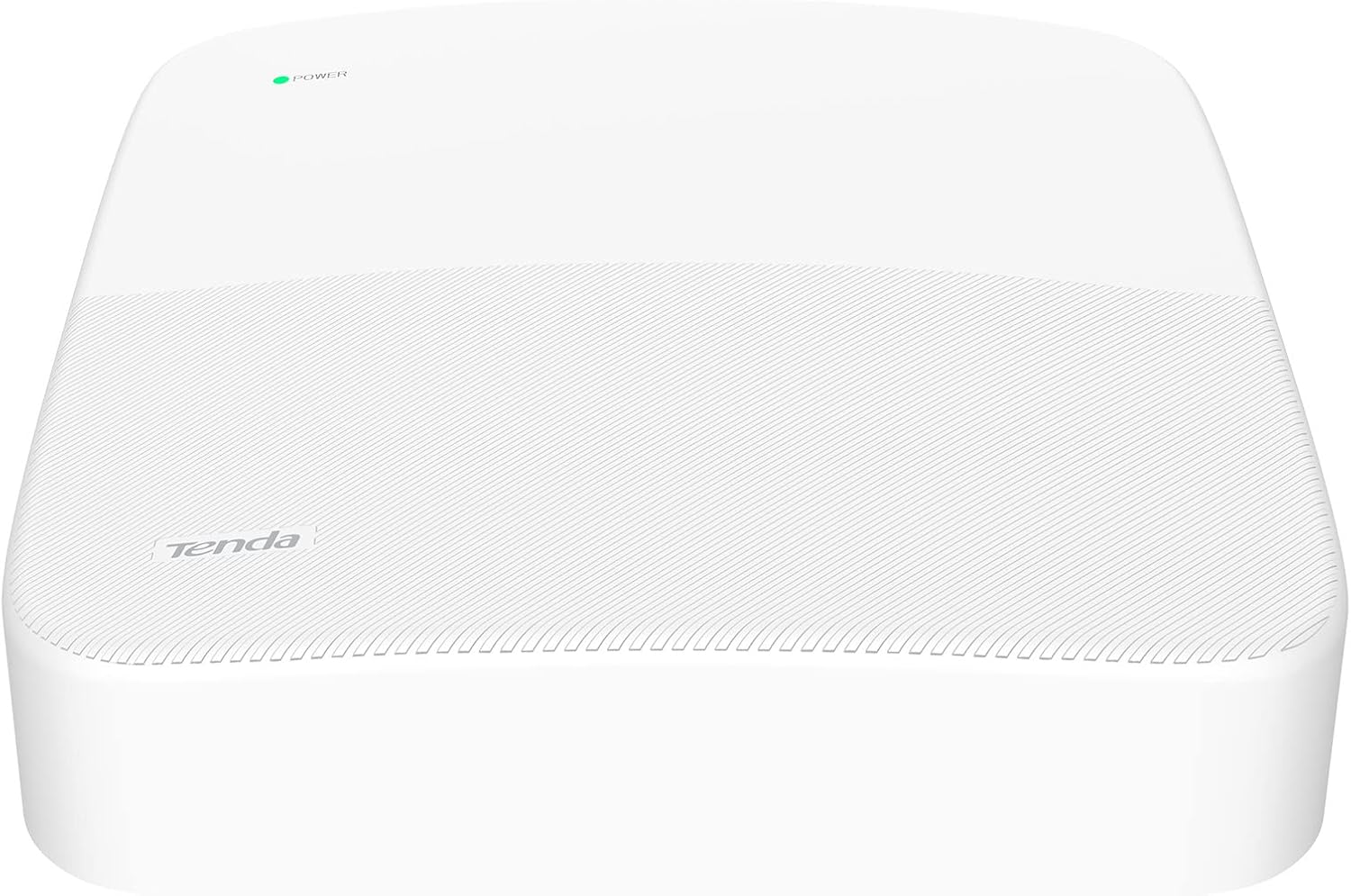
Image: Unpacked contents of the Tenda N3L-8H NVR box.
Setup Guide
Follow these steps to set up your Tenda NVR N3L-8H.
1. Hard Drive Installation
The NVR supports up to 10TB HDD (not included). Install the hard drive before initial setup.
- Unfasten the screws on the bottom cover of the NVR.
- Carefully remove the cover to expose the internal components.
- Insert the hard disk drive into the designated slot, ensuring it connects properly to the SATA interface.
- Fix the hard disk drive securely with the provided screws.
- Reinstall the cover and fasten the screws.

Image: Internal view of the NVR with the hard drive installed.
2. Initial Connections
Connect the necessary peripherals to the NVR.
- Connect the USB mouse to one of the USB ports on the NVR.
- Connect a monitor to the NVR using either a VGA or HDMI cable.
- Connect the NVR to your network router or switch using an Ethernet cable.
- Plug the power adapter into the NVR's power input and then into an electrical outlet.

Image: Rear panel of the NVR with various connection ports.
3. Camera Connection
Connect your IP cameras to the network for the NVR to detect them.
- Ensure your network switch is connected to the internet.
- Connect your IP cameras to the network switch using Ethernet cables.
- Power on all connected cameras.
- Power on the NVR. It will automatically search for and connect to compatible cameras on your network.

Image: Connection diagram for the NVR, switch, and cameras.
4. Device Activation
Upon first boot, you will need to activate the NVR.
- Use the connected mouse to navigate the on-screen prompts.
- Set a strong password for the NVR. The password should be 8 to 32 characters, including at least two types of characters (numbers, uppercase, lowercase, special characters).
- Complete the unlock pattern settings as prompted.
- Configure network settings (DHCP is usually enabled by default) and cloud settings.
Setup and Connection Video Guide
Video: A comprehensive guide demonstrating the unpacking, hard drive installation, physical connections, and initial activation process for the Tenda N3L-8H NVR.
Operating Instructions
Learn how to use the core features of your Tenda NVR.
1. Live View
Once activated and connected, the NVR will automatically display a live preview from your connected cameras on the monitor.
2. Playback Recordings
To view recorded footage, click the 'Playback' button on the NVR interface. You can select channels and navigate through the timeline to review events.
3. Remote Monitoring (TDSEE App)
The TDSEE App allows you to monitor your security system remotely from your mobile device.
- Download and install the TDSEE App on your smartphone.
- Scan the QR Code found on the Cloud Service page of your NVR's interface to bind the device to your app.
- Once bound, you can preview monitoring videos, view playback recordings, and receive real-time alarm notifications directly on your phone.

Image: Remote viewing of camera feeds via the TDSEE mobile application.
Maintenance
Proper maintenance ensures the longevity and optimal performance of your NVR system.
1. Data Safety and Storage
The Tenda NVR N3L-8H includes features to protect your recorded data:
- Bad Sector Isolation: The intelligent file storage system automatically detects, identifies, and skips bad sectors on your hard drive to prevent data corruption and loss.
- USB Backup: Utilize the USB backup feature to regularly save your video data to an external storage device.
- H.265+ Video Compression: This advanced compression technology saves storage space while maintaining high video quality, allowing for more recordings on your HDD.

Image: Visual representation of HDD Bad Sector Isolation.

Image: H.265+ video compression efficiency with 10TB HDD support.
Troubleshooting
If you encounter issues with your Tenda NVR, refer to the following common troubleshooting steps.
- Camera Compatibility: The NVR supports Tenda IT7/IC7 Series Cameras and cameras from other brands that support the ONVIF protocol. Ensure your cameras meet these specifications. If using third-party cameras, verify ONVIF is enabled on the camera and check for specific compatibility notes.
- Firmware Updates: Ensure your NVR is running the latest firmware version. Check the official Tenda website for available updates for your specific hardware version. Firmware updates can resolve compatibility issues and improve performance.
- Network Connectivity: Verify all Ethernet cables are securely connected. Ensure the NVR and cameras are on the same network segment and have valid IP addresses. Check your router settings if experiencing internet connectivity issues for remote viewing.
- Hard Drive Detection: If the hard drive is not detected or recording fails, ensure it is correctly installed and securely connected to the SATA interface. Power cycle the NVR after checking connections.
- Web Interface/App Access: If you cannot access the NVR via the web interface or TDSEE app, ensure the NVR has internet access (if required for remote features) and that the correct IP address or cloud ID is being used. Restarting the NVR and your network equipment can often resolve temporary connectivity glitches.
Product Specifications
Detailed technical specifications for the Tenda NVR N3L-8H.
| Feature | Specification |
|---|---|
| Brand Name | Tenda |
| Item Weight | 2.35 pounds |
| Product Dimensions | 7.87 x 7.87 x 1.89 inches |
| Item Model Number | Tenda N3L-8H NVR |
| Connectivity Technology | HDMI, VGA |
| Compatible Devices | Camera |
| Memory Storage Capacity | 10 TB (HDD not included) |
| Network Camera Inputs | Up to 8-CH 8MP/4K |
| Decoding Capability | Up to 4-ch 1080p |
| Bandwidth (Incoming/Outgoing) | Up to 60 Mbps |
| Video Compression | H.265+, H.265, H.264 |
Warranty and Support
Specific warranty details are typically provided with your product packaging or on the manufacturer's official website. For technical support, product registration, or to inquire about warranty services, please visit the official Tenda support website or contact their customer service. Keep your purchase receipt and product serial number handy for any support inquiries.


