
1. Introduction
This manual provides detailed instructions for the safe and efficient use of your Intenso Video Scooter BT MP3 Player. Please read this manual thoroughly before operating the device and retain it for future reference. This device allows you to play music (MP3), videos (MP4), and view images on its 1.8-inch color display, with the added convenience of Bluetooth connectivity.
2. Product Overview
The Intenso Video Scooter BT is a compact and portable media player designed for on-the-go entertainment. It features a 1.8-inch color display, 16 GB of internal storage, and Bluetooth for wireless audio streaming.

Figure 2.1: The Intenso Video Scooter BT MP3 Player in blue, shown with the included headphones connected. The microUSB port for charging and data transfer, and the microSD card slot for expandable storage, are visible on the side.
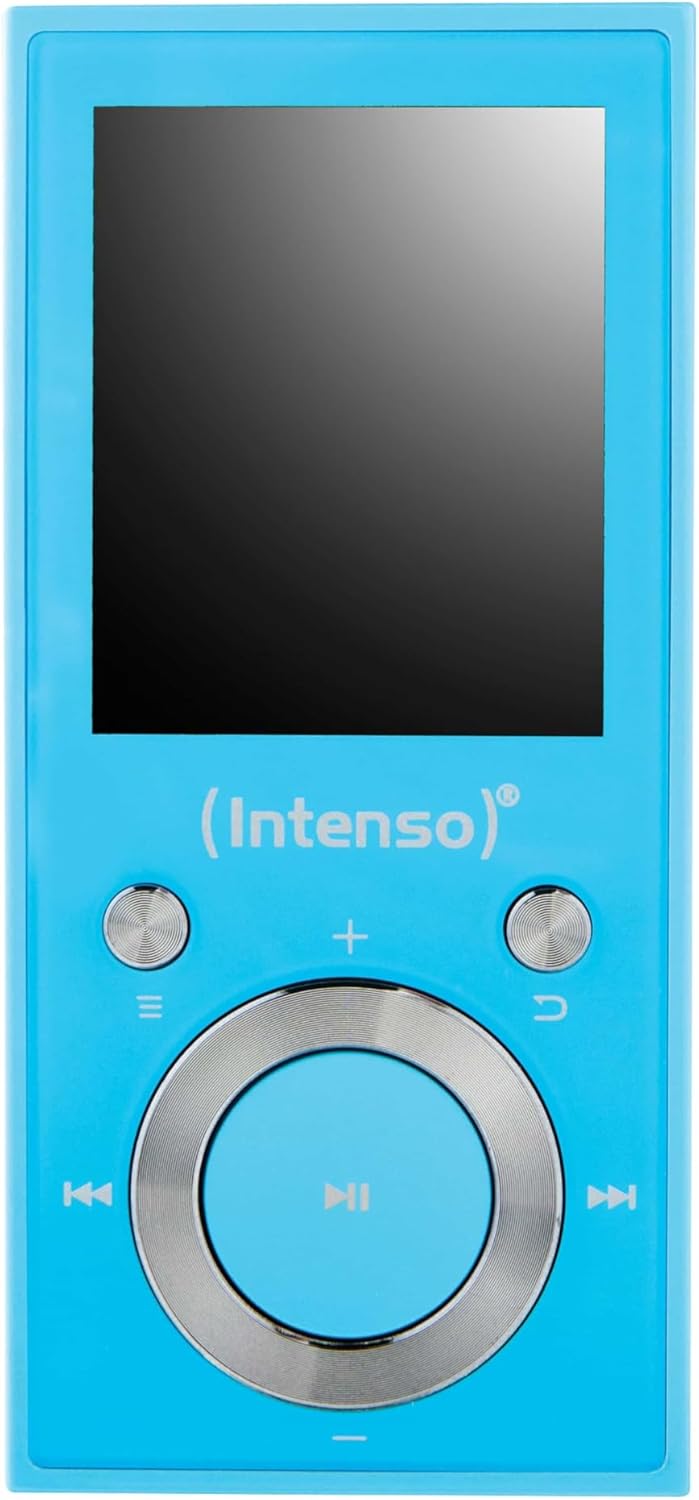
Figure 2.2: A close-up view of the Intenso Video Scooter BT MP3 Player's front panel, displaying the 1.8-inch screen and the navigation buttons. The central button is for play/pause/confirm, surrounded by directional controls, and dedicated buttons for menu, back, and volume.
Package Contents:
- Intenso Video Scooter BT MP3 Player
- Headphones
- USB Cable
- User Manual (this document)
3. Setup
3.1 Charging the Device
- Connect the small end of the included USB cable to the microUSB port on the player.
- Connect the large end of the USB cable to a powered USB port on a computer or a compatible USB wall adapter (not included).
- The battery indicator on the screen will show charging status. A full charge typically takes approximately 2-3 hours.
3.2 Inserting a MicroSD Card
The device supports microSDHC cards for expanded storage. To insert a card:
- Locate the microSD card slot on the side of the player.
- Gently insert the microSD card into the slot with the gold contacts facing down until it clicks into place.
- To remove, push the card in slightly until it springs out.
3.3 Connecting to a Computer and Transferring Files
- Ensure the player is powered on.
- Connect the player to your computer using the supplied USB cable.
- The player will appear as a removable disk drive on your computer.
- Drag and drop your desired MP3 music, MP4 videos, or image files into the appropriate folders on the player or inserted microSD card.
- Safely eject the device from your computer before disconnecting the USB cable.
4. Operating Instructions
4.1 Power On/Off
- To Power On: Press and hold the power button (often integrated with the play/pause button or a dedicated side button) for a few seconds until the screen illuminates.
- To Power Off: Press and hold the power button again until the device shuts down.
4.2 Menu Navigation
Use the directional buttons around the central 'Play/Pause/Confirm' button to navigate through menus. The 'Menu' button (often represented by three horizontal lines) typically brings up options or returns to the main menu. The 'Back' button (often a curved arrow) returns to the previous screen.
4.3 Music Playback
- From the main menu, select 'Music'.
- Browse through your music library by artist, album, genre, or all songs.
- Select a song and press the central 'Play/Pause' button to begin playback.
- Use the left/right directional buttons to skip tracks.
- Use the volume buttons (often '+' and '-') to adjust the audio level.
- Press the 'Play/Pause' button to pause or resume playback.
4.4 Video Playback
- From the main menu, select 'Video'.
- Browse and select the desired video file.
- Press the central 'Play/Pause' button to start playback.
4.5 Bluetooth Connectivity
To pair your Intenso Video Scooter BT with Bluetooth headphones or speakers:
- From the main menu, navigate to 'Bluetooth'.
- Ensure your Bluetooth audio device is in pairing mode.
- Select 'Search for Devices' on the player.
- Once your device appears in the list, select it to pair.
- After successful pairing, audio will be routed to the connected Bluetooth device.
5. Maintenance
- Cleaning: Use a soft, dry cloth to clean the device. Do not use liquid cleaners or solvents.
- Storage: Store the player in a cool, dry place away from direct sunlight and extreme temperatures.
- Battery Care: To prolong battery life, avoid fully discharging the battery frequently. Charge the device regularly, even if not in use for extended periods.
- Software Updates: Check the official Intenso website periodically for any available firmware updates to ensure optimal performance.
6. Troubleshooting
Device Does Not Turn On:
- Ensure the battery is charged. Connect the player to a power source and allow it to charge for at least 30 minutes before attempting to power on again.
- If the device is unresponsive, locate the 'RESET' pinhole (if present, often on the side or back) and gently press it with a thin object (e.g., a paperclip) to restart the device.
No Sound:
- Check the volume level.
- Ensure headphones are properly connected or that Bluetooth headphones/speakers are paired and connected.
- Test with different headphones to rule out a faulty pair.
Bluetooth Connection Issues:
- Ensure both the player and the Bluetooth audio device are sufficiently charged.
- Make sure both devices are within close proximity (typically within 10 meters) and free from obstructions.
- Try unpairing and re-pairing the devices.
- Restart both the player and the Bluetooth audio device.
Files Not Appearing or Playing:
- Verify that the files are in a supported format (MP3 for audio, MP4 for video).
- Ensure files were transferred correctly to the device's internal storage or the microSD card.
- If using a microSD card, ensure it is properly inserted and not corrupted.
7. Specifications
| Model Name | Video Scooter BT |
| Item Model Number | 3717474 |
| Brand | Intenso |
| Memory Storage Capacity | 16 GB |
| Screen Size | 1.8 Inches |
| Connectivity Technology | USB, Bluetooth |
| Compatible Devices | Bluetooth Devices |
| Media Type | MP3, MP4 |
| Special Feature | MP3 Playback, Video Playback |
| Product Dimensions | 6.3 x 3.54 x 1.97 inches |
| Item Weight | 0.917 ounces |
| Batteries | 1 Lithium Polymer battery (included) |
8. Warranty and Support
For warranty information and technical support, please refer to the documentation included with your product or visit the official Intenso website. Keep your proof of purchase for warranty claims.


