
Introduction
This manual provides detailed instructions for the EasySMX KW75 75% Mechanical Gaming Keyboard. It covers setup, operation, maintenance, and technical specifications to ensure optimal performance and user experience. Please read this manual thoroughly before using the product.

Image: The EasySMX KW75 mechanical keyboard, showcasing its compact 75% layout with RGB backlighting.
Key Features
- 75% Compact Layout: An 81-key design that balances functionality with a space-saving form factor.
- Triple Mode Connectivity: Supports Bluetooth 5.0, 2.4GHz wireless, and wired (Type-C) connections for versatile use across multiple devices.
- Hot-Swappable PCB: Compatible with most 3-pin and 5-pin MX-style mechanical switches, allowing for easy customization without soldering.
- Gasket-Mounted Structure: Provides a softer typing feel and a cleaner sound profile by cushioning keypresses.
- RGB Backlighting: Customizable RGB lighting effects for personalized aesthetics.
- Multimedia Rotary Knob: A dedicated knob for convenient volume control and play/pause functions.
- Long Battery Life: Equipped with a 4000mAh battery, offering extended usage in wireless modes.
- Cross-Platform Compatibility: Supports both Windows and Mac operating systems.

Image: An overview highlighting the 81-key 75% compact layout and key features such as 3 modes connection, hot-swappable switches, RGB backlight, gasket mounted structure, Windows/Mac support, and multimedia rotary knob.
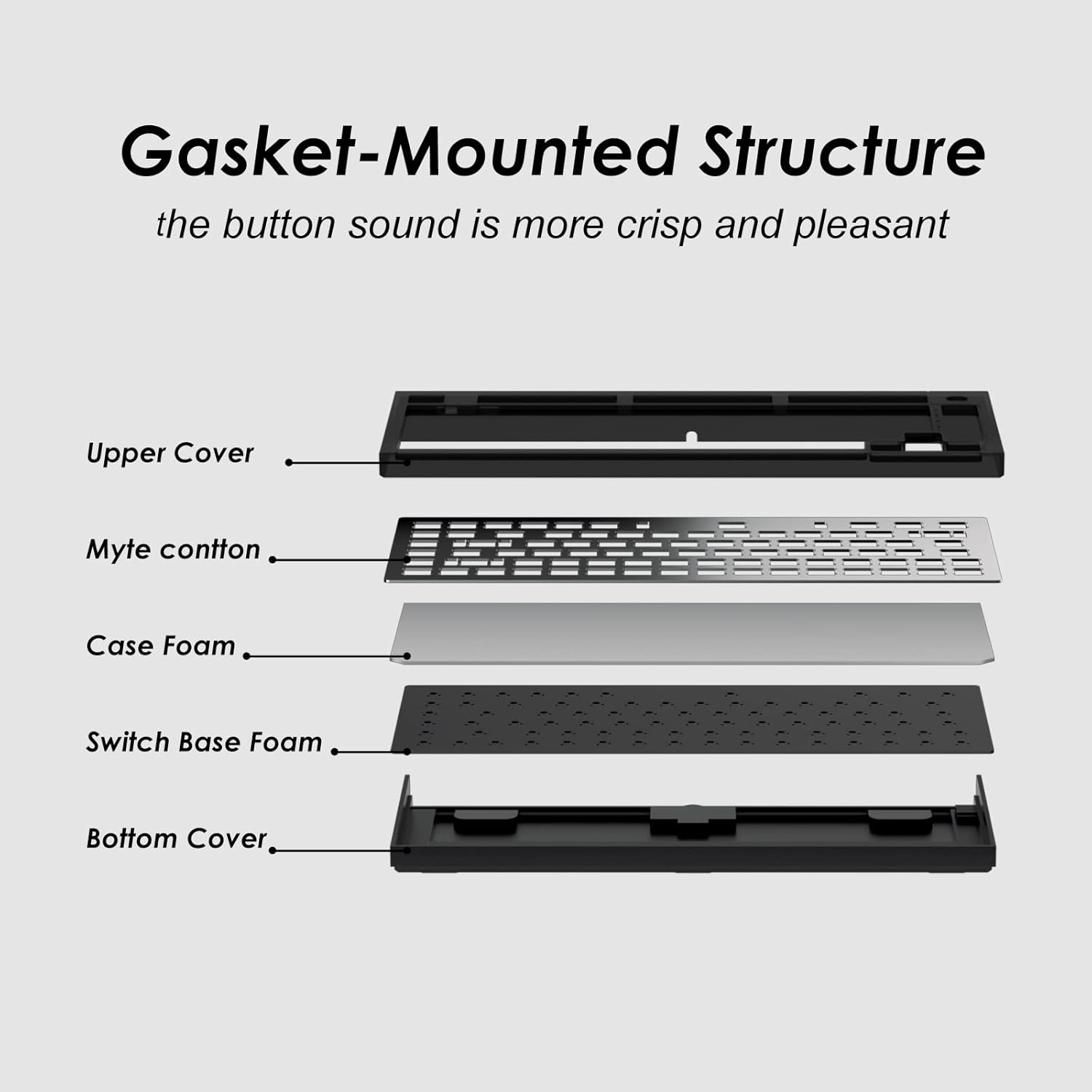
Image: An exploded diagram illustrating the components of the gasket-mounted structure, including the upper cover, Myte cotton, case foam, switch base foam, and bottom cover, designed for improved sound and feel.

Image: A graphic indicating the 4000mAh battery capacity, suggesting over 30 days of continuous use on a full charge.
Setup Instructions
Initial Charging
Before first use, connect the keyboard to a USB power source using the provided Type-C cable to fully charge the internal battery. The charging indicator will show the charging status.
Connecting the Keyboard
The EasySMX KW75 supports three connection modes:
- Wired Mode: Connect the keyboard directly to your computer using the supplied USB Type-C cable. The keyboard will automatically switch to wired mode.
- 2.4GHz Wireless Mode:
- Locate the 2.4GHz USB receiver, usually stored in a compartment on the keyboard.
- Plug the USB receiver into an available USB port on your computer.
- Switch the keyboard to 2.4GHz mode (refer to the keyboard's physical switch or key combination for mode selection). The keyboard should connect automatically.
- Bluetooth Mode:
- Switch the keyboard to Bluetooth mode.
- Activate Bluetooth on your device (computer, tablet, etc.).
- On your device, search for new Bluetooth devices. The keyboard should appear as "EasySMX KW75" or similar.
- Select the keyboard to pair. If prompted, enter the pairing code displayed on your screen.

Image: A diagram illustrating the wireless 2.4G, Bluetooth, and wired Type-C connection options, along with compatibility icons for Windows and Mac devices.
Operating Instructions
Switching Operating Systems
The keyboard supports both Windows and Mac layouts. Use the designated key combination (e.g., Fn + A for Windows, Fn + S for Mac) to switch between operating system modes. Refer to the keyboard's specific keycap legends or included quick start guide for exact combinations.
RGB Backlighting Control
The keyboard features customizable RGB backlighting. Use the Fn key in combination with other keys (e.g., Fn + \ for lighting modes, Fn + arrow keys for brightness/speed) to adjust lighting effects, colors, and intensity. Specific key combinations may vary; consult the quick start guide.
Multimedia Rotary Knob
The rotary knob located on the top right of the keyboard provides convenient multimedia control:
- Clockwise Rotation: Increases volume.
- Counter-Clockwise Rotation: Decreases volume.
- Pressing the Knob: Toggles play/pause for media.

Image: A close-up view of the rotary knob, illustrating its functions: clockwise rotation for volume increase, counter-clockwise for volume decrease, and pressing the knob for play/pause.
Programmable Keys and Macros
The EasySMX KW75 keyboard supports programmable keys and macros. Utilize the dedicated software (available for download from the EasySMX official website) to customize key assignments, create macros, and further personalize RGB lighting effects.
Maintenance
Cleaning the Keyboard
- Disconnect the keyboard from all power sources before cleaning.
- Use a soft, dry cloth to wipe the surface of the keyboard.
- For stubborn dirt, a slightly damp cloth with mild soap can be used, ensuring no liquid enters the keyboard.
- Use compressed air to remove dust and debris from between keycaps.
- Avoid using harsh chemicals or abrasive materials.
Hot-Swapping Switches
The KW75 features a hot-swappable PCB, allowing you to change mechanical switches without soldering.
- Gently remove the keycap using a keycap puller.
- Use a switch puller to carefully extract the switch from the PCB. Apply even pressure to avoid bending the pins.
- Align the pins of the new 3-pin or 5-pin MX-style switch with the holes on the PCB.
- Press the new switch firmly into place until it clicks. Ensure it is seated correctly and functions properly before replacing the keycap.

Image: A close-up view demonstrating the hot-swappable switch feature, showing a switch being inserted into the PCB, compatible with both 3-pin and 5-pin switches for easy customization.
Troubleshooting
- Keyboard Not Responding:
- Ensure the keyboard is charged.
- Check the connection mode (wired, 2.4GHz, Bluetooth) and ensure it matches your device's connection.
- For 2.4GHz, ensure the USB receiver is securely plugged in.
- For Bluetooth, ensure the keyboard is paired and selected on your device. Try re-pairing if necessary.
- Try connecting via the USB-C cable to rule out wireless issues.
- Keys Not Registering or Double Typing:
- This could indicate a faulty switch. Due to the hot-swappable design, try replacing the problematic switch.
- Ensure the switch is fully seated in the PCB.
- Clean around the keycap and switch to remove any debris.
- RGB Lighting Not Working:
- Check if the lighting is turned off or set to minimum brightness using the Fn key combinations.
- Ensure the keyboard firmware is up to date via the official software.
- Bluetooth Disconnection Issues:
- Ensure the keyboard is within range of your device.
- Check for interference from other wireless devices.
- Re-pair the keyboard with your device.
- Ensure the keyboard battery is sufficiently charged.
Specifications
| Brand | EasySMX |
| Model Number | KW75 |
| Layout | 75% (81 Keys) |
| Connectivity | Bluetooth 5.0, 2.4GHz Wireless, USB Type-C Wired |
| Switch Compatibility | 3-pin/5-pin MX-style Hot-Swappable |
| Backlighting | RGB |
| Battery Capacity | 4000mAh |
| Operating System Support | Windows, Mac |
| Material | Plastic |
| Included Components | USB Cable |
| Dimensions (approx.) | 36.19 x 17.7 x 5.21 cm |
| Weight (approx.) | 880 g |
Warranty and Support
For warranty information and technical support, please refer to the official EasySMX website or contact their customer service directly. Keep your purchase receipt as proof of purchase.
