
1. Introduction
This manual provides comprehensive instructions for the Jectse 1080P HD Indoor/Outdoor Wi-Fi Security Camera. Please read this manual carefully before operating the device to ensure proper use and to maintain its functionality. Keep this manual for future reference.
2. Package Contents
Verify that all items listed below are present in your package:
- 1 x Jectse 1080P HD Security Camera
- 1 x Power Supply Line (USB Cable)
- 1 x Power Adapter (US 100-240V Plug)
- 2 x Mounting Screws
- 2 x Expansion Plugs
- 1 x User Manual

Image 2.1: Contents of the Jectse Security Camera package, including the camera, power adapter, USB cable, mounting screws, and expansion plugs.
3. Product Overview
The Jectse Security Camera is a compact device designed for indoor and outdoor surveillance. It features a 1080P HD lens, infrared night vision, two-way audio, and Wi-Fi connectivity.

Image 3.1: Front view of the Jectse Security Camera, showing the lens and compact design.
4. Setup
4.1 Powering On
- Connect the USB cable to the camera's power input port.
- Plug the other end of the USB cable into the provided power adapter.
- Insert the power adapter into a standard electrical outlet (US 100-240V).
- The camera will power on and initiate its startup sequence.
4.2 Wi-Fi Connection and App Pairing
The camera supports IEEE 802.11b/g/n Wi-Fi networks. Note: The device does not support 5G networks.
- Download the designated mobile application from your smartphone's app store. Refer to the packaging or a QR code on the camera for the correct app.
- Create an account and log in to the application.
- Follow the in-app instructions to add a new device. This typically involves scanning a QR code on the camera or entering its device ID.
- Ensure your smartphone is connected to a 2.4GHz Wi-Fi network during the pairing process.
- Enter your Wi-Fi network password when prompted by the app.
- Once connected, the camera's status indicator will change, and you will receive a confirmation in the app.

Image 4.1: A smartphone screen showing the camera's live feed and control options within the mobile application.
4.3 Mounting the Camera
The camera can be wall-mounted using the provided screws and expansion plugs.
- Choose a suitable location for mounting, ensuring it has a clear view and is within Wi-Fi range.
- Mark the positions for drilling holes using the camera's base as a template.
- Drill holes and insert the expansion plugs if mounting on drywall or masonry.
- Secure the camera to the wall using the provided screws.

Image 4.2: The Jectse Security Camera discreetly mounted on a wall in a living room setting.

Image 4.3: The Jectse Security Camera placed on a flat surface, demonstrating its compact size and versatility.
5. Operating the Camera
5.1 Live View
Once connected, open the mobile application to access the live video feed from your camera. You can monitor your premises in real-time.

Image 5.1: A visual comparison demonstrating the clarity and detail provided by the 1080P HD resolution of the camera.

Image 5.2: An illustration showing the wide-angle field of view provided by the camera, covering a broad area.
5.2 Two-Way Audio
The camera features two-way real-time audio communication. Within the mobile app, locate the microphone icon to speak through the camera and the speaker icon to listen to audio from the camera's location.

Image 5.3: The Jectse Security Camera positioned on a shelf, indicating its two-way audio functionality for communication.
5.3 Night Vision
The camera is equipped with an infrared function for night vision, automatically activating in low-light conditions. It provides clear visibility up to 10 meters in darkness.
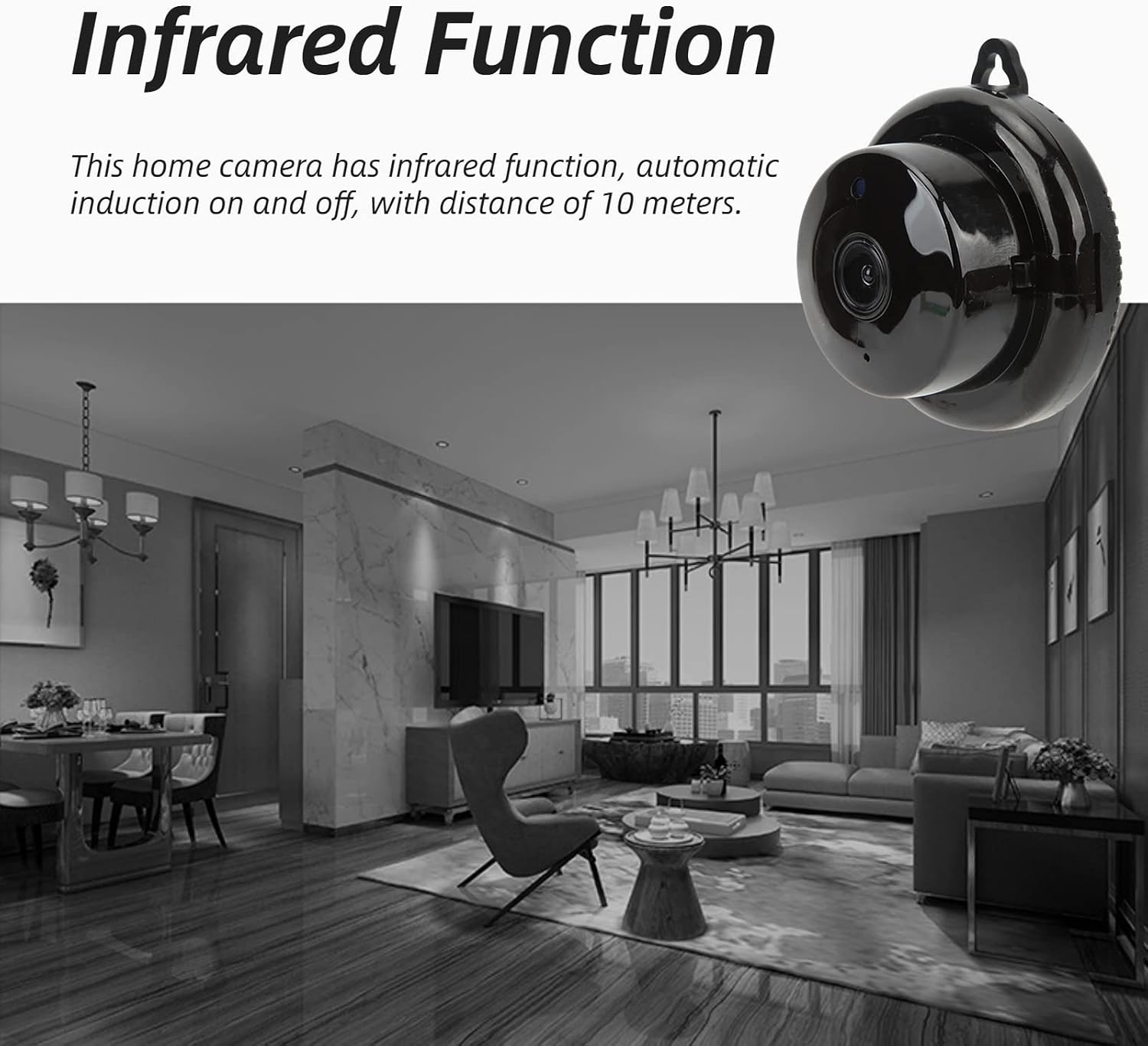
Image 5.4: The Jectse Security Camera capturing an image in a dimly lit room, showcasing its infrared night vision capability.
5.4 Recording and Storage
The camera supports local storage via a small memory card (not included), with a maximum capacity of 64GB. Insert the memory card into the designated slot on the camera. Recording settings can be configured within the mobile application.
5.5 Motion Detection
Configure motion detection alerts and sensitivity settings through the mobile application. The camera can notify you of detected movement and initiate recording.
6. Maintenance
6.1 Cleaning
To clean the camera, gently wipe the lens and exterior with a soft, dry cloth. Avoid using harsh chemicals or abrasive materials that could damage the device.
6.2 Software Updates
Periodically check the mobile application for available firmware updates. Keeping the camera's software updated ensures optimal performance and security.
7. Troubleshooting
- Camera not powering on: Ensure the power adapter is securely connected to both the camera and a working electrical outlet.
- Cannot connect to Wi-Fi:
- Verify your Wi-Fi network is 2.4GHz. The camera does not support 5G networks.
- Check that the Wi-Fi password entered in the app is correct.
- Ensure the camera is within range of your Wi-Fi router.
- Restart your router and the camera, then attempt to reconnect.
- Poor video quality: Check your internet connection speed. Ensure the camera lens is clean and free from obstructions.
- Two-way audio not working: Verify that microphone and speaker permissions are enabled for the app on your smartphone. Check the volume settings in the app.
- SD card not recognized: Ensure the memory card is inserted correctly and is not larger than 64GB. Format the card through the app if necessary.
8. Specifications
| Item Type | Baby Monitor / Security Camera |
| Model Number | Yunseitynx6t4gdqg3 |
| Material | ABS and Metal |
| Video Resolution | 1080P HD (also supports 1024p, 720p) |
| Video Encoding | H.264 |
| Night Vision Distance | 10 meters (IR CUT automatic switching) |
| Connectivity | Wi-Fi (IEEE 802.11b/g/n, 2.4GHz only) |
| Local Storage | Supports up to 64GB Micro SD card (not included) |
| Power Input | US 100-240V |
| Indoor/Outdoor Usage | Indoor, Outdoor |
| Control Method | Voice (via app), App Control |
| Alert Type | Motion Only |
| Item Weight | 3.52 ounces |
9. Warranty and Support
For warranty information and technical support, please refer to the contact details provided on the product packaging or the official Jectse website. Keep your purchase receipt as proof of purchase.