
Introduction
Thank you for choosing the HZD Wireless Bluetooth Keyboard. This manual provides essential information for setting up, operating, and maintaining your keyboard. Please read it carefully before use to ensure optimal performance and longevity of the product.
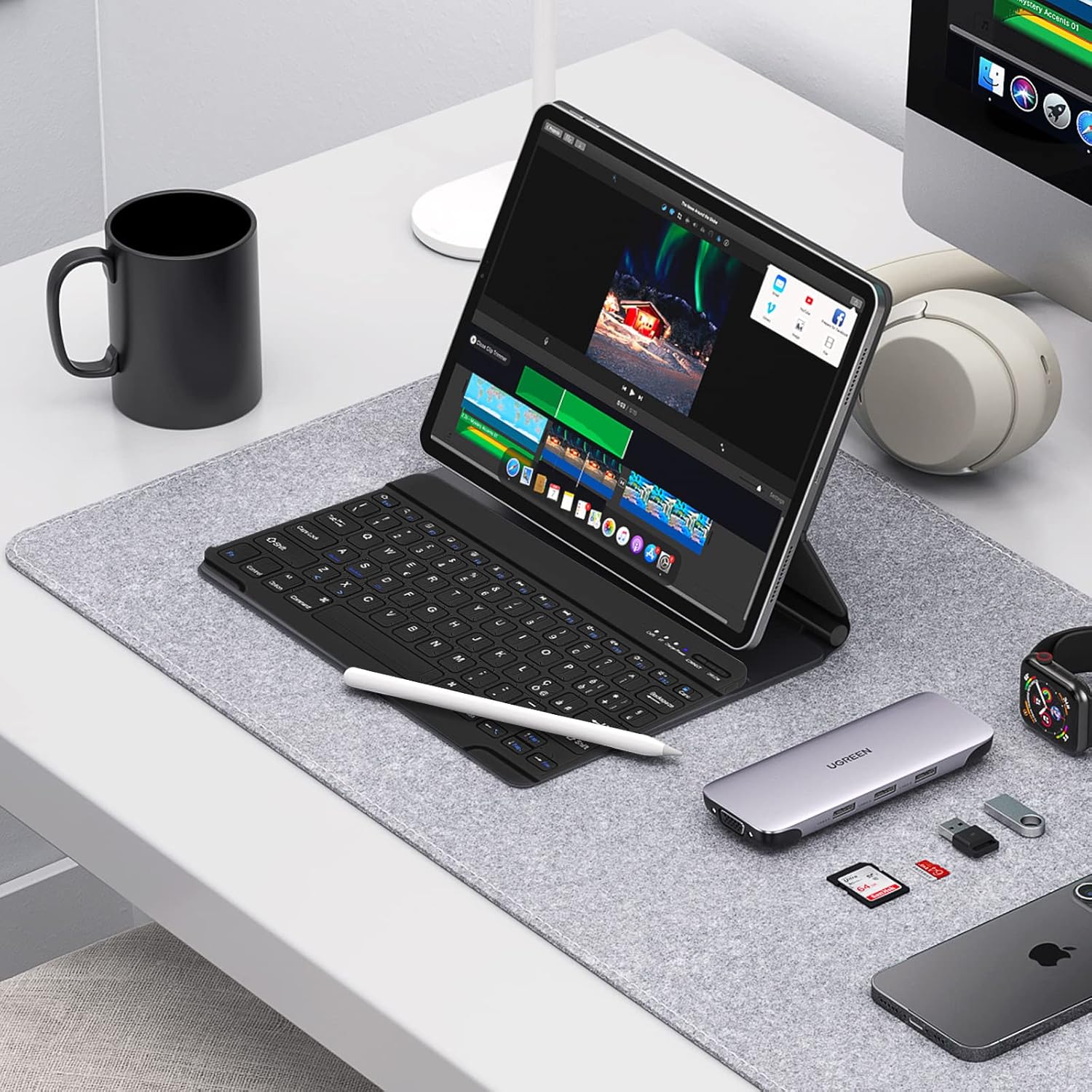
The HZD Wireless Bluetooth Keyboard in a typical desk setup, connected to a tablet.
Package Contents
- HZD Wireless Bluetooth Keyboard
- USB Charging Cable
- User Manual
Setup
1. Initial Charging
Before first use, charge the keyboard for at least 6 hours. For subsequent charges, when the battery is low, charge for at least 2 hours. The charging LED will indicate charging status.
- Connect the provided USB charging cable to the keyboard's charging port.
- Connect the other end of the cable to a USB power source (e.g., computer, wall adapter).
- The charging LED will be lit during charging and turn off when fully charged.
- When the power LED flashes blue, the battery is low and requires charging.
2. Bluetooth Pairing
Follow these steps to connect your HZD Wireless Bluetooth Keyboard to your device:
- Locate the ON/OFF switch on the keyboard and slide it to the 'ON' position to power on the keyboard.
- Press the 'CONNECT' button for 3 seconds. The Bluetooth indicator light will start flashing, indicating the keyboard is in pairing mode.
- On your device (tablet, phone, PC), enable Bluetooth and search for available devices.
- Select 'Bluetooth Keyboard' from the list of found devices to complete the pairing process.

Visual guide for connecting the HZD Wireless Bluetooth Keyboard.
3. Compatibility
The HZD Wireless Bluetooth Keyboard is designed for broad compatibility with various operating systems:
- Android: Version 3.0 or higher
- iOS: Version 4.0 or higher
- Windows: WinXP, Win7, Win8, and higher versions
Note: This keyboard is not compatible with Mac OS devices.

The keyboard supports iOS, Android, and Windows operating systems.
Operating Instructions
1. Typing and Key Features
The keyboard features scissor-switch keys designed for a soft, quiet, and responsive typing experience. This reduces typing noise, making it suitable for various environments.

The scissor-switch key construction ensures quiet and comfortable typing.
2. Power Saving Mode
To conserve battery life, the keyboard will automatically enter sleep mode if there is no operation for 10 minutes. To wake the keyboard, press any key and wait approximately 5 seconds for it to reconnect and become active again.
Maintenance
1. Battery Care
- Recharge the keyboard when the power LED indicates a low battery.
- Avoid exposing the keyboard to extreme temperatures.
- If storing the keyboard for an extended period, ensure it is fully charged before storage and recharge it periodically.
2. Cleaning
- Use a soft, dry cloth to wipe the surface of the keyboard.
- For stubborn dirt, slightly dampen the cloth with water or a mild cleaning solution, then wipe dry immediately.
- Avoid using harsh chemicals or abrasive materials, as these can damage the keyboard's finish.
Troubleshooting
1. Keyboard Not Connecting/Responding
- Check Power: Ensure the keyboard is turned ON and has sufficient battery charge. Recharge if necessary.
- Re-pair: If the connection is lost, try re-pairing the keyboard with your device by following the Bluetooth Pairing steps in the Setup section.
- Device Bluetooth: Ensure Bluetooth is enabled on your device and that it is discoverable.
- Distance: Make sure the keyboard is within the 10-meter (33 feet) operating range of your device.
- Interference: Move away from other wireless devices that might cause interference.
2. Incorrect Key Output (e.g., symbols not matching)
- This issue often occurs when the keyboard layout setting on your device does not match the physical layout of the keyboard (Italian QWERTY).
- Adjust Device Settings: Go to your device's language and input settings. Change the keyboard layout to 'Italian QWERTY' or 'Italian'.
- Restart: After changing the settings, it may be necessary to restart your device or disconnect and reconnect the keyboard.
Specifications
| Feature | Detail |
|---|---|
| Brand | HZD |
| Model | B0BJZB14R7 |
| Connectivity Technology | Bluetooth 3.0 |
| Keyboard Layout | Italian QWERTY |
| Key Type | Scissor-switch |
| Number of Keys | 78 |
| Battery Capacity | 220mAh |
| Charging Time | 2-3 hours |
| Continuous Working Time | >90 hours |
| Standby Time | >130 days |
| Operating Distance | Up to 10 meters (33 feet) |
| Dimensions (L x W x H) | 29 cm x 15.7 cm x 0.5 cm (11.4 in x 6.2 in x 0.2 in) |
| Material | Plastic |

Detailed dimensions of the HZD Wireless Bluetooth Keyboard.
Warranty and Support
Warranty Information
For specific warranty details regarding your HZD Wireless Bluetooth Keyboard, please refer to the warranty card included with your purchase or consult your retailer's policy. Typically, products come with a standard manufacturer's warranty covering defects in materials and workmanship.
Customer Support
If you encounter any issues or have questions not covered in this manual, please contact HZD customer support. You can often find support contact information on the official HZD website or through the retailer where you purchased the product.
Visit the official HZD Store for more information: HZD Store on Amazon