
PUREMIC Bluetooth Microphone-Q1PRO
PUREMIC Wireless Karaoke Microphone Q1PRO User Manual
Model: Bluetooth Microphone-Q1PRO | Brand: PUREMIC
1. Introduction
Thank you for choosing the PUREMIC Wireless Karaoke Microphone Q1PRO. This handheld, rechargeable microphone system is designed to provide crystal clear sound quality and versatile connectivity for various entertainment setups, including cars, speakers, phones, TVs, laptops, and tablets. Enjoy 8 unique sound effects to enhance your karaoke experience.
This manual provides detailed instructions for setting up, operating, and maintaining your PUREMIC Q1PRO microphone to ensure optimal performance and longevity.

Figure 1: Wide Compatibility of PUREMIC Q1PRO
2. What's in the Box
Please check the package contents to ensure all items are present:
- Microphone x 1
- Microphone Receiver x 1
- Type-C Cable x 1
- Portable Bag x 1
- User Manual x 1 (This document)

Figure 2: Package Contents
3. Setup Guide
3.1. Charging the Devices
Both the microphone and the receiver have built-in rechargeable batteries. Ensure both devices are fully charged before first use for optimal performance.
- Connect the provided Type-C cable to the charging port on both the microphone and the receiver.
- Plug the other end of the Type-C cable into a standard USB power adapter (not included).
- The indicator light on the devices will show charging status (refer to device for specific light behavior).
- A full charge provides approximately 15 hours of playtime for the microphone and up to 4 hours for the receiver.

Figure 3: Battery Life Overview
3.2. Connecting to a Car Audio System
Follow these steps to connect your PUREMIC Q1PRO to your car's audio system via the AUX input:
- Insert the 3.5mm AUX cable of the receiver into your car's AUX connection socket.
- Press and hold the receiver's power button to turn it on. The indicator light will illuminate.
- Turn on the microphone by pressing its power button. The blue indicator light will turn on.
- On your smartphone or tablet, go to Bluetooth settings and search for available devices.
- Select 'Loostone PureMic Q1PRO' (or similar name) from the list to pair.
- Once paired, you can play music from your phone through the car's speakers and use the microphone for karaoke.
Video 1: How to Connect Puremic Q1 Microphone to Car/Speaker/Phone. This video demonstrates the connection process for both car and speaker setups.

Figure 4: Connecting to Car Audio System
3.3. Connecting to a Speaker or Other Devices
To connect your PUREMIC Q1PRO to a speaker, TV, or other compatible device:
- Insert the 3.5mm AUX cable of the receiver into the AUX input of your speaker or device.
- Press and hold the receiver's power button to turn it on.
- Turn on the microphone by pressing its power button.
- On your smartphone, tablet, or other Bluetooth-enabled device, go to Bluetooth settings and search for 'Loostone PureMic Q1PRO' (or similar name).
- Select the device to pair. Once connected, audio from your device will play through the speaker, and the microphone will be ready for use.

Figure 5: Connecting to a Portable Speaker
4. Operating Instructions
4.1. Power On/Off and Volume Control
- Power On: Press and hold the power button (⏻) on both the microphone and the receiver until the indicator light turns on.
- Power Off: Press and hold the power button (⏻) again until the indicator light turns off.
- Volume Control: Use the up (▲) and down (▼) arrow buttons on the microphone to adjust the microphone's volume.
4.2. Sound Effects
The PUREMIC Q1PRO features 8 unique sound effects to enhance your singing. Press the effect button (⊞) on the microphone to cycle through the available effects:
- Standard Effect
- Male Effect
- Female Effect
- Children Effect
- Monster Effect
- Concert Effect
- Living Room Effect
- K.T.V. Effect
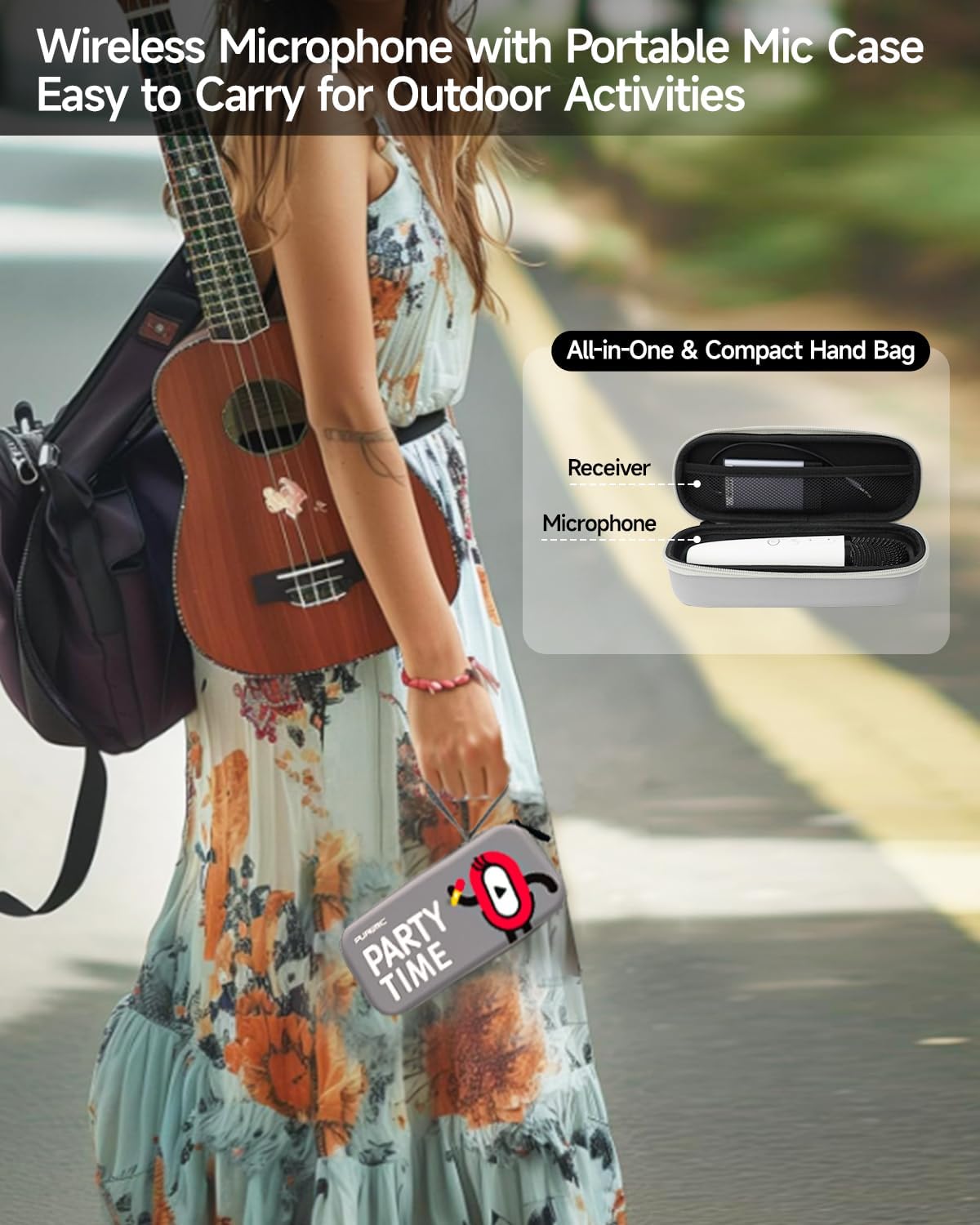
Figure 6: Available Sound Effects
5. Maintenance
- Cleaning: Wipe the microphone and receiver with a soft, dry cloth. Do not use harsh chemicals or abrasive cleaners.
- Storage: When not in use, store the microphone and receiver in the provided portable bag to protect them from dust and damage.
- Battery Care: To prolong battery life, avoid fully discharging the devices frequently. Charge them regularly, even if not in constant use.
- Environmental Conditions: Avoid exposing the devices to extreme temperatures, direct sunlight, or high humidity.

Figure 7: Portable Storage Bag
6. Troubleshooting
| Problem | Possible Cause | Solution |
|---|---|---|
| No sound from microphone | Microphone or receiver is off; Low battery; Incorrect connection; Volume too low. | Ensure both devices are powered on and charged. Check AUX cable connection. Increase microphone and speaker volume. |
| Bluetooth pairing failed | Receiver not in pairing mode; Device too far; Interference. | Ensure receiver is on and ready to pair. Move devices closer. Turn off other Bluetooth devices. Restart both devices and try again. |
| Sound distortion or feedback | Microphone too close to speaker; Volume too high; Environmental interference. | Increase distance between microphone and speaker. Lower microphone or speaker volume. Move away from other electronic devices. |
| Short battery life | Incomplete charging; Old battery. | Ensure devices are fully charged. If battery life significantly degrades, contact customer support. |
7. Specifications
| Feature | Detail |
|---|---|
| Model Name | Bluetooth Microphone-Q1PRO |
| Item Weight | 12 ounces (0.75 Pounds) |
| Product Dimensions | 8.46 x 3.15 x 2.36 inches |
| Material | Acrylonitrile Butadiene Styrene |
| Color | White |
| Power Source | Battery Powered (1 Lithium Polymer battery included) |
| Connectivity Technology | UHF |
| Connector Type | 3.5 mm Jack |
| Microphone Form Factor | Handheld |
| Polar Pattern | Unidirectional |
| Frequency Range | 657MHz - 662MHz |
| Frequency Response | 20000 Hz |
| Signal-to-Noise Ratio | 75 dB |
| Special Features | Battery Indicator Light, Volume Control, Mute Function, Noise Reduction, 8 Sound Effects |
| Compatible Devices | Television, Car, Smartphone, Karaoke Machine, Speaker |
| Manufacturer | LOOSTONE |
| Country of Origin | China |
| Date First Available | October 21, 2022 |

Figure 8: Product Dimensions
8. Warranty and Support
PUREMIC products are designed for quality and reliability. For warranty information, technical support, or any inquiries regarding your PUREMIC Wireless Karaoke Microphone Q1PRO, please refer to the contact information provided on the product packaging or visit the official PUREMIC website.
Please retain your proof of purchase for warranty claims.
Related documentsBluetooth Microphone-Q1PRO

Ask a question about this manual
Ask about setup, troubleshooting, compatibility, parts, safety, or missing instructions. Manuals+ will review the question and use this page’s manual context to help answer it.