
Introduction
Welcome to your new AZATOM Classic V1 DAB/DAB+ FM Digital Radio. This manual provides detailed instructions for setting up, operating, and maintaining your device. Please read it thoroughly to ensure optimal performance and longevity of your radio.
Important Safety Information
Please keep this manual for future reference.
- Do not expose the unit to rain or moisture.
- Do not disassemble the unit. Refer all servicing to qualified personnel.
- Avoid extreme temperatures.
- Ensure proper ventilation.
- Use only the specified power adapter or batteries.
For detailed safety guidelines, refer to the full safety leaflet included with your product.
Key Features
- DAB/DAB+ and FM Radio: Access a wide range of digital and analog radio stations.
- Bluetooth 5.0 Connectivity: Stream audio wirelessly from compatible devices.
- Dual Alarm Function: Set two independent alarms with customizable sources.
- Colour LCD Display: Clear and intuitive display for station information, time, and settings.
- Battery and Mains Power: Flexible power options for portable or home use.
- AUX Input: Connect external audio sources via a 3.5mm jack.
- Headphone Output: Private listening experience.
- 60 Presets: Store up to 60 favorite stations (40 DAB, 20 FM).
- Sleep Timer: Automatically turn off the radio after a set period.

Image: Front view of the AZATOM Classic V1 radio, showcasing its black and silver design with a leather-look handle and front speaker grille.
Setup
Powering On
The AZATOM Classic V1 can be powered using the included mains adapter or four Type C batteries (not included).
Mains Power
- Connect the mains adapter to the DCV input port on the back of the radio.
- Plug the adapter into a wall socket.
- Press and hold the POWER button on the top panel to turn on the radio.
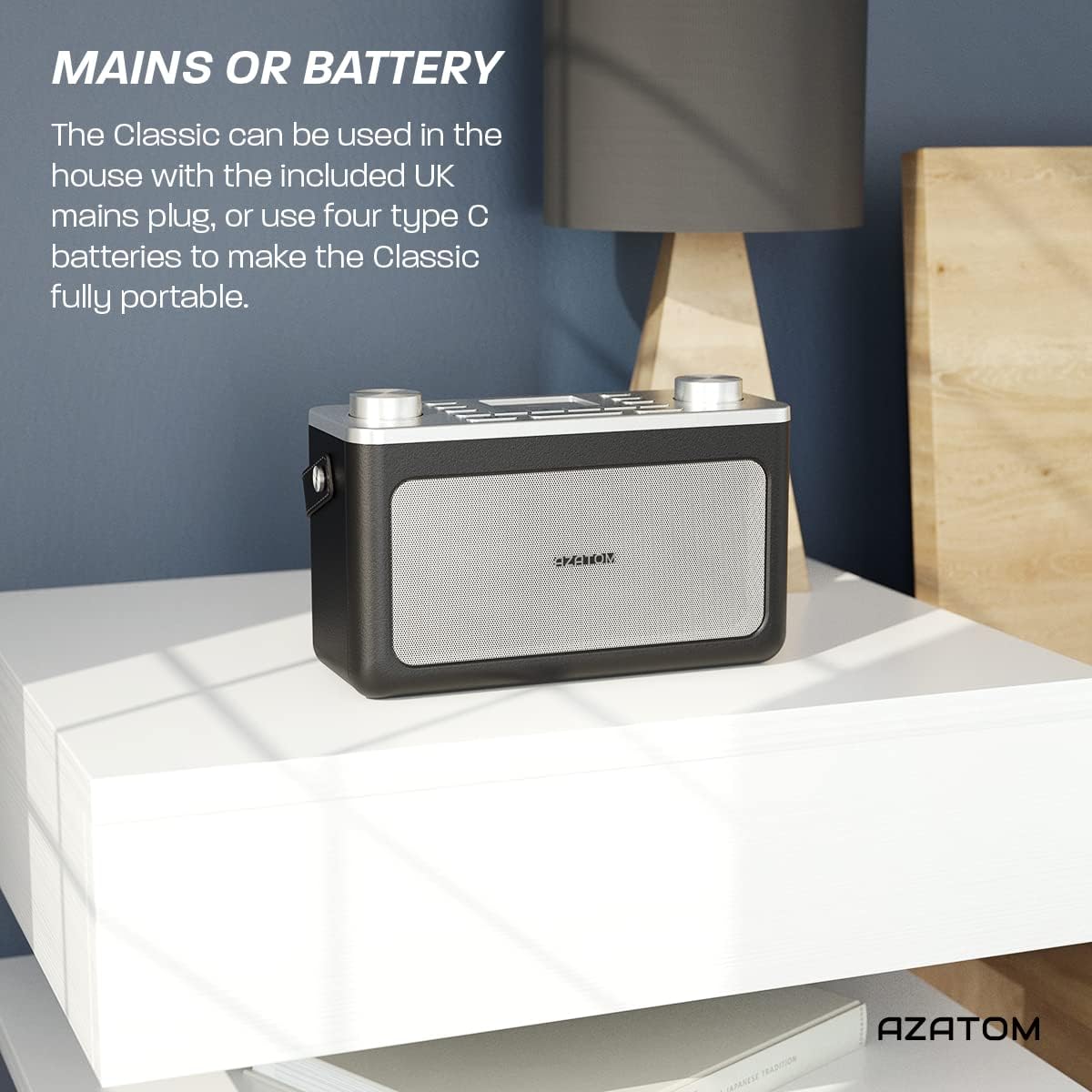
Image: The AZATOM Classic V1 radio on a white surface, illustrating its portability and dual power options (mains or battery).
Battery Power
- Open the battery compartment cover on the back of the radio.
- Insert four Type C batteries, ensuring correct polarity (+/-).
- Close the battery compartment cover securely.
- Press and hold the POWER button on the top panel to turn on the radio.

Image: Rear view of the AZATOM Classic V1 radio, highlighting the DCV input, AUX IN, USB CHARGE ports, and the two battery compartment covers.
Initial Scan (DAB/DAB+)
Upon first power-on, the radio will automatically perform a full scan for DAB/DAB+ stations. This may take a few minutes.
Once the scan is complete, the radio will tune to the first available station.
If no stations are found, ensure the telescopic antenna is fully extended and reposition the radio, then perform a manual scan (see "Operating DAB/DAB+ Radio").
Operating Instructions

Image: Top-down view of the AZATOM Classic V1 radio, showing the control panel with buttons for power, mode, presets, volume, and tuning/enter knobs, along with the color LCD display.
Basic Controls
- POWER Button: Press and hold to turn on/off. Press briefly to switch between standby and active mode.
- MODE Button: Press to cycle through DAB, FM, Bluetooth, and AUX modes.
- VOLUME Knob: Rotate left to decrease volume, right to increase volume.
- ENTER/TUNE Knob: Rotate to navigate menus or tune stations. Press to confirm selections.
- PRESET Buttons (1-4): Quickly access stored favorite stations.
- PRESET Button (Long Press): Access the full list of stored presets.
- MENU Button: Access system settings and mode-specific options.
- SNOOZE/DIMMER Button: Snooze active alarm or adjust display brightness.
- SLEEP Button: Activate/deactivate sleep timer.
- SKIP Buttons (<< / >>): Navigate tracks in Bluetooth mode or stations in radio mode.

Image: The AZATOM Classic V1 radio displaying the time and alarm settings on its color LCD, emphasizing its alarm and sleep timer functionalities.
DAB/DAB+ Radio Mode
- Press the MODE button until "DAB Radio" appears on the display.
- If a full scan hasn't been performed, the radio may initiate one.
- Rotate the ENTER/TUNE knob to browse available stations.
- Press the ENTER/TUNE knob to select a station.
- Storing Presets:
- Tune to the desired station.
- Press and hold one of the PRESET buttons (1-4) until "Preset Stored" appears.
- To store beyond preset 4, press and hold the PRESET button (not 1-4) and rotate the ENTER/TUNE knob to select a preset number (5-40), then press ENTER/TUNE to confirm.
- Recalling Presets:
- Briefly press one of the PRESET buttons (1-4) to recall.
- To recall presets 5-40, briefly press the PRESET button (not 1-4), rotate the ENTER/TUNE knob to select the preset, then press ENTER/TUNE.
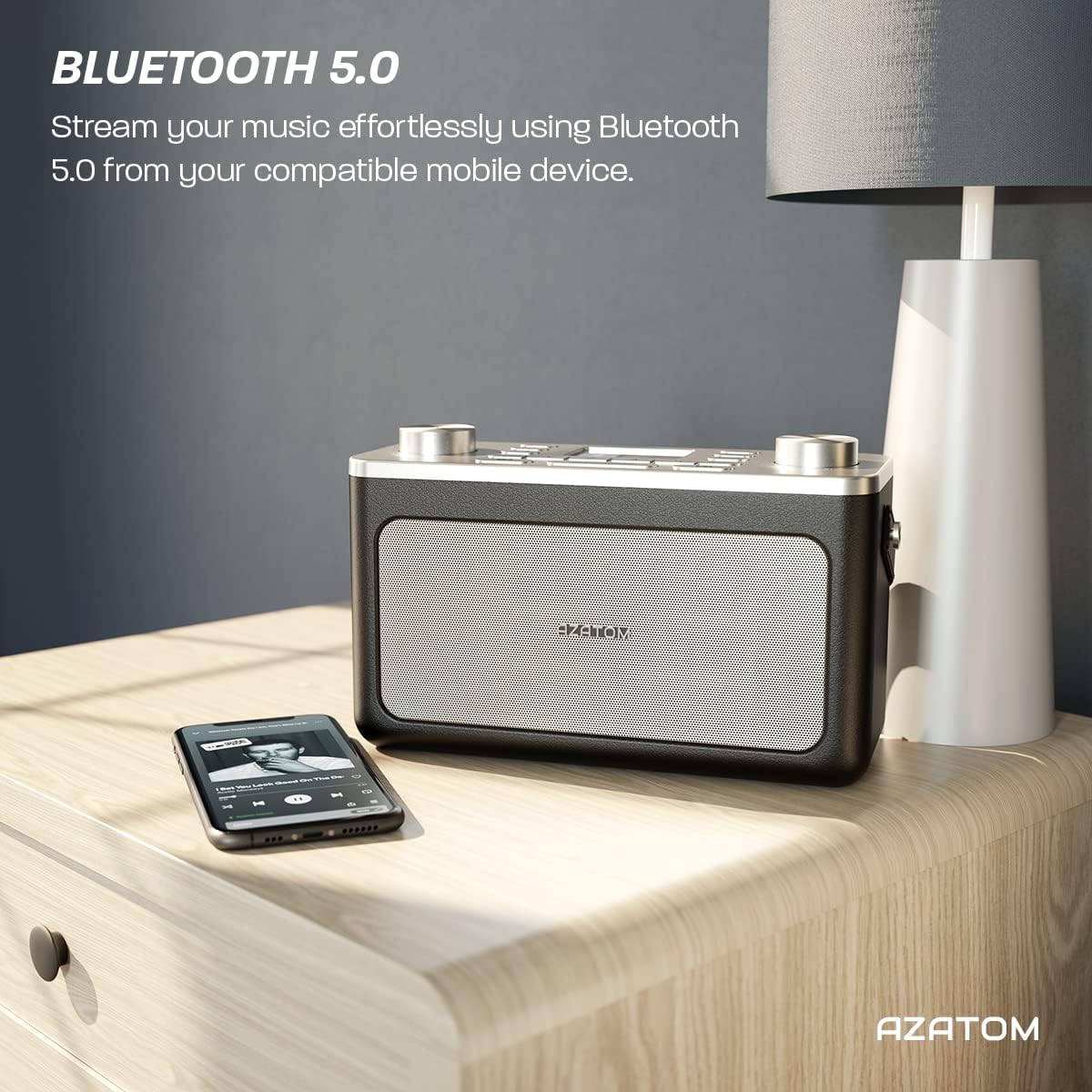
Image: The AZATOM Classic V1 radio on a kitchen counter, highlighting its ability to store and recall pre-set stations for quick access.
FM Radio Mode
- Press the MODE button until "FM Radio" appears on the display.
- Auto Scan: Press and hold the ENTER/TUNE knob to automatically scan for the next available station.
- Manual Tune: Rotate the ENTER/TUNE knob to manually adjust the frequency.
- Storing Presets: (Same as DAB/DAB+ but for FM stations, up to 20 presets).
- Recalling Presets: (Same as DAB/DAB+).
Bluetooth Mode
- Press the MODE button until "Bluetooth" appears on the display. The radio will enter pairing mode, indicated by a flashing Bluetooth icon.
- On your mobile device, enable Bluetooth and search for "AZATOM Classic V1".
- Select "AZATOM Classic V1" to pair. Once connected, the Bluetooth icon will stop flashing.
- Play audio from your device. Use the radio's SKIP buttons (<< / >>) to control tracks and the VOLUME knob to adjust volume.

Image: The AZATOM Classic V1 radio on a bedside table next to a smartphone, demonstrating its Bluetooth 5.0 capability for wireless music streaming.
AUX Input Mode
- Connect an external audio device (e.g., MP3 player) to the AUX IN port on the back of the radio using a 3.5mm audio cable (not included).
- Press the MODE button until "AUX Input" appears on the display.
- Play audio from your external device. Adjust volume using the radio's VOLUME knob and the external device's volume control.
Image: Rear view of the AZATOM Classic V1 radio, highlighting the DCV input, AUX IN, USB CHARGE ports, and the two battery compartment covers.
Alarm Clock
- Press the MENU button.
- Rotate the ENTER/TUNE knob to select "Alarm" and press ENTER/TUNE.
- Select "Alarm 1" or "Alarm 2".
- Configure alarm time, duration, source (Buzzer, DAB, FM), and frequency (Daily, Once, Weekdays, Weekends).
- Ensure the alarm is set to "On".
When an alarm sounds, press SNOOZE/DIMMER to snooze for 9 minutes, or press POWER to turn off the alarm.
Sleep Timer
- Press the SLEEP button repeatedly to cycle through sleep timer options (e.g., 15, 30, 45, 60, 90 minutes, Off).
- The radio will automatically turn off after the selected duration.
Maintenance
Cleaning
Wipe the radio with a soft, dry cloth. Do not use abrasive cleaners or solvents.
Battery Replacement
If using battery power, replace all four Type C batteries when the low battery indicator appears on the display or when performance degrades.
Storage
If storing the radio for an extended period, remove the batteries to prevent leakage. Store in a cool, dry place.
Troubleshooting
- No Power:
- Check if the mains adapter is securely connected and the wall socket is active.
- If using batteries, ensure they are inserted correctly and are not depleted.
- Press and hold the POWER button for a few seconds.
- Poor DAB/FM Reception:
- Fully extend the telescopic antenna.
- Reposition the radio to a location with better signal strength, away from other electronic devices that may cause interference.
- Perform a full scan for stations.
- Bluetooth Pairing Issues:
- Ensure the radio is in Bluetooth mode and "AZATOM Classic V1" is visible on your device.
- Make sure no other device is currently connected to the radio.
- Try restarting both the radio and your Bluetooth device.
- No Sound:
- Check the volume level on both the radio and any connected external devices (in AUX/Bluetooth mode).
- Ensure headphones are not connected if you expect sound from the speaker.
- Alarm Not Sounding:
- Verify that the alarm is set to "On" and the time is correct.
- Check the alarm volume setting.
- Ensure the radio is not completely powered off (it should be in standby mode for alarms to function).
Specifications
- Model: Classic V1
- Brand: AZATOM
- Radio Frequencies: DAB/DAB+, FM
- Bluetooth Version: 5.0
- Presets: 60 (40 DAB, 20 FM)
- Power Input: Mains adapter (included), 4 x Type C batteries (not included)
- Connectivity: AUX In (3.5mm), Headphone Out (3.5mm), USB Charge Port
- Display: Colour LCD
- UPC: 632793245407
- Recommended Uses: Music, News, Sports Broadcasts

Image: Angled top view of the AZATOM Classic V1 radio, featuring its control panel and display, with a "3 Year Warranty" badge overlaid, indicating product reliability.
Warranty and Support
The AZATOM Classic V1 comes with a 3-year warranty from the date of purchase. Please retain your proof of purchase for warranty claims.
For technical support, warranty inquiries, or further assistance, please visit the official AZATOM website or contact their customer service department. Contact details can typically be found on the product packaging or the AZATOM website.


