
1. Introduction
This manual provides detailed instructions for the installation, operation, and maintenance of your SIXWIN Android 13 Car Stereo. Designed specifically for Honda Civic models from 2016 to 2020, this unit integrates advanced features such as Wireless CarPlay, Android Auto, Bluetooth, GPS Navigation, WiFi connectivity, HiFi audio, FM radio, and support for backup cameras and steering wheel controls.
Please read this manual thoroughly before installation and use to ensure proper functionality and safety.
2. What's in the Box
Verify that all components are present before beginning installation:
- 1 x Car Dash Cam
- AHD Rear Camera
- Video Extension Cable
- Screw
- Power Cord
- User Manual (this document)
- Installation Tool
- 2 USB Cables
- RCA Cable
- Power Cable
- Original Car USB Cable
- GPS Antenna
- Camera Input Cable
- Microphone (MIC)

Figure 2.1: Included accessories and installation size diagram.
3. Setup and Installation
The SIXWIN Android 13 Car Stereo is designed for plug-and-play installation in Honda Civic models from 2016 to 2020. However, specific wiring harnesses and CANbus adapters may be required depending on your vehicle's original configuration.
3.1 Vehicle Compatibility
This car radio is compatible with Honda Civic 2016-2020 models. If your car has a large screen or requires retention of the factory backup camera and steering wheel controls, you will need additional harness and CANbus components (e.g., B0CB14L5RV, B0CB16N1QZ). Please contact customer support for the correct wire diagram if your vehicle has a large screen or specific factory features.

Figure 3.1: Honda Civic compatibility and console types.

Figure 3.2: Installed car stereo in a Honda Civic.
3.2 Wiring and Connections
Ensure all connections are secure. Do not connect the power cord interface to the CANbus interface. The CANbus has two interfaces: a 20-pin connector (connects to CANbus) and an 8-pin connector (connects to car radio).

Figure 3.3: Wiring diagram for CANbus and harness connection.
For factory backup camera and steering wheel control (SWC) retention, specific settings are required:
- CANbus Setup: Go to Car settings -> Factory settings (password: 8888) -> Protocol settings -> Choose "raise" -> Select your car model.
- Backup Camera Setup: Go to Factory settings (password: 8888) -> Protocol parameter settings -> Adjust "Reverse video clarity/format".
4. Operating Instructions
4.1 Wireless CarPlay & Android Auto & Mirror Link
The car stereo supports both wireless and wired Apple CarPlay and Android Auto. After connecting your phone, you can access maps, GPS navigation, contacts, messages, music, and more. Voice control (Siri or Google Assistant) is also supported.
Note: Samsung phones are not supported for Android Auto. CarPlay and Android Auto are connected via the Zlink APP.

Figure 4.1: Wireless CarPlay and Android Auto interfaces.
For detailed connection steps, please refer to the video below:
Video 4.1: How to connect Zlink Carplay. This video demonstrates the Bluetooth and Zlink connection process, including manual WiFi connection if initial attempts are unsuccessful.
4.2 GPS Navigation & WiFi Connection
The head unit features built-in GPS navigation, supporting both online and offline modes. It comes pre-installed with the "Here We Go" app, allowing you to download offline maps for navigation without an internet connection. After connecting to WiFi, you can download various apps from the Play Store, such as YouTube, TikTok, and Spotify.

Figure 4.2: GPS Navigation and WiFi Connection features.
4.3 Bluetooth Hands-free & FM & HiFi
Enjoy hands-free calling, Bluetooth music streaming, and phonebook downloads. Answer or make calls with a single button press. The FM radio provides 18 preset stations (FM 87.50-108.0 MHz) for news and music. The HiFi function enhances sound quality, providing high-definition audio.

Figure 4.3: Bluetooth and HiFi audio features.
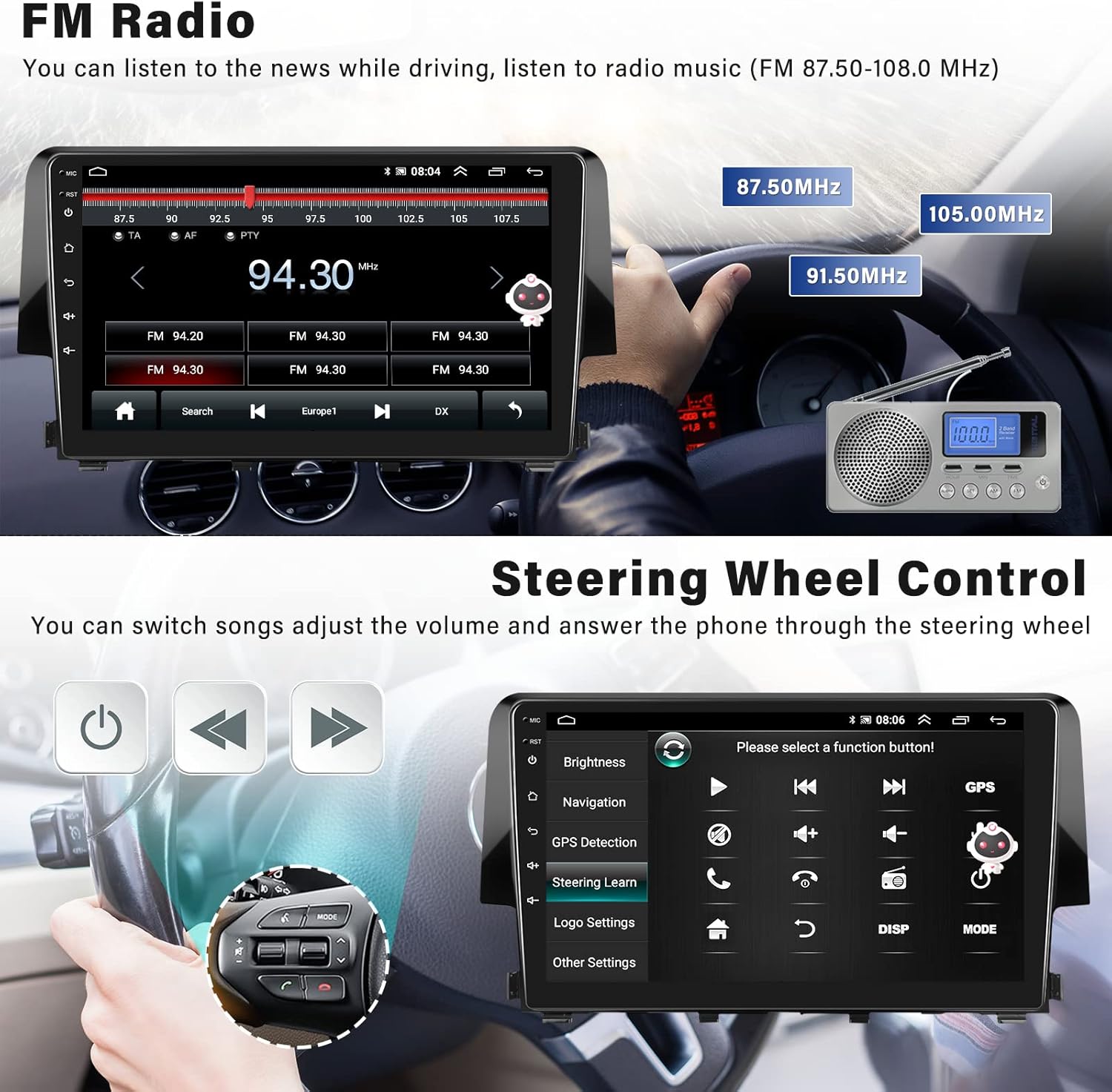
Figure 4.4: FM Radio and Steering Wheel Control interfaces.
4.4 Split Screen Function
The split-screen function allows you to run two applications simultaneously, such as navigation and music playback, enhancing convenience while driving.

Figure 4.5: Split Screen Functionality.
5. Maintenance
To ensure the longevity and optimal performance of your SIXWIN car stereo, follow these maintenance guidelines:
- Cleaning: Use a soft, dry cloth to clean the touchscreen and exterior. Avoid abrasive cleaners or solvents that could damage the surface.
- Software Updates: Periodically check for software updates through the system settings or the manufacturer's website to ensure you have the latest features and bug fixes.
- Environmental Conditions: Avoid exposing the unit to extreme temperatures, direct sunlight for prolonged periods, or excessive moisture.
- Cable Connections: Periodically check all cable connections to ensure they are secure and free from damage.
6. Troubleshooting
This section addresses common issues you might encounter. If you experience problems not covered here, please contact customer support.
- No Power / Unit Not Turning On:
Check all power connections. Ensure the wiring harness is correctly installed and receiving power from the vehicle's electrical system. Verify the vehicle's fuse box for any blown fuses related to the car stereo.
- Audio Cuts In/Out or Low Volume:
Verify speaker wire connections are secure. Check the audio settings on the unit, including equalizer and volume levels. If using Bluetooth audio, ensure a stable connection. Some users have reported issues with factory volume levels; ensure CANbus settings are correctly configured for your vehicle model.
- CarPlay/Android Auto Connection Issues:
Ensure Bluetooth is enabled on both the stereo and your phone. For Zlink connection, follow the steps in Video 4.1. If the connection is unsuccessful, manually connect to the vehicle's WiFi hotspot (network name: AndroidAP_B442, password is set by you). After manually connecting to the WiFi, delete the history record in the vehicle's settings and then re-open the Zlink app. Remember that Samsung phones are not supported for Android Auto with this unit.
- Backup Camera Not Displaying or Distorted:
Ensure the backup camera is correctly wired to the unit's video input. If using a factory backup camera, you may need the specific harness and CANbus (B0CB14L5RV, B0CB16N1QZ) and configure settings via Factory settings (8888) -> Protocol parameter settings -> Reverse video clarity/format. Verify the camera itself is functioning correctly.
- Steering Wheel Controls Not Working:
For basic versions, learn steering wheel controls in settings (8888). For cars with factory backup camera, ensure the correct CANbus is installed and configured in Car settings -> Factory settings (8888) -> Protocol settings -> Choose "raise" -> Select your car model.
7. Specifications
| Feature | Detail |
|---|---|
| Brand | SIXWIN |
| Model Number | A7205A3012A4MI2 |
| Operating System | Android 13 |
| Display Size | 9 Inches |
| Resolution | 1024 x 600 |
| Memory Storage Capacity | 32 GB |
| Connectivity Technology | Bluetooth, Wi-Fi |
| Special Feature | CarPlay, Android Auto, GPS Navigation, FM Radio, HiFi Audio, Split Screen |
| Item Weight | 2.95 pounds |
| Product Dimensions | 1 x 1 x 1 inches (Note: This is likely packaging dimension, actual unit dimensions are 251mm/9.88inch width, 145mm/5.70inch height, 17mm/0.66inch depth as per image) |
| Vehicle Service Type | Car (Honda Civic 2016-2020) |
8. Warranty and Support
SIXWIN is committed to providing high-quality products and customer satisfaction. For any questions, technical assistance, or warranty inquiries, please contact our support team.
We offer online help and user manual support. You can reach us via email at: sixwin_vip@163.com.

Figure 8.1: Customer support available.
