
meross MSS560
meross Smart Dimmer Switch User Manual
Model: MSS560
Brand: meross
1. Product Overview
The meross MSS560 Smart Dimmer Switch allows you to control your lighting with 1%-100% dimming capability. It supports voice control via Apple HomeKit, Amazon Alexa, and Google Assistant, as well as remote control through the Meross app. This single-pole dimmer switch is designed for easy installation and integrates seamlessly into your smart home ecosystem without requiring a separate hub.

Image: meross Smart Dimmer Switch (2-pack) and its retail packaging.
2. Safety Information
Please read and understand all safety instructions before installation and use. Failure to follow these instructions may result in electric shock, fire, or other injuries. Always turn off power at the circuit breaker before beginning any electrical work.
- Neutral Wire Required: This smart dimmer switch requires a neutral wire for proper operation. If your electrical box does not have a neutral wire (typically white), consult a qualified electrician.
- 2.4GHz Wi-Fi Only: The device operates only on a 2.4GHz Wi-Fi network. It is not compatible with 5GHz Wi-Fi.
- Single Pole Dimmer: This switch is designed for single-pole applications only. It is not compatible with 3-way or multi-way switch configurations.
- Bulb Compatibility: Supports INC bulbs up to 400W or dimmable LED/CFL bulbs up to 150W. Do not use with non-dimmable bulbs or smart bulbs.
- Indoor Use Only: Designed for indoor use in dry locations.
- Flame-Retardant Material: Constructed from PC+ABS flame-retardant material for enhanced safety.
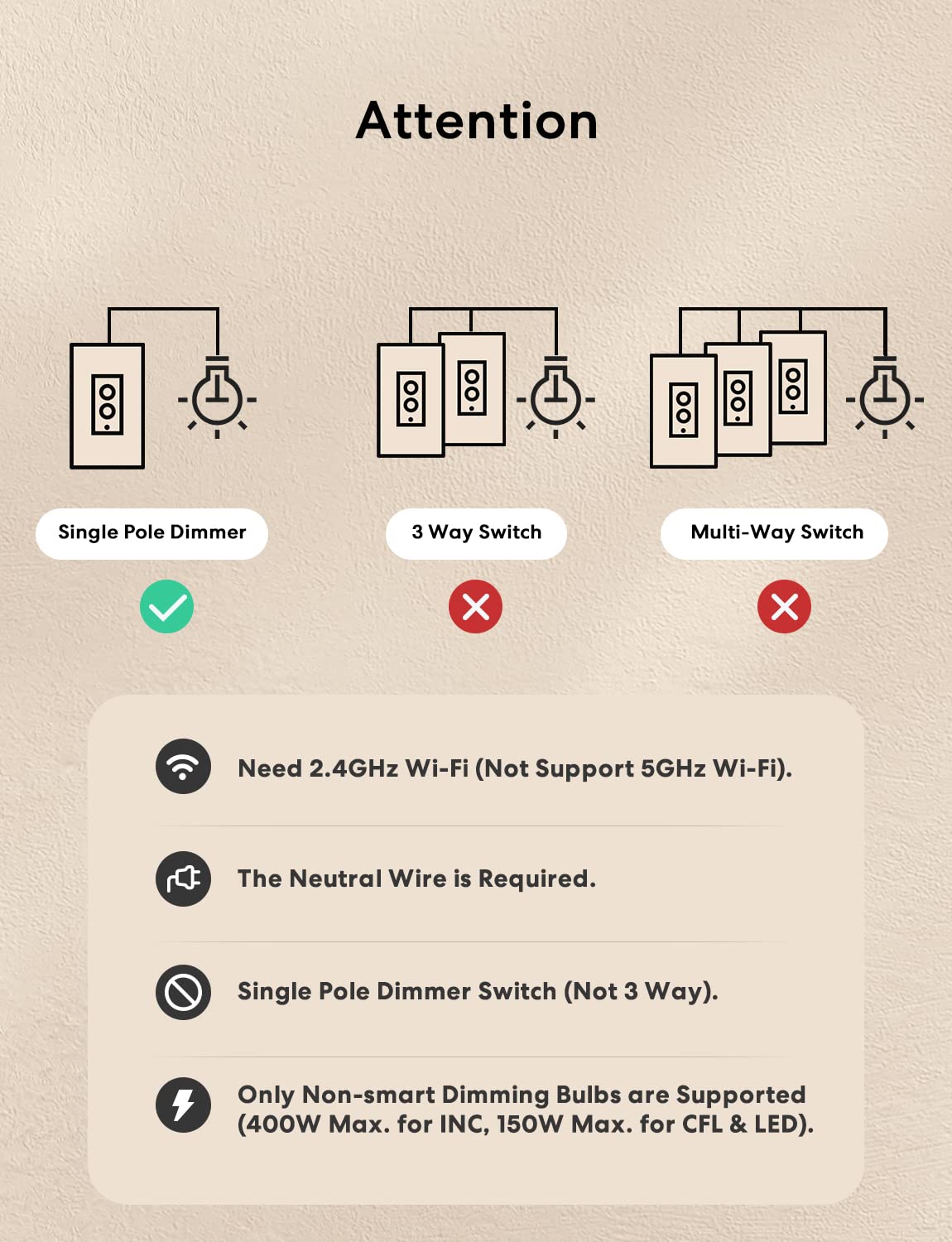
Image: Important compatibility notes for the meross Smart Dimmer Switch, highlighting single-pole use, 2.4GHz Wi-Fi, neutral wire requirement, and non-smart dimmable bulb support.
3. Package Contents
Ensure all items are present before proceeding with installation:
- meross Smart Dimmer Switch (MSS560)
- Wall Plate
- Mounting Screws
- Wire Nuts
- Quick Installation Guide
4. Installation
Important: Before starting, turn off power at the circuit breaker for the light switch you are replacing. Use a voltage tester to confirm the power is off.
4.1 Pre-installation Check
Verify that your existing switch box has a neutral wire. The neutral wire is typically white. If you are unsure, consult a qualified electrician.

Image: Diagram illustrating the required neutral wire connection and physical dimensions of the meross Smart Dimmer Switch.
4.2 Wiring Instructions
- Remove the Existing Switch: Carefully remove the faceplate and unscrew the existing switch from the electrical box. Disconnect the wires.
- Identify Wires: Identify the Live (Line), Load, Neutral, and Ground wires from your electrical box. The neutral wire is crucial for this smart switch.
- Connect the Wires: Connect the wires from the meross Smart Dimmer Switch to the corresponding wires in your electrical box using the provided wire nuts. Refer to the wiring diagram below. Ensure all connections are secure.
- Black (Live/Line): Connect to your home's Live/Line wire.
- Brown (Load): Connect to the Load wire leading to your light fixture.
- White (Neutral): Connect to your home's Neutral wire.
- Green (Ground): Connect to your home's Ground wire.
- Mount the Switch: Gently push the wired switch into the electrical box. Secure it with the mounting screws. Attach the new wall plate.
- Restore Power: Turn the power back on at the circuit breaker. The indicator light on the switch should begin to flash, indicating it's ready for setup.
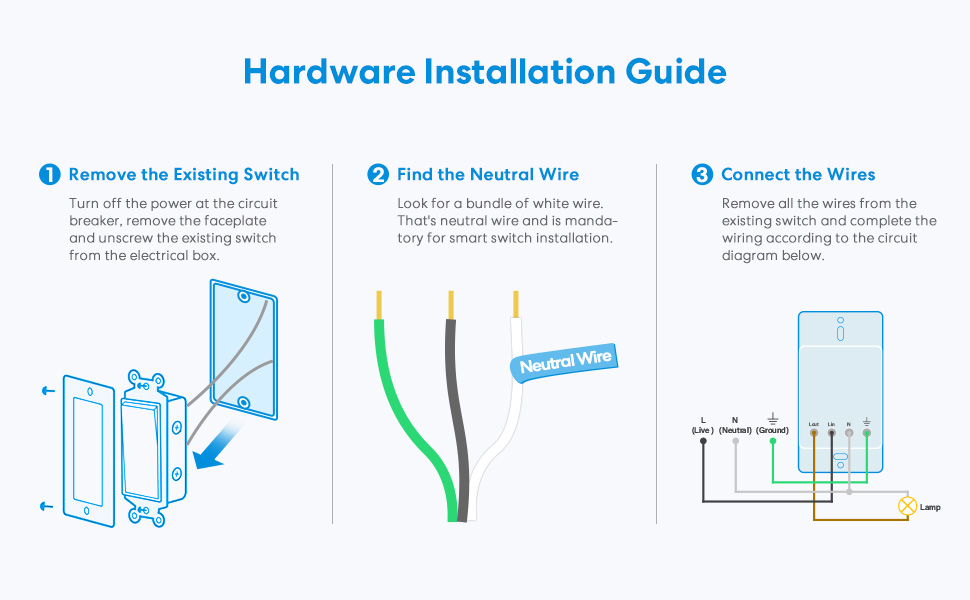
Image: Step-by-step hardware installation guide, showing removal of old switch, finding the neutral wire, and connecting the new smart dimmer switch.
5. App Setup and Wi-Fi Connection
The meross app will guide you through the setup process. Ensure your mobile device is connected to a 2.4GHz Wi-Fi network.
- Download the Meross App: Search for "meross" in the Apple App Store or Google Play Store and download the app.
- Create an Account: Open the meross app and register for a new account or log in if you already have one.
- Add Device: Tap the "+" icon in the top right corner of the app to add a new device. Select the Smart Dimmer Switch (MSS560) from the list.
- Follow In-App Instructions: The app will provide step-by-step instructions to connect your switch to your 2.4GHz Wi-Fi network. This typically involves putting the switch into pairing mode (often indicated by a flashing LED) and entering your Wi-Fi credentials.
- Integrate with Smart Home Platforms: Once connected to the meross app, you can link your meross account to Apple HomeKit, Amazon Alexa, or Google Home through their respective apps or settings.

Image: A user demonstrating remote control of smart devices, including the dimmer switch, via the Meross app.
6. Operation
6.1 Manual Control
The physical buttons on the dimmer switch allow for direct control:
- Top Button: Press to turn the light ON.
- Bottom Button: Press to turn the light OFF.
- Dimming: Press and hold the top or bottom button to adjust brightness. The switch also supports 5 different brightness dimming levels by pressing the physical button repeatedly.
6.2 Voice Control
Control your lights hands-free using voice commands with compatible smart assistants:
- Apple HomeKit (Siri): "Hey Siri, dim the [light name] to 50%."
- Amazon Alexa: "Alexa, turn on the [light name]." or "Alexa, set [light name] to 20% brightness."
- Google Assistant: "Hey Google, dim the [light name] to 75%."

Image: Illustration of voice commands for dimming lights using Siri, Alexa, and Google Assistant.
6.3 Remote Control
Manage your dimmer switch from anywhere using the Meross app or Apple Home app, provided you have internet access. Local control offers millisecond response when you are at home.
6.4 Scheduling and Scenes
Set custom schedules and scenes to automate your lighting:
- Timers: Schedule lights to turn on or off at specific times.
- Sunrise/Sunset: Automate lighting based on local sunrise and sunset times.
- Routines: Create custom routines for daily activities.
- Offline Functionality: Schedules will continue to perform even if your internet connection is down.

Image: Examples of scene and schedule automation, including timers and sunrise/sunset routines, managed through the Meross app.
7. Maintenance
The meross Smart Dimmer Switch requires minimal maintenance. Keep the switch and wall plate clean by wiping with a soft, dry cloth. Do not use abrasive cleaners or solvents. Ensure the switch is not exposed to excessive moisture or extreme temperatures.
8. Troubleshooting
If you encounter issues with your meross Smart Dimmer Switch, try the following troubleshooting steps:
- Switch Not Responding:
- Check if the circuit breaker is ON.
- Ensure the neutral wire is correctly connected.
- Verify the switch is receiving power.
- Cannot Connect to Wi-Fi:
- Confirm your Wi-Fi network is 2.4GHz. The switch does not support 5GHz.
- Ensure your Wi-Fi signal is strong enough at the switch's location.
- Restart your Wi-Fi router.
- Try resetting the switch to factory defaults (refer to the Quick Installation Guide for specific steps) and attempt pairing again.
- Dimming Issues:
- Ensure you are using dimmable LED/CFL or INC bulbs. Non-dimmable bulbs will not work correctly.
- Check the wattage of your bulbs to ensure they are within the supported range (150W for LED/CFL, 400W for INC).
- Voice Control Not Working:
- Verify that your meross account is correctly linked to your smart assistant (Alexa, Google Home, HomeKit).
- Ensure your smart assistant device is online and functioning.
- Try re-discovering devices in your smart assistant app.
- Schedules Not Running:
- Confirm the schedule is correctly set up in the Meross app.
- Note that schedules are stored locally on the device and should run even without internet, but initial setup requires connectivity.
For further assistance, please refer to the official meross support resources.
9. Specifications
| Model Number | MSS560 |
| Product Dimensions | 4.7 x 2.8 x 1.5 inches |
| Item Weight | 10.55 ounces |
| Operating Voltage | 120 Volts |
| Current Rating | 4 Amps |
| Operation Mode | ON-OFF (Dimmer) |
| Circuit Type | Single-pole (1-way) |
| Wireless Connectivity | 2.4GHz Wi-Fi (IEEE 802.11 b/g/n) |
| Max Load (INC) | 400W |
| Max Load (LED/CFL) | 150W |
| Neutral Wire | Required |
| Hub Required | No |
| Material | PC+ABS Flame-retardant |
| Certifications | FCC/ETL Certified |
10. Warranty and Support
For warranty information and technical support, please visit the official meross website or contact their customer service directly. Details can typically be found in the Quick Installation Guide included with your product or on the meross support page.
meross Official Website: www.meross.com
Related documentsMSS560


Ask a question about this manual
Ask about setup, troubleshooting, compatibility, parts, safety, or missing instructions. Manuals+ will review the question and use this page’s manual context to help answer it.