
Introduction
Thank you for choosing the Nuvance Wireless LED Bluetooth Mouse. This manual provides detailed instructions on how to set up, operate, and maintain your new mouse. Please read this manual carefully before use to ensure optimal performance and longevity of your device.
Package Contents
Please check the package for the following items:
- 1 x Nuvance Wireless Bluetooth Mouse
- 1 x USB Charging Cable
- 1 x User Manual
Product Features
- Dual Connectivity: Connects wirelessly via USB dongle (2.4GHz) or Bluetooth 5.1.
- Ergonomic Design: Lightweight and comfortable for extended use, suitable for both left and right-handed users.
- Rechargeable Battery: Built-in battery, rechargeable via the included USB cable. Provides up to 168 hours of use on a 2-hour charge.
- Adjustable DPI: Three DPI settings (1000, 1200, 1600) for precise cursor control.
- RGB LED Lighting: Features 7 different LED colors that cycle automatically.
- Wide Compatibility: Compatible with Windows 7 and higher, Mac OS, Android, PC, Laptop, Macbook, and Tablets.
- Silent Clicks: Designed for quiet operation.
- Portable: Compact size (11.2 x 5 x 2.5 cm) makes it easy to carry.
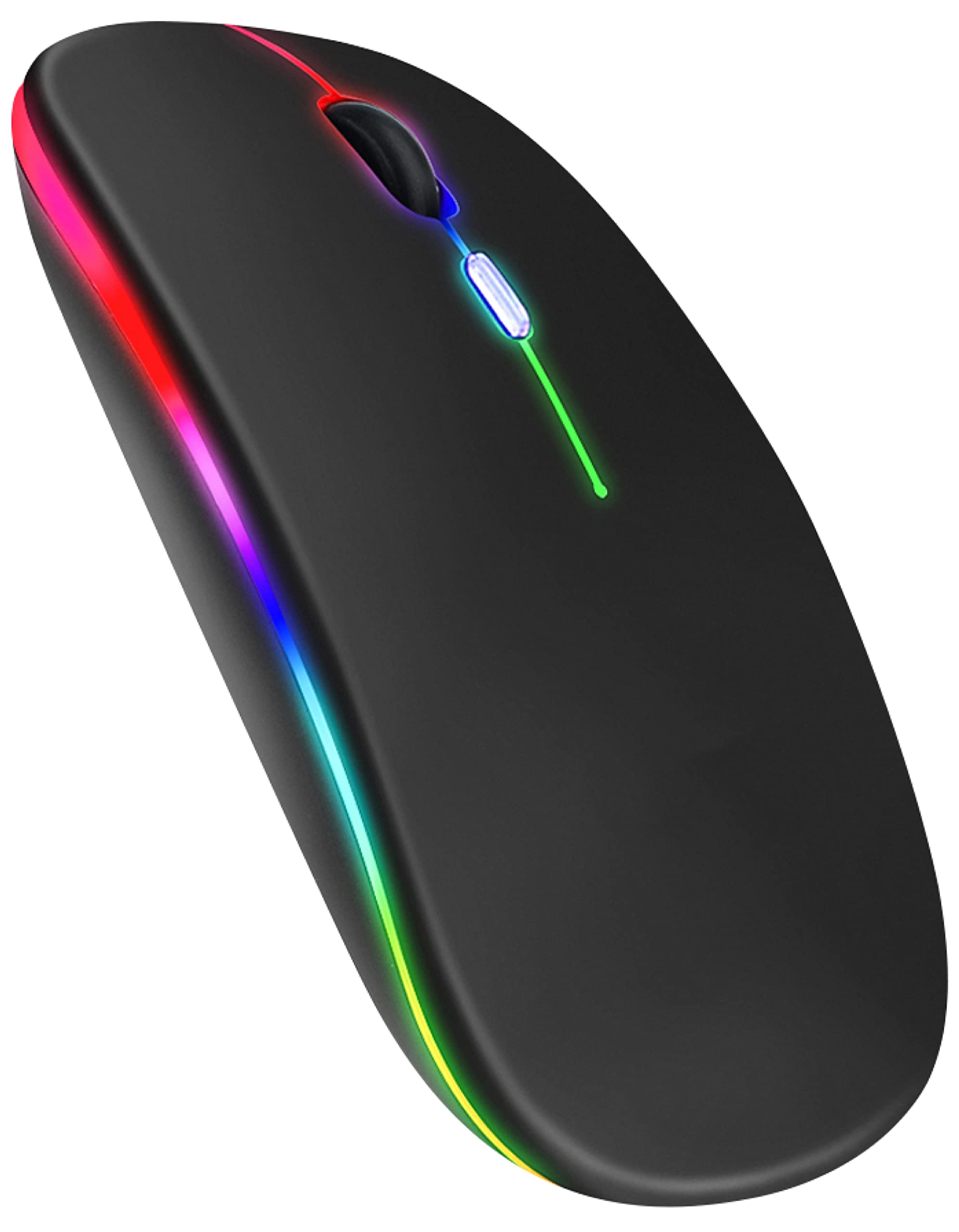
Image: Nuvance Wireless LED Bluetooth Mouse, black color variant.

Image: Ergonomic design of the mouse, showing comfortable hand placement and the USB receiver storage slot.

Image: Dimensions of the Nuvance mouse (11.5cm length, 6cm width, 2.5cm height) highlighting its portability for home, school, and office use.
Setup
Connecting via USB Dongle (2.4GHz)
- Locate the USB receiver (dongle) stored in the bottom compartment of the mouse.
- Insert the USB receiver into an available USB port on your computer or device.
- Turn on the mouse using the power switch located on the bottom.
- The mouse should automatically connect to your device. No additional drivers are usually required.
Connecting via Bluetooth 5.1
- Ensure the mouse is turned on.
- On your device (PC, laptop, tablet), go to Bluetooth settings.
- Enable Bluetooth and search for new devices.
- Select "Nuvance Mouse" or a similar name from the list of available devices to pair.
- Once paired, the mouse is ready for use.

Image: Illustration showing direct connection options for the Nuvance mouse via USB receiver or Bluetooth 5.1, indicating plug & play functionality.
Operation
Basic Functions
- Left Click: Primary selection and activation.
- Right Click: Opens context menus.
- Scroll Wheel: Scrolls up and down documents or web pages. Can also be clicked for middle-click functionality.
Adjusting DPI Sensitivity
The mouse features a dedicated DPI button to adjust cursor sensitivity. Press the DPI button (usually located behind the scroll wheel) to cycle through the available DPI settings:
- 1000 DPI (Default)
- 1200 DPI
- 1600 DPI
Choose the DPI setting that best suits your task, whether for precise work or faster movement.
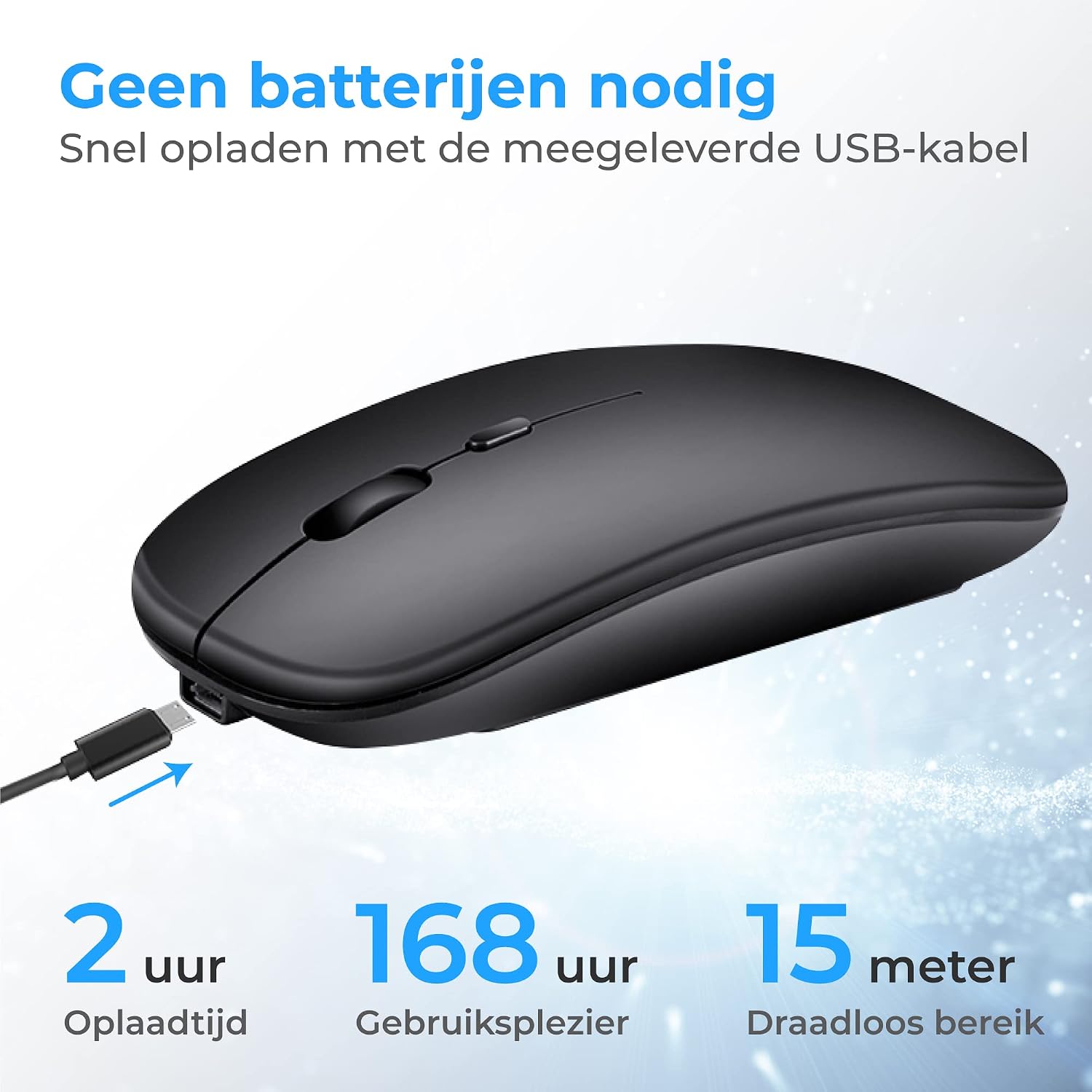
Image: Top view of the Nuvance mouse, highlighting the scroll wheel and the DPI adjustment button.
Charging the Mouse
The Nuvance mouse has a built-in rechargeable battery. When the battery is low, the LED indicator may flash or the mouse performance may degrade.
- Connect the included USB charging cable to the charging port on the front of the mouse.
- Plug the other end of the USB cable into a USB power source (e.g., computer USB port, USB wall adapter).
- The LED lighting will indicate charging status. A full charge typically takes about 2 hours.
- The mouse can be used while charging.

Image: The Nuvance mouse connected to a USB charging cable, illustrating the charging process and highlighting 2 hours charging time for 168 hours usage and 15 meters wireless range.
LED Lighting
The mouse features dynamic RGB LED lighting with 7 different colors that transition automatically. There is no manual control for specific colors; the lighting cycles through the spectrum.

Image: Two Nuvance mice displaying their vibrant RGB LED lighting effects.
Maintenance
- Cleaning: Use a soft, dry cloth to clean the mouse. For stubborn dirt, slightly dampen the cloth with water. Avoid using harsh chemicals or abrasive cleaners.
- Storage: When not in use, store the mouse in a cool, dry place. If using the USB dongle, it can be stored inside the mouse to prevent loss.
- Battery Care: To prolong battery life, avoid fully discharging the mouse frequently. Charge it when the low battery indicator appears.
Troubleshooting
| Problem | Possible Cause | Solution |
|---|---|---|
| Mouse not responding | Low battery, mouse turned off, connectivity issue. | Charge the mouse. Ensure the power switch is ON. Re-pair Bluetooth or re-insert USB dongle. |
| Cursor movement is erratic or slow | Low battery, dirty sensor, incorrect DPI setting, unsuitable surface. | Charge the mouse. Clean the optical sensor. Adjust DPI. Use on a suitable mouse pad or surface. |
| Cannot connect via Bluetooth | Bluetooth not enabled on device, mouse not in pairing mode, interference. | Ensure Bluetooth is enabled on your device. Try restarting both the mouse and your device. Move closer to the device. |
| LED lights not working | Mouse is off, battery is critically low. | Turn on the mouse. Charge the mouse fully. |
Specifications
- Model Number: MA001
- Dimensions: 11.2 x 5 x 2.5 cm
- Weight: 74 g
- Connectivity: Bluetooth 5.1, 2.4GHz USB Dongle
- DPI Settings: 1000 / 1200 / 1600
- Number of Buttons: 4
- Movement Detection: Laser
- Wireless Range: Up to 15 meters
- Battery Life: Up to 168 hours (on a 2-hour charge)
- Power Source: Rechargeable (via USB cable)
- Hand Orientation: Ambidextrous
- Material: Plastic
- Compatible Platforms: Windows 7+, Mac OS, Android, Linux, PC
Warranty and Support
Nuvance values the quality of our wireless mouse. Therefore, we offer a 100% guarantee. If you are not satisfied with your purchase, you may return the product within 30 days for a full refund.
For further assistance, troubleshooting, or warranty claims, please contact Nuvance customer support through the retailer where you purchased the product.


